PDFs were never designed to be flexible.
Originally, they were meant to be final documents — something you read, maybe print, and then move on from. But modern work doesn’t stop at “final.”
Today, Mac users regularly need to:
- Edit text inside PDFs
- Fill out and correct forms
- Combine multiple documents
- Convert PDFs back into editable formats
- Work with scanned paperwork
And this is where things start to feel messy.
Not because macOS is broken, but because PDFs now sit in an awkward middle ground — somewhere between a finished document and an active working file.
Read: How to Clean and Optimize Mac the Right Way (Without Breaking Anything)
How Mac Users Really End Up Working With PDFs
In real-world use, PDFs appear everywhere:
- Office documents
- Contracts and agreements
- Bank statements and government forms
- Scanned paperwork
- Files shared by clients
On a Mac, the workflow usually starts simple:
- Open the PDF
- Read it
- Maybe sign or annotate it
For these basic tasks, macOS works surprisingly well.
The trouble begins when a PDF isn’t just something to view — but something you need to work with. That’s when many users start improvising:
- Uploading files to random online tools
- Copying and pasting text between apps
- Converting files back and forth
- Installing multiple PDF utilities that overlap in purpose
Over time, managing the workflow becomes harder than the work itself.
What macOS Preview Does Well (And Why It’s Underrated)
Before jumping into third-party tools, this needs to be said clearly:
macOS Preview is excellent — within its intended role.
Preview works very well for:
- Quickly opening and viewing PDFs
- Highlighting and marking up documents
- Adding comments and notes
- Signing documents digitally
- Rearranging or deleting pages
For many Mac users, this is more than enough.
If your interaction with PDFs is mostly reading, signing, or light annotation, Preview isn’t a compromise — it’s the right tool.
Frustration usually comes from expecting Preview to do things it was never designed to do.
Where Preview Starts to Feel Limiting
Preview’s limitations aren’t bugs — they’re boundaries.
You’ll typically hit friction when you need to:
- Edit existing text inside a PDF
- Fill forms that aren’t interactive
- Convert PDFs into Word or other formats
- Work with scanned documents
- Use OCR reliably
At this point, many users assume something is wrong with macOS.
In reality, they’ve crossed from viewing into editing — and those are two very different problems.
When a Dedicated PDF Tool Actually Makes Sense
This is where most people miss the real decision.
The question isn’t:
“What’s the best PDF app for Mac?”
A better question is:
“How often do I actually work with PDFs?”
If PDFs are occasional:
- Preview is enough
- Extra tools add complexity, not value
If PDFs are frequent:
- Contracts
- Forms
- Client documents
- Scans
- Conversions
Relying on Preview alone often creates unnecessary friction.
This is where a dedicated PDF tool makes sense — not because it’s “better,” but because it’s built specifically for that kind of work.
A Workflow-Friendly Option: UPDF
For users who work with PDFs regularly, one workflow-friendly option is UPDF
👉 https://updf.com
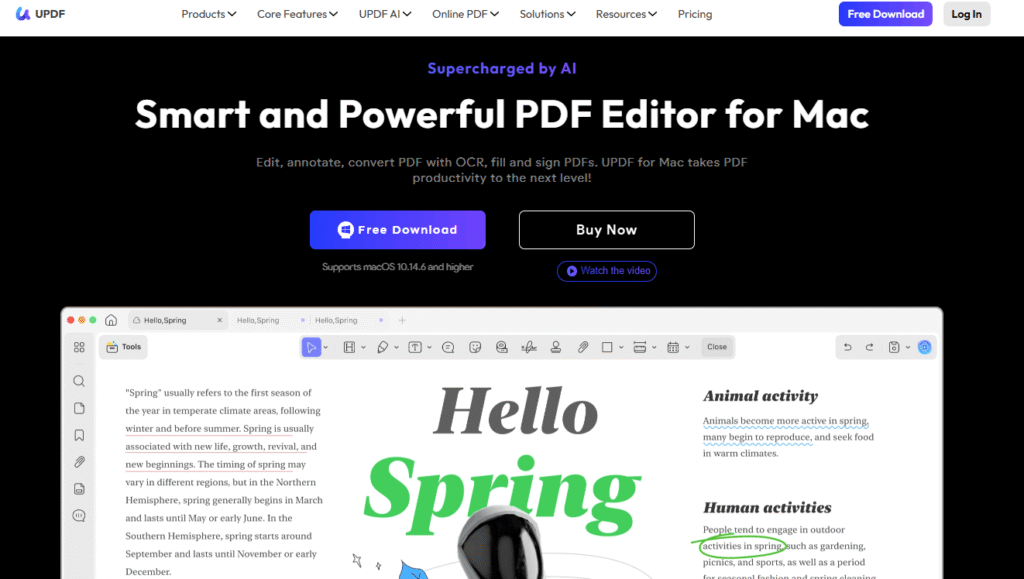
UPDF doesn’t try to replace macOS tools. Instead, it focuses on areas where Preview typically struggles, such as:
- Editing existing text inside PDFs
- Handling annotations and comments more deeply
- Converting PDFs without breaking formatting
- Working with scanned documents
It’s not something every Mac user needs — and it shouldn’t be.
But for people whose daily work involves PDFs beyond simple viewing, a purpose-built tool can significantly reduce friction.
The key is intentional use, not installing more software than necessary.
Common PDF Workflow Mistakes to Avoid
Many PDF frustrations come from the workflow itself, not the files.
Some common mistakes include:
- Uploading sensitive documents to unknown online tools
- Installing multiple overlapping PDF apps
- Constantly converting files back and forth
- Forcing one tool to handle every task
A simpler setup — using the right tool only when needed — is usually far more effective.
How to Choose the Right PDF Setup for Your Work
A simple framework helps here.
Ask yourself:
- Do I mostly view PDFs, or edit them?
- How often do I need to change existing content?
- Do scanned documents matter in my work?
- Do I regularly convert PDFs into other formats?
If your answers lean toward viewing and signing, Preview is likely enough.
If editing, converting, and scanning are part of your regular workflow, a dedicated tool becomes less about features — and more about efficiency.
Final Thoughts: Simpler Workflows Beat More Tools
PDFs were never meant to be flexible, but modern work demands flexibility anyway.
The solution isn’t installing more apps — it’s understanding the problem you’re actually trying to solve.
Use built-in tools where they work well.
Add specialized tools only when your workflow truly requires them.
When your tools match how you actually work, PDFs stop feeling messy — and start feeling simple again.