You can free up significant storage on an iPad without deleting a single photo. The fastest methods are: go to Settings → [Your Name] → iCloud → Photos and enable “Optimize iPad Storage” — this keeps your full photo library in iCloud while storing only compressed previews on the iPad, potentially saving gigabytes instantly. Then go to Settings → General → iPad Storage and use “Offload Unused Apps” to remove app data you don’t regularly use while keeping the apps reinstallable. These two steps alone typically recover 5–20 GB on most iPads.
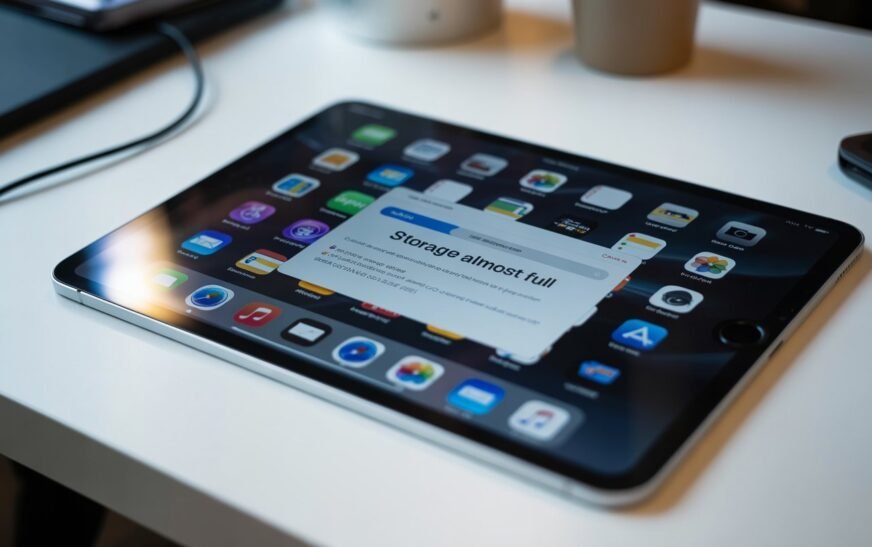
That “iPad Storage Almost Full” notification has a way of appearing at exactly the wrong moment — right when you’re about to take a photo, download something important, or update an app. And the obvious solution — deleting photos — feels like giving up memories you can’t get back.
The good news is that photos are rarely the actual problem. On most iPads, the biggest storage consumers are app data, video downloads, browser caches, message attachments, and system files — none of which require touching your photo library to fix. This guide covers every method for reclaiming iPad storage without deleting a single photo, ordered from the most impactful to the most granular.
Step 0: Check What’s Actually Using Your Storage
Do This First — 2 MinutesBefore applying any fix, spend two minutes finding out what’s actually occupying your storage. This tells you where to focus your effort instead of guessing — and often reveals a surprising culprit.
The storage breakdown shows categories: Apps, Photos, Media, Mail, Messages, and System Data. Scroll through the app list — apps are sorted by total storage used (the app itself plus all its data). The largest apps often have significant hidden data that can be cleared without losing anything important.
In the iPad Storage list, tap any app to see a split between “App Size” and “Documents & Data.” The Documents & Data figure is the clearable portion — this is the cache, downloaded content, and saved data the app has accumulated. A game showing 4.2 GB total might have 3.8 GB in Documents & Data that can be cleared by offloading or deleting the app.
Fix 1: Enable iCloud Photos — Optimize iPad Storage
Biggest Single Impact — Photos Stay, Space ReturnsThis is the single most effective way to keep all your photos while dramatically reducing the storage they use on your iPad. When Optimize iPad Storage is enabled, iCloud stores the full-resolution originals of all your photos and videos in the cloud. Your iPad keeps only small, compressed preview versions — just large enough to look great on screen. When you need the full-resolution version (to edit, share, or print), it downloads automatically in seconds.
Enabling Optimize Storage does not delete any photos or videos. Every single image and video in your library remains fully accessible — they’re just stored in iCloud rather than on the device. You can view, share, and edit them exactly as before. The only difference is that a full-resolution version downloads from iCloud when you open an image, which takes a second on a fast connection.
iCloud’s free tier is 5 GB — not enough for most photo libraries. If your Photos take up 20 GB, you’ll need at least 50 GB of iCloud storage (Apple’s cheapest paid tier at $0.99/month in the US). Before enabling this, check Settings → [Your Name] → iCloud to see how much iCloud storage you have and how much is already used. If you’re near the limit, consider upgrading or using Google Photos as an alternative (free to 15 GB).
Fix 2: Offload Unused Apps (Keeps Data, Removes App)
Free Space Instantly — No Data LostOffloading is one of iPadOS’s most useful but least-known storage features. When you offload an app, iPadOS removes the app’s executable files — the part that takes up most of the space — while keeping all the app’s data, documents, and settings on your device. The app icon stays on your home screen with a small download icon. Tap it anytime and the app reinstalls in seconds from the App Store — instantly restoring your data exactly as you left it.
Enable automatic offloading:
Manually offload specific apps:
Games are the best candidates for offloading — they often have app sizes of 1–3 GB while their Documents & Data (game saves, progress) are tiny. Offloading a game frees most of its storage while keeping your save data intact. Large creative apps like Procreate, LumaFusion, and GoodNotes are also good candidates if you don’t use them weekly.
Fix 3: Clear App Cache and Documents Data
Targets Hidden Storage BloatMany apps accumulate enormous amounts of cached data over time — downloaded thumbnails, offline content, temporary files — that aren’t useful anymore but take up real storage. Unlike offloading, clearing Documents & Data removes this accumulated junk while keeping the app installed.
iPadOS doesn’t have a single “clear cache” button, but there are app-specific methods:
For streaming apps (Netflix, YouTube, Spotify, Disney+, Apple TV):
For any app — force clear via offload and reinstall:
Deleting an app (not offloading — deleting) removes all its local data. For most apps this is fine because your progress and settings are saved to your account in the cloud. However, some apps store data locally only — certain games, offline documents, or apps you’ve used without an account. Check whether the app syncs to a cloud account before deleting if local data matters to you.
Fix 4: Clear Safari Cache and Website Data
Browser Cache Can Grow to Several GBSafari accumulates cached pages, images, cookies, and website data over time. On an iPad used frequently for browsing, this cache can grow to 1–4 GB — and clearing it is completely safe. You’ll stay logged in to websites if Safari has your passwords saved, and the only effect is that pages may load slightly slower the first time they’re visited after the cache is cleared.
If you use Chrome instead of Safari:
Safari’s Reading List feature downloads article content for offline reading — and these downloads can pile up significantly if you regularly save articles. In Settings → Safari, scroll down to “Offline Reading List” and toggle off “Automatically Save Offline”. To clear existing offline reading list content: go to Settings → Safari → Advanced → Website Data and look for storage attributed to saved pages.
Fix 5: Delete Messages Attachments and Old Conversations
Often 2–5 GB Hidden in MessagesEvery photo, video, GIF, sticker, and file that has ever been sent or received in the Messages app is stored on your iPad — indefinitely, unless you take action. On an active iPad used for messaging over several years, Messages attachments commonly account for 2–5 GB of storage that most users don’t know is there.
Reduce how long messages are kept:
Manually clear large attachments from specific conversations:
The Messages app stores every GIF and animated sticker ever sent in a conversation, and these add up surprisingly fast. In Settings → General → iPad Storage, tap Messages and look for the breakdown. If GIFs and stickers are showing high storage, deleting conversations with frequent GIF senders recovers that space immediately.
Fix 6: Empty Recently Deleted Photos Album
Instant — Often OverlookedWhen you delete a photo or video from the Photos app, it doesn’t disappear immediately — it moves to the Recently Deleted album where it stays for 30 days before being permanently removed. This is a safety net in case you change your mind, but it also means deleted photos are still using storage for up to a month after deletion.
Even if you don’t want to delete any new photos, emptying the Recently Deleted album removes photos you’ve already decided to remove — and recovers that storage instantly.
Emptying Recently Deleted is permanent. Once confirmed, those photos cannot be recovered from the Photos app. Before emptying the album, scroll through it quickly to confirm there’s nothing you want to keep — sometimes items end up there accidentally. If you use iCloud Photos, deleted photos are also in the Recently Deleted album on iCloud.com where you can review them before confirming deletion.
Fix 7: Manage Downloaded Podcasts and Music
Podcast Downloads Are a Common Hidden CulpritIf you use the Apple Podcasts app, downloaded episodes accumulate automatically — and the default settings keep every downloaded episode indefinitely unless you change them. A podcast library with several shows and months of episodes can easily consume 5–10 GB.
Delete downloaded Podcast episodes:
Stop Podcasts from auto-downloading:
Remove downloaded music (Apple Music):
Fix 8: Reduce Video Recording Quality for Future Videos
Preserves Storage Going ForwardThis fix won’t recover storage you’ve already used, but it dramatically reduces how quickly video fills your iPad storage going forward. A single minute of 4K video at 60fps takes about 400 MB. That same minute at 1080p 30fps takes about 60 MB — seven times less storage.
In Settings → Camera → Formats, selecting “High Efficiency” also enables HEIF format for photos (instead of JPEG). HEIF photos are about half the file size of JPEG at the same visual quality — 2 MB instead of 4 MB per photo. For someone who takes hundreds of photos a month, this compounds into significant savings over time.
Fix 9: Clear Email Attachments and Downloads
Email Apps Accumulate Downloads SilentlyEmail apps — particularly Mail, Gmail, Outlook, and Spark — cache attachments locally every time you open them. PDFs, presentations, images, and documents you’ve opened once stay cached on the device indefinitely. Over months and years this adds up to gigabytes of files you’ve already seen and don’t need stored locally.
Clear Apple Mail cache:
For third-party email apps (Gmail, Outlook, Spark):
Fix 10: Manage Books, Documents, and Files
Documents App Can Hold Large FilesThe Files app and the Books app can silently accumulate downloaded documents, PDFs, ebooks, and imported files. If you regularly open PDFs or download documents from email or the web, these stack up in the Files app without a clear notification.
Clean up the Books app:
Clean up the Files app:
In Files → On My iPad, check the Downloads folder specifically. Safari and other apps save downloaded files here — PDFs, images, zip files — and they accumulate invisibly. Most people never look in this folder but find it holds gigabytes of files they downloaded once and never needed again.
Fix 11: Use Apple’s Optimisation Recommendations
Let iPadOS Find the Quick WinsThe iPad Storage page in Settings includes personalised recommendations based on what it finds on your specific device. These are worth reviewing before digging into more manual fixes — Apple’s suggestions are often the fastest path to recovering space.
Fix 12: Use Google Photos as a Free iCloud Alternative
If You Don’t Want to Pay for More iCloudIf you don’t want to pay for additional iCloud storage but still want to free up space without deleting photos, Google Photos is the best free alternative. It gives you 15 GB of free storage (shared with Google Drive and Gmail) and works identically to iCloud Photos — photos sync to Google’s servers, your iPad keeps smaller previews, and the full versions download on demand.
Do not tap “Free up space” until the Google Photos app shows all photos as fully backed up. Freeing space before the backup completes will delete local photos that haven’t yet been uploaded. Look for the “Backup is on” and “All backed up” confirmation in the Google Photos app before proceeding.
Pro Tips: Keeping iPad Storage Under Control Long-Term
Set a recurring monthly storage review. Add a monthly reminder to open Settings → General → iPad Storage and run through the top five largest consumers. Five minutes a month prevents storage creep from building up to a crisis.
Stream instead of download wherever possible. Netflix, Spotify, Apple Music, and YouTube are all designed to be used via streaming — downloading content for offline use is a secondary feature. Unless you regularly need offline access, switch to streaming to avoid downloaded content accumulating. In Netflix: Settings → Downloads → delete all downloads. In Spotify: Settings → Storage → Delete Cache.
Enable Auto-Offload at the system level. In Settings → App Store, enable “Offload Unused Apps” — this automatically offloads apps you haven’t opened in a few weeks without any manual management. Your data stays, the app reinstalls when you need it.
Use iCloud Drive for documents instead of storing them locally. Files saved in iCloud Drive appear in the Files app but are stored in the cloud and downloaded on demand — exactly like Optimize Storage for photos. Move frequently accessed documents to iCloud Drive instead of keeping them in On My iPad storage.
Your Apple devices have more built-in storage management tools than most people find on their own. Check out our guide on hidden Apple features you probably don’t know about — several apply to iPadOS as well as Mac. And for MacBook-specific storage fixes, our detailed guide on freeing up MacBook storage without deleting files covers complementary techniques for the Mac side of your Apple setup.
Common Mistakes to Avoid
Photos are often not the biggest problem. App data, podcast downloads, message attachments, and browser caches frequently account for more storage than the photo library — and all of those can be cleared more safely. Check Settings → General → iPad Storage first to see what’s actually largest before deciding to delete photos you can never get back.
Offloading an app removes the executable files but keeps all the app’s saved data — your progress, documents, and settings are preserved. Deleting an app removes everything including data. For most apps, offloading is the right choice because it frees the majority of the storage while keeping everything you care about. Deleting is appropriate when you genuinely don’t want the app or its data anymore.
If you enable Optimize Storage but your iCloud account doesn’t have enough space to hold your full photo library, photos will fail to upload and the optimization won’t work properly — you’ll have the worst of both worlds. Check your iCloud storage before enabling this, and upgrade to at least the 50 GB tier if your photo library is larger than your current available iCloud space.
System Data on iPad Storage page shows as a solid grey block that many users assume is untouchable. Parts of it aren’t — caches, temporary files, and stored messages contribute to System Data and can be reduced through the fixes in this guide. If System Data appears very large (15 GB or more) even after other cleanups, a full backup and restore through Finder or iTunes often reduces it significantly by clearing accumulated system junk.
FAQ: iPad Storage Full
How do I free up space on my iPad without deleting photos?
The most effective methods in order: enable Optimize iPad Storage in Settings → [Your Name] → iCloud → Photos (keeps all photos, stores originals in iCloud), offload unused apps in Settings → General → iPad Storage (frees app space while keeping data), clear Message attachments via Settings → General → iPad Storage → Messages → Review Large Attachments, clear Safari cache in Settings → Safari → Clear History and Website Data, and delete downloaded podcasts and streaming content. These steps typically recover 5–20 GB without touching the photo library.
What is taking up so much space on my iPad?
Go to Settings → General → iPad Storage to see an exact breakdown. The most common hidden storage consumers are: app Documents & Data (especially games and streaming apps), downloaded podcast episodes, Messages attachments and conversations, Safari and browser cache, downloaded music and videos, and old email attachments. Tapping each app in the list shows the split between App Size and Documents & Data — large Documents & Data values indicate clearable cache.
Will Optimize iPad Storage delete my photos?
No — Optimize iPad Storage does not delete any photos. It moves the full-resolution originals to iCloud and keeps compressed preview versions on the iPad. Every photo and video in your library remains accessible in the Photos app. When you open a photo, the full-resolution version downloads from iCloud automatically in seconds. The photos are still yours — they’re just stored in a different place.
Why is my iPad storage full even after deleting apps?
Deleting apps only removes the App Size portion — usually the smaller part. App data (Documents & Data) sometimes persists after deletion as “orphaned” storage in the system. Additionally, System Data — which includes caches, logs, and temporary files — can be large and doesn’t shrink when you delete apps. The most effective way to address this is to clear browser caches, trim Messages history, delete streaming downloads, and if the problem persists, do a full backup and restore which clears accumulated system junk.
How do I free up iCloud storage so I can use Optimize iPad Storage?
Go to Settings → [Your Name] → iCloud → Manage Account Storage to see what’s using your iCloud space. Common large consumers are: iCloud Backups (old device backups you no longer need), iCloud Drive files, and email. Delete old device backups you don’t need by tapping Backups and removing outdated entries. Alternatively, upgrade your iCloud storage — the 50 GB tier costs $0.99/month (US) and is enough for most photo libraries.
Can I add more storage to my iPad?
Unlike some Android tablets, iPad doesn’t support microSD cards — you cannot physically expand its internal storage. Your options are: free up the existing storage using the methods in this guide, use cloud storage services (iCloud, Google Photos, Google Drive) to move content off-device, use an external flash drive or SSD with a Lightning or USB-C connector for local expansion of specific file types, or upgrade to a higher-capacity iPad model when you’re ready to replace it.
iPad Storage Full — Free Space Without Deleting Photos
- 1Check iPad Storage breakdown first — Settings → General → iPad Storage
- 2Enable Optimize iPad Storage for Photos — biggest single space recovery
- 3Offload unused apps — keeps data, removes executable files
- 4Clear app caches — delete and reinstall large apps to clear Documents & Data
- 5Clear Safari cache — Settings → Safari → Clear History and Website Data
- 6Delete Messages attachments — Review Large Attachments in iPad Storage
- 7Empty Recently Deleted album — Photos → Albums → Recently Deleted → Delete All
- 8Delete podcast and streaming downloads — Netflix, Spotify, Podcasts app
- 9Lower video recording quality — reduces future storage use
- 10Clear email cache — remove and re-add email accounts
- 11Clean Books app and Files downloads folder — remove unused local copies
- 12Use Google Photos as free alternative — 15 GB free, same optimize behaviour
One Last Thing
If you’ve worked through this entire guide and storage is still critically low — or if it fills back up within days despite regular cleanups — the most thorough reset available is a full backup followed by a restore through Finder or iTunes. This process reinstalls iPadOS from scratch, clears accumulated system junk that accumulates over years of use, and often recovers 5–15 GB in System Data that no manual fix can reach. It’s a 1–2 hour process but genuinely effective for iPads where system data has grown very large over multiple years.
The CrazyErrors team is happy to help if you’re not sure which fix applies to your specific situation — let us know your iPad model, which iPadOS version you’re on, and what the iPad Storage breakdown shows at the top.
Wrapping Up
A full iPad doesn’t mean you have to choose between your photos and having a functional device. App data, message attachments, podcast downloads, browser caches, and streaming downloads almost always account for more storage than the photo library — and every one of them can be cleared without touching a single image.
Start with the iPad Storage screen in Settings to understand what’s actually consuming your space, enable Optimize iPad Storage to shift photo originals to iCloud, offload the apps you don’t use daily, and clear the hidden caches that have been accumulating silently for months. Most users recover 10–30 GB doing just those three things.
ⓘ Disclaimer: This article is for informational purposes only. CrazyErrors is not affiliated with Apple Inc. or Google. iCloud storage pricing and Google Photos policies are subject to change — verify current terms at apple.com/icloud and photos.google.com before making decisions. For official Apple iPad storage support, visit support.apple.com/ipad.