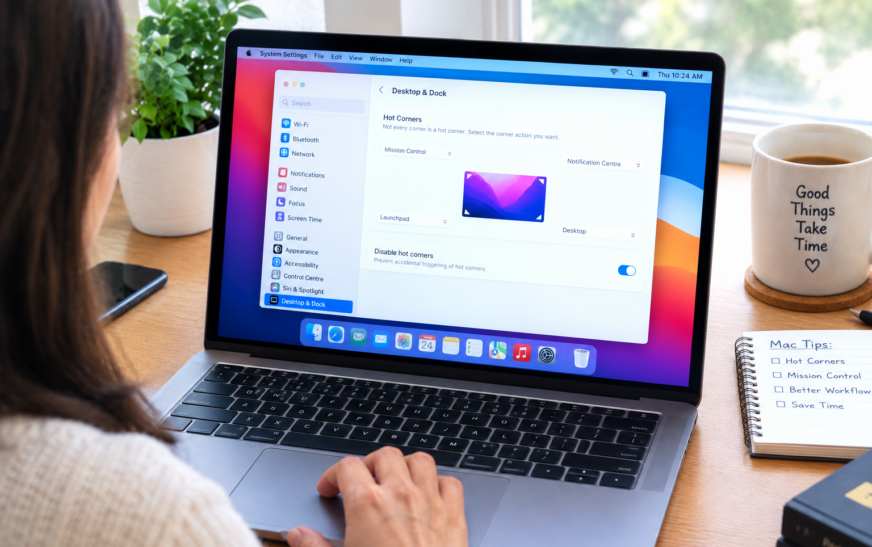
To stop Mac Hot Corners from triggering accidentally, add a modifier key requirement — go to System Settings → Desktop & Dock → Hot Corners, hold ⌘ ⌥ ⌃ or ⇧ while clicking each corner’s dropdown, then choose your action. From then on, the corner only fires when you physically hold that key while moving to the corner — eliminating every accidental trigger. If you’d rather not use modifier keys, disabling the most-triggered corners entirely is the next best option.
Hot Corners is one of those Mac features that sounds great in theory. Move your cursor to a corner of the screen and something useful happens — Mission Control opens, your screensaver kicks in, the display sleeps. Convenient, fast, no clicking required.
The problem is that corners get hit all the time without meaning to. You drag a file across the screen and suddenly Mission Control takes over. You reach for the scroll bar and the desktop clears of every window. You’re in the middle of a presentation and the screensaver starts. The Mac is doing exactly what you told it to — you just didn’t mean to tell it that right now.
The good news is there’s a clean fix that lets you keep Hot Corners exactly as they are, without the accidental triggers. It takes about two minutes to set up and works reliably. This guide covers that fix, plus a few alternatives depending on how you actually use your Mac.
How Mac Hot Corners Work (And Why They Trigger by Accident)
Worth Understanding Before You Change AnythingWhen Hot Corners are active, macOS watches for your cursor to reach within a few pixels of a screen corner. The moment it does, the assigned action fires — immediately, with no delay and no confirmation. There’s no “did you mean to do that?” There’s no grace period. The cursor hits the corner, the action happens.
That zero-delay behaviour is what makes Hot Corners feel snappy when you use them on purpose, and what makes them frustrating when you don’t. On large or ultrawide monitors, the corners are far from the centre — so when you quickly swipe to dismiss something or reach across the screen, you’re frequently passing through corner zones without thinking about it. On smaller MacBook displays where everything is closer together, the issue is just as bad in the other direction — normal mouse movements regularly overshoot into corners.
The four corners and what they can do
Each of the four screen corners can be assigned one action independently. The available options in macOS Tahoe are: Mission Control, Application Windows, Desktop, Notification Centre, Launchpad, Quick Note, Start Screen Saver, Disable Screen Saver, Lock Screen, Sleep Display, and the option to leave a corner set to nothing at all (a dash).
The corner that causes the most accidental grief tends to be whichever one is set to Mission Control or Desktop — both scatter or shrink everything on screen dramatically, which is especially disruptive mid-task.
Which Corner Is Causing Your Problem?
Identify It Before Changing SettingsOften the most disruptive
The cursor tends to end up here when closing windows or reaching for the Apple menu. If this is set to Mission Control, expect frequent accidental triggers while doing normal Mac tasks.
Notification Centre trigger zone
Commonly set to Notification Centre. Gets hit when scrolling up in a maximised window or reaching for the menu bar clock. Less destructive than Mission Control but still distracting.
Launchpad and screensaver territory
The Dock lives near here — so any overshoot toward the Dock or quick drag to a Dock item can clip this corner. Screensaver triggers here are particularly annoying during video playback.
Desktop show / Lock Screen
Gets triggered when reaching for the Notification Centre widget area or dragging files toward the edge. “Show Desktop” here means every window suddenly vanishes — one of the most jarring accidental triggers.
Fix 1: Add a Modifier Key Requirement (The Right Fix)
Best Solution — Keeps Hot Corners Useful Without Accidental TriggersThis is the fix Apple quietly added to macOS a few versions back and that most people don’t know about. You can tell Hot Corners to only activate when you’re also holding down a specific modifier key — Command, Option, Control, or Shift. The corner still fires instantly when you do it on purpose, but random cursor drift never triggers it because you’re not holding any key. It’s genuinely the ideal solution: nothing about how you use Hot Corners changes, except they stop happening when you don’t want them to.
- ⌘ Command alone
- ⌥ Option alone
- ⌃ Control alone
- ⇧ Shift alone
- Any combination — e.g. ⌥ + ⌘
Move your cursor into a corner without holding any key — nothing should happen. Now hold your chosen modifier and move into the same corner — it should fire immediately. That’s exactly the behaviour you want.
Option (⌥) is the most comfortable choice for most people — it’s easy to press while moving the cursor and isn’t used as a standalone shortcut by most apps. Command is also fine, though some apps intercept Command combinations. If you barely use Hot Corners (say, only for Lock Screen), a two-key combination like ⌥ + ⌘ makes accidental activation essentially impossible.
Fix 2: Disable the Corners That Keep Causing Problems
If You Don’t Use Certain Corners Often Enough to Keep ThemIf there are specific corners you almost never use intentionally — they were set up a long time ago or came preconfigured — disabling just those corners is a clean solution. You keep the Hot Corners you actually use, and the problem corners stop firing completely.
That corner is now permanently inactive. It doesn’t matter if your cursor sits there for a minute — nothing will fire. The corners you left assigned still work exactly as before.
Be honest about whether you actually use your Hot Corners on purpose. A lot of people set them up, barely use them intentionally, and mostly experience them as accidental interruptions. There’s no rule that says you have to use Hot Corners — if all four feel more annoying than useful, setting every corner to a dash and forgetting they exist is a perfectly sensible decision.
Fix 3: Fix Accidental Screen Saver and Display Sleep Triggers Specifically
If Your Screensaver or Screen Keeps Activating During Presentations or VideoScreen Saver and Sleep Display are the two Hot Corner actions that feel most disruptive mid-task — especially during presentations or while watching video. If this is your main problem, there are a couple of targeted things you can do beyond just disabling or adding a modifier key to those corners.
For presentations: macOS has a built-in way to temporarily suppress Hot Corners. When you mirror your display or connect to a projector through AirPlay Mirroring or Stage Manager, Hot Corners can interfere badly. The cleanest solution is to use the modifier key method on any screensaver/sleep corner (Fix 1) — it takes the danger out of those corners without removing them entirely.
Alternatively, if you don’t need Hot Corners to sleep the display at all — you’ve got the system sleep timer set up already — just disable the Sleep Display corner. Use System Settings → Lock Screen to set an automatic sleep timer instead. The display will still sleep automatically; you’ve just removed the Hot Corner trigger.
If “Disable Screen Saver” is assigned to a corner: this particular action sometimes causes confusion. Moving to that corner prevents the screensaver from starting for a period — useful for keeping the screen awake during a presentation without changing system settings. But it triggers accidentally just as easily as any other action. Add a modifier key to it so you only invoke it when you genuinely need it.
Fix 4: Reconsider Your Mission Control Corner Setup
If Mission Control Is What Keeps Interrupting YouMission Control is probably the most commonly assigned Hot Corner action, and also the one people accidentally trigger most. When it fires unexpectedly — everything on your screen shrinks and rearranges — it’s jarring in a way that takes a second to recover from. The modifier key fix in Fix 1 is the cleanest answer, but there’s another angle worth considering.
Mission Control has three other ways to open it that don’t involve screen corners:
- Swipe up with three (or four) fingers on the trackpad
- Press the Mission Control key on the keyboard (the key with overlapping rectangles, usually F3)
- Press ⌃ + ↑ (Control + Up Arrow)
If you find yourself using any of those methods naturally, the Hot Corner for Mission Control becomes redundant. You could disable that corner entirely and rely on the gesture or keyboard shortcut instead — losing nothing in terms of how fast you access Mission Control, while eliminating every accidental trigger. It’s worth thinking about which method you actually reach for instinctively.
For Mission Control specifically, the three-finger trackpad swipe feels more deliberate than a cursor corner movement — you have to consciously make the gesture. It’s less likely to fire when you don’t intend it, and it works from anywhere on the screen, not just the corner. If you’re on a MacBook or use Apple’s Magic Trackpad, this gesture is worth making your primary way into Mission Control.
All the Hot Corner Settings Worth Knowing
Quick Reference| Setting / Action | What It Does | Good to Assign When… |
|---|---|---|
| Mission Control | Shows all open windows spread across the screen | You work with many windows and switch frequently — use with a modifier key |
| Application Windows | Shows all windows for the currently active app only | You regularly have multiple windows of the same app open |
| Desktop | Temporarily pushes all windows aside to reveal the desktop | You keep files on the desktop and need quick access — very prone to accidental triggers |
| Notification Centre | Opens the right-side notification panel | You check notifications often — the top-right corner is a natural reach |
| Launchpad | Opens the full-screen app grid | You open apps this way more than through the Dock or Spotlight |
| Quick Note | Opens a floating Note instantly for quick capture | You capture notes frequently while doing other things |
| Start Screen Saver | Starts the screensaver immediately | You want a quick way to obscure your screen when stepping away |
| Disable Screen Saver | Prevents the screensaver from starting temporarily | Useful during presentations — should have a modifier key requirement |
| Lock Screen | Locks the Mac immediately requiring your password | Security-conscious users — also use ⌘ + ⌃ + Q as a keyboard alternative |
| Sleep Display | Turns off the display without sleeping the Mac | You frequently leave your desk mid-task — must have a modifier key |
| — (dash) | Corner is disabled — does nothing | Any corner you don’t use intentionally |
Things Worth Knowing About Hot Corners on Mac
The modifier key setting persists through macOS updates. Once you’ve added a modifier key requirement to your corners, that setting sticks — it doesn’t get reset when macOS updates or when you sign out. The one exception is migrating to a new Mac using Migration Assistant, which copies Hot Corner settings but not always the modifier key requirement. Worth checking after any Migration Assistant transfer.
Hot Corners and Stage Manager don’t always play nicely. If you use Stage Manager (the app layout feature that keeps your recent apps in a column on the left), some Hot Corners — particularly Mission Control — can cause the Stage Manager layout to collapse unexpectedly. If you’ve switched to Stage Manager, auditing your Hot Corners and adding modifier keys to any that affect window arrangement is a good idea.
External displays each have their own corner zones. If you use a Mac with an external monitor in an extended desktop setup, Hot Corners apply to each display independently based on whichever screen the cursor is on. The bottom-left corner of your external monitor is a different zone from the bottom-left of your MacBook display. This means a Hot Corner set to Sleep Display can trigger on whichever monitor your cursor drifts to — another reason the modifier key approach is worth the 90 seconds it takes to set up.
You can also trigger Hot Corners with a Magic Trackpad or external mouse. Some people assume Hot Corners only work with the built-in MacBook trackpad. They work based on cursor position, regardless of what you’re using to move the cursor. External Magic Mouse, trackpad, USB mouse — all of them can accidentally hit a corner the same way.
Common Hot Corners Mistakes People Make
On a 13-inch MacBook, the screen corners are close to everything. Setting bottom-right to Sleep Display and then using the Mac for normal work is almost guaranteed to result in the screen going dark unexpectedly. Sleep Display and Lock Screen are the two actions that most need a modifier key requirement — they require a deliberate action to recover from, unlike Mission Control which is easy to dismiss.
Some guides suggest turning all Hot Corners off as the solution. That works, but if you genuinely do use Quick Note or Notification Centre from a corner, you lose that too. The modifier key approach is better: keep everything you actually use, protect against everything you don’t intend.
When macOS is freshly installed or you restore from a backup, Hot Corners may come with defaults already set — sometimes corners you’ve never intentionally configured. Worth opening Hot Corners settings on any new or newly restored Mac to see what’s actually assigned, even if you didn’t set it up yourself.
If you pick Command as your Hot Corner modifier, be aware that Command is used as the base key in dozens of shortcuts — Command+C, Command+Tab, etc. Moving your cursor while a keyboard shortcut happens to activate could theoretically trigger a Hot Corner. Option is a safer choice since fewer common shortcuts use it as the sole modifier.
Frequently Asked Questions
How do I stop Hot Corners from activating when I move the mouse quickly?
The modifier key method is the answer here. Go to System Settings → Desktop & Dock → Hot Corners, hold ⌥ Option while clicking each corner’s dropdown, and choose your action while still holding the key. Once set, corners only fire when you hold that modifier key while moving into the corner — fast cursor movements that pass through a corner accidentally will never trigger it again.
Where is Hot Corners in macOS Tahoe (macOS 15)?
In macOS Tahoe (macOS 15) and Sequoia (macOS 14), Hot Corners is in System Settings → Desktop & Dock → Hot Corners… at the bottom of the Desktop & Dock page. In older versions like Monterey, it was under System Preferences → Mission Control → Hot Corners.
Can I slow down Hot Corners so there’s a delay before they activate?
macOS doesn’t have a built-in delay setting for Hot Corners. The modifier key requirement is Apple’s intended solution for preventing accidental activation. Third-party apps like HiDock or BetterTouchTool offer more granular Hot Corner controls including delays, but the built-in modifier key approach resolves the accidental trigger problem cleanly for most people without needing an extra app.
Why does my Mac screensaver keep starting even though I didn’t move to a corner?
If your screensaver is starting unexpectedly and you don’t have a Hot Corner set to Start Screen Saver, the screensaver is activating based on your inactivity timer — not a Hot Corner. That’s controlled separately under System Settings → Lock Screen where you can adjust “Start Screen Saver when inactive.” Hot Corners and the inactivity timer are two different mechanisms — both can trigger the screensaver independently.
Do Hot Corners work on an external monitor?
Yes — Hot Corners activate based on where your cursor is on screen, so they apply to every display in your setup. On an extended desktop with an external monitor, the corners of that monitor are active separately from the corners of your built-in display. The modifier key requirement applies across all displays equally — you need to hold the key on any screen.
Is there a keyboard shortcut to quickly disable Hot Corners?
macOS doesn’t have a toggle shortcut for Hot Corners. The fastest way to disable them temporarily is to go to System Settings → Desktop & Dock → Hot Corners and set all corners to the dash (—). If you want a quick on/off toggle, apps like BetterTouchTool can assign a keyboard shortcut to enable or disable Hot Corners on demand — useful if you frequently switch between needing them active and needing them off during presentations.
Quick Summary — How to Stop Accidental Hot Corner Triggers
- 1Add a modifier key — System Settings → Desktop & Dock → Hot Corners; hold Option (or Command, Control, or Shift) while selecting an action from any corner’s dropdown. That corner now only fires when you hold that key
- 2Disable problem corners — for corners you barely use intentionally, set them to the dash (—). Zero accidental triggers, zero lost functionality you’d actually miss
- 3Prioritise Sleep Display and Lock Screen — these two actions are the most disruptive when triggered accidentally. They should always have a modifier key requirement
- 4Consider Mission Control alternatives — three-finger swipe up on the trackpad or the Mission Control keyboard key accomplish the same thing without corner-based accidental triggers
- 5Check after a new Mac setup — defaults or Migration Assistant transfers can leave Hot Corners configured in ways you haven’t noticed. Worth checking on any new or freshly restored Mac
The modifier key fix really is the right answer for most people. It asks almost nothing of you — you just hold one extra key when you intentionally want a corner to fire — and it completely eliminates the class of problem where your cursor ends up somewhere unintended and something unexpected happens. Two minutes in settings, done.
ⓘ Disclaimer: CrazyErrors is an independent site and is not affiliated with Apple Inc. The steps described in this article are based on macOS Tahoe and Sequoia. Settings menus and feature names may change in future macOS releases. This content is informational only — for official Apple support, visit support.apple.com.