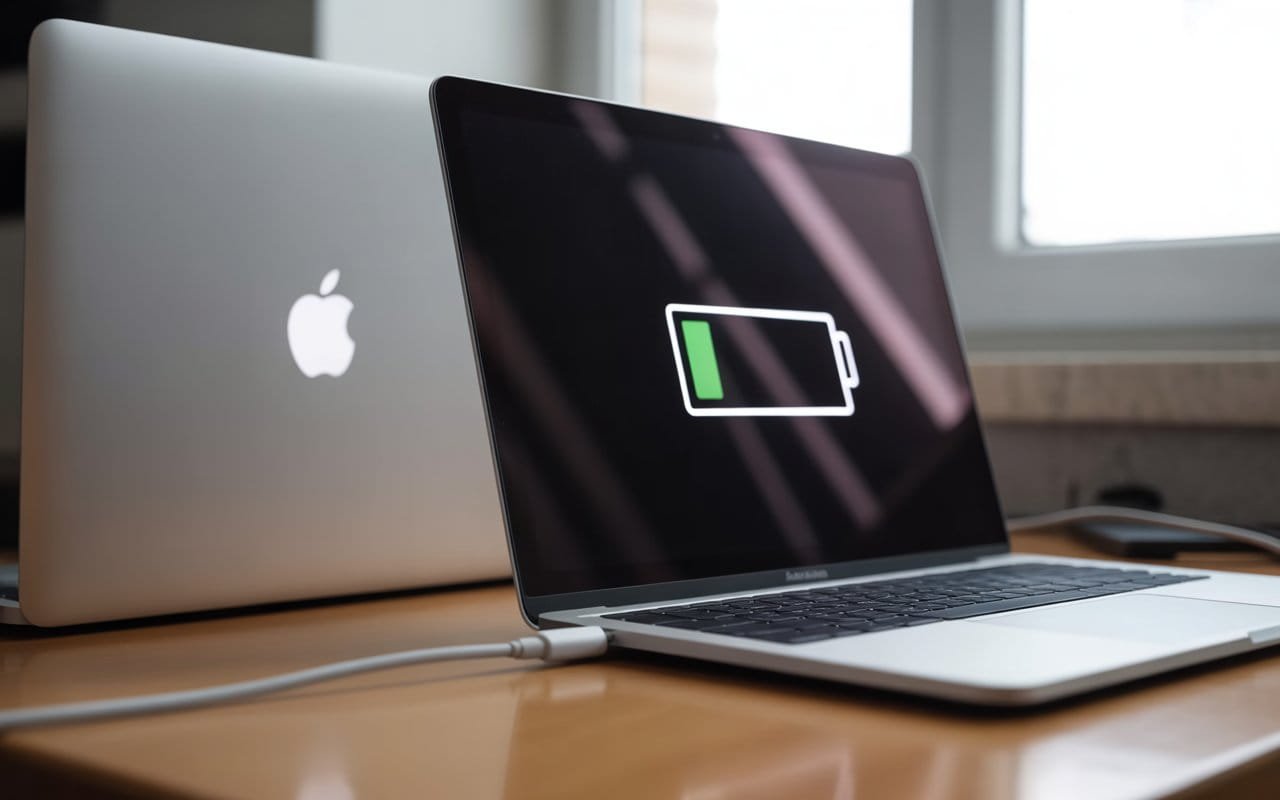
If your MacBook isn’t charging, the problem is usually not a broken charger. Start by checking the charging port for debris, trying a different USB-C port, resetting the SMC (on Intel Macs), checking your battery health, and testing a different power outlet. Most charging issues are fixable in minutes without spending money on a replacement cable.
You plug in your MacBook, glance at the menu bar, and notice the battery icon isn’t showing the charging symbol. Or maybe the charge percentage is frozen. Maybe you get a “Not Charging” message despite the cable being firmly connected. Or the MagSafe LED just… doesn’t light up.
Before you order a replacement charger or book an Apple repair appointment, slow down. The charging cable is actually one of the less likely culprits. In most cases, a MacBook that won’t charge is dealing with something simpler — a dirty port, a software glitch, a drained battery, a confused power setting, or a wall outlet that’s not doing its job.
This guide walks through every real fix, in the right order, so you can find and solve the actual problem without guessing or spending money you might not need to.
Related: MacBook Stuck on Loading Screen? 10 Fixes That Actually Work
What “Not Charging” Actually Means on a MacBook
MacBooks can display charging problems in a few different ways, and each one tells you something slightly different about what’s going on.
- Battery icon shows “Not Charging” — Power is reaching your MacBook but macOS has intentionally paused charging. This is actually a normal feature, not a fault.
- Battery percentage is frozen or dropping while plugged in — Power isn’t reaching the battery at all, or the charger isn’t delivering enough wattage to keep up with your Mac’s demand.
- No charging indicator anywhere — No MagSafe light, no menu bar change, no response. The connection isn’t being recognised at all.
- Charges sometimes but not others — Usually a port issue, a loose cable connection, or a partially blocked charging port.
- Only charges slowly — The charger wattage may be too low for your MacBook model, or your Mac is drawing more power than the charger can supply under load.
Knowing which of these you’re seeing will help you zero in on the right fix faster.
Fix 1: Check the Power Source First
It sounds obvious, but the wall outlet or power strip is worth ruling out before anything else. A tripped circuit breaker, a faulty power strip, or a switched-off outlet extension can all look exactly like a broken charger.
- Unplug your charger from the current outlet or power strip.
- Plug it directly into a different wall outlet in a different room if possible.
- Check whether the outlet you were using works with another device — a lamp or phone charger will do.
- If you’re using a surge protector or power strip, bypass it and plug directly into the wall.
If your MacBook starts charging on a different outlet, the original socket or strip is the problem — not your charger and not your Mac.
Fix 2: Clean the Charging Port
Lint, dust, and pocket debris are surprisingly common causes of charging failures — and they’re easy to overlook because the port can look clean at first glance. Even a small amount of compressed lint can prevent the cable from making a proper electrical connection.
- Power off your MacBook before cleaning the port.
- Use a bright torch or your phone’s flashlight to look directly into the charging port.
- If you see debris, use a wooden toothpick or a soft, dry, non-metallic tool to gently loosen and remove it. Work carefully and avoid pressing hard.
- Alternatively, use a can of compressed air held at a slight angle — short bursts work better than one long blast.
- Once the port looks clear, reconnect your charger and check whether charging resumes.
Fix 3: Try a Different USB-C Port
Most MacBook Pro models have two or more USB-C / Thunderbolt ports, and any of them can charge your Mac. If you always use the same port out of habit, try the others — a single port can fail or develop an intermittent fault while the rest continue working perfectly.
- Unplug your charger from its current port.
- Plug it into a different USB-C or Thunderbolt port on the opposite side of your MacBook.
- Wait 10–15 seconds and check whether the battery icon updates.
If charging works on one port but not another, the unresponsive port likely has physical damage or debris that the others don’t. That’s a useful thing to know, and it means you can keep using your Mac while deciding whether to have the port looked at.
Fix 4: Inspect the Cable and Adapter Carefully
Before assuming the charger is broken, give it a proper visual inspection. Cables fail most often at the ends, near where they connect to the adapter brick or where they bend repeatedly. Damage in these spots can be subtle.
- Look along the full length of the cable for kinks, fraying, or pinch marks.
- Check both ends of the cable where they meet the connectors — this is where stress fractures usually appear.
- Examine the USB-C connector tip for bent, pushed-in, or discoloured pins.
- Check the power adapter brick for scorch marks, unusual smells, or physical warping.
- Make sure the power adapter’s prongs fold out and seat fully — a half-extended prong can cause an intermittent connection.
If you find visible damage, set that cable aside and test with a different one before drawing any conclusions. If a replacement cable fixes the problem, the original cable was the issue all along — and the rest of your setup is fine.
Fix 5: Understand the “Not Charging” Message
If your MacBook shows “Not Charging” in the battery menu despite being plugged in, this is often intentional behaviour by macOS — not a fault.
Optimized Battery Charging
macOS includes a feature called Optimized Battery Charging. When it’s active, your Mac learns your daily usage patterns and will sometimes pause charging at 80% to reduce long-term battery wear. It waits until it predicts you’ll need a full charge before completing to 100%.
This is completely normal and healthy for your battery. But if you need a full charge right now, here’s how to override it:
- Click the battery icon in your menu bar.
- Click “Charge to Full Now.” Your Mac will immediately resume charging to 100%.
Low-Wattage Charger Under Load
Another cause of “Not Charging” is using a charger with insufficient wattage. If you’re running demanding tasks — video editing, gaming, compiling code — your MacBook may draw more power than a low-wattage charger can supply. The Mac prioritises running the system over charging the battery, so the battery sits still or slowly drains even while plugged in.
Each MacBook model has a recommended charger wattage. Using a charger below that rating during heavy workloads will trigger this behaviour.
| MacBook Model | Recommended Charger Wattage |
|---|---|
| MacBook Air (M1 / M2 / M3) | 30W or 35W |
| MacBook Pro 14-inch | 67W or 96W |
| MacBook Pro 16-inch | 140W |
High Temperature Pause
If your Mac is running hot, macOS may slow or pause charging temporarily to protect the battery from heat damage. This is a protective measure. Let your Mac cool down in a well-ventilated space and charging will typically resume on its own.
Fix 6: Force Restart Your MacBook
Sometimes a software hang or a background process locks up the charging system. A force restart clears the current system state and often restores charging without any further action needed.
- Press and hold the Power button for 10 seconds until the screen goes completely black.
- Wait 10 seconds.
- Press the Power button once to turn your MacBook back on.
- Once fully booted, plug in your charger and check whether charging resumes.
This takes about 30 seconds and costs nothing. It resolves charging issues more often than most people expect.
Fix 7: Reset the SMC (Intel MacBooks Only)
On Intel-based MacBooks, the SMC (System Management Controller) manages battery charging, power delivery, and thermal management. When it gets into a confused state, it can cause the charging system to stop responding correctly. Resetting it often fixes persistent charging failures that nothing else has resolved.
For MacBook Pro and MacBook Air with T2 Chip (2018–2020):
- Shut down your MacBook completely.
- On the left side of the keyboard, press and hold Left Shift + Left Control + Left Option.
- While holding those three keys, press and hold the Power button as well.
- Hold all four keys together for exactly 10 seconds, then release everything at once.
- Wait a few seconds, then press the Power button to turn your Mac back on.
- Plug in your charger and check whether charging has resumed.
For Older Intel MacBooks (Pre-2018, Non-Removable Battery):
- Shut down your MacBook.
- Unplug the charging cable.
- Press and hold Shift + Control + Option on the left side of the keyboard, and press the Power button at the same time.
- Hold for 10 seconds, then release all keys.
- Plug the charger back in and turn your Mac on.
Fix 8: Check Your Battery Health
If none of the above has made a difference, it’s worth checking the actual condition of your battery. MacBook batteries are rated for around 1,000 full charge cycles. A battery that has far exceeded this may refuse to charge or charge erratically.
How to check battery health on macOS:
- Hold the Option key and click the battery icon in the menu bar.
- Look for the condition status shown near the top of the menu.
What the status messages mean:
- Normal — Battery is in good condition and working as expected.
- Service Recommended — Battery capacity has degraded and may not be holding charge reliably. Replacement is advised when practical.
For a more detailed view:
- Go to Apple Menu → About This Mac.
- Click More Info (or System Report on older macOS versions).
- In the sidebar, select Power.
- Look at Cycle Count and Condition under the Battery Information section.
A cycle count well over 1,000 combined with a “Service Recommended” status is a reliable indicator that the battery itself needs replacing — not the charger.
Fix 9: Check for a macOS Update
Certain macOS versions have contained known bugs that affected battery management and charging behaviour. If your Mac updated recently and the charging issue appeared shortly after, a newer update may have already resolved it.
- Click the Apple Menu in the top-left corner of your screen.
- Select System Settings (or System Preferences on older macOS versions).
- Click General, then Software Update.
- If an update is available, install it, restart your Mac, and check whether charging behaviour returns to normal.
Fix 10: Test With a Different Charger
If you’ve worked through everything above and still have no charging, now is the time to test a different charger. The goal is to rule out your current cable and adapter combination as the cause.
A few important things to know before borrowing or buying a charger:
- Use USB-C PD (Power Delivery) chargers, not just any USB-C cable. A standard USB-C data cable without Power Delivery will not charge a MacBook.
- The wattage should match your MacBook model. A lower-wattage charger may charge slowly or not at all under load, but will usually work for light use.
- Third-party chargers are fine if they’re USB-IF certified and from a reputable brand. Cheap, uncertified chargers can cause charging irregularities and, in rare cases, hardware damage.
- MagSafe is specific to Apple. If your MacBook uses MagSafe 3, you’ll need an Apple MagSafe cable or a USB-C to MagSafe 3 cable from a certified source.
If a known-good charger works and yours doesn’t, the original charger is the problem. If a different charger also fails to charge your Mac, the issue is with the Mac itself.
MagSafe Users: What the LED Colour Tells You
If your MacBook uses a MagSafe connector, the small LED on the connector is a useful diagnostic tool on its own.
- 🍠 Amber / orange light — Charging normally. Battery is not yet full.
- 🟢 Green light — Battery is fully charged or nearly full.
- ⚪ No light at all — No power is reaching the connector. Check the cable, the port, and the power outlet.
- 🔵 Flashing or intermittent light — An intermittent connection. This often points to a dirty or damaged port, or a cable that’s starting to fail.
A Note on Apple Silicon MacBooks (M1, M2, M3, M4)
Apple Silicon MacBooks handle power management differently from Intel models, and there are a few things worth knowing if you have one.
- There is no SMC reset procedure on M-series Macs. The chip manages this automatically. A simple restart or a short unplug period often achieves the same result.
- Optimized Battery Charging is more aggressive on Apple Silicon. Your Mac may hold at 80% for longer periods, especially if it’s plugged in consistently throughout the day.
- M2 MacBook Air and later models support fast charging with a 67W or higher charger connected to the right-side USB-C port. Using a lower-wattage charger will still work but won’t fast-charge.
- If you see “Not Charging” on an M-series Mac, check Optimized Battery Charging in System Settings → Battery before assuming there’s a hardware problem.
When to Contact Apple or Visit a Repair Shop
If you’ve gone through all the steps above and your MacBook still won’t charge, the problem is most likely hardware-related and needs professional attention. Here are the situations that typically require a repair:
- The charging port is visibly damaged — bent pins, burn marks, or discolouration inside the port.
- Multiple confirmed-working chargers all fail on your MacBook — this points to the Mac’s charging hardware rather than the cable.
- Battery condition shows “Service Recommended” and the cycle count is well over 1,000.
- Your Mac charges only when the cable is held at a specific angle — a sign of a partially damaged port.
- You notice the Mac getting unusually warm around the charging area — this should be checked promptly.
Contact Apple Support: https://support.apple.com
If your MacBook is within warranty or covered by AppleCare+, battery replacements and port repairs are typically covered at no additional cost. Book a Genius Bar appointment to have a technician run a full hardware diagnostic in person.
How to Protect Your MacBook’s Charging System
A few simple habits go a long way toward keeping your charging setup working reliably over time.
- Always unplug cables by holding the connector, not yanking the cable itself. Pulling the cable puts stress on the internal wiring near the connector — which is exactly where failures happen.
- Don’t coil charging cables too tightly for storage. Tight coiling causes internal wire fatigue. A gentle loop works just as well without the damage.
- Keep the charging port clean. A quick check with a flashlight every month or two and a light clean with compressed air when needed prevents debris build-up from causing contact problems.
- Avoid charging on soft surfaces like beds or sofas. These block airflow under the MacBook, which raises operating temperature and can cause charging to slow or pause due to heat protection.
- Keep Optimized Battery Charging turned on. The feature exists to extend the lifespan of your battery over the years — the “Not Charging” message it sometimes produces is a feature, not a bug.
- Use chargers from reputable manufacturers. Cheap, unbranded USB-C chargers can deliver inconsistent voltage, which over time can wear on the charging circuitry inside your Mac.
Frequently Asked Questions
Why does my MacBook say “Not Charging” when it’s plugged in?
This usually means one of two things: Optimized Battery Charging has paused charging at 80% to protect long-term battery health, or the charger wattage is too low to keep up with your Mac’s power demand during heavy use. Click the battery icon in the menu bar to see more detail and select “Charge to Full Now” if you need a full charge immediately.
Can I charge a MacBook with any USB-C cable?
No. Your USB-C cable must support USB Power Delivery (USB-C PD) to charge a MacBook. A standard USB-C data cable without Power Delivery support will not charge your Mac, even though it physically fits in the port. Always check that your cable specifies USB-C PD or is sold specifically as a charging cable.
Is it bad to leave my MacBook plugged in all the time?
For most people, it’s not a concern with modern MacBooks. Optimized Battery Charging is designed specifically to manage this situation — it learns your routine and limits the time the battery spends at 100% to reduce long-term wear. That said, periodically running your Mac on battery power is a reasonable habit to keep the charge cycle count ticking naturally.
My MacBook charges very slowly. What causes that?
Slow charging is almost always a wattage mismatch. If your charger’s wattage is lower than the recommended rating for your MacBook model, it will charge slowly — especially when the Mac is in active use. High screen brightness, heavy processor load, and many apps running simultaneously all increase power draw. Using the correct wattage charger for your model is the straightforward fix.
Will a third-party charger damage my MacBook?
A USB-IF certified charger from a reputable brand is generally safe to use. The risk comes from very cheap, uncertified chargers that may deliver inconsistent voltage or lack proper protection circuits. If you’re buying a third-party option, look for one that’s explicitly USB-IF certified and has reliable reviews. Avoid buying the cheapest available option from unknown sellers.
How many charge cycles does a MacBook battery last?
Apple rates most modern MacBook batteries at 1,000 charge cycles before capacity drops to around 80% of original. A charge cycle is one complete 0–100% charge — using half your battery on two separate days counts as one cycle. After 1,000 cycles the battery doesn’t stop working, but it will hold noticeably less charge. You can check your current cycle count in Apple Menu → About This Mac → More Info → System Report → Power.
Final Thoughts
A MacBook that won’t charge is alarming in the moment, but the fix is usually far simpler — and cheaper — than it first appears. Work through these steps in order and you’ll almost certainly find the cause before you need to consider replacing anything.
Start with the free checks: the power outlet, the port cleanliness, a different USB-C port, and a restart. Those four things alone resolve the majority of charging complaints. If those don’t do it, the SMC reset on Intel Macs and a battery health check will cover most of what remains.
The charger itself is often the last thing to blame — so hold off on buying a new one until you’ve confirmed everything else is working as it should.
If you’re still stuck after working through this guide, leave your MacBook model and a description of what you’re seeing in the comments. It may help others working through the same situation find their answer faster.