
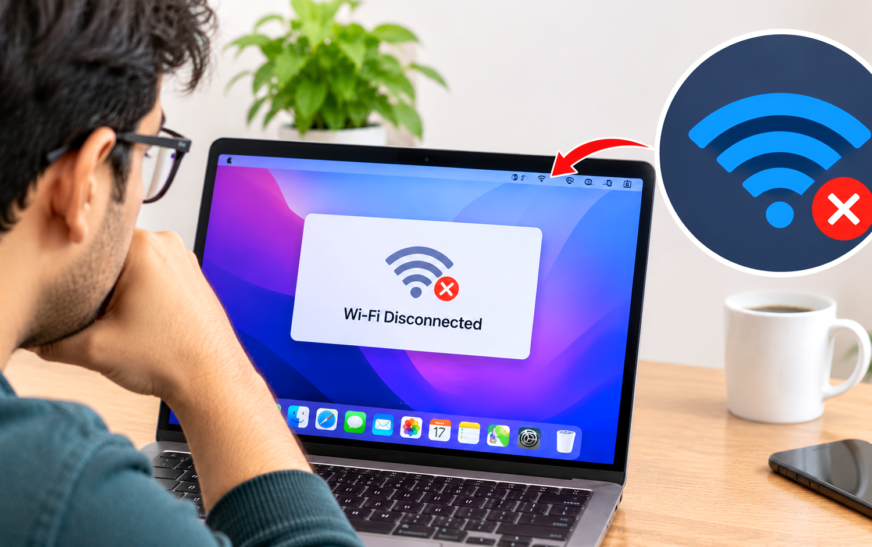
If your MacBook Wi-Fi keeps dropping or disconnecting in macOS 27 Golden Gate, the most reliable first fix is to go to System Settings → Network → Wi-Fi, click the Details button next to your network, and select Renew DHCP Lease. If that doesn’t hold, delete your stored Wi-Fi preference files using Terminal and reconnect to the network fresh. For drops that happen specifically when the Mac wakes from sleep, disabling Wake for network access in Energy settings prevents the most common sleep-related disconnection pattern.
📋 In This Guide
- Why MacBook Wi-Fi Keeps Dropping in macOS 27
- Fix 1 — Toggle Wi-Fi Off and On
- Fix 2 — Renew DHCP Lease
- Fix 3 — Forget and Rejoin the Network
- Fix 4 — Change DNS Servers
- Fix 5 — Delete Wi-Fi Preference Files
- Fix 6 — Disable Wake for Network Access
- Fix 7 — Create a New Network Location
- Fix 8 — Flush DNS Cache
- Fix 9 — Check for VPN and Proxy Conflicts
- Fix 10 — Reset All Network Settings via Terminal
- Fix 11 — Reset NVRAM (Intel Macs)
- Router-Side Checks That Often Get Overlooked
- Frequently Asked Questions
A MacBook that keeps dropping Wi-Fi is one of the most disruptive problems a Mac user can run into — especially because the disconnect often happens mid-call, mid-upload, or mid-download, right when a stable connection matters most. macOS 27 Golden Gate introduced several changes to how the system manages wireless connections, and while most users have had no issues, some have found that Wi-Fi behaviour changed after upgrading — with networks that were rock-solid before now dropping intermittently or refusing to reconnect after sleep.
The cause is almost never the hardware. Mac Wi-Fi chips rarely fail on their own. The culprit is usually a stale network lease, a corrupted preference file, an energy setting that drops the connection during sleep, or a DNS configuration that stops resolving quickly enough to keep the connection alive. This guide covers every meaningful fix, ordered from the fastest and safest to the more involved — most people find their solution somewhere in the first five steps.
Why MacBook Wi-Fi Keeps Dropping in macOS 27 Golden Gate
📋 Identify Your Situation FirstThe fix that works depends on exactly when and how the drops occur. These patterns point to different root causes:
😴 Wi-Fi drops every time the MacBook wakes from sleep
This is the most commonly reported pattern after the macOS 27 upgrade. The Mac wakes up but the Wi-Fi adapter takes too long to re-associate with the router — or the router has already dropped the lease and the Mac can’t get a new one quickly enough. The Wake for network access energy setting and a stale DHCP lease are the usual causes.
⏱️ Wi-Fi drops every few minutes at random intervals
Intermittent drops on a schedule often point to a DNS resolution failure rather than a true disconnection — the Mac stays associated with the router but loses the ability to reach websites. Changing to a faster public DNS server (Google or Cloudflare) typically stops this pattern immediately.
📡 Mac shows connected to Wi-Fi but nothing loads
The Mac is associated with the network but can’t get internet traffic through. The DHCP lease has either expired or been assigned a conflicting IP address. Renewing the DHCP lease or forgetting and rejoining the network resolves this in most cases.
🔁 Wi-Fi connects, drops, reconnects in a constant loop
Repeated connect-disconnect cycles often come from corrupted Wi-Fi preference files that macOS is trying and failing to use. Deleting those files and letting macOS rebuild them from scratch is the most effective fix for this pattern.
💻 Wi-Fi only drops on this Mac — other devices are fine
When other devices on the same network stay connected without issue, the problem is specific to the Mac’s configuration rather than the router. VPN software, proxy settings, or a network location profile that’s become corrupted are common culprits in device-specific cases.
🌐 Wi-Fi drops only on certain websites or apps
If the connection drops only when using specific services — streaming platforms, video calls, or certain websites — it’s rarely a true disconnection. The more likely explanation is a DNS or MTU (packet size) issue that affects some traffic types more than others. Changing DNS servers and flushing the DNS cache addresses this.
📶 Toggle Wi-Fi Off and Back On
It sounds too simple, but toggling Wi-Fi off and on forces the adapter to drop any stale association data and go through a clean connection handshake with the router. This clears a surprising number of connection issues that have built up gradually since the last clean connection — particularly useful if the Mac has been running for days without a full restart.
If you haven’t restarted your router recently, do it now — not just the Mac. Unplug the router’s power for 30 seconds, plug it back in, and wait for it to fully restart before reconnecting the Mac. Many Wi-Fi issues that seem like macOS problems are actually the router running out of connection slots or holding an expired lease for the Mac.
🔄 Renew Your DHCP Lease
DHCP (Dynamic Host Configuration Protocol) is how your router assigns an IP address to your Mac. When that lease expires or becomes corrupted, the Mac shows as connected to Wi-Fi but can’t route traffic — pages won’t load and apps can’t reach their servers, even though the Wi-Fi icon looks fine. Renewing the lease gets the Mac a fresh address without disconnecting from the network.
After renewing the lease, the IP address shown in TCP/IP settings will update to a new value. If pages load immediately after, the expired lease was the cause. If the same issue returns after sleep or a few hours, the lease is expiring again — which points to Fix 5 (deleting preference files) or a router DHCP lease time that’s set too short.
🗑️ Forget the Network and Rejoin
When a Mac has been connecting to the same network for a long time, the saved connection profile can accumulate settings that conflict with current router configuration — especially after a router firmware update or a macOS upgrade. Forgetting the network wipes that profile and starts with a clean connection, including a fresh password entry and new network settings.
🌐 Switch to a Faster Public DNS Server
By default, your Mac uses your router’s DNS server — which in turn usually passes requests to your ISP’s DNS. ISP DNS servers vary enormously in speed and reliability, and a slow or intermittent DNS server can cause connection drops that look like a Wi-Fi problem but are actually a name resolution failure. Switching to Google’s or Cloudflare’s public DNS servers is free, takes two minutes, and often noticeably improves reliability.
If you prefer Google’s DNS, use 8.8.8.8 and 8.8.4.4 instead. Both Cloudflare and Google’s DNS servers are significantly faster and more reliable than most ISP DNS servers. If you already have entries in the DNS tab, leave the existing ones in place and add the new ones above them — macOS tries them in order from top to bottom.
Upgrade Your Home Network
A mesh Wi-Fi system or a modern router with Wi-Fi 6E support eliminates most of the range and interference issues that cause MacBook drops — especially in larger homes or offices with thick walls.
🗄️ Delete Wi-Fi Preference Files and Reconnect Fresh
macOS stores Wi-Fi network information in a set of preference files. After a major macOS update — especially one that changes how the wireless stack handles saved networks — these files can carry over incompatible settings that cause repeated disconnections. Deleting them forces macOS to build a completely clean Wi-Fi profile the next time you connect.
Deleting these files removes all saved Wi-Fi passwords and network settings from this Mac. Have your Wi-Fi password ready before proceeding. If your password is stored in Keychain, it will also be removed — check Keychain Access or your router’s settings page for the password first.
/Library/Preferences/SystemConfiguration/•
com.apple.airport.preferences.plist•
com.apple.network.identification.plist•
NetworkInterfaces.plist•
preferences.plistDeleting these files and reconnecting clean resolves the majority of post-upgrade Wi-Fi drop issues. If your Mac was connecting fine before the macOS 27 update and started dropping after it, this is very likely the fix that will hold.
😴 Disable Wake for Network Access
macOS has an energy feature called Wake for network access that keeps the Mac’s Wi-Fi adapter in a low-power listening state during sleep, so it can respond to network requests without fully waking. In practice, this feature can interfere with clean Wi-Fi reconnection — the Mac wakes expecting to still be connected, but the router has dropped the lease during the sleep period, leaving the connection in a broken state. Disabling it forces a full, clean Wi-Fi reconnection every time the Mac wakes.
While you’re in Energy settings, also look for Enable Power Nap and consider disabling it. Power Nap allows the Mac to perform background tasks — including network activity — during sleep. On some MacBooks this interacts badly with Wi-Fi reconnection after waking, particularly when the Mac has been asleep for an extended period.
🗺️ Create a New Network Location
macOS uses “Locations” to group network settings — most people are using the default “Automatic” location and have never needed to think about it. However, the Automatic location profile can accumulate years of conflicting settings across macOS upgrades. Creating a new, clean location resets all network interfaces to their defaults and often resolves drops that survive even the preference file deletion.
🧹 Flush the DNS Cache
The Mac keeps a local cache of recently resolved domain names to speed up browsing. When this cache becomes stale or corrupted — which can happen after a network change, an IP address change on a website, or a DNS settings update — websites fail to load even though the network connection itself is working. Flushing the cache clears all stored entries and forces fresh lookups for every site.
sudo dscacheutil -flushcache; sudo killall -HUP mDNSResponderFlushing the DNS cache is completely safe — it removes cached lookups, but macOS immediately starts building a fresh cache as you browse. No settings are changed and no data is lost. It’s worth running after any network configuration change to make sure stale entries aren’t interfering with the new settings.
🔐 Check for VPN and Proxy Conflicts
VPN software and proxy settings run at the network level and can interfere with normal Wi-Fi behaviour — causing drops, slow reconnections, or complete disconnections that look exactly like a Wi-Fi problem. This is especially common with VPN apps that weren’t updated after a macOS upgrade, as they can hold network interfaces in a conflicted state.
🖥️ Reset All Network Settings Using Terminal
When individual fixes haven’t resolved the drops, resetting the entire network stack via Terminal gives macOS a genuinely clean slate. This removes all saved network configurations, VPN profiles, and interface settings — after which every network connection is rebuilt from scratch.
All saved Wi-Fi passwords, VPN configurations, and custom network settings will be removed. Have your Wi-Fi password and any VPN credentials ready before running these commands.
sudo rm -rf /Library/Preferences/SystemConfiguration/sudo dscacheutil -flushcache; sudo killall -HUP mDNSResponder🔁 Reset NVRAM
On Intel Macs, NVRAM stores certain hardware settings including some network-related configuration. A corrupted NVRAM value can occasionally affect Wi-Fi behaviour at a level that software fixes can’t reach. Apple Silicon Macs manage NVRAM differently and reset it automatically when macOS detects an issue — the manual key combination below is only for Intel-based MacBooks.
Router-Side Checks That Often Get Overlooked
📡 When the Mac-Side Fixes Haven’t HelpedIf you’ve worked through the fixes above and the drops are still happening, the router is worth investigating more carefully. MacBooks are particularly sensitive to certain router settings that other devices handle more gracefully.
Try a Different Wi-Fi Band
Most modern routers broadcast on both 2.4GHz and 5GHz. If your Mac is connecting to 5GHz and dropping, try manually connecting to the 2.4GHz network (usually a separate SSID) — 2.4GHz has better range but lower speeds. The reverse is also true: a congested 2.4GHz band can cause drops on a crowded frequency.
Update Router Firmware
Router manufacturers release firmware updates that fix compatibility issues with new operating systems. After a macOS upgrade, check your router’s admin panel (usually accessible at 192.168.1.1 in a browser) for a firmware update — routers that haven’t been updated since macOS 27 released may have known compatibility issues.
Increase DHCP Lease Time
Some routers are configured with very short DHCP lease times — as low as an hour. When the lease expires while the Mac is asleep, it can’t renew silently and drops the connection on waking. Logging into your router and setting the lease time to 24 hours or longer eliminates this cause of sleep-related drops.
Check Channel Interference
Wi-Fi channels can be congested by nearby networks, particularly in apartments or densely populated areas. Use a Wi-Fi analyser app to check which channels nearby networks are using, then set your router to use a less congested channel manually — automatic channel selection doesn’t always pick the least-crowded option.
Disable AP Isolation
Some routers have an AP (Access Point) Isolation setting designed to prevent devices on the network from communicating directly with each other — a security feature for guest networks. When enabled on a main home network, it can interfere with certain macOS network features and cause connection instability.
Change Wireless Security Mode
macOS 27 performs best with WPA3 or WPA2/WPA3 mixed mode. If your router is set to WPA or WPA2-only with TKIP encryption (rather than AES), consider switching to WPA2-AES or enabling WPA3. Older security protocols can cause handshake delays that look like disconnections on a Mac but not on other devices.
Frequently Asked Questions
Why did my MacBook Wi-Fi start dropping after upgrading to macOS 27 Golden Gate?
macOS 27 changed how the wireless stack handles DHCP leases and network preference files. Preference files from older macOS versions can carry settings that conflict with Golden Gate’s networking behaviour — which is why the drops often start immediately after the upgrade even on a Mac that had no previous Wi-Fi issues. Deleting the Wi-Fi preference files (Fix 5) and reconnecting fresh resolves this in most cases because it removes the conflicting legacy settings and lets macOS 27 build a clean profile.
My MacBook shows full Wi-Fi bars but nothing loads — why?
Full signal bars mean the Mac is associated with the router, but that doesn’t guarantee internet connectivity. The most common causes of this specific pattern are: an expired DHCP lease (the IP address the Mac was assigned is no longer valid), a DNS failure (the Mac can’t resolve domain names even though it has a network connection), or a router issue where the internet uplink has dropped even though the local Wi-Fi is still active. Try Renewing the DHCP Lease (Fix 2) first, then changing DNS servers (Fix 4).
Is it safe to delete the Wi-Fi preference files?
Yes — deleting those specific files in /Library/Preferences/SystemConfiguration/ is safe. macOS recreates them automatically with clean defaults the next time you connect to Wi-Fi. The only practical consequence is that you’ll need to re-enter your Wi-Fi password, and any saved network preferences (like a static IP or custom DNS assigned per-network) will need to be reconfigured. No personal data, apps, or other settings are affected.
Why does my MacBook Wi-Fi drop specifically after waking from sleep?
This is a known pattern on Macs with the Wake for network access feature enabled. During sleep, the router maintains a minimal-power connection to the Mac. If the Mac sleeps long enough that the router drops the DHCP lease, the Mac wakes up expecting to still be connected — and it takes too long to get a new address, causing an apparent disconnection. Disabling Wake for network access (Fix 6) prevents this by ensuring the Mac does a full, clean Wi-Fi reconnection every time it wakes, rather than trying to resume a potentially dead session.
Other devices on the same network are fine — why is only my MacBook dropping?
Device-specific drops almost always come from the Mac’s configuration rather than the router. The most likely causes in order: a corrupted Wi-Fi preference file (Fix 5), an active VPN or proxy that’s interfering with the connection (Fix 9), a network location profile with conflicting settings (Fix 7), or the Wake for network access feature causing reconnection issues after sleep (Fix 6). Start with Fix 5 — deleting the preference files resolves the majority of device-specific cases.
Should I use 2.4GHz or 5GHz Wi-Fi on my MacBook?
It depends on your situation. 5GHz is faster and less congested if you’re close to the router — typically within 30 feet / 10 metres with no thick walls between. 2.4GHz is slower but travels further and passes through walls more easily. For a MacBook that moves around the house, connecting to a mesh network or a router that handles band steering automatically is the most reliable option. If you’re dropping on 5GHz specifically, try the 2.4GHz network and see if the drops stop — a weaker 5GHz signal is often worse than a strong 2.4GHz one.
MacBook Wi-Fi Dropping — Quick Fix Summary
- 1Toggle Wi-Fi off/on — 15-second pause, then reconnect; also restart the router
- 2Renew DHCP Lease — System Settings → Network → Wi-Fi → Details → TCP/IP
- 3Forget and rejoin — wipes the saved network profile and starts fresh
- 4Change DNS to 1.1.1.1 / 8.8.8.8 — fixes intermittent drops caused by slow ISP DNS
- 5Delete Wi-Fi preference files — most effective fix for post-upgrade drops; requires Wi-Fi password
- 6Disable Wake for network access — System Settings → Energy; stops sleep-related drops
- 7New Network Location — resets all network interface settings to clean defaults
- 8Flush DNS cache — Terminal:
sudo dscacheutil -flushcache; sudo killall -HUP mDNSResponder - 9Quit VPN / disable proxy — isolates whether third-party network tools are interfering
- 10Full network reset — Terminal: removes all saved network config; rebuilds clean on next boot
- 11NVRAM reset — Intel Macs only: Option + Command + P + R on startup
Wi-Fi drops are rarely a hardware problem — in the vast majority of cases on macOS 27 Golden Gate, the culprit is a preference file conflict left over from the upgrade, a DHCP lease issue, or an energy setting that’s interfering with clean reconnection after sleep. Work through the fixes in the order listed and most users find their solution by Fix 5. If you’re past that point and still dropping, the router-side checks are worth investigating — particularly the DHCP lease time and channel settings, which are frequently overlooked but meaningfully affect MacBook Wi-Fi stability.
Mac Accessories on Amazon
USB-C Ethernet adapters, travel routers, and USB Wi-Fi adapters — practical alternatives for when built-in Wi-Fi isn’t giving you the reliability you need.
ⓘ Disclaimer: CrazyErrors is an independent informational website and is not affiliated with Apple Inc. or Microsoft Corporation. The troubleshooting steps in this guide are based on macOS 27 Golden Gate and are provided for informational purposes only. macOS features and interface paths may change with software updates. Amazon links are affiliate links — we may earn a small commission at no extra cost to you.