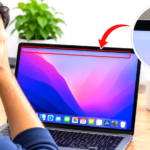

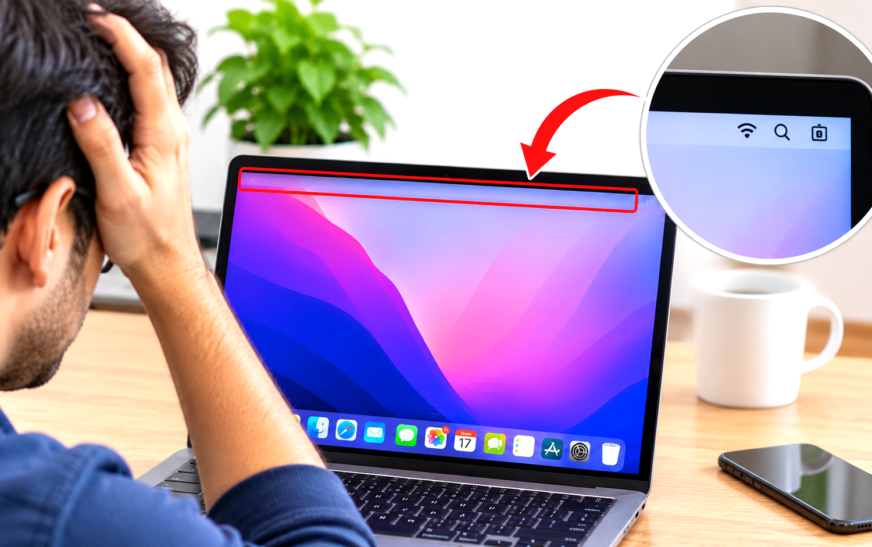
If your MacBook menu bar has disappeared or stopped responding in macOS 27, the fastest fix is to open Terminal and run killall SystemUIServer — this restarts the process that controls the menu bar without requiring a full reboot. If the menu bar is simply hidden, check System Settings → Desktop & Dock → Automatically hide and show the menu bar and set it to Never. For a menu bar that’s frozen but still visible, try moving your cursor to the very top of the screen and clicking.
📋 In This Guide
- Why the Mac Menu Bar Disappears or Stops Responding
- Fix 1 — Check Auto-Hide Setting (Most Common Cause)
- Fix 2 — Exit Full-Screen Mode
- Fix 3 — Restart SystemUIServer (Fastest Software Fix)
- Fix 4 — Restart the Dock Process
- Fix 5 — Check External Display Arrangement
- Fix 6 — Force Quit the Frozen App
- Fix 7 — Log Out and Back In
- Fix 8 — Reset NVRAM
- Fix 9 — Create a New User Account (Isolation Test)
- Fix 10 — Reinstall macOS
- Frequently Asked Questions
The Mac menu bar sits at the top of every screen — it’s where the clock lives, where you access Wi-Fi, Bluetooth, Spotlight, and the Apple menu, and where every app shows its own options. When it disappears, freezes, or stops responding to clicks, working on the Mac becomes genuinely difficult. You can’t switch apps normally, you can’t open menus, and even shutting down properly requires a workaround.
The good news is that most menu bar problems in macOS 27 have a clear cause and a straightforward fix. The issue is almost always a macOS UI process that’s crashed or stalled, an auto-hide setting that turned on without the user realising it, or a full-screen app that’s taken over the display. This guide works through every likely cause in order — starting with the fastest fixes and ending with the more thorough ones for cases where the simpler steps didn’t do the job.
Why the Mac Menu Bar Disappears or Stops Responding
📋 Understand the Cause FirstThe Mac menu bar is managed by a background process called SystemUIServer. It handles the right side of the menu bar — the status icons, clock, Control Centre, and menu extras. The left side (Apple menu, app menus) is handled by the app itself and by a process called Dock. Either of these can crash, stall, or misbehave after a software update, after waking from sleep, or when a resource-heavy app pushes system memory.
The specific behaviour you’re seeing usually points to one of these situations:
👁️ The menu bar has vanished completely
Auto-hide is likely turned on — either deliberately or accidentally via a keyboard shortcut or display setting. The menu bar is still there; it’s just hidden until you move your cursor to the top of the screen. This is the most common report after a macOS update, as updates can sometimes reset or toggle this preference.
🖱️ The menu bar is visible but clicks do nothing
The SystemUIServer process has likely crashed or become unresponsive. The bar renders on screen but can’t process input. Restarting the process via Terminal fixes this in seconds without requiring a reboot.
🖥️ The menu bar is gone on one display but showing on another
macOS can be configured to show the menu bar on a specific display only, or to follow the active window between displays. When using an external monitor, the menu bar display setting and display arrangement together control where it appears — and that combination can produce confusing results.
🟩 The menu bar disappeared after going full-screen
Full-screen mode in macOS hides the menu bar by design — it slides back in when you move your cursor to the top of the screen. If exiting full-screen mode doesn’t bring it back normally, the app may be stuck in a partial full-screen state that needs to be dismissed differently.
🔁 The menu bar keeps disappearing and reappearing on its own
This intermittent behaviour is often linked to a third-party menu bar app (such as a clipboard manager, a system monitor, or a VPN menu) that’s crashing and restarting the SystemUIServer process repeatedly. Disabling third-party menu bar apps temporarily helps isolate whether one of them is causing the instability.
👁️ Turn Off Auto-Hide for the Menu Bar
macOS 27 has three auto-hide options for the menu bar: Always, On Desktop Only, and In Full Screen Only. If any option other than Never is active, the menu bar will slide out of view when it isn’t actively being used. For many users this gets switched on accidentally — especially after a macOS update or when exploring display settings.
The menu bar will stay permanently visible from this point. If the menu bar was set to Always hide, this change takes effect immediately — no restart required.
Move your cursor slowly to the absolute top edge of the screen — not just near the top, but to the very pixel boundary. Hold it there for a moment. The menu bar will slide into view on most configurations. Alternatively, press ⌘ Command + Space to open Spotlight and type “Desktop & Dock” to jump straight to the settings.
🟩 Exit Full-Screen Mode Properly
macOS full-screen mode hides the menu bar by design — it temporarily slides back in when your cursor reaches the top of the screen. If the menu bar has stopped appearing even with the cursor at the top, the app may be stuck in full-screen state.
⚡ Restart SystemUIServer via Terminal
When the menu bar is visible but frozen — clicks register nothing, icons won’t respond, the clock has stopped updating — the SystemUIServer process has stalled. Killing it forces macOS to immediately restart it, which takes about two seconds and brings the menu bar back to full working order. No reboot, no data loss, no apps close.
killall SystemUIServerRestarting SystemUIServer resolves frozen menu bar icons, unresponsive clock, and status bar items that stopped updating — all without closing anything you have open. It’s the go-to fix for a menu bar that looks fine but won’t respond to clicks.
🔁 Restart the Dock Process
The Dock process in macOS controls not just the Dock at the bottom of the screen but also the left side of the menu bar — the Apple menu, the app-specific menus, and app switching. If that process has crashed, restarting it handles things that SystemUIServer alone can’t fix.
killall DockYou can restart both processes in one go. In Terminal, type:killall SystemUIServer && killall Dock
This covers both the right-side menu icons and the left-side app menus simultaneously.
Recommended Mac Accessories
A reliable USB-C hub, external keyboard, or monitor can make a real difference to how smoothly your Mac runs day to day — especially when dealing with display and menu bar issues across setups.
🖥️ Check Your Display Arrangement and Menu Bar Setting
When a MacBook is connected to an external display, macOS decides which screen shows the menu bar based on the display arrangement and your settings. In macOS 27, there’s a dedicated control for which display the menu bar appears on — and it can end up set to the wrong screen, making it seem like the menu bar has disappeared.
If you’re using a MacBook with the lid closed and an external display, the menu bar always appears on the external screen regardless of arrangement settings. If the external monitor isn’t showing the menu bar in this setup, check that the MacBook is fully awake and that the external display is set as the primary display in the arrangement diagram.
🚫 Force Quit the Problem App
Some apps — particularly video players, games, presentation software, and remote desktop tools — take exclusive control of the display and suppress the menu bar. If the menu bar only vanished after opening one specific app, force quitting that app will typically restore it immediately.
killall SystemUIServer command from Fix 3🔑 Log Out and Log Back In
Logging out of your macOS user account ends all running processes and reinitialises the entire desktop environment — including the menu bar — without requiring a full shutdown. It’s a cleaner reset than restarting individual processes and resolves most persistent menu bar glitches that survive the killall commands.
🔁 Reset NVRAM
NVRAM (Non-Volatile Random-Access Memory) is a small area of memory on your Mac that stores certain settings — including display configuration, resolution, and startup preferences. A corrupted NVRAM value can occasionally cause the menu bar to behave incorrectly or not appear on the right display. Resetting it clears these values and lets macOS rebuild them fresh.
NVRAM reset works differently depending on your Mac’s chip. The steps below are for Intel Macs. If you have an Apple Silicon Mac (M1/M2/M3/M4), NVRAM is reset automatically on restart when macOS detects an issue — there’s no manual key combination needed. For Apple Silicon Macs with this issue, a restart is sufficient.
👤 Create a New User Account to Test
If the menu bar problem keeps coming back despite restarts and process resets, there’s a chance a corrupted user preference file, a launch agent, or a third-party app installed in your account is causing it. The quickest way to test this theory is to create a new, clean user account and see whether the menu bar behaves normally there.
If the new account confirms the issue is user-specific, go back to your original account and do this: open System Settings → General → Login Items & Extensions and disable all login items one by one, restarting after each batch. Also check for menu bar apps (things running in the background like clipboard managers, VPN clients, or system monitors) and temporarily quit them all to see if one of them is the trigger.
📦 Reinstall macOS 27
If none of the above has resolved the menu bar issue — and especially if the new user account test showed the same problem there too — the macOS system files themselves may be corrupted. Reinstalling macOS repairs the system without touching your personal files, apps, or settings. It replaces only the core operating system components.
Reinstalling macOS in this way is safe and non-destructive — it doesn’t erase your files. However, it’s worth making a full backup first regardless, since any system-level operation is worth having a safety net for. Use Time Machine or manually copy your most important folders to an external drive before proceeding.
Tips for Preventing Menu Bar Issues on Mac
Keep third-party menu bar apps updated. Apps that live in the menu bar — such as Bartender, iStatMenus, Magnet, or VPN clients — run constantly in the background and can destabilise SystemUIServer if they encounter a bug or become incompatible with a macOS update. Checking for updates to these apps after every macOS upgrade takes about two minutes and prevents the majority of menu bar crashes.
Be cautious about adding too many menu bar items. macOS 27 has a finite amount of horizontal space for menu bar icons — on MacBooks especially, the notch area limits usable space. When too many items compete for the same space, macOS hides some of them, which users sometimes mistake for the menu bar disappearing. macOS 27’s Control Centre consolidates many items, so moving things there rather than keeping them permanently in the bar is a practical approach.
Use Bartender or similar to manage menu bar crowding. If you rely on many menu bar apps but keep running into display conflicts, a menu bar manager that lets you hide and reveal icons on demand keeps everything accessible without crowding the bar itself.
Restart SystemUIServer after waking from long sleep sessions. Some users find that after waking their Mac from an extended sleep — particularly overnight or over a weekend — menu bar icons show stale data or don’t respond. Running killall SystemUIServer in Terminal after waking up takes two seconds and prevents this from becoming an issue mid-day. Also worth knowing if you face other post-sleep issues: our guide on Mac apps not accepting keyboard input after sleep covers similar background process behaviour.
Frequently Asked Questions
Why did my Mac menu bar disappear after the macOS 27 update?
macOS updates sometimes reset the auto-hide preference for the menu bar to a hidden or auto-hide state. The first thing to check after any macOS update that leaves the menu bar missing is System Settings → Desktop & Dock → Automatically hide and show the menu bar. Set it to Never and the bar will reappear immediately. This is by far the most common cause of a “disappeared” menu bar immediately following an update.
My menu bar is there but nothing on it works — what does that mean?
When the menu bar is visible but clicks don’t register, the SystemUIServer process has likely crashed or stalled. Open Terminal (Spotlight search: Terminal) and run killall SystemUIServer. The bar will flicker and restart within two seconds, and everything should become clickable again. If that doesn’t fix it, follow up with killall Dock to restart the other half of the menu bar system.
Can a third-party app cause the Mac menu bar to freeze?
Yes — third-party apps that run in the menu bar are some of the most common causes of SystemUIServer crashes. Clipboard managers, system monitors, VPN clients, and display management tools all run persistently and interact directly with SystemUIServer. If your menu bar freezes regularly, try quitting all third-party menu bar apps temporarily and seeing whether the problem stops. The one that causes the crash when re-launched is the culprit — an update or reinstall of that specific app usually resolves it.
The menu bar is showing on the wrong screen — how do I move it?
Go to System Settings → Displays → Arrange. In the display diagram, find the white bar along the top of one of the display icons — that white bar represents the menu bar. Drag it onto the display icon where you want the menu bar to appear. The change happens immediately without a restart. If you want the menu bar to appear on all displays simultaneously, go to Desktop & Dock and look for the menu bar display option — setting it to “All Displays” is the simplest solution for multi-monitor setups.
Why does my Mac menu bar keep flashing or restarting on its own?
Intermittent menu bar flickering or restarting is usually a sign that SystemUIServer is crashing and being automatically relaunched by macOS. This happens most often when a third-party menu bar app is causing the crash. The pattern to look for: does the flickering happen at regular intervals, or only after a particular app opens? Use Activity Monitor to watch SystemUIServer‘s CPU and memory usage — a spike followed by a restart points to the offending process. Quitting menu bar apps one at a time will isolate which one is responsible.
Is it safe to run killall SystemUIServer?
Yes — it’s completely safe. The killall command tells macOS to end that specific process, and macOS immediately restarts it automatically. No data is lost, no files are affected, and no applications close. The worst you’ll see is the menu bar disappearing for a couple of seconds before it comes back. Apple engineers themselves use this command during troubleshooting, and it’s been a standard Mac maintenance technique for years.
MacBook Menu Bar Not Responding — Quick Fix Summary
- 1Auto-hide on? — System Settings → Desktop & Dock → set menu bar to Never hide
- 2Stuck in full-screen? — Press ⌘ Cmd + Ctrl + F or move cursor to top-left for the green button
- 3Menu bar frozen? — Terminal:
killall SystemUIServer - 4Apple menu broken too? — Terminal:
killall Dock - 5External monitor issue? — System Settings → Displays → Arrange: drag the white bar to the right display
- 6App blocking it? — ⌘ Cmd + ⌥ Option + Esc → force quit the offending app
- 7Problem persists? — Log out and back in; then try NVRAM reset if on Intel Mac
- 8Still happening? — New user account test to isolate whether it’s user-specific
- 9Nothing worked? — Reinstall macOS 27 from Recovery Mode (non-destructive)
The menu bar is one of those things you don’t think about until it stops working — and when it does, the Mac feels almost unusable. Fortunately, the problem is almost never serious. Between restarting SystemUIServer, checking the auto-hide setting, and isolating third-party apps, the fix is usually found within a few minutes. If yours took longer to track down, the NVRAM reset or new user account test should cover the remaining edge cases.
Top Mac Accessories on Amazon
Hubs, cables, keyboards, and monitors tested to work seamlessly with MacBook — browse the best-reviewed picks for your setup.
ⓘ Disclaimer: CrazyErrors is an independent informational website and is not affiliated with Apple Inc. or Microsoft Corporation. The troubleshooting steps in this guide are based on macOS 27 and are provided for informational purposes only — they do not represent official Apple support. macOS features and menu paths may change with software updates. Amazon links are affiliate links — we may earn a small commission at no extra cost to you.