When a Mac mouse left-click randomly stops working, the fastest fix is to turn Bluetooth off and back on (if using a wireless mouse) or unplug and replug the USB connection. If that doesn’t help, go to System Settings → Accessibility → Pointer Control and check whether Mouse Keys is accidentally switched on — this is a surprisingly common cause of left-click misbehaviour where clicks register but do nothing expected. For persistent random left-click failures, a corrupt mouse preference file is usually responsible and deleting it (from ~/Library/Preferences/) resolves the issue in most cases.
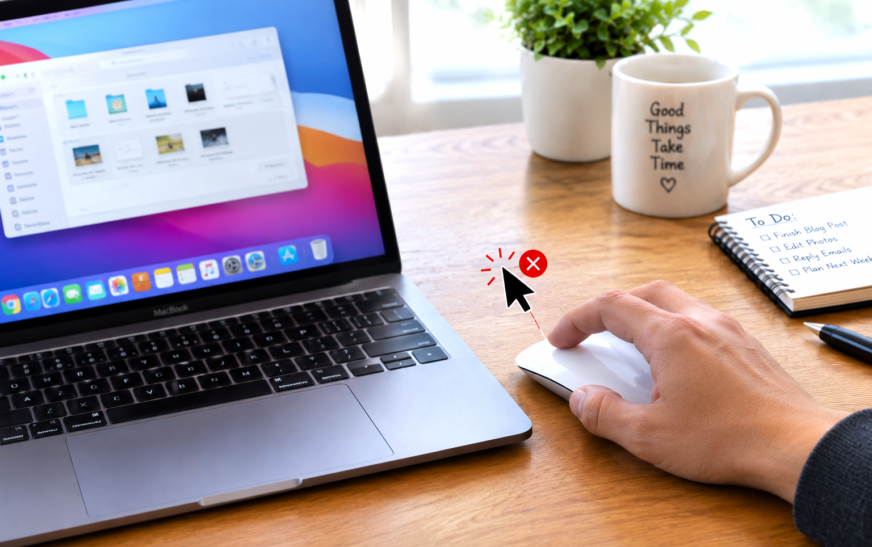
A Mac mouse that randomly refuses to left-click is one of those problems that manages to be both minor and completely infuriating at the same time. The cursor moves fine, right-click works, the Mac is otherwise running normally — but left-click just doesn’t respond. Or it works perfectly for an hour, then starts acting up again for no obvious reason. You reboot, it seems fine, then the same thing happens later that afternoon.
The “randomly” part is what makes this tricky to diagnose. Problems that occur constantly are easier to pin down than ones that come and go. A click that fails intermittently could be a hardware issue with the mouse itself, a macOS software conflict, a Bluetooth connection hiccup, a wrong accessibility setting, or a preference file that’s gone stale. Each of those has a different fix.
This guide covers every real cause of random left-click failures on Mac, organised so you can identify which one matches your specific situation and jump straight to the right solution.
What Kind of Left-Click Problem Are You Having?
🔍 Find Your SymptomLeft-click does absolutely nothing
The cursor moves normally, but pressing left-click has no effect at all. Nothing highlights, nothing opens, nothing selects. Right-click still works fine.
Left-click works, then randomly stops
Clicking works fine for a while, then suddenly stops registering — then comes back on its own minutes later. Happens unpredictably throughout the day.
Left-click registers as a double-click
A single click opens things as if you double-clicked them — files open instead of select, apps launch instead of just highlighting. The click itself works but fires twice.
Wireless mouse left-click cuts in and out
Using a Bluetooth or wireless mouse and the left-click drops out intermittently, especially when the Mac has been idle or when other wireless devices are nearby.
Problem started after a macOS update
Left-click worked perfectly until a recent macOS update. Now it’s unreliable. Other settings or behaviours may have also shifted after the update.
Only happens in specific apps
Left-click works fine everywhere on the Mac except inside one or two specific applications, where it either doesn’t respond or behaves unpredictably.
Common Causes of Random Left-Click Failures
🧠 What’s Usually Behind This| Cause | What It Leads To | Who It Affects |
|---|---|---|
| Mouse Keys turned on accidentally | Left-click stops working or behaves strangely; cursor may respond to numpad instead | Very common — easy to trigger by accident |
| Corrupt mouse preference file | Random, intermittent click failures that come and go across sessions | Common after updates or long uptime |
| Bluetooth interference or connection drop | Wireless mouse left-click cuts out; reconnecting temporarily fixes it | Bluetooth mouse users, crowded wireless environments |
| Low Bluetooth mouse battery | Clicks become unreliable before the mouse dies completely; cursor still moves | Magic Mouse and other Bluetooth mice |
| Double-click speed set too slow | Single clicks register as double-clicks; files open instead of select | Anyone who changed mouse settings |
| Third-party app intercepting clicks | Left-click doesn’t reach the desktop or specific apps correctly | Users with click management or accessibility tools |
| SMC or NVRAM needing a reset | System-level input irregularities after updates or wake-from-sleep issues | Intel Macs particularly; M-chip Macs to a lesser degree |
| Hardware fault in the mouse itself | Consistent left-click failure regardless of macOS settings; hardware replacement needed | Older mice, mice with physical wear |
| USB port or hub issue | Wired mouse click drops out; moving the cable to a different port fixes it | Wired mouse users |
| macOS update conflict | Left-click started failing shortly after an OS update; may affect specific apps | All Mac types after major updates |
Fix 1: Check If Mouse Keys Is Accidentally Turned On
🔥 Start Here — Most Overlooked CauseMouse Keys is an accessibility feature that lets you control the cursor using the numeric keypad instead of a physical mouse. It’s useful for people who need it, but it also happens to have a keyboard shortcut that’s easy to trigger by accident — and when it’s active, left-click either stops working or the mouse behaves in confusing ways that don’t obviously point back to this setting.
The default shortcut to toggle Mouse Keys on is pressing Option five times in quick succession. If you’re someone who uses Option as a modifier key regularly, it’s not hard to hit this by accident without realising it. The mouse cursor will still move, which is why this doesn’t immediately look like an accessibility setting problem.
Left-click should start working the moment you turn Mouse Keys off — no restart needed. If you want to keep Mouse Keys available for when you need it but stop triggering it by accident, leave the feature itself enabled but uncheck the Option-key shortcut. You can then toggle it only from System Settings instead of by accident via keyboard.
Fix 2: Reconnect or Reset the Mouse Connection
⚡ Quick Fix for Wireless and Wired MiceBefore diving into software settings, the simplest explanation is often the right one — the mouse connection itself has briefly dropped or stalled. For wireless mice this happens more often than people expect, particularly after the Mac wakes from sleep or when Bluetooth activity is high. For wired mice, a loose USB connection or a flaky port can cause intermittent click failures while the cursor continues to move normally (cursor movement is more fault-tolerant than click registration).
For Bluetooth / wireless mice:
For wired USB mice:
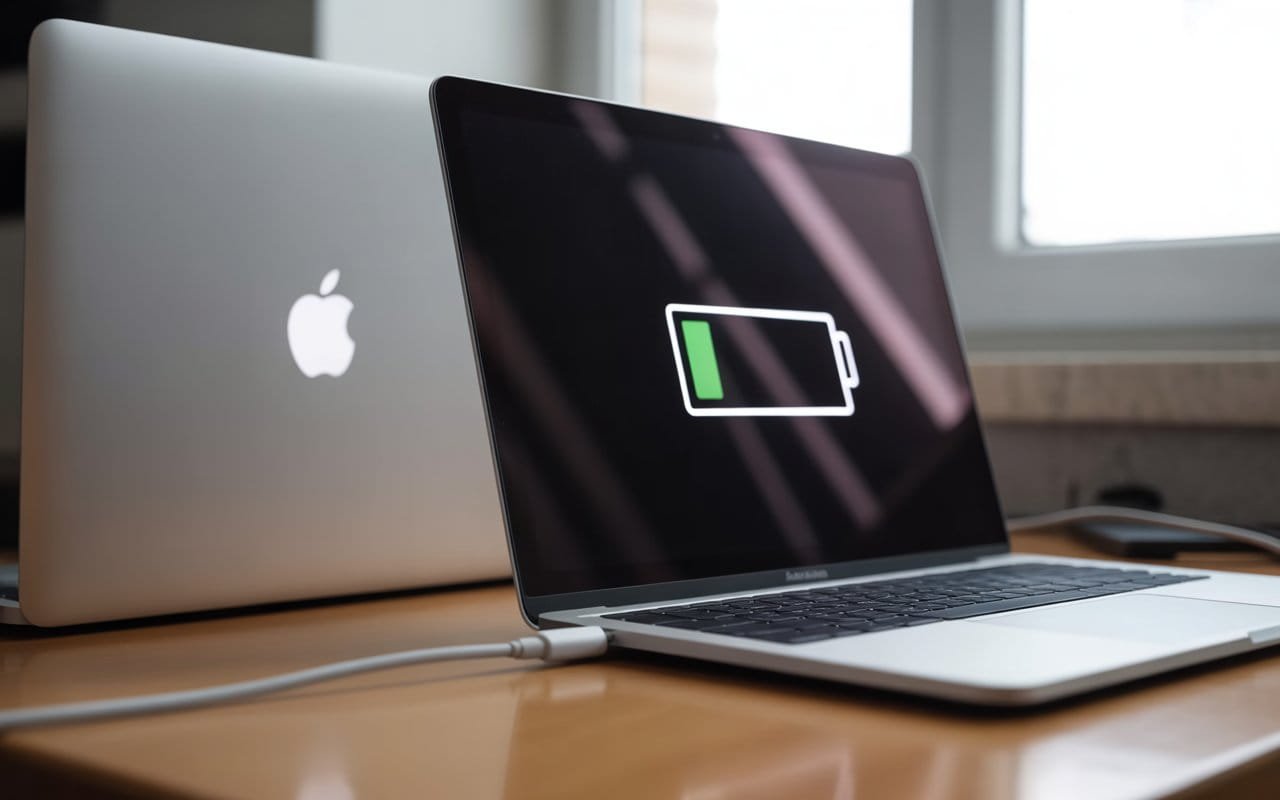
An Apple Magic Mouse with a low battery will often have an unreliable left-click long before the battery dies completely. The cursor keeps moving because cursor tracking requires less power than registering and transmitting click events. Check the battery level in System Settings → Bluetooth — the Magic Mouse shows a battery percentage next to its name. If it’s below 20%, charge it and test again before assuming there’s a software problem.
Fix 3: Delete the Mouse Preference File
🔥 The Most Effective Fix for Random, Intermittent Click FailuresmacOS saves your mouse settings in a preference file stored in your user Library folder. Over time — especially after macOS updates or system migrations — this file can develop inconsistencies that cause irregular behaviour. The result is exactly the kind of random, hard-to-reproduce left-click failure where the mouse works fine sometimes and not others.
Deleting this preference file is safe. macOS recreates it immediately the next time you open System Settings or restart, applying sensible defaults. You’ll need to re-enter any custom settings (like click speed or scrolling direction) but that takes under a minute.
If you’re not sure which preference file belongs to your mouse, open Terminal and run: ls ~/Library/Preferences/ | grep -i mouse — this lists every preference file with “mouse” in the name, making it easy to spot the relevant ones without searching through the entire Preferences folder manually.
Fix 4: Fix the Double-Click Speed Setting
📊 When Single Clicks Are Registering as Double-ClicksIf your left-click is working but files open when you expected them to just select, or apps launch with a single click — you’re not dealing with a broken click, you’re dealing with the double-click speed being set too slow. macOS interprets two clicks within a certain time window as a double-click. When that window is too wide, a deliberate single click followed by any slight movement or pressure can register as two separate clicks within the threshold.
Check the Spring-loading Folders delay slider in System Settings → Mouse as well. If spring-loading is enabled with a very short delay, hovering over a folder while dragging can trigger opening behaviour that feels like an accidental double-click. Setting the delay to Medium or Long reduces this.
Fix 5: Fix Bluetooth Interference and Connection Stability
📡 For Wireless Mice That Cut Out IntermittentlyBluetooth operates on the 2.4 GHz frequency — the same band used by Wi-Fi routers on the 2.4 GHz channel, cordless phones, microwave ovens, and other wireless devices. When there’s a lot of activity on this band nearby, Bluetooth devices can experience signal interference that shows up as dropped clicks, cursor stuttering, or intermittent disconnects. The left-click is more susceptible than cursor movement because a click is a single discrete event, while cursor movement is a continuous data stream that the system tolerates more gracefully.
Apple’s Magic Mouse performs poorly on highly reflective or metallic surfaces. Metal can absorb or reflect the Bluetooth signal in ways that degrade click registration even when the cursor continues tracking normally. If you use a Magic Mouse on a metal desk or a glass surface, try using it on a proper mouse pad — this resolves signal and tracking issues simultaneously and makes a noticeable difference to click reliability.
Fix 6: Check Accessibility and Third-Party App Permissions
🔧 When Left-Click Fails Only in Specific Apps or After Installing New SoftwareSome third-party apps request Accessibility permissions so they can monitor or modify mouse input system-wide — gesture tools, window managers, productivity utilities, and automation apps all commonly do this. When these apps have Accessibility access and develop a bug or configuration issue, they can intercept or block left-click events before they reach the target app. The result looks like a macOS click problem when it’s actually a specific app sitting in between your mouse and macOS.
Restart your Mac in Safe Mode — on Apple Silicon Macs, shut down, then hold the power button until you see startup options, then hold Shift and click Continue in Safe Mode. On Intel Macs, restart and hold Shift until the login screen appears. Safe Mode disables all third-party login items and extensions. If the left-click works perfectly in Safe Mode but fails in normal startup, a third-party app or login item is definitively the cause. Restart normally and disable items one by one to identify which one.
Fix 7: Reset NVRAM and SMC (Intel Macs)
🔄 For Persistent Random Click Issues That Nothing Else FixesOn Intel-based Macs, two low-level system components store hardware-related settings: NVRAM (Non-Volatile RAM) holds settings like display resolution, startup disk, and some input device configurations, while the SMC (System Management Controller) handles power, thermal, and peripheral behaviour. When either of these develops a fault — which can happen after a hard shutdown, a power surge, or a macOS update that changes low-level system parameters — peripheral behaviour including mouse clicks can become erratic.
Apple Silicon Macs (M1, M2, M3, M4 and later) don’t have an SMC to reset in the traditional sense, and NVRAM is handled differently — a restart is usually sufficient for the equivalent effect on those machines.
Reset NVRAM (Intel Macs only):
Reset SMC on Intel MacBook models (built-in keyboard):
For Intel iMac, Mac mini, and Mac Pro: shut down the Mac, unplug the power cord, wait 15 seconds, plug it back in, wait another 5 seconds, then press the power button to start it. This resets the SMC on desktop Intel machines.
Fix 8: Test the Mouse on Another Mac or Another Mouse on This Mac
🧪 Rule Out Hardware Before Going FurtherAt some point in the troubleshooting process — especially if none of the software fixes have made a consistent difference — it’s worth doing a clean hardware isolation test. This takes a few minutes and definitively tells you whether you’re chasing a hardware fault or a software issue.
Some Apple Magic Mouse units have developed a hardware defect where the left-click mechanism becomes intermittently unresponsive after a year or two of use — particularly on the first generation Magic Mouse 2. This is a physical failure of the click mechanism, not a software problem, and no macOS fix will resolve it permanently. If you’ve confirmed through testing that the mouse is the hardware fault, and it’s out of warranty, replacing the mouse is the practical solution.
Fix 9: Update or Reinstall Mouse Drivers
📦 For Third-Party Mice That Use Custom SoftwareMost third-party mice — Logitech, Razer, SteelSeries, Corsair, and others — include companion software that provides extended configuration beyond what macOS System Settings offers. This driver software sits between the physical mouse and macOS, and when it becomes outdated or develops a bug after a macOS update, it can interfere with basic functions including left-click registration.
Fix 10: Check for macOS Updates
🔄 When the Problem Appeared After a Specific macOS UpdateApple releases supplemental updates and bug fix releases specifically to address peripheral behaviour regressions that occasionally slip through in major macOS releases. If the left-click problem started after a specific update, checking whether a newer patch is available is a fast, low-effort step that sometimes resolves the issue entirely without any further troubleshooting.
Things Worth Knowing About Mac Mouse Click Issues
Wake-from-sleep is when wireless click failures happen most. The most common trigger for a Bluetooth mouse left-click failing is the Mac waking from sleep. Bluetooth devices go through a reconnection cycle when the Mac wakes, and during that cycle — which usually takes 1–3 seconds — clicks may not register. If your left-click only fails right after waking the Mac and then works fine, this is normal Bluetooth reconnection behaviour rather than a fault. Moving the mouse before clicking gives the Bluetooth connection a moment to fully re-establish.
Three-finger drag can interfere with left-click in specific contexts. If you use a Magic Mouse alongside a trackpad, and have three-finger drag enabled in Accessibility settings, there are edge cases where macOS gets confused about which input device should handle a click event. This typically manifests as clicks that seem to land slightly off-target or fail to register on certain UI elements. Disabling three-finger drag if you don’t use it removes one variable.
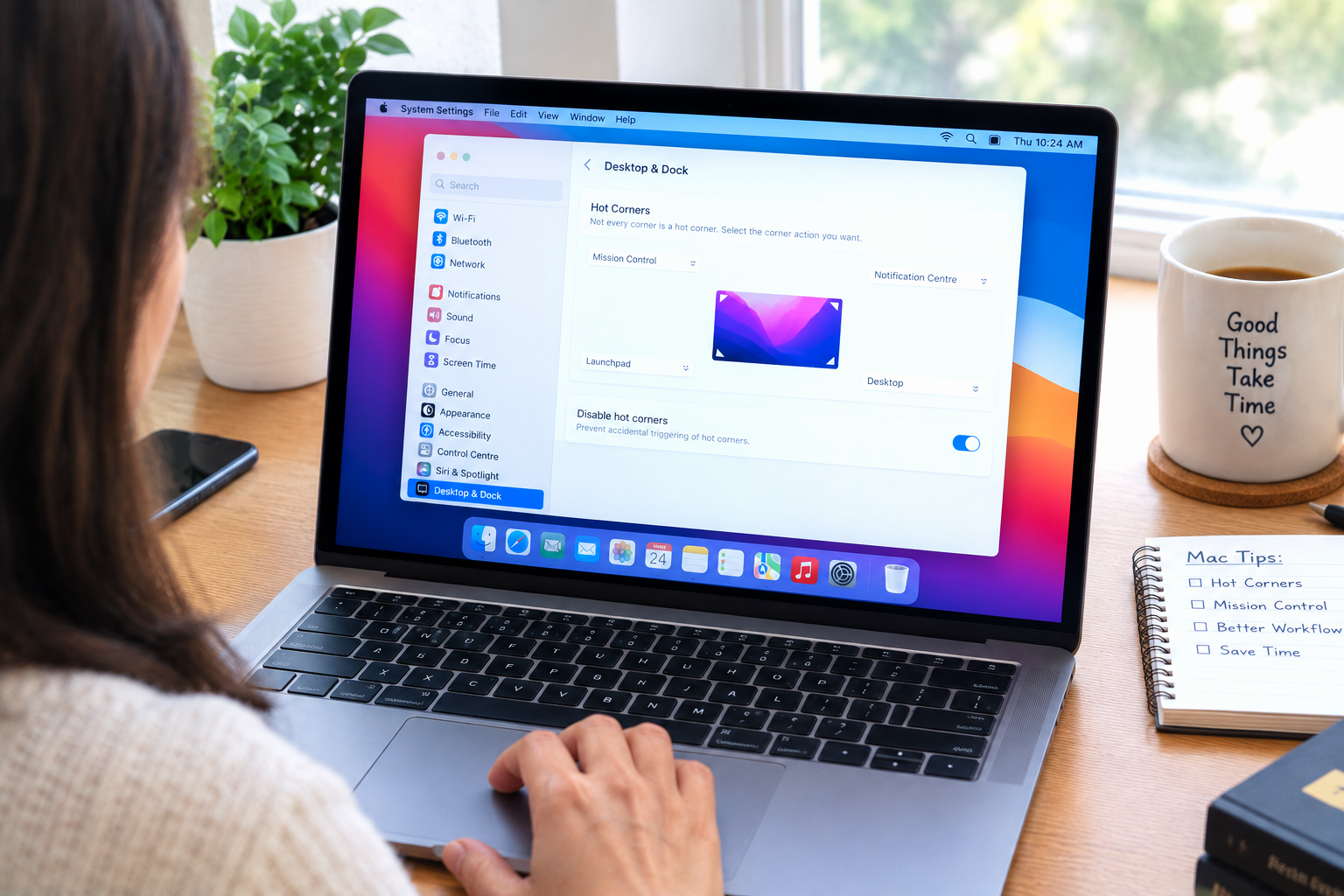
Check Mission Control hot corners if clicks “disappear” near screen edges. If left-clicks near the corners of the screen seem to vanish — triggering a screensaver, invoking Mission Control, or doing something unexpected instead of registering as a normal click — Hot Corners may be set to activate on click in those areas. This isn’t a click failure but it mimics one. Check System Settings → Desktop & Dock → Hot Corners to see what’s configured.
Unpair and re-pair is more thorough than just toggling Bluetooth. When Bluetooth issues cause intermittent click failures, the fully paired-device record can sometimes develop inconsistencies that toggling Bluetooth on and off doesn’t clear. A complete forget-and-re-pair creates a fresh pairing record from scratch and fixes problems that a quick reconnect doesn’t address.
What Not to Do When Mac Left-Click Stops Working
The instinct when a click stops working is to assume the mouse is broken and order a replacement. In practice, the majority of random left-click failures on Mac are software or configuration issues — and replacing the mouse doesn’t fix a software problem. Before assuming hardware failure, spend 15 minutes on the software fixes above. The hardware test in Fix 8 will tell you definitively whether the mouse itself is at fault.
While investigating which app might be interfering with clicks, you might see prompts asking you to grant Accessibility access to various apps. Only grant this to apps you intentionally installed and understand the purpose of. Accessibility permission gives an app significant control over your Mac’s input — including the ability to monitor and intercept every click and keystroke. If an app you don’t recognise is in that list, research it before deciding whether it should be there.
If you use a wired mouse through a USB hub — especially a hub that also powers monitors, drives, or other high-draw devices — that hub may not be providing consistent power to the mouse. An underpowered hub causes exactly the kind of intermittent, hard-to-reproduce click failures that are easy to misattribute to the mouse or macOS. Plugging the mouse directly into the Mac to test, even temporarily, is worth doing early in the process.
A macOS reinstall is sometimes suggested as a catch-all fix for input device issues. It’s a time-consuming process and it often doesn’t resolve problems caused by preference files or third-party apps — those survive a standard macOS reinstall since they’re stored in your user account, not in the system files the reinstall refreshes. Work through the targeted fixes here first. A reinstall is worth considering only if you’ve exhausted every other option and the problem persists in a new macOS user account.
Frequently Asked Questions
Why is my Mac mouse left-click not working randomly?
The most common causes of random left-click failures on Mac are: Mouse Keys being accidentally enabled (Accessibility → Pointer Control), a corrupt mouse preference file in ~/Library/Preferences/, a Bluetooth connection interruption (especially after wake from sleep), or a third-party app with Accessibility permissions intercepting click events. Start by checking whether Mouse Keys is on, then reconnect the mouse and delete its preference file. Those three steps resolve the issue in the large majority of cases.
Mac Magic Mouse left-click not working — what do I do?
Check the battery level first (System Settings → Bluetooth — the Magic Mouse shows a percentage). Low battery causes unreliable clicks before the mouse dies completely. If battery is fine, toggle Bluetooth off and back on to force a fresh connection. If the problem keeps returning, fully remove the Magic Mouse from Bluetooth pairings (Forget This Device) and pair it again from scratch. For persistent issues, delete the com.apple.AppleMultitouchMouse.plist preference file from ~/Library/Preferences/ and restart.
Mouse left-click works but single click opens files instead of selecting them
This is a double-click speed issue, not a click failure. Go to System Settings → Mouse and move the Double-Click Speed slider toward Fast. When the threshold is too slow, macOS reads two rapid single clicks as a double-click, causing files to open instead of select. Moving the slider to a faster setting fixes this immediately without requiring a restart.
Mac left-click stopped working after macOS update — how to fix it?
After a macOS update, left-click failures are usually caused by one of three things: a stale preference file that became incompatible with the new macOS version (delete com.apple.driver.AppleHIDMouse.plist from ~/Library/Preferences/ and restart), a third-party mouse driver that needs updating (check the companion app for updates, or reinstall it), or a system-level input service that needs resetting (restart the Mac without restoring previous windows, then check System Settings → Software Update for any follow-up patches Apple may have released).
Mac mouse cursor moves but left-click doesn’t work — is it Mouse Keys?
Cursor movement continuing normally while left-click fails is a classic Mouse Keys symptom — and also happens with Bluetooth connection drops where tracking packets get through but click packets don’t. Check Mouse Keys first: System Settings → Accessibility → Pointer Control. If Mouse Keys is on, turn it off and test immediately. If Mouse Keys is off, try reconnecting the mouse by toggling Bluetooth or replugging the USB cable.
How do I know if my Mac mouse left-click failure is hardware or software?
The fastest way to tell: test a different mouse on your Mac. If a different mouse has a reliable left-click where yours doesn’t, the fault is in your mouse’s hardware. If the different mouse has the same problem, the fault is in macOS or your Mac’s configuration. You can also test your mouse on a different Mac — if it works there, the problem is your Mac’s software settings, not the mouse. A mouse that fails on two different Macs with the same left-click symptoms is almost certainly a hardware fault.
Mac left-click works everywhere except one app — why?
When left-click fails only in a specific app, the issue is usually that app’s own click handling rather than a system-wide problem. Try force-quitting the app (⌘ + Option + Esc) and relaunching it. If that doesn’t help, check whether the app has a pending update — click bugs inside specific apps are often fixed in minor updates. Also check System Settings → Privacy & Security → Accessibility to see if another app is intercepting clicks and affecting the target app specifically.
Mac Mouse Left-Click Not Working — Fix Checklist
- 1Check Mouse Keys — System Settings → Accessibility → Pointer Control; turn off if enabled; disable the Option-key shortcut to prevent accidental re-enabling
- 2Reconnect the mouse — toggle Bluetooth off and on for wireless mice; unplug and replug for wired mice; plug directly into Mac to bypass any hub
- 3Check the battery — Magic Mouse and wireless mice with low battery produce unreliable clicks; check percentage in System Settings → Bluetooth
- 4Delete the mouse preference file — ~/Library/Preferences/ → com.apple.driver.AppleHIDMouse or com.apple.AppleMultitouchMouse; restart after deleting
- 5Fix double-click speed — System Settings → Mouse; move Double-Click Speed slider toward Fast if single clicks are opening files
- 6Address Bluetooth interference — unpair and re-pair the mouse; move it closer to the Mac; switch router to 5 GHz to reduce 2.4 GHz congestion
- 7Check Accessibility permissions — System Settings → Privacy & Security → Accessibility; toggle off unknown or unused apps; test in Safe Mode to isolate conflicts
- 8Reset NVRAM and SMC (Intel Macs) — for persistent random click issues that nothing else resolves
- 9Hardware isolation test — test a different mouse on your Mac and your mouse on a different Mac to confirm whether the fault is hardware or software
- 10Update or reinstall mouse drivers — for third-party mice using companion software; reinstall cleanly if updating doesn’t help
Mouse Keys (Fix 1) and the preference file deletion (Fix 4) fix the majority of random left-click failures that don’t have an obvious cause. For wireless mice, battery level and the Bluetooth re-pair (Fix 6) cover most of the remaining cases. The hardware isolation test in Fix 9 is the right call if you’ve worked through everything and still can’t pin it down — it takes the guesswork out of whether you’re dealing with a software problem or a mouse that needs replacing.
ⓘ Disclaimer: CrazyErrors is an independent informational site not affiliated with Apple Inc. or any mouse or peripheral manufacturer. The steps in this article are based on current macOS versions and general best practices for peripheral troubleshooting. Hardware behaviour and system settings may vary between Mac models and macOS versions. For hardware warranty support, contact Apple or your mouse manufacturer directly. Content on this site is for informational purposes only and does not constitute official support.