MacBook screen flickering is caused by either a software issue or a hardware problem — and identifying which one saves a lot of wasted troubleshooting time. If the flickering happens in specific apps only, appears or disappears when you change display settings, or started right after a macOS update, it’s almost certainly software. If it happens across the entire screen regardless of what’s running, persists in Safe Mode, or worsens when you flex the display lid, it’s very likely hardware. For software flickering, start by going to System Settings → Displays and turning off True Tone and ProMotion adaptive refresh rate. For hardware flickering, an Apple Store diagnostic is the right next step.
Your MacBook screen is flickering. Maybe it’s a rapid flash that happens for a split second and disappears. Maybe it’s a persistent horizontal stripe that rolls across the screen. Maybe the whole display dims and brightens rhythmically, or a portion of the screen has a subtle shimmer that wasn’t there before the last macOS update.
Screen flickering is one of the more frustrating MacBook problems because it’s both distracting during actual use and genuinely hard to diagnose without knowing where to look. The fix for a software-caused flicker takes five minutes in System Settings. The fix for a hardware-caused flicker requires an Apple Store visit. Applying the wrong approach wastes time and doesn’t solve anything.
This guide is designed to help you figure out which type of flickering you have before any fix is attempted — then walks through every software resolution first, followed by a clear explanation of what hardware issues look like and what to do about them.
Software vs Hardware Flickering — How to Tell the Difference
Diagnose Before You FixThe single most useful thing you can do before applying any fix is to spend a few minutes observing exactly when and how the flickering occurs. The pattern almost always tells you whether you’re dealing with a software issue or a hardware one.
| What You See | Likely Cause |
|---|---|
| Flickering only in specific apps (Chrome, video editors, etc.) | Software (GPU / app) |
| Started immediately after a macOS update | Software (macOS bug / driver) |
| Disappears in Safe Mode | Software (extension / driver) |
| Changes when you adjust display brightness | Software (PWM / True Tone) |
| Whole screen flickers consistently across all apps | Either — run Safe Mode test |
| Flickering gets worse or better when you flex the display lid | Hardware (display cable) |
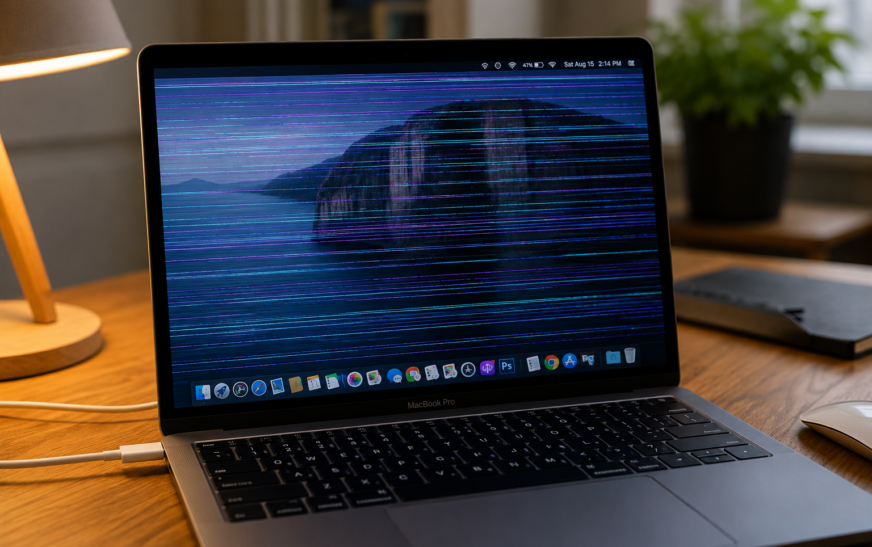
| Horizontal or vertical lines running across the screen | Hardware (display panel / GPU) |
| Specific portion of screen permanently discoloured or dim | Hardware (display panel) |
| Persists in Safe Mode and on external display simultaneously | Hardware (GPU / logic board) |
| MacBook was recently dropped or exposed to liquid | Hardware (physical damage) |
The single most useful diagnostic step is to boot into Safe Mode and observe whether the flickering continues. Safe Mode loads macOS with only essential system software — no third-party drivers, login items, or extensions. If the flickering stops in Safe Mode, a software component is responsible and every fix in the software section below is worth trying. If flickering persists in Safe Mode at the same intensity, the cause is hardware. To boot into Safe Mode on Apple Silicon: hold Power at startup, select your disk, hold Shift, click Continue in Safe Mode. On Intel: hold Shift immediately after startup chime.
Software Fixes — Start Here If the Issue Is Software-Related
Work Through These in OrderSoftware-caused flickering is far more common than hardware failure, and every fix in this section is safe, reversible, and takes a few minutes at most. Work through them one at a time so you can identify which specific change resolves the issue.
SW Fix 1: Update macOS
Most Common Fix for Post-Update FlickeringApple frequently patches display-related bugs — including flickering — in point updates (e.g. macOS Tahoe 26.0.1). If the flickering started after you updated to a specific macOS version, there’s a real chance the very next point update addresses it. Checking for and installing any pending update is always the first software step.
If flickering started with a specific macOS update and no subsequent fix has been released yet, check Apple’s Community Forums for reports of the same symptom on your specific Mac model. Apple often acknowledges widespread display bugs in developer release notes before the fix reaches the public channel, which can tell you whether a patch is imminent.
SW Fix 2: Turn Off True Tone and ProMotion Adaptive Refresh Rate
High Success Rate for Brightness-Linked FlickeringTrue Tone automatically adjusts your MacBook’s display colour temperature based on ambient light. ProMotion dynamically shifts the display refresh rate between 24Hz and 120Hz depending on what’s on screen. Both are excellent features under normal circumstances, but both can cause subtle flickering or brightness pulsing on certain MacBook models — particularly in lower light conditions or on older machines that receive these features through a macOS update.
True Tone uses ambient light sensors that can sometimes interact poorly with certain display brightness levels, causing visible brightness fluctuation — especially in rooms with dynamic lighting. ProMotion’s rapid refresh rate changes can look like flickering when the Mac switches between 120Hz and lower rates mid-screen during certain content types. Disabling one or both immediately eliminates these causes.
SW Fix 3: Check for App-Specific GPU Issues
For Flickering That Only Happens in Certain AppsSome applications — particularly web browsers, video editors, and graphics-intensive software — push heavily on the GPU. A software bug in the app, an outdated graphics extension, or an app that’s forcing GPU acceleration when it shouldn’t can produce flickering that’s isolated entirely to that application while the rest of macOS looks perfectly fine.
chrome://flags in the address bar, search for “hardware acceleration,” and disable it. Restart ChromeOpen Activity Monitor (Command + Space → type “Activity Monitor”) and click the GPU History option under the Window menu. Watch whether GPU usage spikes exactly when the flickering occurs — a GPU usage spike coinciding with each flash confirms the GPU rendering is the trigger, pointing to a software or driver resolution rather than hardware.
SW Fix 4: Delete and Rebuild Display Preference Files
For Flickering That Started After a macOS UpdatemacOS stores your display configuration in preference files including colour profiles, resolution settings, and calibration data. When these are carried over from an older macOS version and don’t fully align with how the new version handles display hardware, the mismatch can produce persistent flickering. Removing and rebuilding these files forces macOS to create a fresh, clean configuration.
~/Library/Preferencescom.apple.windowserver — there may be one or several files with slightly different names/Library/Preferences/com.apple.windowserver.plistSW Fix 5: Reset the Display Resolution and Colour Profile
Fixes Flickering Linked to Non-Default Display SettingsOccasionally, a custom display resolution, scaled resolution, or a colour profile mismatch is enough to cause intermittent flickering — especially on Retina displays where the Mac has to maintain a specific internal rendering scale. Resetting these to defaults takes seconds and is a simple, safe check to rule out before moving on.
SW Fix 6: Remove Login Items and Launch Agents
For Flickering That Starts Shortly After LoginIf the screen is fine immediately at login but begins flickering a minute or two later — roughly when background apps and login items finish loading — one of those startup applications is the likely trigger. Third-party menu bar apps, display management utilities (like BetterDisplay or resolution switchers), and GPU monitoring tools can all interfere with macOS’s display stack.
Apps like BetterDisplay, Resolution Changer, Lunar, and similar tools modify how macOS controls display hardware at a low level. While these are useful applications, they can conflict with macOS updates that change the display management API. If you’re running any of these, update them to the latest version or temporarily uninstall them to test whether they’re contributing to the flickering.
SW Fix 7: Disable Automatic Graphics Switching (Intel Macs With Dual GPU)
For Intel MacBook Pros With Discrete and Integrated GPUOlder Intel MacBook Pro models (pre-2021) often had two GPUs: an integrated Intel graphics chip for everyday tasks and a discrete AMD or NVIDIA GPU for demanding work. macOS automatically switches between them to balance performance and battery life. This switching process can occasionally produce a brief flicker or black flash when the handover occurs — visible as a momentary full-screen dim or colour shift.
Apple Silicon Macs (M1, M2, M3, M4) have a unified memory architecture with a single GPU — there’s no separate integrated and discrete GPU to switch between. This fix only applies to Intel MacBook Pro models that offered “automatic graphics switching” in their Battery settings. If you don’t see that option, your Mac doesn’t use dual GPUs.
SW Fix 8: Reset NVRAM and SMC
For Persistent Software Flickering After All Other FixesNVRAM (Non-Volatile Random-Access Memory) on Intel Macs stores certain display-related settings — resolution preferences, GPU state, and some colour configuration. The SMC (System Management Controller) manages power delivery to the display backlight and GPU. Both can get into inconsistent states after macOS updates or unexpected shutdowns, occasionally contributing to display issues.
Reset NVRAM — Intel Macs only:
Reset SMC — Intel MacBook with T2 chip (2018 and later):
Apple Silicon equivalent — Safe Boot restart:
SW Fix 9: Reinstall macOS to Fix Corrupted Display Drivers
Last Software ResortIf every software fix above has been tried and the flickering persists — but Safe Mode confirms it’s still a software issue by stopping the flicker — the display driver or window server component in macOS itself may be corrupted. A macOS reinstall from Recovery Mode rewrites all system files including GPU drivers, without touching any of your personal data.
Hardware Causes of MacBook Screen Flickering
If Software Fixes Didn’t Help — Read ThisIf the flickering persists in Safe Mode, varies when you physically flex or reposition the display lid, or the diagnostic table above points toward hardware, you’re dealing with a hardware-level problem. The good news is that hardware-caused flickering is also predictable — there are a small number of specific components that cause it, and each has a recognisable pattern.
Hardware Cause 1: Display Cable Flexion Issue
Most Common Hardware Cause on MacBooksInside every MacBook, a thin ribbon cable (the LVDS or eDP cable, depending on the model) carries the video signal from the logic board to the display panel. This cable runs through the hinge area and is subject to physical stress every time you open and close the lid. Over time — and this typically affects MacBooks 3–6 years old — the cable can develop micro-fractures or the connector can become slightly loose, causing intermittent signal loss that appears as flickering.
How to tell if this is your problem:
- Flickering changes in intensity or completely stops when you hold the display at a specific angle
- Flickering worsens when you push gently on the display or move the hinge area
- The flicker appears at a certain angle of opening (e.g. only when the lid is below 45 degrees)
- Flickering started gradually and has gotten worse over weeks
A display cable issue on a modern MacBook is not a DIY repair. The cable and connectors are extremely delicate, and on most MacBook models they’re routed through the hinge mechanism in a way that requires significant disassembly to access. Apple Stores and authorised service providers can replace the display cable. Attempting it without specific Mac repair experience risks making the problem significantly worse.
Hardware Cause 2: Display Panel Failure
Recognisable by Specific Visual PatternsThe display panel itself — the actual LCD or OLED screen element — can develop internal failures that produce characteristic visual symptoms. These are different from cable-related flickering in their appearance and are not affected by moving the display hinge.
Signs that point to panel failure:
- Persistent horizontal or vertical lines across the display that don’t change when you move the hinge
- A portion of the screen that has a permanent discolouration, unusual tint, or reduced brightness compared to the rest
- Flickering that’s isolated to one quadrant of the screen rather than the entire display
- A visible “dead zone” where content appears but with unusual brightness or colour rendering
- The pattern appears identical on an external display — which would rule out the panel and point toward the GPU instead
Connect your MacBook to an external display using a USB-C to HDMI or Thunderbolt cable. If the flickering appears on the external display too, the issue is with the GPU or logic board — not the MacBook’s screen. If the external display is completely stable while the MacBook screen flickers, the issue is with the internal cable or panel. This single test cleanly separates display-side from GPU-side hardware problems.
Hardware Cause 3: GPU or Logic Board Issue
The Most Serious Hardware CauseIf the flickering appears on both the MacBook’s screen and an external display simultaneously, the GPU — which is integrated into the logic board on modern Macs — is the source. GPU-caused flickering often has a slightly different character than display-side flickering: it may involve unusual colour artefacts, geometric patterns overlaid on the screen, or random sections of the screen being rendered incorrectly rather than simply flashing.
Signs that suggest GPU or logic board involvement:
- Flickering appears on both built-in and external display at the same time
- Screen glitches during GPU-intensive tasks (video rendering, gaming, high-resolution video playback)
- Unusual visual artefacts — random coloured pixels, torn frames, geometric patterns that shouldn’t be there
- Mac runs hotter than usual at the same workload — thermal throttling from an overheating GPU can cause display instability
- System crashes or kernel panics coinciding with display issues
A failing GPU or logic board is the most serious category of MacBook hardware problem. It cannot be repaired at home, and on Apple Silicon Macs the GPU is part of the same chip as the CPU — there’s no separate GPU to replace. If your MacBook is under AppleCare+, GPU-related failures are typically covered. If it’s out of warranty, an Apple Store assessment will tell you the repair cost and help you decide between repair and replacement.
Hardware Cause 4: Overheating and Thermal Throttling
Flickering Under Heavy LoadWhen a MacBook’s CPU or GPU runs too hot, the system throttles performance to bring temperatures down. In some cases this thermal throttling manifests as display instability — brief flickering or dimming under heavy sustained workloads, particularly on MacBook Pros used for video editing, 3D rendering, or extended gaming sessions.
When to Visit the Apple Store
Hardware Repair GuidanceThe following situations warrant an Apple Store or Apple Authorised Service Provider appointment:
- Flickering persists in Safe Mode (hardware confirmed)
- Flickering changes when you flex or reposition the display lid (cable issue)
- Flickering appears on an external display simultaneously (GPU/logic board)
- Visible horizontal/vertical lines or permanent discolouration on screen
- The Mac was dropped, had liquid contact, or suffered physical impact before the flickering started
- Your MacBook is under AppleCare+ — hardware display issues are typically covered
Video the flickering on your phone before going to the Apple Store — the technician needs to see the symptom, and it may not occur at the exact moment they’re testing the device. A short screen recording or video on your phone showing the flickering clearly makes the diagnosis significantly faster and more reliable.
Pro Tips: Preventing MacBook Screen Flickering
Keep macOS updated. Display driver improvements, GPU management fixes, and True Tone/ProMotion stability patches ship regularly in point updates. Staying current is the single best protection against software-caused display issues.
Don’t block the MacBook’s vents. Using a MacBook on a soft surface like a bed or pillow blocks the bottom vents and causes sustained high temperatures. Chronic overheating accelerates hardware wear on GPU components over time. A laptop stand or simple flat surface makes a real difference for long-term display hardware health.
Handle the display lid with care. The display cable that runs through a MacBook’s hinge is designed for many thousands of open/close cycles — but rough handling, single-handed opening, or overstretching the lid beyond its natural range adds stress to the cable and connectors. Open the MacBook with both hands where possible.
If your Mac is also running slowly, check storage alongside display settings. A Mac under severe storage pressure can struggle to maintain normal rendering performance, which sometimes contributes to visual stuttering. See our guide on freeing up MacBook storage without deleting files if your drive is nearly full. And for more hidden Mac features worth knowing, our secret Mac features guide covers built-in tools many users never discover.
Common Mistakes to Avoid
Opening up a MacBook to inspect a display cable is unnecessary if the flickering only happens in Chrome with hardware acceleration enabled. Run the Safe Mode test first, always. A confirmed software-only flicker doesn’t need anything more than settings changes or a macOS update.
Software flickering tends to be consistent — it either happens or it doesn’t, and it doesn’t usually worsen on its own. Flickering that’s gradually getting more frequent or more severe over days and weeks is almost always hardware-related, and hardware problems generally don’t improve on their own. Act sooner rather than later.
Turning off True Tone, ProMotion, Night Shift, and disabling automatic graphics switching all in one sitting makes it impossible to know which specific change fixed the problem. Change one thing at a time and observe for 15–30 minutes between changes.
FAQ: MacBook Screen Flickering
Why is my MacBook screen flickering?
MacBook screen flickering is caused by either software or hardware issues. Software causes include macOS bugs or updates, True Tone or ProMotion interactions, display preference corruption, app-specific GPU rendering problems, or third-party display management utilities. Hardware causes include a partially disconnected display cable, display panel failure, GPU instability, or thermal throttling under heavy load. The fastest way to tell which category you’re dealing with is to boot into Safe Mode — if flickering stops, it’s software. If it continues at the same intensity, it’s hardware.
My MacBook screen flickers when I move the lid — what does that mean?
Flickering that changes when you physically flex or reposition the display lid strongly suggests a display cable issue. The cable that carries the video signal from the logic board to the display panel runs through the hinge area and can develop micro-fractures or loose connections over time, especially on MacBooks that are several years old. This pattern is very reliable as a diagnostic indicator and points toward a hardware repair rather than any software fix.
Can a macOS update cause screen flickering?
Yes — display-related bugs introduced by macOS updates are a well-documented pattern. They typically affect specific Mac models rather than all Macs, and they’re usually resolved in subsequent point updates. If your flickering started immediately after a specific macOS update, check whether other users with the same Mac model are reporting the same symptom in Apple’s community forums. The fix is often either the next point update or disabling specific display features like True Tone or ProMotion that the update may have changed.
Does screen flickering mean my MacBook is dying?
Not necessarily. The majority of MacBook screen flickering cases are software-related and completely fixable. Even hardware-related flickering — from a display cable or panel issue — doesn’t necessarily indicate the Mac is failing broadly; it’s often a single component that can be repaired. GPU or logic board issues are more serious, but even those don’t necessarily mean the machine is beyond repair. Run the Safe Mode test, apply the relevant software fixes, and get a professional assessment if hardware is indicated.
My MacBook screen only flickers in Chrome — is that a software issue?
Yes — flickering isolated to a single browser or application is definitively a software issue, not hardware. Chrome uses hardware acceleration by default, and this can conflict with macOS’s GPU management on certain Mac configurations. Try disabling hardware acceleration in Chrome settings (chrome://settings → Advanced → System → turn off “Use hardware acceleration when available”), then relaunch Chrome and test. Updating Chrome to the latest version is also worth doing simultaneously.
MacBook Screen Flickering — Complete Fix Checklist
- 1Run the Safe Mode test — boot into Safe Mode to confirm software vs hardware cause
- 2Update macOS — check for point release that patches display driver bugs
- 3Turn off True Tone and ProMotion — System Settings → Displays
- 4Disable app hardware acceleration — for browser/app-specific flickering
- 5Delete display preference files — rebuild com.apple.windowserver plist
- 6Reset display resolution and colour profile — use Default for Display
- 7Remove display-related login items — disable third-party display utilities
- 8Disable automatic GPU switching — Intel dual-GPU MacBook Pros only
- 9Reset NVRAM and SMC (Intel) or Safe Boot (Apple Silicon)
- 10Reinstall macOS — from Recovery Mode, preserves all data
- 11Test with external display — confirms display-side vs GPU-side hardware issue
- 12Visit Apple Store — if hardware confirmed, with a phone video of the symptom
One Last Thing
If you’ve been through the full software section of this guide and the flickering persists, the external display test is the most valuable diagnostic step before booking an Apple appointment. It definitively answers whether the problem is in the display assembly itself (cable, panel) or in the GPU that drives all displays. That single data point makes the Apple technician’s assessment faster and more accurate — and in warranty situations, it can make the difference between a covered repair and a more complicated conversation.
The CrazyErrors team is happy to help if you’re unsure which category your flickering falls into — describe the exact pattern you’re seeing, whether it appears in Safe Mode, and whether you’ve tried the external display test, and we can usually point you toward the right fix quickly.
Wrapping Up
MacBook screen flickering is fixable in the majority of cases — and the most important step is the diagnosis. Spending five minutes observing the pattern, running Safe Mode, and checking the external display tells you whether you need a settings change, a macOS update, or an Apple Store visit. Applying software fixes to a hardware problem (or vice versa) wastes time and doesn’t get you any closer to a working screen.
Work through the software fixes in order if Safe Mode confirms a software cause — True Tone and ProMotion are responsible for a surprising proportion of MacBook display flickering complaints and take seconds to toggle. If hardware is confirmed, the pattern of the flickering (lid-position dependent vs constant, internal only vs external too) tells you which component is involved and what kind of repair to expect.
ⓘ Disclaimer: This article is for informational purposes only. CrazyErrors is not affiliated with Apple Inc. Display and hardware repair should be carried out by Apple or an Apple Authorised Service Provider. Software steps described are based on macOS Tahoe and current macOS releases and may vary slightly on older versions. For official Apple support, visit support.apple.com.