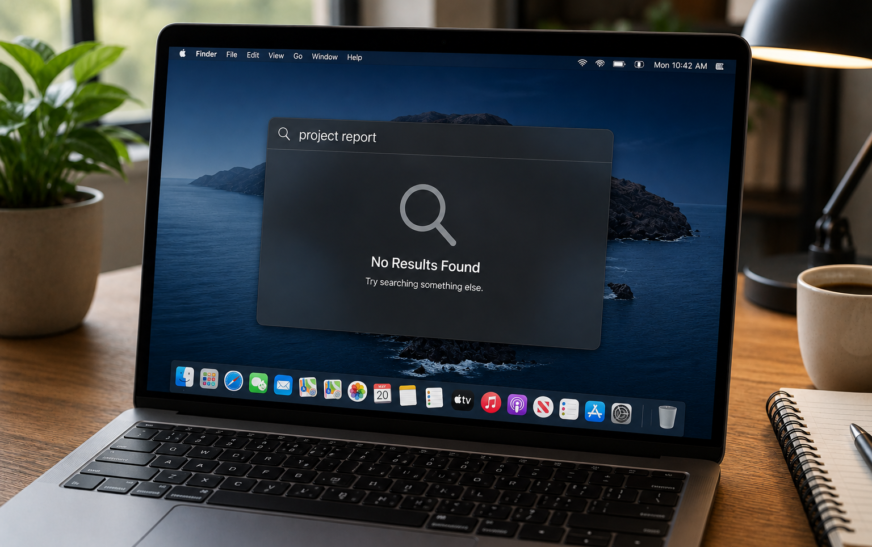
Spotlight not working on Mac is almost always caused by a corrupted or incomplete search index — the database macOS builds to make searches instant. The most reliable fix is to rebuild the Spotlight index: go to System Settings → Siri & Spotlight → Spotlight Privacy, add your Macintosh HD to the privacy list, wait a moment, then remove it. This forces a complete index rebuild that typically resolves the issue within a few hours. If Spotlight won’t open at all, first check your keyboard shortcut in System Settings → Keyboard → Keyboard Shortcuts → Spotlight and confirm Command + Space is still assigned.
You press Command + Space and nothing happens. Or Spotlight opens but the search bar just spins, returning no results. Or — one of the more baffling versions of this problem — Spotlight finds apps and system files perfectly but has no idea where any of your documents and emails are.
Spotlight is one of the features Mac users rely on so constantly that it’s practically invisible when it works. When it breaks, the disruption is immediate. macOS Tahoe made changes to how Spotlight indexes content — especially with its expanded natural language search and integration with Apple Intelligence — and these changes occasionally leave the index in an inconsistent state, particularly on Macs that upgraded from an older macOS version rather than doing a clean install.
This guide covers every cause and every fix, ordered from the quickest checks to the most thorough rebuilds.
What Exactly Is Happening With Your Spotlight?
Find Your Situation🔍 Spotlight won’t open at all — shortcut does nothing
The keyboard shortcut may have been remapped, disabled, or is conflicting with another app. Fix 1 addresses this directly and takes under a minute.
⏳ Spotlight opens but shows no results or just spins
The Spotlight index is either corrupted, still building after an update, or has been interrupted. Fix 3 and Fix 4 are the most effective here.
📂 Spotlight finds apps but not files, emails, or documents
Specific file types or folders have been accidentally excluded from Spotlight’s Privacy list. Fix 2 covers this and the fix often takes 30 seconds.
🔄 Spotlight stopped working right after a macOS Tahoe update
Post-update index incompatibility is the most common cause of Spotlight breaking. Fix 3 (index rebuild) and Fix 5 (Terminal mdutil) are the priority steps.
🔎 Results appear but they’re wrong, outdated, or incomplete
The index exists but is stale or partially corrupt. The index rebuild in Fix 3 and Fix 4 resolves this by wiping and reconstructing the index database from scratch.
💻 Spotlight is slow — results take 10+ seconds to appear
The index is actively being built in the background (common after an update or a long idle period). Give it a few hours to complete. Low free storage can also dramatically slow indexing — Fix 7 addresses this.
Before troubleshooting, check whether Spotlight is simply in the middle of building its index. Click the Spotlight icon (magnifying glass) in the menu bar. If you see a message like “Indexing…” or a progress indicator at the bottom of the Spotlight window, the index is actively being rebuilt. This is completely normal after a macOS update, a first startup, or restoring from backup — and the only fix is to wait. Large Macs can take several hours to fully index.
Fix 1: Check and Restore the Spotlight Keyboard Shortcut
If Spotlight Won’t Open at AllThe Command + Space shortcut that opens Spotlight can be reassigned by another app, accidentally disabled, or sometimes cleared by a macOS update. This is the first thing to check if pressing the shortcut does nothing whatsoever.
Some apps — particularly Alfred, Raycast, language input switchers, and certain productivity utilities — claim Command + Space for themselves, overriding Spotlight’s shortcut even when Spotlight’s shortcut is correctly configured. If you have any of these apps installed, check their settings and either reassign their shortcut or disable it to give Spotlight priority. Alternatively, set Spotlight to use a different shortcut like Command + Option + Space.
Fix 2: Check the Spotlight Privacy List and Excluded Categories
If Files and Documents Are Missing From ResultsSpotlight has a Privacy list — a list of locations it deliberately skips when indexing. This is designed to let users exclude sensitive folders, but it’s surprisingly easy for your entire hard drive to end up on this list, either accidentally or because an app added it without you realising. When that happens, Spotlight can still find apps (because they’re in system locations) but nothing in your user folders.
Also check which categories are enabled in Spotlight results:
Having the Home folder or Macintosh HD on the Spotlight Privacy list explains why Spotlight can find apps (stored in /Applications, which is usually not excluded) but not documents, emails, or notes (stored in ~/Documents, ~/Desktop, and ~/Library — all inside the Home folder). Removing the Home folder from Privacy and waiting a few minutes for re-indexing usually resolves this completely.
Fix 3: Rebuild the Spotlight Index via System Settings
Most Effective Fix — Resolves the Majority of CasesThe most reliable way to fix Spotlight issues of all kinds is to force a complete rebuild of the index. macOS discards the current (corrupted or incomplete) index and builds a fresh one from scratch. The trick is to use the Privacy list as a toggle mechanism to trigger this — adding your drive to Privacy tells Spotlight to stop indexing it and discard its data, and removing it again immediately triggers a fresh index build.
The Spotlight indexing process (called mds and mdworker) runs entirely in the background and won’t prevent you from using your Mac normally. You may notice slightly higher CPU usage and fan activity during the index build — this is normal and will settle down once indexing is complete. There’s no need to leave the Mac idle.
Fix 4: Rebuild the Spotlight Index via Terminal
More Thorough Control Over the Rebuild ProcessThe Terminal method uses the mdutil command — the command-line tool that directly controls macOS’s indexing service. This approach gives you more control and is particularly useful when the Settings-based Privacy list method doesn’t fully take effect, or when you want to confirm the index rebuild has been triggered successfully.
mdutil -s /sudo mdutil -i off /sudo mdutil -E /-E flag erases the index database — when indexing is re-enabled, macOS builds a completely fresh one
sudo mdutil -i on /mdutil -s /sudo Commands Require Your Admin PasswordThe mdutil commands use sudo (superuser do) because they modify system-level indexing settings. When Terminal asks for your password, type it and press Enter — characters won’t appear on screen as you type, which is normal security behaviour. You need to be an administrator on the Mac for these commands to work.
Fix 5: Restart the Spotlight Background Processes
For Spotlight That Freezes or Gets StuckSpotlight relies on two background processes: mds (metadata server, the core indexing service) and mdworker (metadata worker, which does the actual file reading and indexing). After a macOS update or a long uptime, these processes can enter a stuck or unresponsive state where they’re technically running but not processing anything. Killing and restarting them forces a clean restart of the entire indexing stack.
sudo killall -KILL mdssudo killall mdworkerAfter restarting the mds process, open Activity Monitor (Applications → Utilities → Activity Monitor) and search for “mds” in the search bar. You should see mds and one or more mdworker processes running with non-zero CPU usage if indexing is actively occurring. If they’re listed with 0% CPU and nothing is happening with Spotlight, that’s a sign the process restarted but isn’t actually indexing — proceed to the full index rebuild in Fix 3 or Fix 4.
Fix 6: Check and Grant Full Disk Access to Spotlight
After macOS Tahoe Update — Privacy Permissions ResetmacOS Tahoe tightened how it handles privacy permissions for system processes, and after upgrading some users find that Spotlight’s background indexing service lost the Full Disk Access permission it needs to read all files on the drive. Without this, it can only index what it can directly access — leaving emails, messages, and documents in certain locations completely invisible to search.
In addition to Full Disk Access, check System Settings → Privacy & Security → Files and Folders. Some users on Tahoe find that the Spotlight indexing service needs explicit per-folder access if Full Disk Access isn’t listed. Grant access to Desktop, Documents, and Downloads folders if the option appears for Spotlight or related system services.
Fix 7: Free Up Storage Space
If Spotlight Is Unusually Slow or Index Keeps FailingThe Spotlight index itself takes storage space — on a Mac with a large library of files, the index database can reach several gigabytes. If your Mac’s drive is nearly full, Spotlight may be unable to build or maintain the index properly. This can show up as dramatically slow search results, a perpetually “indexing” status that never completes, or an index that rebuilds but keeps getting corrupted.
Fix 8: Run First Aid on Your Startup Disk
If Spotlight Index Keeps Getting CorruptedIf Spotlight’s index rebuilds successfully but the problem comes back within a short period — or if multiple rebuild attempts all fail to produce reliable results — the underlying filesystem may have issues that are causing the index to become corrupted repeatedly. Running First Aid in Disk Utility checks and repairs the filesystem before rebuilding the index.
APFS filesystem inconsistencies — including orphaned snapshots, metadata errors, or interrupted write operations — can make the Spotlight indexing service repeatedly fail partway through building the index without producing any user-visible error. The index appears to build but results remain incomplete. If standard index rebuilds don’t stick, First Aid identifies whether a filesystem issue is the underlying cause.
Fix 9: Delete the Spotlight Index Files Manually
When the Privacy List Toggle Method Hasn’t Fully WorkedIn some cases — particularly after a problematic macOS upgrade — the Spotlight index folder can become locked or inaccessible through normal channels, meaning the Privacy list toggle method rebuilds the index but not fully. Deleting the index folder directly and forcing a fresh build is a more thorough alternative.
sudo mdutil -i off -a-a flag applies to all volumes
ls /.Spotlight-V100sudo rm -rf /.Spotlight-V100sudo mdutil -i on -aThe sudo rm -rf command permanently deletes files without any confirmation prompt or ability to undo. Make sure you’re deleting /.Spotlight-V100 — the dot before “Spotlight” is significant and is part of the directory name. Deleting the wrong directory could remove important system files. Copy the command exactly as shown rather than typing it from memory.
Fix 10: Check for Third-Party App Conflicts
For Spotlight That Worked Then Suddenly StoppedCertain categories of third-party apps can interfere with Spotlight’s background indexing processes — particularly backup and synchronisation software (Time Machine, Backblaze, Dropbox, Google Drive), security and privacy tools (VPNs, antivirus, firewall apps), and alternative launcher apps (Alfred, Raycast). These apps sometimes exclusively lock files during sync or scan operations, preventing mdworker from reading those files for indexing.
Fix 11: Reset NVRAM and Restart Clean
If Nothing Else Has Worked on Intel MacsOn Intel Macs, NVRAM stores certain system-level preferences that can occasionally interfere with how services like Spotlight initialise during startup. Resetting it is a harmless step that occasionally resolves persistent Spotlight issues that survive even full index rebuilds.
NVRAM resets via key combination don’t apply to Apple Silicon (M-chip) Macs. Instead, a Safe Mode boot followed by a normal restart achieves a similar effect. On Apple Silicon, most issues that NVRAM reset addresses on Intel are handled automatically by the system on restart anyway.
Fix 12: Reinstall macOS as a Final Step
If Spotlight Is Persistently Broken After All Other FixesIf every fix above has been tried — index rebuilt multiple times, disk repaired with First Aid, third-party apps ruled out — and Spotlight is still not working reliably, a macOS reinstall from Recovery Mode rewrites all system components including the Spotlight service itself. This is the most thorough software resolution available and preserves all your personal data.
Pro Tips: Keeping Spotlight Working Reliably
Check the Privacy list after every major macOS update. Major updates — especially significant version upgrades like moving to macOS Tahoe — occasionally reset the Spotlight Privacy list or alter which categories are enabled. Spending 60 seconds after any major update checking that your drive isn’t accidentally excluded takes far less time than diagnosing broken search later.
Let the initial index build complete uninterrupted after updates. After a major macOS update, Spotlight will automatically rebuild its index. Restarting the Mac mid-index or immediately running a full re-index via Fix 3 before this completes can interrupt the process and leave the index in a partially built state. Give the Mac 2–3 hours after an update before doing any Spotlight troubleshooting.
Keep at least 15 GB of free storage at all times. The Spotlight index requires room to grow as your file library grows. A Mac that’s consistently running near full storage will have a Spotlight index that’s never quite complete. Regular storage maintenance prevents this from becoming an issue — see our guide on freeing up MacBook storage without deleting files for practical steps. And while you’re tuning up your Mac, our hidden Mac features guide has tips on making Spotlight work even harder for you.
Don’t exclude too many folders from Spotlight Privacy. If you’ve manually added folders to the Privacy list to keep sensitive files out of search results, periodically review the list. Folders you’ve excluded in the past may no longer need to be excluded, and every exclusion reduces the usefulness of Spotlight for everyday searches.
Common Mistakes to Avoid
If a Spotlight rebuild is already in progress and you trigger another one — by toggling the Privacy list again or running mdutil -E again — you restart the index from scratch for a second time, potentially extending the wait to several more hours. Trigger one rebuild and let it run to completion before deciding whether to try another approach.
In macOS Tahoe, Spotlight results include both traditional indexed content and Siri Suggestions (web results, app recommendations, contextual suggestions). If your local file results are missing but you’re seeing plenty of web suggestions, the issue is specifically with the file indexing — not with Spotlight’s connection to Apple’s servers. The Privacy list and index rebuild fixes address the file indexing specifically.
If Spotlight doesn’t respond to Command + Space at all, a conflicting app shortcut is a more likely explanation than a broken Spotlight service. Alfred and Raycast in particular default to this shortcut. Check for conflicts in System Settings → Keyboard → Keyboard Shortcuts before concluding Spotlight itself is broken.
FAQ: Mac Spotlight Not Working
Why is Spotlight not working on my Mac after the macOS Tahoe update?
macOS Tahoe changed how Spotlight indexes content — including expanded natural language search capabilities and deeper app integration. When upgrading from an older macOS version rather than doing a clean install, the existing Spotlight index often needs to be completely rebuilt to be compatible with Tahoe’s indexing format. The fix is to go to System Settings → Siri & Spotlight → Spotlight Privacy, add Macintosh HD to the privacy list, wait 30 seconds, then remove it — this triggers a full index rebuild. The process takes 1–4 hours to fully complete.
How long does Spotlight take to rebuild its index?
On a modern Mac with a typical file library, the initial Spotlight index build takes roughly 1–3 hours. Macs with very large libraries (tens of thousands of files, large email archives, extensive document collections) can take 4–6 hours. During this time, some search results will appear immediately (recently accessed files, apps) while deeper results (older documents, emails, notes) populate progressively. The index is considered complete when Activity Monitor shows mds and mdworker processes at near-zero CPU usage.
Why does Spotlight find apps but not files?
This almost always means your Home folder (or a key folder inside it like Documents or Desktop) is on Spotlight’s Privacy exclusion list. Applications are stored in /Applications which is outside your Home folder, so they’re still indexed. Your personal files in ~/Documents, ~/Desktop, and ~/Downloads are inside the Home folder and won’t appear if that folder is excluded. Check System Settings → Siri & Spotlight → Spotlight Privacy and remove any exclusion covering your Home folder or Macintosh HD.
Can I use my Mac while Spotlight is rebuilding?
Yes — the Spotlight indexing process runs entirely in the background and won’t block any other activity. You may notice slightly higher CPU usage, fan activity, and some storage read/write activity during the build, which can make some other processes feel marginally slower. For the best indexing speed, leave the Mac on AC power and connected to the internet during the initial build.
How do I know when Spotlight has finished rebuilding?
Open Spotlight and search for something. If you see “Indexing…” at the bottom of the results window, the build is still in progress. Once that message disappears and results appear immediately without any delay, indexing is complete. You can also check Activity Monitor — search for “mds” and watch whether the mdworker processes show active CPU usage. When they drop to near zero, the index build is done.
Spotlight is working but results are in the wrong order — how do I fix this?
Spotlight’s result ordering is based on relevance, recency, and how often you’ve accessed each result. If results feel out of order, you can adjust which categories appear in results in System Settings → Siri & Spotlight — drag categories up or down to change their priority. Note that Spotlight also learns from your searches over time; freshly rebuilt indexes won’t have this usage history, so results may feel less personalised for the first few days after a rebuild.
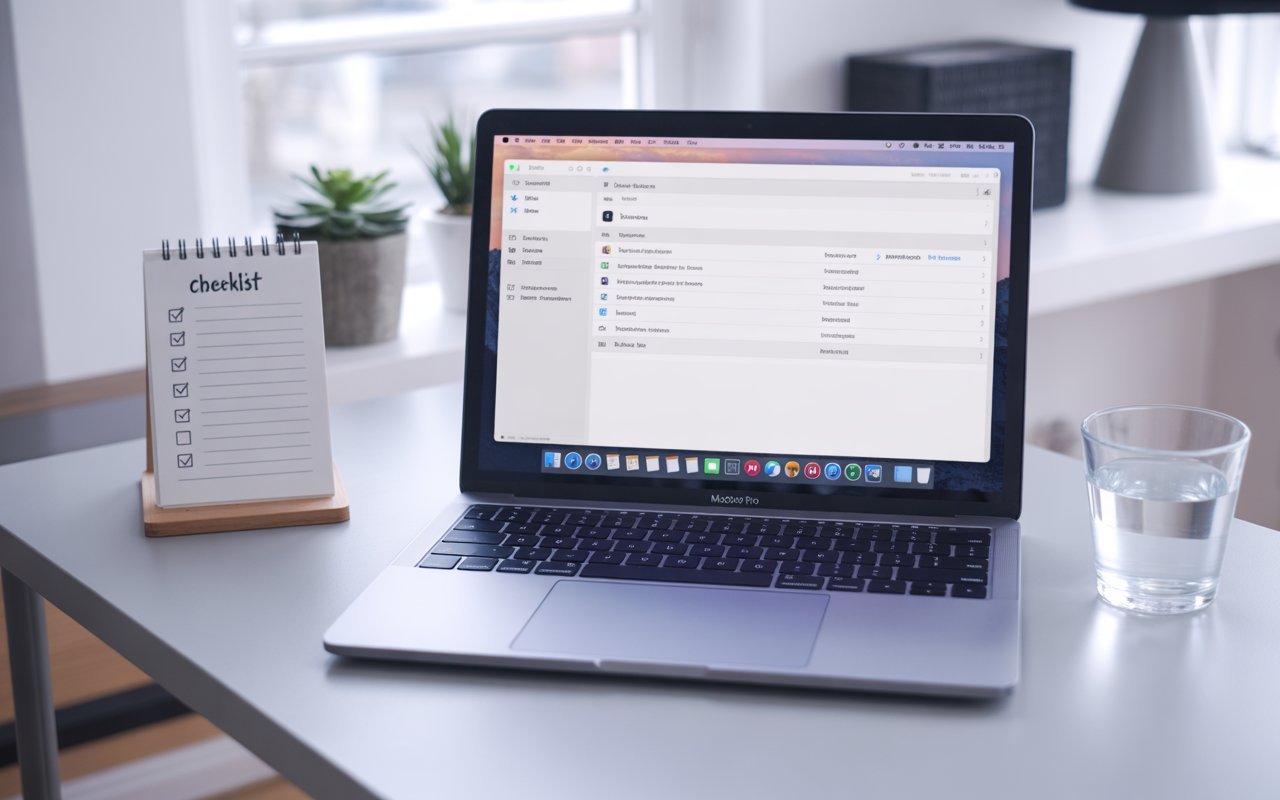
Mac Spotlight Not Working — Complete Fix Checklist
- 1Check the keyboard shortcut — System Settings → Keyboard → Keyboard Shortcuts → Spotlight
- 2Check the Privacy list and category settings — remove Home folder or Macintosh HD if they’re excluded
- 3Rebuild index via System Settings — add then remove Macintosh HD from Spotlight Privacy
- 4Rebuild index via Terminal —
sudo mdutil -E /thensudo mdutil -i on / - 5Restart mds and mdworker processes —
sudo killall -KILL mds - 6Grant Full Disk Access to Spotlight — System Settings → Privacy & Security → Full Disk Access
- 7Free up storage space — at least 10–15 GB free before rebuilding
- 8Run First Aid on startup disk — to fix filesystem issues causing index corruption
- 9Delete Spotlight index files manually —
sudo rm -rf /.Spotlight-V100 - 10Check for third-party app conflicts — test in Safe Mode, disable login items one by one
- 11Reset NVRAM (Intel) or Safe Boot (Apple Silicon)
- 12Reinstall macOS from Recovery Mode — last resort, keeps all data
One Last Thing
For most users, either the Privacy list check (Fix 2) or the index rebuild (Fix 3) will resolve the Spotlight issue entirely. Both take under five minutes and cover the overwhelming majority of Spotlight problems — whether the issue is an accidentally excluded folder or an index that got corrupted during the macOS Tahoe upgrade. Give the rebuild a few hours to fully complete before concluding it hasn’t worked.
If you’re still seeing problems after a rebuild — particularly if specific file types are still missing from search — the Full Disk Access check in Fix 6 is worth doing specifically for macOS Tahoe, where permission resets during the upgrade process can silently limit what the indexing service can read. The CrazyErrors team is happy to help if you’re not sure which fix applies to your specific situation.
Wrapping Up
Spotlight not working on Mac is one of those problems that feels significant but usually has a straightforward fix. The most common causes — an excluded folder in the Privacy list and a corrupted or outdated index after a macOS update — are both resolved in minutes with steps that don’t require any technical knowledge beyond navigating System Settings or copying a Terminal command.
Work through the checklist from the top, give each fix adequate time to take effect before moving on, and Spotlight will be back to finding everything on your Mac quickly and reliably.
ⓘ Disclaimer: This article is for informational purposes only. CrazyErrors is not affiliated with Apple Inc. Terminal commands should be followed carefully as written. Results may vary depending on your Mac model, macOS Tahoe version, and the specific state of your Spotlight index. For official Apple support, visit support.apple.com.