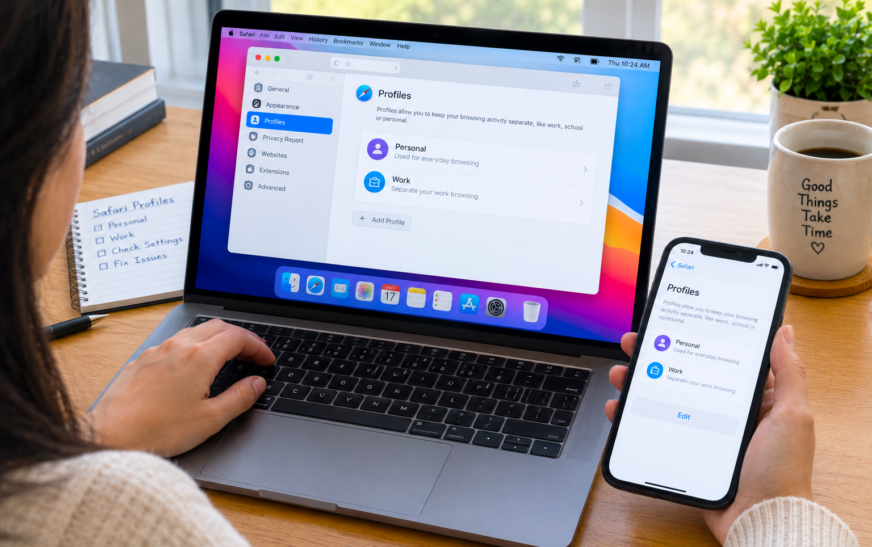
When Safari Profiles show as empty or missing data on Mac, the most reliable fix is quitting Safari completely, then navigating to ~/Library/Safari/Profiles/ in Finder to check whether the profile folders exist. If the folders are there but Safari isn’t loading data, a corrupt preferences file is usually the cause — delete com.apple.Safari.plist from ~/Library/Preferences/ and relaunch Safari. For profiles that simply disappeared after a macOS update, signing out and back into iCloud often restores them if iCloud Safari sync is enabled.
Safari Profiles is one of those features that, when it works, feels seamless — work tabs stay separate from personal browsing, extensions only load where you want them, history doesn’t bleed between contexts. But when it breaks, it breaks in ways that are genuinely confusing. A profile goes empty. Bookmarks that were there yesterday are gone. A profile you created doesn’t show up in the menu. You switch profiles and the extensions you assigned aren’t there.
The frustrating part is that none of this gets flagged with a proper error. Safari doesn’t tell you “your profile data is missing” or “this profile failed to load.” It either shows the profile as empty or, in worse cases, acts like the profile never existed. And since Profiles is a relatively newer Safari feature, there’s not much guidance out there that covers the specific ways it actually breaks.
This guide works through every variant of the problem — empty profiles, missing bookmarks, disappeared profiles, extensions not loading per-profile, and iCloud sync issues — with specific steps for each one.
Which Problem Do You Have? Identify It First
Safari Profiles Breaks in Different Ways — The Fix Depends on Which One💭 Profile exists but shows no bookmarks, history, or tabs
You can see the profile in the menu and switch to it, but it appears completely empty — no saved bookmarks, no history, no open tabs from your last session. The profile is loading but either lost its data or never saved it properly. Most commonly caused by a corrupt preferences file or a failed iCloud sync. Start with Fix 3 and Fix 4.
🚫 Profile has disappeared entirely from the menu
A profile you created is no longer listed when you click the profile icon in Safari’s toolbar. This happens most often after a macOS update, a Safari update, or when iCloud Safari sync hit an error. The profile folders may still exist on disk even if Safari isn’t showing them. Start with Fix 1 and Fix 5.
🧩 Extensions not loading or not staying assigned to a profile
You assigned specific extensions to a profile but they’re not showing up when you switch to it, or they appear briefly and then revert. Extension assignments are stored per-profile and can get out of sync after a Safari update. Start with Fix 6.
💾 Can’t create a new profile — option is greyed out or missing
The “New Profile” button in Safari Settings isn’t there, or clicking it does nothing. This is almost always a macOS version issue — Safari Profiles requires macOS Sonoma or later. Fix 7 covers this specifically.
☁️ Profiles not syncing between Mac and iPhone/iPad
Profiles you created on Mac don’t appear on your iPhone, or vice versa. Safari Profiles syncs through iCloud but has specific requirements that often aren’t met. Fix 8 covers iCloud sync for profiles.
📁 Profile data reverted after a macOS or Safari update
Everything was fine, you updated macOS or Safari updated automatically, and now a profile is missing data or showing history and bookmarks from weeks ago. Update-triggered profile issues usually trace back to a plist that got regenerated incorrectly. Fix 3 and Fix 9 address this.
What Safari Profiles Actually Store (and Where)
Useful Before You Start Changing ThingsEach Safari Profile is a separate folder on your Mac
When you create a Safari Profile, macOS creates a dedicated folder inside ~/Library/Safari/Profiles/. That folder stores the profile’s bookmarks, history, cookies, website data, and extension states independently from your default browsing data and from every other profile. The profile name you see in Safari corresponds to a UUID-named folder on disk.
Your default profile (the one that existed before you created any profiles) stores its data in the regular ~/Library/Safari/ location — not inside the Profiles subfolder. This is why the default profile and named profiles can have different problems.
iCloud Safari sync, when enabled, backs up profile data to iCloud and syncs it to other Apple devices. But the sync is not instantaneous and doesn’t always resolve cleanly after an update or iCloud account issue — which is one of the main reasons profile data goes missing.
Fix 1: Force Quit Safari and Relaunch
Always Start Here — Takes 20 SecondsSafari occasionally gets into a state where it can’t load profile data during the current session — a background process that should have completed didn’t, or a sync operation stalled mid-way. A proper quit and relaunch clears those hanging states. The difference between quitting normally and force quitting matters here: a normal quit through the menu sometimes leaves background Safari processes still running.
If the profile data is back, you’re done. If not, move forward — this step rules out the simplest cause before going deeper.
Fix 2: Check That Profiles Are Actually Enabled in Safari Settings
Worth Confirming Before Anything ElseSafari Profiles can be enabled and disabled. If you or someone else turned off the Profiles feature — or if a Safari update reset it — the profiles still exist on disk but won’t appear in the browser. This is also the first thing to check if you’ve just upgraded to a Mac that someone else used before.
If you don’t see a Profiles tab in Safari Settings at all, your Mac is running a version of macOS that doesn’t support Safari Profiles. The feature requires macOS Sonoma (14) or later — it isn’t available on Ventura, Monterey, or earlier. Check your macOS version under the Apple menu → About This Mac. If you’re on Sonoma or Tahoe and still don’t see the tab, try a full macOS restart before investigating further.
Fix 3: Delete the Safari Preferences File
Best Fix for Empty Profiles and Missing DataSafari stores its settings — including profile configurations, toolbar layout, and various internal states — in a preferences file called com.apple.Safari.plist. When this file gets corrupted (which happens after bad updates, unexpected shutdowns, or iCloud sync conflicts), Safari can fail to load profile data correctly even though the data itself is still sitting on disk in perfect shape. Deleting the plist forces Safari to build a fresh one on next launch, which almost always fixes empty profile symptoms.
Deleting the plist resets Safari’s preferences: homepage, search engine, privacy settings, tab layout, and similar options go back to defaults. Your bookmarks, history, and browsing data are not in this file and won’t be affected. Take note of any Safari settings you’ll want to reconfigure afterward.
com.apple.Safari.plist automatically on first launchIn most cases where profiles show as empty after a macOS or Safari update, deleting the plist and relaunching Safari restores the profile data completely — because the data was never gone, just not being loaded correctly. The new plist finds the existing profile folders and loads them properly.
Fix 4: Check Whether the Profile Folders Still Exist on Disk
If You Think the Profile Data Might Actually Be GoneBefore assuming data was lost, it’s worth checking whether the profile folders still exist in the file system. macOS almost never deletes profile data on its own — if Safari is showing a profile as empty, the data is usually still there and just not being loaded. This step confirms that one way or the other.
A3F2B1C0-7E4D-...) — each of these is a profile’s data folderOpen Terminal and run: ls ~/Library/Safari/Profiles/ — this lists any profile folders present. If you see UUID-named directories, the data is there. If you get “No such file or directory” or an empty result, the Profiles folder genuinely doesn’t exist on this Mac.
Fix 5: Restart macOS — Not Just Safari
Underrated Fix — Clears System-Level Safari ProcessesSafari on macOS isn’t a single process — it runs with several helper processes in the background that handle things like rendering, extensions, and data syncing. When one of these helpers gets stuck or crashes silently, Safari can behave in strange ways that a simple app relaunch doesn’t fix because the broken process just restarts in the same broken state. A full macOS restart clears all of them at once.
This sounds basic but is genuinely worth doing before more invasive fixes — particularly if the problem appeared suddenly without any obvious trigger. Restart from the Apple menu, let the Mac fully boot, then open Safari and check the profiles again.
Open Activity Monitor (Applications → Utilities → Activity Monitor), search for “Safari” in the search bar, and look for any Safari-related processes still running. Select each one and click the X button to quit them. This is slower than a full restart but achieves a similar clean-slate effect for Safari specifically.
Fix 6: Fix Extensions Not Loading Per Profile
When Your Extensions Aren’t Staying Assigned to a Specific ProfileSafari Profiles let you assign different extensions to different profiles — a content blocker for personal browsing, a password manager everywhere, a specific research tool only for work. But the extension assignment system has a known quirk: after a Safari or macOS update, extension assignments can reset or fall out of sync. The extensions are still installed, they’re just no longer mapped to the correct profiles.
Not every Safari extension has been updated to support profile-specific activation. Older extensions or extensions that haven’t been updated since profiles were introduced may appear as enabled across all profiles with no way to restrict them to specific ones. This is a limitation of the extension itself, not a Safari bug. Check the extension developer’s release notes if per-profile control isn’t showing up as an option.
Fix 7: Verify Your macOS Version Supports Safari Profiles
If the Profiles Feature Isn’t Appearing at AllSafari Profiles was introduced with macOS Sonoma (14.0), released in September 2023. If your Mac is running macOS Ventura (13), Monterey (12), or earlier — Safari Profiles simply doesn’t exist. The Safari Settings panel won’t show a Profiles tab, and there’s no way to create profiles on those versions regardless of which Safari version is installed.
Fix 8: Fix iCloud Safari Sync for Profiles
When Profiles Aren’t Syncing Between Your DevicesSafari Profiles sync through iCloud, but only when a few things are correctly set up. Missing a single piece of this is enough to stop sync from working — you can have iCloud on and Safari sync on and still have profiles not appear on your other devices.
Go to System Settings → [Your Name] and scroll to the bottom — click Sign Out. Wait a minute, then sign back in with your Apple ID. Re-enable iCloud Safari sync after signing back in. This is more disruptive but forces a complete resync of all iCloud-connected data including Safari profiles, and often resolves persistent sync problems that toggling alone doesn’t fix.
Fix 9: Restore from Time Machine if Profile Data Was Lost
If the Profile Folder Is Actually Empty and You Have a BackupIf you confirmed in Fix 4 that the profile folders on disk are genuinely empty or gone — and iCloud sync doesn’t have a copy to restore from — a Time Machine backup is your last option for recovering the data. This applies to cases where a Safari update or a macOS upgrade wiped the profile folders, which is rare but has happened.
~/Library/Safari/ (Go menu → hold Option → Library → Safari)Restoring the entire ~/Library/Safari/ folder from Time Machine would overwrite your current bookmarks, history, and all other Safari data with the older backup version. Only restore the Profiles subfolder inside Safari — that recovers just the profile-specific data without touching your default browsing data.
Fix 10: Delete and Recreate a Broken Profile
Last Resort — When Nothing Else Works on a Specific ProfileIf one profile is consistently broken — won’t load data, keeps losing extensions, behaves unpredictably — and the other profiles work fine, the cleanest path is sometimes to delete that profile and rebuild it. The profile’s data files may have become corrupt in a way that isn’t fixed by plist deletion or restarts. Before doing this, export your bookmarks from that profile so you can reimport them afterward.
History can’t be imported from a backup the same way bookmarks can — there’s no built-in Safari history import from HTML. If historical browsing data is important, the Time Machine path in Fix 9 is the way to recover it.
Things Worth Knowing About Safari Profiles
The Default profile is not the same as a named profile. Every Safari installation has a Default profile — it’s what you were using before you ever set up named profiles. Its data lives directly in ~/Library/Safari/, not inside the Profiles subfolder. When troubleshooting profile issues, it helps to know which profile is having the problem. If the Default profile is broken, the fix path is slightly different (the data is in the root Safari folder, not in a UUID subfolder).
Profile names and colours are cosmetic — they don’t affect the data. If you rename a profile or change its colour in Safari Settings, the underlying UUID folder on disk stays the same. The UUID is what Safari uses internally to track the profile — the name you see is just a display label. This means renaming a profile won’t fix a corrupt profile, but it also means accidental renames don’t cause data loss.
Favourites bar is shared across all profiles by default. One thing that surprises people about Safari Profiles: the Favourites bar (the row of shortcuts right below the address bar) is shared across all profiles unless you configure it otherwise. This is intentional — Apple designed it so your most-used shortcuts are always available regardless of which profile you’re in. If you want different favourites per profile, you can add them to each profile’s bookmarks and display the Bookmarks toolbar instead of the Favourites bar.
Private Browsing is per-profile. When you open a Private Browsing window in Safari, it’s scoped to whichever profile is currently active. Private browsing history, cookies, and session data don’t cross between profiles — a private window in your Work profile is completely separate from a private window in your Personal profile. This is one of the stronger privacy separations the feature provides.
Common Mistakes When Troubleshooting Safari Profiles
Some troubleshooting guides suggest wiping ~/Library/Safari/ entirely and letting Safari rebuild from scratch. This deletes all your bookmarks, all profile data, all history, and all saved website data permanently. It’s nuclear and rarely necessary. The targeted approach — plist file, profile folders check, iCloud resync — fixes the vast majority of profile problems without sacrificing any data.
When Safari profiles aren’t syncing, the impulse is sometimes to turn iCloud Safari sync off. If you do that, iCloud stops backing up your Safari data — and if the local profile data later gets corrupted or lost, there’s no cloud copy to restore from. The right approach is to toggle it off and on to force a resync (Fix 8), not leave it off.
macOS Focus modes can be linked to Safari Profiles — when a Focus activates, it can switch Safari to a specific profile automatically. If your profile seems to switch on its own at certain times of day or when you start certain activities, check System Settings → Focus and look at the Filters section for each Focus mode. Safari Profile assignment under Focus Filters is a separate thing from Safari Profiles themselves — and debugging the wrong one wastes a lot of time.
Frequently Asked Questions
Why did my Safari Profile disappear after updating macOS?
The profile data almost certainly still exists on disk — macOS updates don’t delete profile folders. What typically breaks is the com.apple.Safari.plist preferences file, which holds the mapping between profile names and their UUID folders. The update may have regenerated that file incorrectly. Delete the plist file from ~/Library/Preferences/ (Fix 3), relaunch Safari, and the profiles should reappear. Before doing that, check ~/Library/Safari/Profiles/ in Finder to confirm the data folders are still there.
How do I find my Safari Profile data on Mac?
Open Finder, click the Go menu, hold the Option key to reveal the Library option, and click it. Then navigate to Safari → Profiles. Each profile has a UUID-named folder (a long string of numbers and letters with dashes). Inside each folder you’ll find the profile’s data files — Bookmarks.db, History.db, and a WebsiteData folder. If those files have recent modification dates, your profile data is intact even if Safari is showing the profile as empty.
Safari Profiles not showing on iPhone — how do I sync them from Mac?
Both devices need to be signed into the same Apple ID, and iCloud Safari sync must be enabled on both. On Mac: System Settings → [Your Name] → iCloud → Safari (on). On iPhone: Settings → [Your Name] → iCloud → Safari (on). Once both are enabled, give it 10–15 minutes. If profiles still don’t appear, toggle Safari sync off and back on on the Mac side to force a resync. Note: iOS 17 and later is required for profiles to appear on iPhone — earlier iOS versions don’t support the feature.
Can I recover bookmarks from a deleted Safari Profile?
If you deleted a profile through Safari Settings, the data is removed from ~/Library/Safari/Profiles/. If you have a Time Machine backup from before the deletion, you can restore the specific UUID folder for that profile (Fix 9). If iCloud Safari sync was enabled, there may also be a copy in iCloud — sign out and back into iCloud and re-enable Safari sync to see if iCloud restores the profile data. Without a backup, recovery isn’t possible through standard tools.
Why is my Safari Work Profile opening with Personal Profile bookmarks?
This usually happens when the profile’s plist mapping has become confused — Safari is loading one profile’s display name but reading data from another profile’s folder. Deleting the Safari plist file (Fix 3) typically resolves it. After the plist is regenerated on next launch, Safari correctly matches each profile name to its own data folder. If the problem recurs, check whether both profiles have similar UUID folder names — it’s unlikely but file system-level corruption can occasionally cause this.
Does deleting Safari’s plist delete my bookmarks?
No — bookmarks are not stored in the plist file. The com.apple.Safari.plist file stores Safari’s preferences (homepage, search engine, privacy settings, tab layout, and similar options). Bookmarks are stored separately in ~/Library/Safari/Bookmarks.plist for the default profile, or in ~/Library/Safari/Profiles/[UUID]/Bookmarks.db for named profiles. Deleting the preferences plist resets Safari’s settings but leaves all your bookmarks, history, and browsing data completely untouched.
Safari Profiles Not Working — Fix Summary
- 1Force quit and relaunch Safari — clears hung background processes; 20 seconds, always start here
- 2Check Profiles tab in Safari Settings — confirm profiles are set up; check that the Profiles tab is visible at all (requires macOS Sonoma or later)
- 3Delete com.apple.Safari.plist — move it from ~/Library/Preferences/ to Desktop; relaunch Safari; highest success rate for empty profile symptoms
- 4Check the Profiles folder on disk — ~/Library/Safari/Profiles/ — confirm UUID folders exist before assuming data is gone
- 5Restart macOS — a full restart clears all Safari helper processes, not just the main app
- 6Fix extension assignments — Safari Settings → Extensions; toggle per-profile settings off and back on; reinstall if needed
- 7Verify macOS version — Safari Profiles requires macOS Sonoma (14) or later
- 8Fix iCloud Safari sync — toggle off and on in System Settings → iCloud; or sign out and back in to force a full resync
- 9Restore from Time Machine — only the Profiles subfolder, not the entire Safari folder; for when data is genuinely missing
- 10Delete and recreate the broken profile — export bookmarks first; last resort for a single consistently broken profile
The Safari plist deletion (Fix 3) and the disk folder check (Fix 4) together solve the majority of these problems. The plist is the most common point of failure — it’s a small file that Safari rewrites frequently, and when it goes corrupt the symptoms look exactly like data loss even though the actual profile data is sitting on disk untouched. Check the folders first to know whether the data is really there, then let plist deletion do its job.
ⓘ Disclaimer: CrazyErrors is an independent site and is not affiliated with Apple Inc. The steps in this article are based on macOS Tahoe (15) and macOS Sonoma (14) with current versions of Safari. File paths and settings may change in future macOS releases. This content is informational only — for official Apple support, visit support.apple.com/safari.