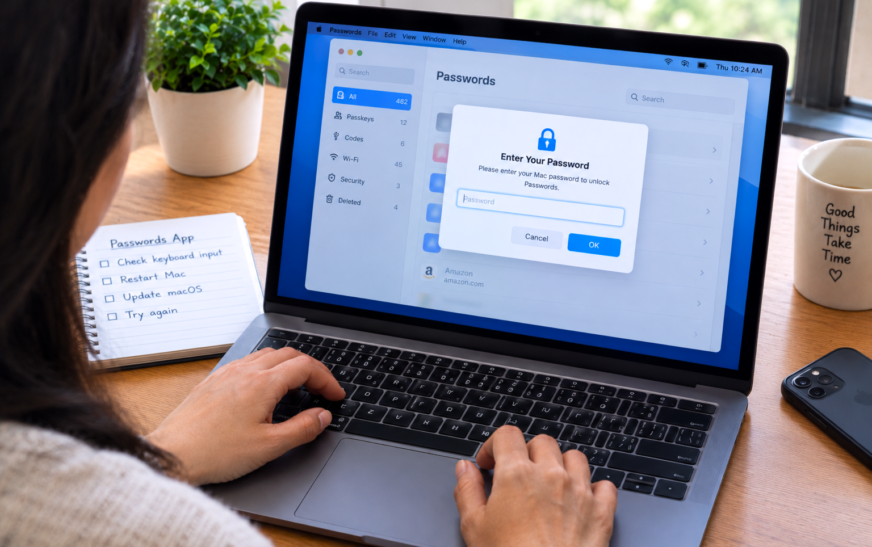
When the Mac Passwords app won’t accept keyboard input, the fastest fix is to click somewhere else on screen first — another app or the desktop — then click back into the Passwords app and try typing again. This refocuses keyboard input to the correct window. If that doesn’t work, quit the Passwords app with ⌘ + Q and reopen it. For persistent issues where the keyboard never works in Passwords, the cause is usually an input method conflict or a third-party keyboard app intercepting keystrokes — disabling those temporarily resolves it in most cases.
The Mac Passwords app has one job — store and retrieve your passwords — and it feels particularly broken when you can’t even type in it. You open it, click a field, and start typing. Nothing appears. Or a few letters show up and then the cursor freezes. You click somewhere else and back again, and it still ignores the keyboard. Meanwhile, every other app on your Mac takes your keystrokes without any issue.
This specific problem — the Passwords app visually accepting focus but not registering keyboard input — tends to catch people off guard because the app looks perfectly normal. There’s no error message, no spinning wheel, no crash. The app just silently refuses to respond to the keyboard, which makes it genuinely hard to know where to start.
The good news is this is almost always a software issue, not a hardware one, and there are several reliable ways to clear it. This guide covers every real cause of the Passwords app keyboard problem on Mac, from the quick 10-second fix to the ones that need a bit more digging.
What Exactly Is Happening? Narrow It Down First
The Specific Symptom Points to the Right Fix⌨️ The Passwords app opens fine but typing does absolutely nothing
You click a text field in the app — the search bar, a password field, a notes field — the cursor appears, but no keystrokes register. Nothing you type shows up. This is a focus/keyboard input routing issue. Start with Fix 1 and Fix 2.
⚡ Typing works briefly, then stops mid-session
You can type for a moment, then it stops accepting input. This often happens when another app or background process steals keyboard focus away from Passwords. A third-party keyboard tool or an input method switching in the background is often the culprit. Fix 4 and Fix 5 cover this.
🔏 The authentication prompt (Touch ID / password screen) won’t accept keyboard input
The Passwords app asks for your Mac login password or shows a Touch ID prompt, but you can’t type in the password box. This is a specific authentication dialog issue, slightly different from the general typing problem. Fix 3 specifically addresses this.
🖱️ Only certain keys don’t work — letters appear but some are missing or wrong
Some keystrokes register but others don’t — particularly modifier keys or special characters behave oddly only inside the Passwords app. An input method conflict or keyboard layout mismatch is likely. Fix 5 covers input method issues.
🔄 Problem only started after a macOS update
Everything was fine until a recent macOS update, and now the Passwords app keyboard is broken. Post-update issues are frequently tied to a stale preferences cache or a background process conflict that the update introduced. Fix 6 and Fix 7 are the most relevant starting points.
Why Does the Passwords App Ignore the Keyboard?
What’s Actually Going On Under the HoodThe Passwords app handles keyboard input differently from most Mac apps
Apple’s Passwords app (introduced in macOS Sequoia as a standalone app, having previously existed as a section inside Safari Settings) uses a security-hardened input model. Because it handles sensitive credentials, it monitors keyboard input more carefully than a regular app — which means it’s also more vulnerable to being disrupted by anything that sits between your keystrokes and the operating system.
Third-party keyboard apps, text expanders, input method editors (IMEs), and accessibility tools that intercept keystrokes can all confuse the Passwords app’s input handling. When that confusion happens, the app receives focus visually but the actual keyboard input stream gets intercepted before reaching it. The app looks active but genuinely isn’t receiving what you’re typing.
The other common cause is a simple focus routing issue — the Mac’s keyboard focus isn’t pointing at the Passwords window even though it appears active. This happens when the Passwords app is opened from another app (via an autofill prompt, for example) or when switching to it during certain system operations.
Fix 1: Click Away and Click Back — The 10-Second Fix
Start Here, Works More Often Than It ShouldWhen the Passwords app has visual focus but isn’t receiving keyboard input, the issue is sometimes that macOS hasn’t fully transferred keyboard routing to the Passwords window. Clicking onto something else — any other app, the desktop, the Dock — and then clicking back into the Passwords app forces a proper focus handoff. It sounds too simple to work, but this clears the problem in a surprisingly large number of cases.
If this works once but the problem keeps coming back during the same session, another app is repeatedly stealing focus. Keep reading — Fix 4 covers that specifically.
Fix 2: Quit and Reopen the Passwords App
Clears Any Session-Level Input State IssueSometimes the Passwords app gets into a state where its internal input handling has stalled — the app is running normally in every other way but has lost its connection to the keyboard input system. Quitting and reopening the app completely resets this state.
If the Passwords app is stuck at the authentication screen and won’t accept your password via keyboard, don’t quit the app yet. First try using Touch ID if your Mac supports it — press your finger on the Touch ID sensor when the Passwords prompt is showing. If Touch ID isn’t available or doesn’t work, use the keyboard shortcut ⌘ + Q to quit without typing, wait a moment, then reopen and try again from a clean state.
Fix 3: Fix the Authentication Prompt Not Accepting Keyboard Input
Specific Fix for When You Can’t Type Your Password to Unlock PasswordsThe Passwords app authentication dialog — the screen asking for your Mac login password before showing your saved passwords — is a separate system-level security panel, not a regular app window. It has its own focus behaviour, and it can sometimes appear active while still not having real keyboard routing. This is one of the more frustrating variants because you need to type a password to get into the app, but the keyboard field won’t accept input.
If you have an Apple Watch paired and unlocked on your wrist, you can use it to approve the Passwords app authentication without typing anything. This same Apple Watch / Apple ID sign-in flow also helps when FaceTime authentication gets stuck — the handshake mechanism is shared across several macOS system apps. When the authentication prompt appears, double-click the side button on your Apple Watch. This approves the authentication silently and gets you into the app without needing keyboard input at the unlock stage. It won’t help with the typing problem inside the app, but it removes one barrier when the authentication prompt itself is broken.
Fix 4: Check for Apps Stealing Keyboard Focus
The Main Cause When Typing Stops Mid-SessionSome apps and background utilities on Mac actively intercept keyboard input or periodically request keyboard focus for their own purposes — and when they do, they pull focus away from whatever app you’re currently typing in. Text expanders, clipboard managers, screenshot tools, input method switchers, and productivity apps like Alfred, Raycast, or PopClip are common offenders. The Passwords app is more sensitive to this than most apps because of its security-focused input handling.
If you run Parallels, VMware Fusion, or a remote desktop app like Jump Desktop or Microsoft Remote Desktop — even just in the background without an active session — these apps often maintain keyboard hooks at the system level to ensure they can capture input when needed. Those hooks can occasionally interfere with security-sensitive apps like Passwords. Try fully quitting the VM or remote desktop app (not just closing the window) and test the Passwords app again.
Fix 5: Fix Input Method and Keyboard Layout Conflicts
When Certain Keys Don’t Work or Characters Come Out WrongmacOS supports multiple keyboard input methods and layouts simultaneously — you can switch between them using a keyboard shortcut. Sometimes the wrong input method is active when the Passwords app is opened, particularly if you frequently switch between languages or use a non-English keyboard layout. The Passwords app can be stricter about which input methods it accepts compared to a regular text field, leading to keys that appear to do nothing or produce unexpected characters.
@, ", # — on different keysEnable the Keyboard Viewer from the Input Sources menu in the menu bar (you may need to turn on “Show Input menu in menu bar” in System Settings → Keyboard first). Open the Keyboard Viewer — it shows a visual keyboard that highlights keys as you press them. Type while the Passwords app is in focus and watch the Keyboard Viewer. If keys light up on the Viewer but nothing appears in Passwords, the input is registering with macOS but being blocked at the app level. If keys don’t light up, the issue is earlier in the input pipeline — likely a hardware or driver problem.
Fix 6: Clear the Passwords App Cache
Particularly Useful After a macOS Update Breaks ThingsLike most macOS apps, the Passwords app stores cache files to speed up loading. These cache files can become stale or corrupt — especially after a macOS update that changes how the app works internally. When the cache is corrupt, the app can behave unpredictably in ways that aren’t obviously linked to caching: failed keyboard input is one of those symptoms.
Your actual saved passwords are stored in your iCloud Keychain and locally in the Keychain database — not in the app’s cache. Clearing the Passwords app cache only removes temporary files the app uses to display things faster. The next time you open it, everything loads from the secure Keychain storage as normal. You won’t lose any saved credentials by doing this.
Fix 7: Restart the Mac
More Effective Than It Seems — Clears System Input Service FaultsmacOS handles keyboard input through a collection of system services running in the background. When one of these services encounters an error — something that happens occasionally and more often after major updates — apps that depend on secure input channels, like the Passwords app, can lose keyboard access while everything else continues working normally. A full Mac restart is the cleanest way to reset all system input services at once.
Fix 8: Check Accessibility Permissions for Third-Party Apps
If a Specific App Is Confirmed as the Conflict SourceApps that legitimately need to monitor or control keyboard input — text expanders, automation tools, accessibility apps — must be granted Accessibility permission in macOS. But once granted, they can affect how keyboard input reaches other apps. Reviewing and tightening these permissions is the right move if you’ve identified a specific app conflicting with Passwords.
Apps listed under Privacy & Security → Input Monitoring can read every keystroke across your entire Mac — including passwords, messages, and anything else you type. Most legitimate apps don’t need this. If you see an app in that list that you don’t recognise or didn’t intentionally grant this permission to, research what that app is before deciding whether to keep the access enabled.
Fix 9: Check for macOS Software Updates
When the Problem Started Recently and Persists Across RestartsApple patches known bugs in the Passwords app through macOS updates. If this keyboard input problem started appearing after a specific update, the odds are reasonable that a subsequent update includes a fix. Worth checking before spending more time diagnosing.
Apple publishes release notes for every macOS update at support.apple.com. If you’re on a version that seems to have introduced the problem, searching the release notes of subsequent updates for “Passwords” can tell you whether Apple has specifically addressed the issue — and whether updating is likely to help.
Fix 10: Create a New macOS User Account to Test
For Persistent Problems That None of the Above FixesIf you’ve worked through everything above and the Passwords keyboard issue persists, creating a temporary new macOS user account is the most efficient next diagnostic step. New accounts start with clean, default settings — no third-party apps, no custom keyboard configurations, no accumulated preferences. If the Passwords keyboard works perfectly in the new account, the issue is something in your main account’s configuration, not a system-wide problem. That narrows the search considerably.
Things Worth Knowing About the Mac Passwords App
The Passwords app and Safari’s autofill are the same underlying data. When you save a password in Safari or through an autofill prompt, it ends up in the Passwords app’s keychain — they share the same storage. This means if the Passwords app itself is having issues, autofill in Safari might also behave oddly at the same time. Fixing one often fixes the other. If you’re also seeing Safari behave unexpectedly around saved data, our guide on Safari Profiles not working on Mac covers the overlap between Safari settings and the Passwords backend in more detail.
Touch ID is generally more reliable than keyboard input for authentication. For the initial authentication step — where the Passwords app asks you to confirm your identity before showing your saved credentials — Touch ID (on supported Macs) is faster and sidesteps keyboard input issues entirely. Setting up Touch ID for logins (System Settings → Touch ID & Password) means you’ll rarely need to type a password just to open the Passwords app.
Keyboard Maestro, BetterTouchTool, and similar automation tools often cause this. These are powerful apps that Mac power users tend to accumulate over time, and all of them work by intercepting system-level input events. If you use any automation or customisation tools on your Mac, they’re statistically the most likely conflict source for Passwords keyboard issues. Worth checking their app-specific exclusion lists before going through more involved fixes.
After a macOS major version upgrade, always restart login items. When macOS upgrades from one major version to another (Sonoma to Sequoia, Sequoia to Tahoe), apps that had login item or accessibility permissions sometimes need to be manually re-granted those permissions in the new version. Go to System Settings → General → Login Items & Extensions after a major upgrade and review what’s listed — toggle permissions off and back on for anything that might interact with keyboard input.
What Not to Do When the Passwords Keyboard Stops Working
When the keyboard works fine everywhere else on the Mac but not in the Passwords app, the keyboard hardware is almost never the problem. Testing on another app first takes 5 seconds and immediately confirms this. If Notes, Safari, and TextEdit all accept your keystrokes normally, the keyboard is fine — the issue is isolated to the Passwords app specifically. Hardware troubleshooting steps waste time here.
Some older troubleshooting guides suggest deleting your Keychain database files as a way to fix various Passwords and Keychain issues. This is an extreme measure that deletes all locally stored passwords, certificates, and secure notes. A keyboard input problem in the Passwords app is almost never caused by the Keychain database itself — it’s an app-level or system-level input routing issue. Keychain deletion will lose your data and won’t fix the keyboard problem.
Force-quitting and relaunching the Passwords app is a reasonable first step, but if the keyboard problem comes back every time the app opens, repeatedly force-quitting isn’t solving anything. After the second or third recurrence, the problem is environmental — something else on your Mac is causing it — and that something needs to be identified and addressed rather than just restarting the app each time.
When an app prompts for Input Monitoring or Accessibility permissions and you’re not sure what it is — don’t grant it. Input Monitoring is one of the most powerful permissions on macOS. An app with it can read your passwords as you type them anywhere on the system. If you’re not certain why an app needs that permission, research the app first. This is also how some malicious software requests legitimate-seeming permissions to capture keystrokes.
Frequently Asked Questions
Why can’t I type in the Mac Passwords app?
The most common causes are: keyboard focus not properly transferred to the Passwords window (fix: click elsewhere, then click back into Passwords), a third-party app intercepting keyboard input (text expanders, clipboard managers, automation tools), or an input method conflict where the active keyboard layout isn’t compatible with the Passwords app’s input handling. Start by clicking away and back into the app, then quit and reopen it. If it persists, check what third-party utilities are running and try quitting them one by one.
Mac Passwords app won’t accept my password — how do I unlock it?
If the authentication prompt won’t accept keyboard input, try pressing Tab to force focus onto the password field, or click directly in the middle of the input box. If the keyboard still won’t respond, use Touch ID or Apple Watch (double-click the side button) to authenticate without typing. As a last resort, press Escape to dismiss the prompt, restart your Mac, and try again from a fresh session — authentication dialog input issues often clear with a restart.
Passwords app keyboard stops working after a few seconds — why?
If typing works briefly then stops, another app or background process is stealing keyboard focus away from the Passwords app. Common culprits are text expanders (TextExpander, Typinator), clipboard managers, launcher apps (Alfred, Raycast), or virtual machine software running in the background. Open Activity Monitor and check what’s running. Quit background utilities one by one to identify which one is causing the focus theft, then add the Passwords app to that utility’s exclusion list if it has one.
Does clearing Passwords app cache delete my saved passwords?
No. Your saved passwords are stored in the iCloud Keychain and the local Keychain database — not in the app’s cache. The cache only holds temporary display data to make the app load faster. Clearing it (from ~/Library/Caches/com.apple.Passwords) is safe and won’t affect any of your saved credentials, autofill data, or security notes. The app rebuilds the cache automatically on its next launch.
Passwords app keyboard input broken after macOS update — is there a fix?
Post-update keyboard issues in the Passwords app usually come from one of two things: a stale preferences cache that the update invalidated, or an existing third-party app now conflicting with the updated Passwords app. Start with clearing the Passwords app cache (Fix 6) and a full Mac restart without reopening previous windows. If the problem points to a third-party app conflict, check System Settings → Privacy & Security → Input Monitoring and Accessibility for apps that may need permission updates after the upgrade.
Can I use the Passwords app without typing — is there a way to browse without the keyboard?
Yes, to a degree. You can navigate the Passwords app using the mouse alone — scroll through the list, click on entries to open them, and use the copy buttons to copy usernames and passwords without typing anything. Touch ID handles authentication without keyboard input. The main limitation is the search bar — filtering your passwords requires typing. As a workaround while troubleshooting, you can browse the full alphabetical list or by category (Websites, Wi-Fi, Passkeys, etc.) entirely by clicking and scrolling.
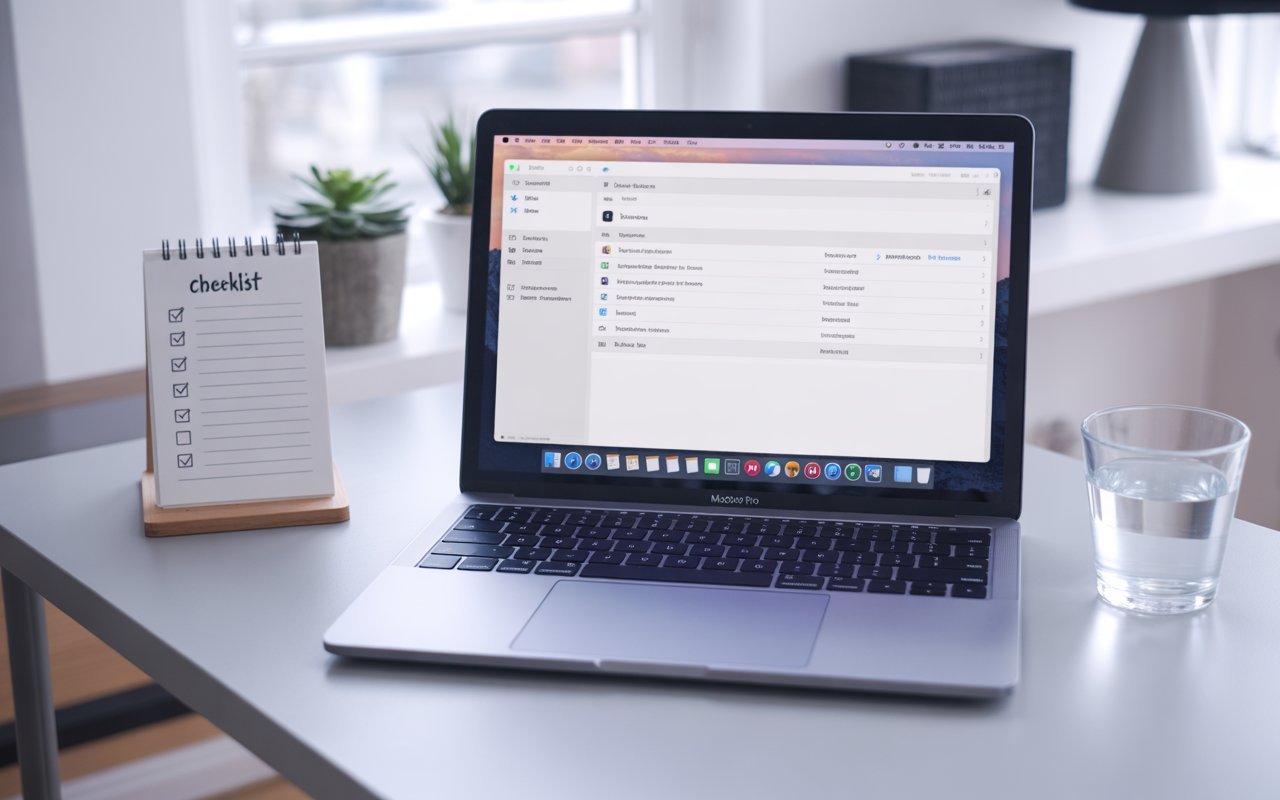
Passwords App Not Accepting Keyboard Input — Fix Checklist
- 1Click away and click back — click outside the app, wait 2 seconds, click back into a text field; fixes focus routing in most cases
- 2Quit and reopen Passwords — use ⌘ + Q for a clean quit; wait 5 seconds before reopening
- 3Fix the authentication prompt — press Tab to force focus; use Touch ID or Apple Watch to bypass keyboard input at unlock
- 4Check for apps stealing keyboard focus — quit text expanders, clipboard managers, and automation tools; identify the conflict source
- 5Fix input method conflicts — verify the correct keyboard layout is active; check for accidental input method switching shortcuts
- 6Clear the Passwords app cache — ~/Library/Caches/com.apple.Passwords; safe to delete; app rebuilds cache on relaunch
- 7Restart the Mac — resets all system input services; uncheck “Reopen windows when logging back in”
- 8Review Accessibility and Input Monitoring permissions — System Settings → Privacy & Security; remove unknown apps from Input Monitoring
- 9Check for macOS software updates — Apple patches Passwords bugs through updates; System Settings → General → Software Update
- 10Test in a new macOS user account — if it works there, the issue is your account configuration; if not, it’s system-wide
The click-away-and-back fix (Fix 1) and quitting conflicting background utilities (Fix 4) resolve the majority of these cases. If neither of those works, clearing the app cache and doing a clean restart together usually finishes the job. The new user account test is the most useful diagnostic if you’ve exhausted the others — it tells you definitively whether to keep looking in your account settings or escalate to Apple support.
ⓘ Disclaimer: CrazyErrors is an independent site and is not affiliated with Apple Inc. The steps in this article are based on macOS Tahoe (15) and the current version of the Passwords app. App behaviour and system settings may change in future macOS updates. This content is informational only — for official Apple support, visit support.apple.com.