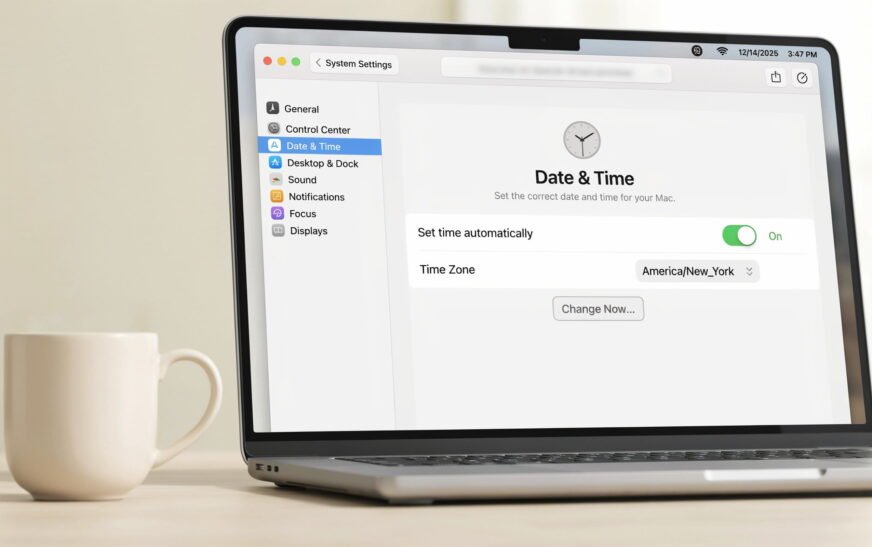
A Mac showing the wrong date and time — or one that keeps resetting after every restart — is almost always caused by Automatic time setting being disabled, a network/NTP sync failure, or (on older Intel Macs) a depleted internal clock battery. Start by going to System Settings → General → Date & Time and making sure “Set time and date automatically” is turned on. If the time keeps reverting specifically after every restart on an older Intel Mac, the small internal clock battery (PRAM/CMOS battery) has likely run out and needs replacing.
Your Mac shows the wrong time. Maybe it’s off by a few minutes, maybe it’s showing a completely different time zone, or maybe — and this is the version that really gets people — you fix it manually and it reverts back to the wrong time every single time you restart. Notifications arrive with the wrong timestamp, calendar events look off, and anything relying on accurate time (two-factor authentication codes, scheduled tasks, file timestamps) starts behaving strangely.
This is a more common issue than people expect, and on Apple Silicon Macs (M1 through M4) it has slightly different causes than on older Intel Macs — mainly because Apple Silicon Macs don’t have a separate clock battery the way Intel Macs do. This guide covers every cause and fix for both architectures.
Identify Your Specific Symptom
Narrows Down the Fix⏰ Time is off by a few minutes or seconds
Usually a network time sync issue — the Mac isn’t successfully reaching Apple’s time servers. Fix 1 and Fix 3 address this directly.
🌍 Time zone is wrong, but the actual time/minutes look correct
Location Services may be disabled, or your time zone is set manually and hasn’t been updated for travel. Fix 2 covers this.
🔁 Time resets to a wrong date every time the Mac restarts
On Intel Macs, this is the classic sign of a depleted PRAM/CMOS clock battery. On Apple Silicon Macs, it points to a deeper system clock or NVRAM issue. Fix 5 and Fix 7 are the most relevant.
📅 Date shows something like January 1, 2001 or a similarly ancient date
This specific symptom — a very old default date — is the strongest indicator of a dead clock battery (Intel) or a corrupted system clock state (Apple Silicon). Fix 5 and Fix 7 apply.
🔒 Apps or websites say “your clock is wrong” or reject secure connections
Many secure connections (banking sites, App Store, iCloud) refuse to connect when the system clock is significantly wrong, since SSL certificates are time-sensitive. Fixing the date/time resolves this immediately — see Fix 1.
A surprisingly large share of “wrong time” reports are actually a wrong time zone, not a wrong clock. Look at the minutes — if they’re correct but the hour is off by a consistent amount (1, 3, 5, 8 hours, etc.), it’s almost certainly a time zone issue, not a sync or hardware issue. Go straight to Fix 2.
Fix 1: Enable “Set Time and Date Automatically”
Start Here — Fixes the Majority of CasesmacOS has a setting that automatically syncs your Mac’s clock with Apple’s network time servers using the NTP (Network Time Protocol). If this is turned off — which can happen accidentally, after a macOS update, or if someone manually set the time once — your Mac’s clock will drift over time and never self-correct.
If the toggle appears greyed out, click the lock icon in the bottom-left of the System Settings window and enter your administrator password. Some settings — especially on Macs managed by a workplace or school (MDM-managed devices) — require authentication before they can be changed, and in managed environments, this setting may be locked entirely by an IT policy.
Fix 2: Fix the Time Zone
If the Hour Is Wrong but Minutes Are CorrectmacOS can set your time zone automatically based on your current location, or you can set it manually. If automatic time zone detection isn’t working — usually because Location Services is disabled for this specific feature — your Mac may show the correct time for the wrong place, which looks exactly like “the wrong time” at a glance.
To set the time zone manually instead (useful if you travel and don’t want it changing automatically):
Fix 3: Check Your Internet Connection and NTP Server
If Automatic Setting Is On but Time Still DriftsIf automatic time setting is enabled but your Mac’s clock still drifts or shows the wrong time, it may not be successfully reaching Apple’s network time servers — often due to a firewall, restrictive network, or a temporary server issue.
sudo sntp -sS time.apple.comIf the Terminal command times out or fails, your network is likely blocking NTP traffic entirely. Try a different NTP server as a test:
sudo sntp -sS time.google.com
If this works but time.apple.com doesn’t, the specific Apple time server may be temporarily unreachable from your network, but your internet connection itself is fine.
Fix 4: Restart Your Mac
Simple but Effective for Stuck Clock SyncA standard restart re-initialises the system’s time daemon and forces a fresh attempt at network time synchronisation. This resolves cases where the time sync process has quietly stalled in the background without any visible error.
Fix 5: Replace the Clock Battery (Intel Macs Only)
The Classic Cause on Older Intel MacsEvery Intel-based Mac has a small backup battery (sometimes called the PRAM battery, CMOS battery, or RTC battery) that keeps the system clock running even when the Mac is fully powered off. This is a completely separate, small battery from the main battery in a MacBook. When it depletes — which happens naturally over many years, especially in Macs that are rarely fully powered off — the Mac loses track of the date and time every time it’s shut down or restarts.
The telltale sign of a dead clock battery: the date resets to something like January 1, 2001 (or another very old default date) every single time the Mac restarts or is unplugged from power, even though the time was set correctly just before.
Opening a Mac to access internal components voids any remaining warranty if done incorrectly, and risks damaging other components like the logic board, display cables, or battery. If you’re not experienced with Mac hardware repair, have an Apple Store or Apple Authorised Service Provider perform any battery replacement.
Fix 6: Check Calendar and Time Zone Display Settings
If Only Specific Apps Show the Wrong TimeIf your Mac’s menu bar clock is correct but specific apps — Calendar, Mail, or third-party software — show different times for events or messages, the issue may be an app-specific time zone display setting rather than the system clock itself.
If only specific calendar events show the wrong time while others are correct, those individual events may have been created with a specific time zone attached (common when scheduling meetings across time zones). Open the event, check for a time zone field, and update it if it’s showing an unexpected location.
Fix 7: Reset NVRAM (Intel Macs) for Persistent Wrong Time
For Intel Macs With Settings-Related Time IssuesNVRAM stores certain low-level settings including some time zone and startup configuration data on Intel Macs. If this becomes corrupted, it can cause persistent time and date display issues that aren’t fixed by adjusting Date & Time settings normally. Resetting it is safe and takes under a minute.
NVRAM resets via key combination don’t apply to Apple Silicon Macs (M1 through M4) — the system manages this differently and automatically. If you have an Apple Silicon Mac with persistent date/time issues, a Safe Mode boot (hold the Power button at startup until “Loading startup options” appears, select your disk, then hold Shift and click Continue in Safe Mode) achieves a similar system-level reset of certain cached states.
Fix 8: Check for Date and Time Restrictions (Parental Controls / MDM)
For Managed or Shared MacsIf your Mac is managed by a workplace, school, or under Screen Time / parental control restrictions, the date and time settings may be locked or controlled by a configuration profile — preventing the normal automatic sync from functioning as expected.
If this is a work-issued or school-issued Mac, do not remove configuration profiles without checking with IT first — doing so can remove required security settings, VPN access, or app management features needed for your job or coursework.
Pro Tips: Keeping Your Mac’s Clock Accurate Long-Term
Always leave “Set time and date automatically” enabled. There’s rarely a good reason to set the Mac’s clock manually. Automatic sync via Apple’s NTP servers is accurate to within a fraction of a second and self-corrects for any drift continuously in the background.
Fully shut down your Mac occasionally rather than always sleeping it. If you suspect a clock battery issue on an older Intel Mac, periodically doing a full shutdown (rather than relying on sleep) helps you catch a depleting clock battery early — before it becomes a daily annoyance.
Keep Location Services enabled for System Services if you travel. Automatic time zone detection based on location means your Mac always shows the correct local time the moment you land somewhere new, without you having to remember to change it manually.
Check the time after any macOS update. Update installations occasionally interrupt the automatic time sync process. After updating macOS, glance at the menu bar clock and compare it to your iPhone — if they don’t match, toggle automatic time setting off and on to force a fresh sync.
If you’re also dealing with other Mac quirks, check what else might be slowing things down. A consistently wrong clock is sometimes one symptom among several on a Mac that needs general maintenance. Our guide on freeing up MacBook storage without deleting files and our guide on secret Mac features most users never discover are both worth a look if your Mac has been generally behaving oddly.
Common Mistakes to Avoid
Manually setting the date and time turns off automatic syncing — meaning your Mac’s clock will start drifting again over time, sometimes within hours. Manual setting is only a temporary workaround. Always re-enable “Set time and date automatically” once your internet connection or sync issue is resolved.
If your Mac keeps resetting to a default date like January 2001 after every shutdown, this won’t fix itself and will keep happening indefinitely. It’s a hardware sign (depleted clock battery) that needs a physical fix, not a settings adjustment.
Before assuming something is broken, check whether the minutes are correct and only the hour is off by a consistent amount — that’s a time zone setting, not a malfunctioning clock. Fixing the time zone is far simpler than chasing a sync or hardware issue that doesn’t actually exist.
FAQ: Mac Wrong Date and Time
Why does my Mac keep showing the wrong time?
The most common cause is “Set time and date automatically” being turned off in System Settings → General → Date & Time. Other causes include a network blocking time sync traffic, a wrong time zone setting, or — on older Intel Macs — a depleted internal clock battery. Start by confirming automatic time setting is enabled and toggling it off and back on to force a fresh sync.
Why does my Mac’s date reset every time I restart it?
On an Intel Mac, a date that resets to a very old default (like January 2001) after every restart or shutdown is the classic symptom of a depleted clock battery (PRAM/CMOS battery) — a small backup battery separate from the main battery that keeps the clock running while the Mac is off. This requires a hardware repair at an Apple Store or Authorised Service Provider. On Apple Silicon Macs, which don’t have this separate battery, a similar symptom usually points to a deeper system issue and is worth having Apple diagnose directly.
How do I manually sync my Mac’s clock with Apple’s time server?
Open Terminal and run sudo sntp -sS time.apple.com, then enter your password when prompted. This forces an immediate time sync using Apple’s official time server. If this command fails or times out, your network connection may be blocking NTP traffic — try a different network or check your firewall settings.
My Mac shows the right minutes but the wrong hour — what’s wrong?
This is a time zone issue, not a clock issue. Go to System Settings → General → Date & Time and check “Set time zone automatically using current location.” If that’s already checked but not working, make sure Location Services is enabled and that “Set Time Zone” is allowed under Location Services → System Services in Privacy & Security settings.
Can a wrong system clock cause other problems on my Mac?
Yes. A significantly incorrect system clock can cause SSL/TLS certificate validation failures (since certificates are time-sensitive), preventing secure websites, the App Store, and iCloud services from connecting properly. It can also cause two-factor authentication codes to be rejected, since many systems use time-based codes that require the requesting device’s clock to be accurate. Fixing the date and time resolves these symptoms immediately.
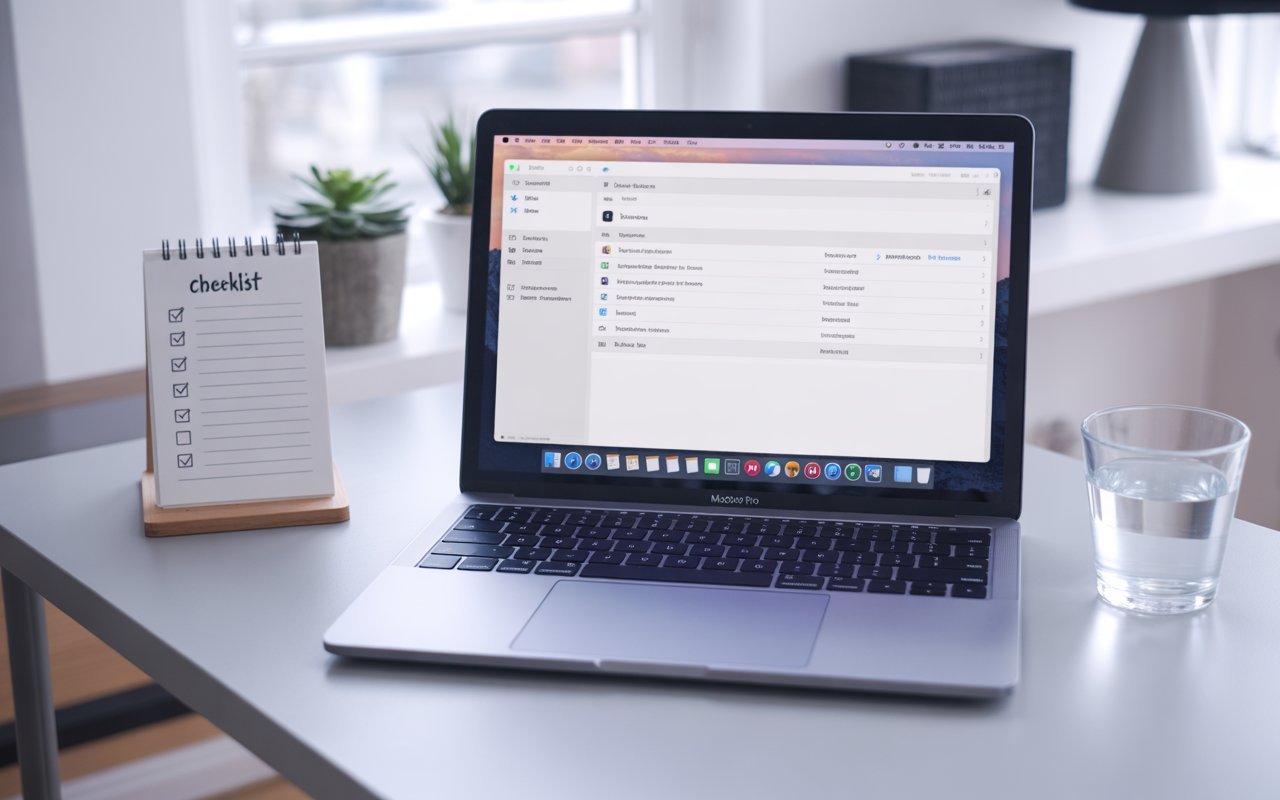
Mac Wrong Date and Time — Fix Checklist
- 1Enable “Set time and date automatically” — System Settings → General → Date & Time
- 2Fix time zone — enable automatic time zone via Location Services if the hour is wrong
- 3Check network/NTP — try
sudo sntp -sS time.apple.comin Terminal - 4Restart your Mac — re-initialises the time sync process
- 5Replace clock battery (Intel Macs) — if date resets to an old default after every shutdown
- 6Check Calendar time zone settings — if only specific apps show wrong times
- 7Reset NVRAM (Intel) or Safe Boot (Apple Silicon) — for persistent settings-level issues
- 8Check for MDM/parental control restrictions — on managed or shared Macs
One Last Thing
If your Mac’s clock is still wrong after working through every fix here — particularly if it’s an older Intel Mac repeatedly resetting to a very old default date — booking a free diagnostic at an Apple Store or Apple Authorised Service Provider is the right next step. They can confirm whether it’s a clock battery, logic board issue, or something else entirely, usually within a few minutes.
The CrazyErrors team is happy to help if you’re not sure which fix applies — let us know your Mac model, whether it’s Intel or Apple Silicon, and exactly what pattern you’re seeing (drifts slowly, wrong time zone, resets after every restart, etc.).
Wrapping Up
A Mac with the wrong date and time is almost always a quick settings fix — automatic time sync turned off, a wrong time zone, or a network blocking the sync request. The one genuine hardware cause, a depleted clock battery on older Intel Macs, is identifiable by its very specific symptom: the date resetting to an old default every time the Mac restarts.
Start with the automatic time and time zone settings, toggle them off and back on to force a fresh sync, and work through the rest of this guide if the problem persists. Most Macs are back to showing the correct time within minutes.
ⓘ Disclaimer: This article is for informational purposes only. CrazyErrors is not affiliated with Apple Inc. Hardware repairs involving internal components should be performed by Apple or an Apple Authorised Service Provider. Results may vary depending on your Mac model and macOS version. For official Apple support, visit support.apple.com.