
If your Mac is frozen or an app has stopped responding, press Command + Option + Esc to open the Force Quit window, select the frozen app, and click Force Quit. If the entire Mac is locked up and the keyboard isn’t responding, hold the Power button for 10 seconds to force a restart. Most freeze issues are caused by low RAM, a runaway background process, or a corrupted app cache — all of which are fixable without reinstalling macOS.
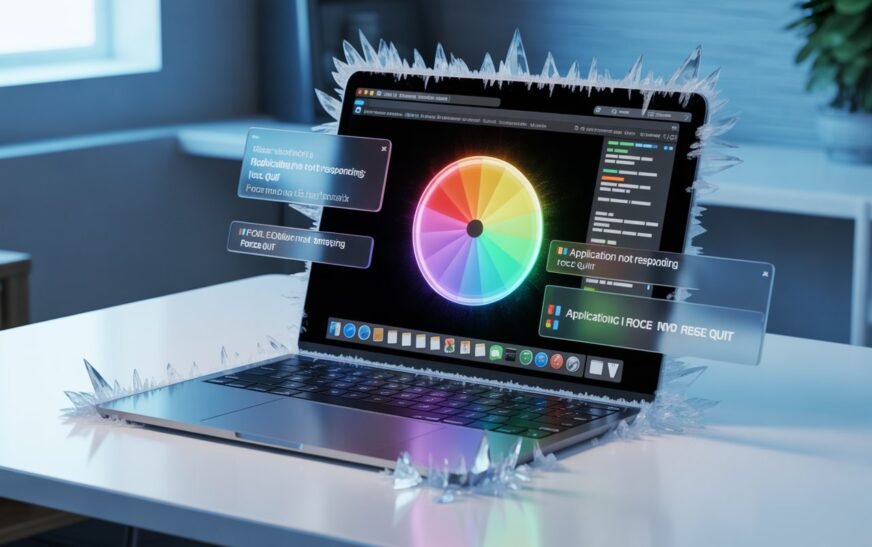
You’re in the middle of something important and your Mac just stops. The cursor turns into that spinning color wheel — the one Mac users have nicknamed the “beach ball of death” — and nothing responds. The app is frozen, or maybe the whole machine is. Clicking does nothing. Keyboard shortcuts don’t work. You sit there waiting, hoping it comes back on its own.
Sometimes it does. Often it doesn’t. And when it keeps happening, it stops being a minor annoyance and starts feeling like something is seriously wrong with your Mac.
The good news is that a Mac freezing or becoming unresponsive is rarely a sign of permanent hardware failure. In most cases, there’s a specific, fixable cause. This guide covers everything from the immediate fix when you’re stuck right now, to the deeper solutions that stop it from happening again.
The Immediate Fix: What to Do When Your Mac Is Frozen Right Now
Do This FirstBefore troubleshooting the cause, let’s get your Mac working again. There are a few levels of “frozen” — each has a slightly different approach.
Situation 1: One App Is Frozen (Mac Still Responds)
This is the most common scenario. One application has stopped responding but you can still move your cursor and interact with other parts of the screen.
Method 1 — Force Quit keyboard shortcut (fastest):
Method 2 — Right-click the Dock icon:
Method 3 — Via the Apple menu:
If the spinning beach ball appears but the app seems to still be doing something (like loading a file or syncing), give it 30–60 seconds before force quitting. Some operations — especially those involving large files or network activity — just take a while and aren’t actually frozen.
Situation 2: The Entire Mac Is Frozen (Nothing Responds)
If your cursor won’t move, the keyboard does nothing, and even Command + Option + Esc doesn’t open anything, the entire system has locked up.
Try a forced restart first:
Alternatively, try the keyboard restart shortcut first — it’s gentler than holding the power button:
A forced shutdown or restart will close all open apps immediately. Any unsaved work in documents, spreadsheets, or other files will be lost. If you see the beach ball but the cursor still moves, try waiting a few more minutes before forcing a shutdown — some Macs do recover on their own from deep freezes given enough time.
Situation 3: The Mac Is Frozen at Startup or Login Screen
If your Mac freezes during startup — on the Apple logo, the loading bar, or the login screen — it’s a different kind of problem, often related to a failing drive, a corrupted startup extension, or a login item causing a crash on boot.
Safe Mode loads macOS with only essential system software. It skips third-party startup extensions, clears certain caches automatically, and runs a basic disk check. If your Mac runs fine in Safe Mode but freezes normally, a third-party app or startup item is almost certainly the cause.
Why Does a Mac Freeze or Stop Responding?
Understanding the CauseA Mac freezing isn’t random — something specific triggers it every time. Knowing the cause helps you pick the right fix instead of trying things at random. Here are the most common culprits:
Insufficient RAM — When your Mac runs out of available memory, it starts writing data to the startup drive (called “swap”). If your drive is also nearly full or slow, this process becomes extremely sluggish, making everything appear frozen. macOS is doing something — it’s just doing it painfully slowly.
A runaway process — Occasionally an app or background service starts consuming 100% of CPU or memory and won’t release it. Safari tabs, updater processes, and certain third-party apps are frequent offenders. The rest of the system becomes unresponsive because one process has taken over all available resources.
A full or nearly full startup disk — macOS needs free space to operate normally — for swap files, temporary data, and normal file operations. When your startup disk drops below 5–10 GB of free space, your Mac can become very slow or freeze during operations that require disk writes.
Corrupted app caches or preferences — A damaged preference file or corrupted cache can cause a specific app to hang on launch or during certain operations, even if the rest of the system is fine.
macOS software bugs — A macOS update that introduced a bug, a driver conflict, or a kernel extension misbehaving can cause system-wide freezes. These are usually resolved by subsequent minor macOS updates.
Overheating — When a Mac’s internal temperature gets too high, it throttles performance significantly — and in severe cases, freezes to protect internal components. This is more common on older Macs or in hot environments.
Hardware issues — Failing RAM, a degraded SSD, or a hardware component starting to fail can cause unpredictable freezing. If your Mac freezes consistently across multiple different activities and none of the software fixes help, hardware diagnostics are the next step.
Step-by-Step Fixes: How to Stop Your Mac From Freezing
Fix 1: Force Quit Runaway Processes Using Activity Monitor
Start Here for Recurring FreezesActivity Monitor is your Mac’s built-in task manager. It shows you exactly what every process is doing with your CPU and memory — and lets you shut down the ones that are misbehaving.
Also check the Memory tab. If “Memory Pressure” in the graph at the bottom is showing red, your Mac is under significant memory strain — the main cause of slowness and freezing.
Common offenders include: mds_stores (Spotlight indexing — usually safe to wait out), kernel_task (thermal throttling — check for overheating), browser processes with high CPU (too many open tabs), and background updater processes from third-party apps. If a process you don’t recognise is consistently at the top, a quick web search of its name will tell you what it does.
Fix 2: Free Up Disk Space
Quick WinmacOS needs breathing room on your startup disk to function smoothly. If your available storage has dropped below about 10 GB, freezing and sluggishness become increasingly common.
For a full step-by-step guide on safely recovering disk space, see our detailed walkthrough: MacBook Storage Full — How to Free Up Space Without Deleting Files.
Fix 3: Clear App Caches and Preferences
If One App Keeps FreezingIf a specific app consistently freezes while others run fine, a corrupted cache or preference file is likely the cause. Clearing these files forces the app to rebuild them clean on its next launch.
Clear the app cache:
~/Library/Caches and press Entercom.apple.Safari)Delete the app’s preference file:
~/Library/Preferences and press Entercom.developer.AppName.plistDeleting an app’s preference file will reset its custom settings to default. Make a note of any important settings before doing this, or move the file to your Desktop instead of Trash so you can restore it if needed.
Fix 4: Disable or Remove Problematic Login Items and Extensions
For Freezes at StartupLogin items are apps and services that launch automatically when you log in. Over time, especially after installing various apps, this list can grow long — and a misbehaving login item can cause freezing shortly after your Mac starts up.
If you’re not sure which item is causing the problem, remove them all and add them back one at a time. Restart after each addition to identify the exact culprit.
Fix 5: Run First Aid on Your Disk
For Persistent or Random FreezesDisk errors — minor filesystem inconsistencies — can cause macOS to freeze when it tries to read or write data to a damaged part of the drive. Disk Utility’s First Aid tool scans for and repairs these issues automatically.
If First Aid completes without finding errors, your disk’s filesystem is healthy. That rules out disk corruption as the cause of your freezes and points toward software, RAM, or overheating instead.
Fix 6: Reset NVRAM (Intel Macs Only)
Intel Mac SpecificNVRAM (Non-Volatile Random-Access Memory) stores small pieces of system configuration — display resolution, startup disk selection, time zone, and similar settings. A corrupted NVRAM can occasionally cause unusual system behaviour including freezing. Resetting it is safe and takes about 30 seconds.
NVRAM resets don’t apply to Apple Silicon Macs (M1, M2, M3, M4). On Apple Silicon, this type of stored configuration data is managed differently by the system and resets automatically when needed. Skip this step if you have an M-series Mac.
Fix 7: Reset SMC — System Management Controller (Intel Macs Only)
For Thermal or Power-Related FreezesThe SMC controls power management, thermal management, and several hardware functions on Intel Macs. A misbehaving SMC can cause unusual freezing, especially if it’s accompanied by the fan running at full speed, the Mac running very hot, or the battery behaving oddly.
For MacBooks with a T2 chip (2018 and later Intel MacBooks):
For MacBooks without a T2 chip (older Intel MacBooks):
Fix 8: Update macOS and All Apps
Easy MaintenanceA known bug in macOS or a specific app version can cause freezing on certain hardware configurations. Apple regularly releases point updates (e.g. macOS 15.3.1) that address stability issues — and these often silently fix freeze-related bugs that users have been reporting.
If your Mac only started freezing after a specific macOS update, check Apple’s support forums and communities — chances are others are experiencing the same issue and Apple is aware. A subsequent point update typically fixes it within a few weeks. In the meantime, check if reverting to the previous macOS version is feasible via Time Machine.
Fix 9: Check for Overheating
Physical CheckWhen a Mac overheats, macOS intentionally throttles CPU performance to reduce heat output. In severe cases it can freeze entirely. If your Mac is warm to the touch, the fan is running loudly, or freezes happen during intensive tasks, overheating may be involved.
kernel_task is consuming high CPU, this is macOS actively throttling the processor due to heatMacBooks dissipate heat through vents on the bottom edge and hinge area. Using your Mac on a pillow, blanket, or sofa cushion blocks these vents entirely and can cause the internal temperature to climb rapidly — leading to freezes, throttling, and long-term wear on internal components.
Fix 10: Run Apple Diagnostics
If Nothing Else WorksIf your Mac keeps freezing despite trying every software fix, it’s worth running Apple’s built-in hardware diagnostic tool. This tests your RAM, logic board, and other components for faults and gives you a specific error code if something is wrong.
On Apple Silicon Macs:
On Intel Macs:
If Apple Diagnostics returns an error code, it typically means a hardware component has failed or is failing. At that point, taking your Mac to an Apple Store or Apple Authorised Service Provider is the right move — and having the error code in hand makes the diagnostic process faster for the technician.
Pro Tips: How to Prevent Your Mac From Freezing in the Future
Keep at least 15–20 GB of free disk space at all times. macOS uses disk space for virtual memory (swap), temporary files, and system operations. When available space drops below 10 GB, the system starts struggling. Build a habit of checking your storage monthly.
Restart your Mac at least once a week. Most Mac users leave their machine in sleep mode indefinitely. Over days and weeks, memory gets fragmented, background processes accumulate, and system caches grow stale. A full restart clears all of this in under a minute.
Reduce the number of Login Items. Every app that launches at startup competes for RAM and CPU during the first few minutes after you log in. Trim your login items to only what you genuinely need open immediately.
Watch your browser tabs. Each browser tab consumes memory, and some tabs — especially those running video, ads, or active scripts — consume CPU continuously. Keep your tab count reasonable, and consider using Safari instead of Chrome for better macOS memory management.
Check Activity Monitor regularly, not just when something’s wrong. Spending 30 seconds in Activity Monitor once a week lets you catch processes quietly eating resources before they cause a freeze. It’s the kind of habit that keeps a Mac running smoothly for years. For more built-in Mac tools most users overlook, check out our guide on secret Mac features you probably didn’t know about.
Don’t ignore low-storage warnings. When macOS shows a “your disk is almost full” notification, act on it the same day. Letting storage dip below 5 GB is a reliable recipe for freezes and sluggishness.
Common Mistakes to Avoid
The spinning beach ball sometimes means your Mac is working hard on something — loading a large file, syncing data, or processing in the background. Give it 30–60 seconds before concluding it’s frozen. Forcing a shutdown mid-operation can corrupt files you were working on.
Third-party memory cleaners and optimizer apps frequently make things worse. macOS manages memory extremely well on its own, and these apps often add more background processes to an already resource-strained system. If your Mac needs more RAM, the solution is more RAM — not a cleaning app.
It’s tempting to stay on an older macOS version that “feels stable,” but security fixes and stability patches are bundled in the same updates. If your Mac is freezing, check for updates before assuming the issue is hardware.
Processes like kernel_task, WindowServer, loginwindow, and launchd are core system processes. Force-quitting them will cause an immediate crash or restart. Only force-quit processes you can identify as belonging to user applications.
FAQ: Mac Freezing and Not Responding
Why does my Mac keep freezing randomly?
Random, unpredictable freezes are usually caused by one of three things: insufficient RAM causing heavy swap usage, a nearly full startup disk, or a runaway background process consuming all available CPU. Open Activity Monitor right after a freeze and check the CPU and Memory tabs — the cause will often be visible there. If the freezing is random and Activity Monitor looks normal, running Disk Utility’s First Aid and Apple Diagnostics can rule out disk and hardware issues.
How do I force quit a frozen app on a Mac?
The fastest method is the keyboard shortcut: press Command + Option + Esc simultaneously. This opens the Force Quit window where you can select the frozen app and click Force Quit. Alternatively, hold Option and right-click the app’s icon in the Dock, then select Force Quit. If the keyboard doesn’t respond at all, the entire system is frozen — hold the Power button for 10 seconds to force a shutdown.
What does the spinning beach ball mean on a Mac?
The spinning wait cursor (commonly called the “beach ball” or “spinning wheel of death”) appears when an application is busy and temporarily cannot respond to input. It’s macOS telling you to wait. If it lasts more than a minute or appears constantly, the app has likely become unresponsive — either due to a bug, insufficient memory, a slow disk operation, or a background process consuming too many resources.
Will I lose unsaved work if I force quit or restart?
Force quitting an app closes it immediately without saving. Any unsaved changes in that app’s open documents will be lost. However, many modern macOS apps — including Pages, Numbers, Keynote, and TextEdit — autosave continuously, so you may be able to recover recent work when you reopen the app. Apps that don’t autosave (certain third-party apps, older software) will lose everything since the last manual save.
My Mac freezes only when I’m on battery — why?
Some Macs enter aggressive power-saving modes on battery that reduce CPU and memory bandwidth significantly. This can cause apps that run fine when plugged in to feel sluggish or unresponsive on battery. Go to System Settings → Battery and check your energy settings. Also check Activity Monitor for processes with unusually high CPU usage while on battery — some apps don’t respect Low Power Mode and continue running at full intensity.
Is it bad to force restart a Mac frequently?
An occasional forced restart is fine and won’t cause damage. Doing it regularly — several times a week — suggests an underlying problem that should be fixed. Frequent forced shutdowns can theoretically lead to filesystem inconsistencies over time (which Disk Utility’s First Aid can check for and repair), but modern SSDs and macOS’s journaled filesystem are fairly resilient to this. The priority should be finding and fixing the root cause of the freezing.
Mac Freezing — Quick Fix Summary
- 1One app frozen: Press Command + Option + Esc → Force Quit
- 2Entire Mac frozen: Hold Power button 10 seconds to force shutdown
- 3Runaway process: Use Activity Monitor to find and kill the CPU/memory hog
- 4Low disk space: Free up space — keep at least 15 GB available
- 5Specific app freezing: Clear its cache and preference file, then relaunch
- 6Freezes at startup: Boot into Safe Mode to isolate login items
- 7Disk errors: Run First Aid in Disk Utility
- 8Intel Mac thermal/power issues: Reset NVRAM and SMC
- 9Overheating: Use on hard surfaces, reduce background apps
- 10Hardware suspected: Run Apple Diagnostics and check error codes
One Last Thing
If your Mac is still freezing after working through all of these fixes — or if the freezes are becoming more frequent over time — it’s worth having the hardware checked. A degrading SSD or failing RAM can produce symptoms that look exactly like software problems for months before the real cause becomes obvious. Apple Diagnostics is a good first step, and an Apple Store or Authorised Service Provider can do a more thorough hardware inspection.
If you’d like help figuring out what’s causing your specific freeze issue, feel free to reach out to the CrazyErrors team. Describe when the freezes happen, what you’re doing at the time, and how long your Mac has been doing this — that context usually points directly to the cause.
Wrapping Up
A frozen Mac is frustrating, but it’s almost never a dead end. Whether it’s a single app that won’t respond or a complete system lockup, there’s a methodical path from “nothing works” to “problem solved.” Start with the immediate fix — force quit or forced restart — then work through the root cause fixes based on when and how the freezing happens.
The vast majority of Mac freezing issues come down to software: too many processes, not enough disk space, a corrupted cache, or a background app running out of control. Fix the underlying cause, and you’ll find your Mac runs the way it’s supposed to — smoothly, quietly, and without interruption.
ⓘ Disclaimer: This article is for informational purposes only. CrazyErrors is not affiliated with Apple Inc. or Microsoft Corporation. Steps involving system resets and Terminal commands should be followed carefully. Results may vary depending on your macOS version and device configuration. Always back up important data before making system changes. For official support, visit apple.com/support.