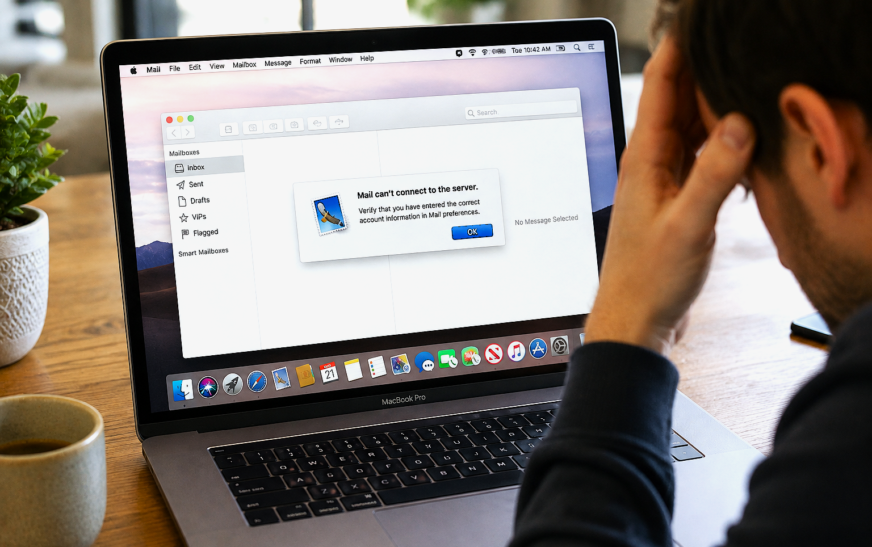
Mac Mail not working after a macOS Tahoe update is most commonly caused by saved email passwords being invalidated in the macOS Keychain, account settings being partially reset during the update, or Mail accounts being set to offline status by the update process. The fastest fix is to open Mail → Settings → Accounts, click each account, and check its connection status — look for a yellow warning triangle or an “Offline” indicator. Re-entering the account password usually restores sending and receiving immediately. If re-entering the password produces a repeated “Unable to verify account name or password” error, your email provider requires an app-specific password due to two-factor authentication — Fix 4 covers this specifically.
When Mac Mail is not working after a macOS Tahoe update, the silence is jarring — you open Mail expecting the familiar inbox refresh, and instead you get a spinning loading indicator that never finishes, emails stuck in the Outbox for hours, or a flood of authentication error alerts the moment Mail tries to connect. The update didn’t delete your emails or remove your accounts, but something in the authentication chain or connection settings broke during the upgrade.
The causes follow a predictable pattern. Keychain passwords get invalidated when macOS security credentials are refreshed. Account settings stored in Mail’s preference files occasionally don’t survive the update intact. Security certificates get flagged as untrusted against Tahoe’s updated certificate validation. Mail accounts are sometimes set to offline as a safety measure during installation and never brought back online automatically. Every one of these has a specific fix — and in most cases, the whole problem is resolved in under five minutes once you know where to look.
What Error or Symptom Are You Seeing?
Identify Your Exact Problem First🔒 “Unable to verify account name or password” — keeps asking for password
The most common post-update error. The Keychain password for your account was invalidated during the update. Re-entering the password via Mail’s account settings (not the password prompt itself) usually resolves it. If it loops repeatedly, an app-specific password is needed — see Fix 4.
📥 Can receive email but can’t send — messages stuck in Outbox
IMAP (incoming) is working but SMTP (outgoing) authentication failed. Sending and receiving use separate authentication — the SMTP password or settings broke independently. Fix 3 and Fix 5 address SMTP-specific failures.
📤 Can send email but can’t receive — inbox not refreshing
SMTP is working but IMAP failed. The incoming mail server connection or its stored credentials broke. Fix 2 (re-entering password) and Fix 6 (IMAP server settings) are the priority fixes.
⚠️ “The certificate for this server is invalid” error
macOS Tahoe updated its SSL certificate trust policies and the certificate your email server presents is now flagged as untrusted. Fix 7 covers certificate trust issues specifically.
🚫 Account showing as “Offline” in Mail sidebar
macOS set the account to offline during the update and it didn’t come back online automatically. Fix 1 addresses this directly and takes under 30 seconds to fix.
🔄 Mail opens but freezes or crashes immediately
Mail’s database or preference files may be corrupted. Fix 10 (rebuild Mail database) and Fix 11 (reset Mail preferences) address this — start with a Force Quit and relaunch before those.
📵 All accounts broken simultaneously after update
When multiple accounts all fail at once, the issue is usually in Mail’s core settings or a network-level block rather than individual account credentials. Fix 8 (firewall), Fix 9 (VPN), and Fix 12 (remove and re-add all accounts) cover system-wide failures.
Before trying any fix, run Mail’s built-in diagnostic tool: open Mail → Window → Connection Doctor. It attempts to connect to each of your mail servers and shows a green checkmark (working) or red X (failed) for each incoming and outgoing connection, along with the specific error message for failures. The error message in Connection Doctor narrows down which fix applies to your situation in seconds.
IMAP / SMTP Settings Reference for Common Providers
Verify Against These If Settings Were Reset| Provider | IMAP Server | IMAP Port / SSL | SMTP Server | SMTP Port / SSL |
|---|---|---|---|---|
| Gmail | imap.gmail.com | 993 / SSL | smtp.gmail.com | 587 / TLS |
| iCloud Mail | imap.mail.me.com | 993 / SSL | smtp.mail.me.com | 587 / TLS |
| Outlook / Hotmail | outlook.office365.com | 993 / SSL | smtp.office365.com | 587 / STARTTLS |
| Yahoo Mail | imap.mail.yahoo.com | 993 / SSL | smtp.mail.yahoo.com | 465 / SSL |
| Fastmail | imap.fastmail.com | 993 / SSL | smtp.fastmail.com | 587 / TLS |
| Proton Mail (Bridge) | 127.0.0.1 | 1143 / None | 127.0.0.1 | 1025 / None |
Gmail (with 2-Step Verification on), Yahoo Mail, and Outlook personal accounts with two-factor authentication enabled do not accept your regular login password in Mail. They require a dedicated app-specific password — a separate password generated specifically for Mail in your account’s security settings. If you’re repeatedly asked for a password and every entry is rejected, this is almost certainly the cause. See Fix 4 for the complete app-specific password setup for each provider.
Fix 1: Take Accounts Back Online
Start Here — Takes 30 SecondsmacOS Tahoe’s update process occasionally sets Mail accounts to offline status as a precaution during installation — then fails to bring them back online automatically after the update completes. An account set to offline looks exactly like a connection failure but isn’t — the fix is a single menu click.
If taking the account online immediately restores sending and receiving without any password prompt, the update set the account offline and it’s now fully working. To prevent this after future macOS updates: after any update, open Mail and check the sidebar for offline indicators before assuming the update broke something deeper.
Fix 2: Re-enter Account Password via Mail Settings
Most Effective Fix for Password Loop ErrorsmacOS Tahoe updates the Keychain — the secure credential store — as part of the update process. This invalidates the stored passwords for email accounts, causing Mail to prompt for the password repeatedly. The correct fix is to enter the password through Mail’s own Account Settings rather than the floating prompt that appears — the prompt has a known issue where accepted passwords don’t always save back to Keychain correctly.
A password loop — where Mail accepts a password but asks for it again moments later — is almost always caused by duplicate or conflicting Keychain entries. Open Keychain Access, search for your email domain (e.g. “gmail.com” or “icloud.com”), and look for multiple entries for the same account with different dates. Delete the older, duplicate entries, leaving only the most recent one. Restart Mail after deleting duplicates. This resolves the password loop in the majority of cases where simply re-entering the password doesn’t.
Fix 3: Fix Emails Stuck in Outbox — SMTP Settings
For Messages That Won’t SendEmails stuck in the Outbox mean Mail is receiving correctly (IMAP is working) but failing to authenticate to the outgoing mail server (SMTP). The Tahoe update sometimes resets SMTP server assignments — particularly for accounts that use a custom SMTP server rather than the provider’s default — or invalidates the stored SMTP credentials independently of the IMAP password.
- Server name — matches the table above for your provider
- Port — 587 for most providers using TLS/STARTTLS
- Use TLS/SSL — should be checked
- Authentication — set to “Password” (not “None”)
- Username — your full email address
- Password — your current email or app-specific password
Mail’s Outbox queue processes messages sequentially — a single stuck message at the top of the queue blocks all messages behind it. If you have multiple unsent messages, the oldest one is usually the blocked item. Fix the SMTP authentication issue first, then right-click the oldest stuck message and select Try Now — once it sends successfully, the rest of the queue usually clears automatically.
Fix 4: Generate App-Specific Passwords for Gmail, Yahoo, Outlook
Required for Accounts With Two-Factor AuthenticationGmail, Yahoo Mail, and personal Outlook accounts with two-factor authentication enabled don’t allow third-party apps like Mail to authenticate using your main account password. They require a separate app-specific password — a randomly generated password that only works for Mail and can be revoked independently. If your regular password is rejected repeatedly, this is almost certainly why.
Gmail App-Specific Password
Yahoo Mail App-Specific Password
Outlook / Hotmail App-Specific Password
Always name your app-specific passwords descriptively when you create them — “Apple Mail MacBook Pro 2026” is much more useful than “App Password 3” when you need to revoke or update one six months later. Most email providers show the last-used date for each app password, which helps you identify and clean up unused ones over time.
Fix 5: Fix iCloud Mail Specifically
iCloud Mail Has Unique Setup RequirementsiCloud Mail in Apple’s Mail app has a different authentication path than Gmail or Outlook. It requires an app-specific password from Apple when used via IMAP — it cannot use your Apple ID password directly. After a macOS Tahoe update, this app-specific password is one of the first things that gets invalidated in Keychain, and the error messages aren’t always clear about what’s needed.
- IMAP: imap.mail.me.com — Port 993 — SSL
- SMTP: smtp.mail.me.com — Port 587 — TLS
- Username: your iCloud email address (the one ending in @icloud.com, @me.com, or @mac.com)
In Mail’s Account Settings, iCloud can be added two ways: as an iCloud account (which uses your Apple ID directly and is managed through System Settings) or as a manual IMAP account (which requires an app-specific password). If your iCloud Mail was added as an iCloud account and broke after the update, try removing it from Mail and re-adding it via System Settings → [Your Name] → iCloud → iCloud Mail — the system-level setup handles authentication differently and avoids the app-specific password requirement.
Fix 6: Verify and Correct IMAP / SMTP Server Settings
When Settings Were Partially Reset by the UpdatemacOS Tahoe occasionally resets certain Mail account settings during the update — particularly the incoming and outgoing server names, ports, and SSL settings. If Mail was previously working with non-standard settings (a custom SMTP relay, a non-standard port, or a self-hosted mail server), these are the settings most likely to be affected.
- Hostname — correct server address for your provider
- Port — 993 for SSL/TLS
- Use SSL — checked
- Authentication — Password
- Username — your full email address
Fix 7: Fix SSL Certificate Errors
“The Certificate for This Server Is Invalid”macOS Tahoe updated Apple’s certificate trust policies, which occasionally causes previously trusted email server certificates to be flagged as invalid. This is most common with corporate email servers, self-hosted mail servers, and providers whose root certificate isn’t in macOS’s default trust list. The error appears as a dialogue when Mail attempts to connect.
Only trust a certificate if the server name in the “Issued To” field matches your actual mail server address. If the certificate shows a completely different domain name than expected — for example, if your Gmail certificate shows anything other than google.com — do not trust it. An unexpected certificate could indicate a network-level interception. Contact your email provider’s support before trusting a certificate from an unfamiliar issuer.
Fix 8: Check Mac Firewall Settings
When All Accounts Broke SimultaneouslyThe macOS firewall can block Mail’s outgoing connections to mail servers — particularly the SMTP ports (587, 465) and IMAP ports (993) that Mail uses. After a macOS Tahoe update, firewall rules can be reset to stricter defaults, silently blocking email connections without any clear error message.
Fix 9: Disconnect VPN Before Testing Mail
VPNs Frequently Block SMTP Port 587Many corporate VPNs and some consumer VPN services block outgoing connections on port 587 (SMTP/TLS) to prevent unauthorised mail relay through the VPN tunnel. If Mail stopped working at the same time you started using a VPN, or if it only fails when the VPN is connected, the VPN is the cause.
Fix 10: Rebuild the Mail Database
For Mail That Freezes, Crashes, or Has Missing MessagesMail stores all downloaded emails in a local database — a collection of files in your Library folder that Mail reads and writes to constantly. After a macOS Tahoe update, this database can have inconsistencies between the old and new format, causing Mail to freeze on launch, show missing messages, or exhibit erratic behaviour that isn’t related to account credentials.
~/Library/MailAny emails stored “On My Mac” (mailboxes that exist only on your computer, not synced to a server) live in the V10 database folder. Moving this folder means those locally-stored emails temporarily disappear. If you have important emails in “On My Mac” mailboxes, export them first: select the mailbox in Mail, go to Mailbox → Export Mailbox, save the .mbox file somewhere safe, then proceed with the database move. You can import the .mbox file back after the rebuild.
Fix 11: Reset Mail Preferences
For Persistent Issues That Survive Account Re-entryMail stores its configuration — toolbar layout, display preferences, rules, signatures, and account associations — in preference files. When these become corrupted after a macOS update, Mail can behave erratically in ways that don’t respond to account-level fixes because the configuration layer is the broken component.
~/Library/Preferencescom.apple.mail.plistcom.apple.MailMigrationAgent.plist
~/Library/Containers/com.apple.mail/Data/Library/Preferencescom.apple.mail.plist from this location to your Desktop as well — there are two copies
Fix 12: Remove and Re-add Email Accounts
Nuclear Option for Accounts That Won’t AuthenticateIf an account has been through multiple failed authentication attempts, password changes, and settings corrections without recovering, the cleanest solution is to remove the account from Mail entirely and add it fresh. Re-adding creates a completely new set of Keychain entries, server settings, and local message cache — giving Mail a clean start for that account.
Removing an email account from Mail doesn’t affect the emails stored on the server — they remain in your Gmail, iCloud, Outlook, or Yahoo account untouched. Removing the account from Mail only deletes the local cache copy on your Mac. When you re-add the account, Mail re-downloads everything from the server. The only emails at risk of loss are those in “On My Mac” mailboxes (locally stored emails), which is why exporting those first is important.
Fix 13: Check Internet Accounts in System Settings
For Accounts Added via System Settings Rather Than Mail DirectlySome email accounts — particularly iCloud, Google, and Exchange — are added through System Settings rather than directly in Mail. The connection between System Settings and Mail can break after a macOS update, with System Settings showing the account as active while Mail doesn’t receive any data from it.
Pro Tips: Keeping Mac Mail Working Reliably
After every macOS update, check Connection Doctor before assuming Mail is broken. Open Mail → Window → Connection Doctor within the first few minutes of using Mail after an update. The green/red indicators immediately tell you whether the issue is authentication, server connectivity, or a local configuration problem — saving 20 minutes of guesswork. Connection Doctor is the single most useful diagnostic tool Mail has and most users don’t know it exists.
Use System Settings → Internet Accounts for iCloud and Google — not Mail’s own settings. For accounts that use OAuth (iCloud, Gmail, Exchange), managing them through System Settings → Internet Accounts is more reliable than adding them directly in Mail’s preferences. The system-level account management handles token renewal automatically and is less likely to develop authentication issues after macOS updates.
Keep your Mac’s storage above 15 GB free for Mail to function well. Mail’s local database grows continuously as new emails arrive. On a Mac with critically low storage, Mail’s database writes fail silently — producing symptoms that look like connection problems but are actually disk-write failures. Our guide on freeing up MacBook storage without deleting files covers the fastest ways to recover space. For more Mail and productivity tips that come built in to macOS, see our hidden Mac features guide.
Set Mail to check for messages every 1–2 minutes rather than automatically. Mail’s “Automatically” fetch setting uses Apple’s push delivery infrastructure, which can have delays or reliability issues. Setting a fixed interval in Mail → Settings → General → Check for new messages to every 1 or 2 minutes gives you more consistent delivery timing and also makes it easier to confirm Mail is actually connecting to the server successfully.
Common Mistakes to Avoid
For Gmail, Yahoo, and Outlook with two-factor authentication, your regular account password will always be rejected by Mail regardless of how carefully you type it. The error isn’t about a typo — it’s that these providers require a different, separately generated password for third-party clients. If Mail keeps asking for a Gmail password and you keep entering the right one, skip directly to Fix 4 and generate an app-specific password.
The V10 database folder contains your local-only “On My Mac” mailboxes. Server-synced emails are safe because they exist on the provider’s server and re-download automatically. But emails you’ve moved to “On My Mac” folders only exist in this local folder — deleting V10 without backing them up first means those emails are permanently gone. Check whether you have any “On My Mac” mailboxes in the Mail sidebar (under a grey “On My Mac” section) before proceeding with Fix 10.
When Mail shows an “Unable to verify account name or password” alert, clicking “Try Again” repeatedly re-submits the same failed credentials without fixing the underlying problem. After two failed attempts, close the prompt entirely, go to Mail → Settings → Accounts, and enter the correct password (or app-specific password) directly in the Server Settings panel. This saves the credential correctly to Keychain and doesn’t trigger account lockouts from your email provider.
The “certificate for this server is invalid” warning occasionally appears for legitimate servers whose certificates changed — but it also appears when network traffic is being intercepted or redirected. Always click “Show Certificate” and verify the server name in the certificate matches your actual mail server before choosing to trust it. On a corporate network or public WiFi, an unexpected certificate warning is a significant red flag that warrants investigation before dismissal.
FAQ: Mac Mail Not Working After Tahoe Update
Why is Mac Mail not working after the macOS Tahoe update?
Mac Mail not working after a macOS Tahoe update is most commonly caused by the Keychain-stored email password being invalidated during the update process, Mail accounts being set to offline status during installation, or SMTP server settings being partially reset. Open Mail → Window → Connection Doctor to see which connections are failing — green means working, red means failed. Then re-enter passwords in Mail → Settings → Accounts → Server Settings. For Gmail, Yahoo, or Outlook with two-factor authentication, the correct password to enter is an app-specific password, not your regular login password.
Why are my emails stuck in the Outbox on Mac?
Emails stuck in the Mac Mail Outbox mean the outgoing mail server (SMTP) authentication failed. The most common causes are: the SMTP password in Mail’s settings needs to be re-entered after the update, the SMTP server settings were partially reset, or the provider requires an app-specific password rather than the main account password. Go to Mail → Settings → Accounts → Server Settings → Outgoing Mail Server (SMTP) and verify the server address, port (587 for most providers), SSL setting, and password are all correct. After fixing SMTP settings, right-click the stuck message in Outbox and choose “Try Now.”
Mac Mail keeps asking for my Gmail password — how do I fix it?
If Mac Mail keeps asking for your Gmail password and rejects it, the issue is almost certainly that Gmail requires an app-specific password for third-party email clients when 2-Step Verification is enabled — your regular Gmail password won’t work regardless of how correctly you type it. Go to myaccount.google.com/security, find App Passwords, and create a new 16-character password labelled “Apple Mail.” Enter this generated password (not your regular Gmail password) in Mail → Settings → Accounts → Server Settings for both the incoming and outgoing servers. The password loop stops immediately once a valid app-specific password is entered.
How do I rebuild Mail database on Mac?
To rebuild the Mac Mail database: quit Mail, open Finder and navigate to ~/Library/Mail, and move the V10 folder (or the numbered version folder you see) to your Desktop as a backup. Reopen Mail — it automatically rebuilds the database and re-downloads all messages from your email provider’s servers. For large mailboxes this re-download can take 30–60 minutes. Once Mail is working normally, you can delete the old database folder from your Desktop. Note: “On My Mac” mailboxes are stored in this folder and temporarily disappear during the rebuild — export them first if you need them.
Why does Mail say “The certificate for this server is invalid” after macOS update?
The certificate error after a macOS update means Tahoe’s updated certificate trust policy flagged your mail server’s SSL certificate as untrusted. For most users with standard providers (Gmail, iCloud, Outlook), this error resolves itself within a day as certificates are updated. If it persists: when the error dialogue appears, click “Show Certificate,” verify the server name matches your mail provider, expand the Trust section, change “When using this certificate” to “Always Trust,” and click Continue. Enter your Mac password to save the trust decision. For corporate or self-hosted mail servers, contact your IT department as the certificate itself may need to be renewed.
Can I use Mail on Mac without app-specific passwords?
Only for providers that don’t require them. iCloud Mail added through System Settings → Internet Accounts uses Apple’s authentication directly without needing an app-specific password. Gmail without 2-Step Verification also works with the regular password, though Google strongly recommends enabling 2-Step Verification for security. Once 2-Step Verification is enabled on Gmail, Yahoo, or Outlook personal accounts, app-specific passwords become mandatory for third-party clients like Mac Mail — there’s no way around this requirement, and it exists to protect your account.
Mac Mail Not Working — Complete Fix Checklist
- 1Take accounts back online — Mailbox → Take All Accounts Online; or right-click offline account in sidebar
- 2Re-enter password in Account Settings — Mail → Settings → Accounts → Server Settings; delete Keychain duplicates if password loop persists
- 3Fix SMTP for stuck Outbox messages — verify server name, port 587, SSL, authentication, and password in SMTP Server List
- 4Generate app-specific password — required for Gmail, Yahoo, Outlook with 2FA; create at account security settings page
- 5Fix iCloud Mail specifically — generate Apple app-specific password at appleid.apple.com; enter in Mail’s incoming and outgoing server settings
- 6Verify IMAP/SMTP server settings — compare against provider reference table; check hostname, port, SSL, and authentication type
- 7Fix SSL certificate error — Show Certificate in error dialogue → verify server name → Always Trust → confirm with Mac password
- 8Check Mac firewall — disable “Block all incoming connections”; add Mail to allowed apps list
- 9Disconnect VPN — test without VPN; configure split tunneling to exclude Mail if VPN is required
- 10Rebuild Mail database — move ~/Library/Mail/V10 to Desktop; export On My Mac mailboxes first
- 11Reset Mail preferences — delete com.apple.mail.plist from Preferences folders; restart Mac
- 12Remove and re-add account — delete Keychain entries for the account; re-add via Mail → Settings → Accounts
- 13Check Internet Accounts in System Settings — toggle Mail off and on; re-authenticate Google OAuth if needed
One Last Thing
Mac Mail not working after a macOS Tahoe update is frustrating precisely because email is so fundamental — but it’s almost always resolved by one of the first five fixes in this guide. Re-entering the password (or generating an app-specific password for providers that require it) restores function for the large majority of affected accounts. The more involved fixes — database rebuild, preference reset, account removal — cover the remaining cases where credential issues alone aren’t the cause.
The Connection Doctor window (Mail → Window → Connection Doctor) is the fastest path to identifying which fix applies to your situation. Five seconds looking at the red indicators there saves 30 minutes of guesswork.
Wrapping Up
Post-update Mail failures follow a consistent pattern, and once you know that pattern, the fix is almost always straightforward. macOS Tahoe updated the Keychain, updated certificate policies, and occasionally reset account states — everything that follows from that is predictable and reversible. Work through the checklist from the top, use Connection Doctor to confirm each fix before moving to the next, and Mac Mail will be back to working reliably for the long term.
ⓘ Disclaimer: This article is for informational purposes only. CrazyErrors is not affiliated with Apple Inc., Google, Microsoft, Yahoo, or any email service provider. Server settings and authentication requirements listed are accurate as of 2026 but may change — always verify with your email provider’s official documentation. App-specific passwords grant access to your email account — treat them with the same security as your main password and revoke any you no longer use. For official Apple Mail support, visit support.apple.com/mail.