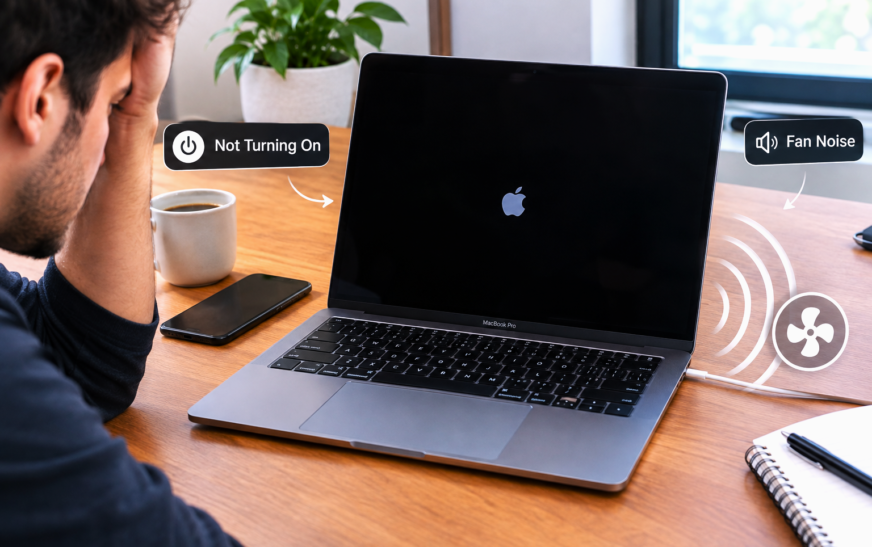
A MacBook Pro making fan noise but not turning on almost always points to one of three causes: a corrupted System Management Controller (SMC) state that spins fans to maximum while preventing a complete boot, a failed power-on self-test caused by a RAM or storage issue, or a corrupted macOS installation that the Mac is repeatedly trying and failing to start. The fastest fix is an SMC reset — for Apple Silicon MacBooks (M1/M2/M3/M4), shut down, unplug the charger, wait 30 seconds, then reconnect and power on. For Intel MacBooks, hold Left Shift + Left Control + Left Option + Power for 10 seconds while the Mac is off, then power on normally. An SMC reset resolves the fan-running-but-no-display scenario in the majority of cases.
A MacBook Pro making fan noise and not turning on creates a specific kind of dread — the Mac is clearly doing something (you can hear the fans), but nothing appears on screen and the Mac never reaches the desktop. It’s not the silence of a completely dead Mac. It’s not the normal startup sound and loading screen. It’s fans running at full speed, sometimes almost immediately after pressing Power, with a screen that stays stubbornly black.
This particular symptom — fans running with no display — is actually one of the more informative MacBook failure patterns. It narrows the cause considerably. If the fans are running, power is reaching the Mac and the System Management Controller is at least partially active. The problem is almost never “the MacBook is completely dead.” It’s that something interrupted the boot sequence after power was received — and the SMC defaulted to running fans at maximum speed because it couldn’t complete its normal startup checks.
The causes range from a corrupted SMC state (fixable in 30 seconds) to a corrupted macOS installation (fixable in under an hour via Recovery Mode) to actual hardware failure requiring service. This guide works through all of them in the right order.
Why Does the MacBook Pro Fan Run When It Won’t Turn On?
Understanding the Symptom Before Choosing the FixThe fan behaviour gives you important diagnostic information. Here’s what fan noise at startup actually indicates about what’s happening inside the Mac:
Fans spin immediately at maximum speed — black screen
The SMC (System Management Controller) powered on and started the fans, but couldn’t read thermal sensors or complete the POST (Power-On Self-Test) sequence correctly. The SMC defaults to running fans at 100% whenever it can’t confirm the system is operating within safe thermal parameters. Classic SMC failure pattern — SMC reset is the fix.
Apple logo appears briefly, fans ramp up, then black screen
The Mac started the boot sequence and made it past POST (RAM and hardware checks passed) but failed when trying to load macOS from the startup disk. A corrupted macOS installation, a damaged SSD sector, or a failed FileVault decryption — the CPU is working hard trying to recover, hence the fan noise. Recovery Mode or macOS reinstall resolves this.
Fans run, Mac restarts itself, fans run again — boot loop
A kernel panic or critical system failure is occurring repeatedly. The Mac starts, encounters an error it can’t recover from, restarts automatically, and repeats. The fans run continuously because the CPU is active during each failed boot attempt. Safe Mode boot breaks this cycle in most cases.
Fans run at maximum for a long time, then Mac shuts off
The Mac overheated or triggered its thermal protection shutoff. The fans were trying to cool a component running dangerously hot, but couldn’t bring the temperature down fast enough. The Mac shut itself off to prevent damage. This is more common after a Mac has been in a hot environment or covered while running. Let it cool for 30 minutes before attempting to power on again.
Fans audible but much quieter than normal — screen black
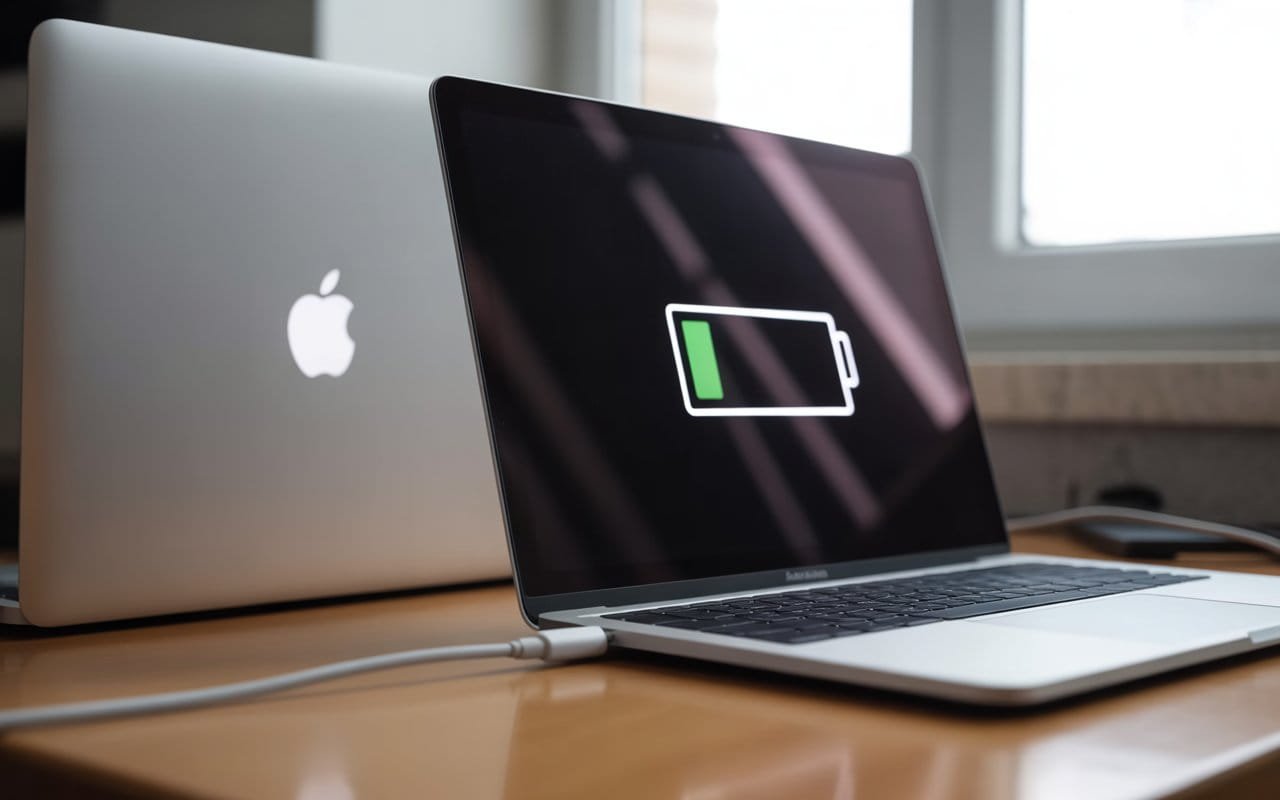
The Mac is running at a very low power state trying to start up. Battery may be critically low (below 1–2%) — the Mac has just enough power to spin the fans slightly but not enough to complete a full boot. Connect the charger and wait 10 minutes before attempting to power on — the Mac needs a minimum charge threshold to boot.
Fan noise but the screen is just very dim — Mac is actually on
The Mac booted successfully but screen brightness is at zero, or the backlight failed. In a dark room, hold a flashlight at an angle against the screen — if you can faintly see the desktop or login screen, the Mac is fully running and the issue is display backlight, not a boot failure. Adjusting brightness or connecting an external monitor confirms this.
Before You Start — Key Questions to Narrow the Cause
Your Answers Change the Priority Fix Order🔌 Did this start after a liquid spill?
Fan noise immediately after a liquid spill means liquid has reached the logic board and is causing short circuits that disrupt the boot sequence while generating heat. Do not attempt repeated power-on cycles — each attempt risks further damage. Shut down immediately, drain and dry the Mac as best as possible, and take it to an Apple Authorised Service Provider urgently. Liquid damage is the one scenario in this guide that requires professional service immediately rather than DIY fixes.
💻 Did this start during or immediately after a macOS update?
A failed or interrupted macOS update is one of the most common causes of the fan-running-but-no-boot symptom. The update partially installed, the Mac can’t complete the boot because critical system files are mid-update, and the CPU works hard trying to resolve the situation. Fix 8 (Recovery Mode) and Fix 9 (reinstall macOS) directly address update failure scenarios.
🌡️ Was the Mac running unusually hot before this started?
Overheating before the boot failure points to a thermal shutdown situation. The Mac’s thermal protection shut it down when temperatures became dangerous, and now the boot is failing because the internal temperature is still elevated or thermal management (SMC) is in a protection state. Fix 10 (cooling and thermal check) applies here before any other fix.
🧲 Was a USB-C hub, dock, or charger connected when it happened?
Certain USB-C accessories — particularly multi-port docks, faulty charging cables, and third-party adapters — can interrupt the Mac’s power management in ways that produce boot failures with fans running. Disconnecting all peripherals (Fix 2) and testing with only the Apple charger is an essential early diagnostic step when accessories were involved.
🔋 Is the battery very low or has the Mac been unused for weeks?
A MacBook Pro battery that has fully discharged to zero requires a specific minimum charge before the Mac can boot. Plugging in and seeing only a faint fan suggests insufficient charge for a full boot. Leave the Mac connected to a genuine Apple charger for at least 15–30 minutes before attempting to power on.
✅ Did the Mac work fine yesterday with no warning signs?
A sudden overnight failure with no prior warning usually points to an SMC state issue, a corrupted macOS installation from an automatic background update, or occasionally a RAM issue on Intel Macs. Fix 1 (force restart), Fix 2 (disconnect peripherals), and Fix 4 (SMC reset) resolve the majority of sudden-onset cases.
Fix 1: Force Restart the MacBook Pro
Start Here — 10 Seconds, Resolves Simple Stuck-State Boot FailuresWhen the MacBook Pro is running fans but not completing the boot sequence, the first step is always a forced restart. Holding the Power button for 10 seconds cuts power to the entire system — including the SMC — and forces a completely clean restart from zero. Many fan-running-with-no-display situations are simply a stuck boot state that clears immediately on the next attempt.
Normal MacBook startup: fans start at idle speed, briefly ramp up slightly during the boot process, then settle to a low speed when the desktop loads. Fan running at maximum speed immediately from the moment you press Power — before the Apple logo appears — almost always indicates an SMC issue. Fans that start normally and then ramp to maximum after the Apple logo appears usually indicate a software/macOS issue. The timing of the fan ramp matters for diagnosis.
Fix 2: Disconnect All Peripherals and Accessories
Essential Early Diagnostic — Rules Out Accessory-Caused Boot FailureUSB-C hubs, third-party chargers, external hard drives, monitors, and even USB-C cables can interfere with the MacBook Pro’s power management system during boot. A misbehaving accessory can send incorrect power signals that confuse the SMC, cause the Mac to draw more current than available, or trigger a protection circuit that prevents the boot from completing. Removing everything is a mandatory diagnostic step before any hardware reset.
A USB-C cable that looks and feels fine can have internal wiring that sends incorrect voltage or current signals to the MacBook’s power management system. This is particularly common with cables bought from third-party sellers rather than Apple or certified brands. If you’ve been using any new USB-C cable in the weeks before the fan-and-no-boot problem appeared, that cable is a prime suspect — test specifically by booting without it connected.
Fix 3: Check the Power Connection and Battery
Confirm the Mac Has Enough Power to Complete a BootA MacBook Pro battery that has discharged below a critical threshold — typically below 1–2% — doesn’t have enough stored energy to power the processor, RAM, SSD, and display through a full boot sequence simultaneously. The SMC may allow the fans to spin briefly as it attempts to initiate startup, but cuts the boot short because the combined power demand of all components exceeds what the battery can supply at that moment. The charger provides power but a fully depleted battery takes several minutes before it accumulates enough charge to sustain a complete boot.
On MacBook Pro models with multiple USB-C ports, not all ports always deliver the same charging power. The left-side ports typically support higher wattage charging than the right-side port on some models. If you usually charge from a specific port, try a different port — a MacBook Pro that won’t complete a boot on one port may boot cleanly when charged and booted with the cable in a different port, particularly if the first port has developed a fault.
Fix 4: Reset the SMC
The Most Effective Fix for Fan-Running-but-No-Boot on MacBook ProThe System Management Controller (SMC) is the hardware chip responsible for fan speed, display brightness, power management, battery charging, and dozens of other low-level functions on Intel MacBook Pros. On Apple Silicon Macs, equivalent functionality is integrated into the M-series chip. When the SMC enters a corrupted or stuck state, its most visible symptom is exactly this: fans running at maximum speed immediately on power-on, with no display output and no completed boot. An SMC reset clears this state completely — it’s the single most effective fix for this specific symptom combination.
💻 Apple Silicon MacBook Pro (M1, M2, M3, M4 — 2020 and later)
There is no separate SMC chip — its functions are handled by the M-series processor. The equivalent reset is a full power drain:
💻 Intel MacBook Pro With T2 Chip (2018–2020 models)
MacBook Pro 2018, 2019, 2020 (Intel) — these have a T2 security chip that handles SMC functions:
💻 Intel MacBook Pro Without T2 Chip (2017 and earlier)
MacBook Pro 2017 and earlier Intel models use the original SMC reset sequence:
A successful SMC reset shows itself immediately in changed fan behaviour on the next startup — fans start at idle speed rather than maximum, and ramp up only during heavy processing. If fans still blast immediately after an SMC reset, the issue is at the software or hardware level rather than the SMC. Proceed to Fix 5 (NVRAM reset) and then Fix 6 (Apple Diagnostics).
Fix 5: Reset NVRAM / PRAM
Clears Corrupted Startup Settings That Can Block the BootNVRAM stores startup disk selection, screen resolution, audio volume, and other settings that persist between reboots. If the startup disk setting in NVRAM points to a volume that no longer exists — after a drive replacement, a disk erase, or a failed update — the Mac tries to boot from that non-existent location, the fans run while the CPU searches for the startup disk, and the boot never completes. Resetting NVRAM forces the Mac to rediscover the startup disk from scratch.
Intel MacBook Pro — NVRAM Reset
Apple Silicon MacBook Pro — NVRAM Reset
nvram -cAfter an NVRAM reset, the Mac selects a startup disk on its own — which is usually correct but may default to an external drive if one is connected. After the reset, go to System Settings → General → Startup Disk (once booted) and confirm the internal Macintosh HD is selected. If no startup disk appears in the list, the SSD may have failed — Apple Diagnostics (Fix 6) will confirm this.
Fix 6: Run Apple Diagnostics
Let the Mac Tell You Exactly What Hardware Has FailedApple Diagnostics is a built-in hardware testing tool on every Mac — it checks the RAM, SSD, logic board, battery, and thermal systems and reports specific error codes for any component that fails its test. Running it is the fastest way to confirm whether the fan-and-no-boot problem is software (fixable at home) or hardware (needs service). It takes about 5 minutes and gives you a specific error code if hardware is at fault.
Apple Silicon MacBook Pro (M1/M2/M3/M4)
Intel MacBook Pro
- “No issues found” — hardware is healthy; the boot failure is software-related. Proceed to Fix 7 (Safe Mode) and Fix 8 (Recovery Mode)
- Error code starting with “PPT” — thermal or power issue. Common codes: PPT004 (battery needs service), PPT007 (power adapter issue)
- Error code starting with “MEM” — RAM failure. Indicates a hardware issue requiring service
- Error code starting with “SSD” or “NSD” — storage drive failure. Data recovery may be needed before service
- Error code starting with “VFD” — GPU or display failure
If the MacBook Pro’s screen is completely black from the moment you press Power (fans running but zero display output), Apple Diagnostics may not be accessible because the display never comes on. In this case: try connecting an external monitor via USB-C to HDMI adapter — if Apple Diagnostics launches on the external monitor, the internal display has failed rather than the Mac itself. A working image on an external display alongside a black internal screen is a display hardware failure, not a boot failure.
Fix 7: Boot Into Safe Mode
For Boot Loops and Post-Update FailuresSafe Mode loads macOS with only essential system components — no third-party kernel extensions, no startup applications, no non-essential system processes. It also runs a filesystem check on the startup disk during boot and clears the system cache. When a MacBook Pro enters a boot loop (fans run, Mac attempts to start, crashes, fans run again), Safe Mode breaks the cycle by bypassing whatever is causing the crash. If the Mac boots successfully in Safe Mode, the cause is a third-party application, extension, or cached file — all fixable in software.
Apple Silicon MacBook Pro — Safe Mode
Intel MacBook Pro — Safe Mode
Fix 8: Boot Into macOS Recovery Mode
Access Disk Utility, First Aid, and Reinstall Options Without Booting macOSmacOS Recovery is a separate, minimal operating environment stored in a dedicated partition on the Mac’s SSD (or downloaded from Apple’s servers as Internet Recovery). It runs independently of the main macOS installation — which means you can access it even when macOS itself is too corrupted to start. From Recovery, you can run First Aid on the startup disk, check for directory corruption, and reinstall macOS without losing your data.
Apple Silicon MacBook Pro — Recovery Mode
Intel MacBook Pro — Recovery Mode
Once in Recovery Mode — run these checks in order:
If the NVRAM stored an incorrect startup disk location, the Mac fans up while searching for a non-existent boot volume. In Recovery Mode: go to Utilities → Startup Security Utility, confirm the correct disk is listed and set as the startup disk. You can also select a startup disk in the Recovery’s own Startup Disk option visible before entering full Recovery Mode on Apple Silicon Macs.
Fix 9: Reinstall macOS From Recovery Mode
For Corrupted macOS That Survives First Aid — Keeps Your Files IntactIf Disk Utility shows the startup disk is healthy but macOS still won’t boot, the macOS system files themselves are corrupted. Reinstalling macOS from Recovery Mode replaces the corrupted system files with a clean copy downloaded from Apple — without touching your personal files, applications, or settings. This is not a factory reset. It’s a system file repair that leaves your data completely intact.
A macOS reinstall from Recovery Mode is a non-destructive operation — it replaces only the system files that Apple ships, leaving everything else untouched. Your Documents, Desktop, Downloads, applications, photos, and all personal data remain exactly as you left them. The only thing replaced is the macOS core system — which is exactly what needs replacing when the system is corrupted. This is fundamentally different from an Erase and Install, which would delete everything.
Fix 10: Let the Mac Cool Down Completely
For Thermal Shutdown Events and Overheating ScenariosMacBook Pros have aggressive thermal protection — when internal temperature sensors read dangerous heat levels, the SMC shuts the Mac down immediately to prevent damage to the CPU, GPU, or SSD. After a thermal shutdown, the Mac is often in a state where attempting to immediately restart causes the fans to run at maximum (trying to cool residual heat) while the thermal protection prevents a full boot until temperatures normalise. Trying to force the Mac to boot repeatedly while it’s still hot makes this worse.
MacBook Pros exhaust heat through vents at the hinge — the area where the screen connects to the body. Placing the Mac on a soft surface that presses against these vents traps heat and causes the temperatures that trigger thermal shutdown and the subsequent fan-running-but-no-boot symptom. A hard desk, a laptop stand, or a dedicated laptop cooling pad are the only surfaces that allow adequate airflow during use.
Fix 11: Check for Liquid Damage and Physical Inspection
When All Software Fixes Have Failed — Assess Hardware ConditionIf every software fix in this guide has failed to resolve the fan-running-but-no-boot problem, the issue is at the hardware level. Physical inspection can confirm or rule out two of the most common hardware causes that produce this symptom: liquid damage and internal connector failure. Both are visible on inspection — though solving them requires professional service.
Modern MacBook Pros use proprietary Pentalobe screws, fragile ribbon cables, and adhesive-bonded components that require specialised tools and training to open and reassemble safely. Opening the Mac yourself almost always voids any remaining warranty or AppleCare coverage and risks damaging additional components. If hardware inspection or repair is needed, take the Mac to an Apple Store or an Apple Authorised Service Provider.
Pro Tips: Preventing MacBook Pro Fan and Boot Problems
Never interrupt a macOS update — it’s the single biggest cause of the corrupted-system boot failure. A macOS update that’s cut short — by closing the lid, losing power, or a force restart during the installation — leaves system files in a partially-written state that causes exactly the fan-running-but-no-boot symptom. Before running any macOS update, confirm the battery is above 50% and the charger is connected. Let the update complete fully without closing the lid or forcing anything. If an update appears to be frozen for more than 30 minutes, wait — macOS updates genuinely take that long during the installation phase and the Mac isn’t actually stuck.
Keep your Mac’s storage above 15 GB free. A startup disk with critically low free space can cause macOS to fail to write temporary files during boot — producing the fan-running-stuck-boot pattern. macOS needs working space during startup, and a full disk blocks this. Our guide on freeing up MacBook storage without deleting files covers the fastest ways to recover space before it becomes a boot problem.
Never use the Mac on a blanket, bed, or pillow for extended sessions. The thermal shutdown that leads to the fan-then-no-boot situation is preventable. MacBook Pro’s cooling system relies on passive airflow through the hinge vents — blocking those vents with soft material guarantees the overheating that eventually triggers thermal protection and a failed boot. A $20 laptop stand or a hard book under the Mac is enough to keep airflow adequate during extended use.
Run Apple Diagnostics once a year as preventive maintenance. Apple Diagnostics takes 5 minutes and gives you early warning of developing hardware issues — a battery that’s beginning to fail, a RAM module with errors, or a storage drive showing early signs of failure — before those issues produce a fan-running-no-boot crisis. Run it annually or whenever the Mac starts behaving unusually: hidden Mac features guide has more built-in tools most users never find.
Common Mistakes to Avoid
Pressing Power multiple times in quick succession when the Mac is showing the fan-running-but-no-display symptom doesn’t help and sometimes makes things worse — each attempt adds more heat, and on Intel Macs, repeated rapid power cycles can worsen a corrupted SMC state. Do one clean force restart (hold Power 10 seconds), wait 15 seconds, then try once. If that doesn’t work, move to the SMC reset rather than continuing to press Power repeatedly.
Erasing Macintosh HD from Disk Utility in Recovery Mode deletes all your personal data — everything on the Mac. macOS reinstall (Fix 9) replaces corrupted system files without erasing anything. Always try a reinstall before an erase. An erase is only appropriate when setting up the Mac for someone else or when all data has been backed up and a completely fresh start is the intention.
On some Intel MacBook Pros — particularly those with severe SMC corruption — the first SMC reset partially clears the state but a second reset is needed to complete the process. If an SMC reset produces improved but still abnormal fan behaviour on the next boot (fans better than before but still higher than normal), wait for the Mac to fully shut down after that boot and perform the SMC reset procedure a second time. Two resets in succession is not unusual for long-standing SMC issues.
A MacBook Pro making fan noise while it appears to be off is often not off — it’s in a deep sleep state running background tasks (Time Machine backup, Spotlight indexing, iCloud sync). This is normal and doesn’t indicate the same problem as fans during a failed boot. The problematic scenario this guide addresses is specifically: pressing Power → fans run at maximum immediately → screen stays black → Mac never reaches the login screen or desktop.
FAQ: MacBook Pro Making Fan Noise and Not Turning On
Why is my MacBook Pro making fan noise but the screen is black?
A MacBook Pro making fan noise with a black screen means the Mac received power and the SMC (System Management Controller) activated, but the boot sequence failed before the display was initialised. The most common cause is a corrupted SMC state — the controller defaulted to running fans at maximum because it couldn’t complete its normal startup checks. An SMC reset resolves this in the majority of cases: for Apple Silicon Macs, shut down, unplug the charger for 30 seconds, then reconnect and power on. For Intel Macs, hold Left Shift + Left Control + Left Option + Power for 10 seconds with the Mac off, then press Power normally.
MacBook Pro fan running at full speed but won’t turn on — what does it mean?
Fans running at full speed immediately when you press Power — before the Apple logo appears — almost always indicates an SMC failure where the controller can’t read thermal sensors and defaults to maximum fan speed as a safety measure. If fans run at full speed after the Apple logo briefly appears, the issue is the macOS boot sequence failing rather than the SMC — usually a corrupted startup disk or interrupted macOS update. The timing of the fan ramp (before vs after any display output) is the key diagnostic detail. SMC reset for the immediate-fan scenario; Recovery Mode and macOS reinstall for the delayed-fan scenario.
How do I force restart a MacBook Pro that won’t turn on properly?
To force restart a MacBook Pro that’s stuck with fans running and no display: press and hold the Power button (the Touch ID button at the top-right of the keyboard on modern models) for a full 10 seconds. Hold it until the fans stop and the Mac goes completely silent and dark. Wait 15 seconds, then press Power once normally. This cuts power to the entire system and forces a completely fresh restart. If the Mac immediately returns to the fan-running-no-display state after this force restart, proceed to an SMC reset rather than repeating the force restart.
Will resetting the SMC fix my MacBook Pro fan problem?
SMC reset resolves MacBook Pro fan problems caused by a corrupted System Management Controller state — which is the cause of the fan-running-at-maximum-immediately-on-power-on pattern. It’s less effective for fan noise caused by corrupted macOS (Recovery Mode and reinstall are needed), actual hardware overheating (cooling and cleaning needed), or a failed fan or thermal sensor (professional service needed). SMC reset is always safe to try — it takes 30 seconds, has no side effects, and directly targets the hardware controller responsible for fan speed management. If it doesn’t improve the fan behaviour on the next startup, the cause is at a different level.
MacBook Pro won’t boot after macOS update — fans running and black screen
A failed macOS update is a common cause of the fan-running-black-screen boot failure. The update wrote partial system files before failing, and macOS can’t complete the boot because critical files are corrupted or missing. The fix is macOS Recovery Mode — hold Power on Apple Silicon Macs (or Command + R on Intel Macs) until Recovery launches, run Disk Utility First Aid on Macintosh HD, then select Reinstall macOS. The reinstall downloads a fresh copy of macOS from Apple and installs it over the partial update without deleting your personal files or applications.
Is it serious if my MacBook Pro fans run but it won’t turn on?
Not always — in many cases, a MacBook Pro making fan noise and not booting is a software-level issue that’s resolved in minutes with an SMC reset or macOS reinstall. The fact that fans are running is actually a positive sign — it means power is reaching the Mac and the hardware controller is at least partially functioning. A completely dead Mac (no fans, no display, no response to Power button) is a more serious hardware concern. Fan noise with no display is most commonly caused by SMC corruption, corrupted macOS, or a peripherals interference issue — all fixable without professional service. The exception is when Apple Diagnostics returns a hardware error code, which indicates component failure needing service.
MacBook Pro Making Fan Noise and Not Turning On — 11 Proven Fixes
- 1Force restart — hold Power button 10 seconds; wait 15 seconds; press Power once to restart cleanly
- 2Disconnect all peripherals — remove every USB-C device including charger; test boot with nothing connected; reconnect one at a time to identify culprit
- 3Check power and battery — verify charger works; try different USB-C port; leave charging 15–20 minutes if battery was depleted
- 4Reset the SMC — Apple Silicon: unplug 30 seconds; Intel T2: Left Shift + Control + Option + Power for 10 seconds; the highest-yield fix for fan-at-maximum-no-display
- 5Reset NVRAM / PRAM — Intel: Option + Command + P + R for 20 seconds at startup; Apple Silicon:
nvram -cin Recovery Terminal - 6Run Apple Diagnostics — Apple Silicon: hold Power → press Command + D; Intel: hold D at startup; read error codes for hardware failures
- 7Boot Safe Mode — Apple Silicon: hold Power → Shift + Continue in Safe Mode; Intel: hold Shift at startup; breaks boot loops from software conflicts
- 8Boot Recovery Mode + run First Aid — Apple Silicon: hold Power; Intel: hold Command + R; run Disk Utility First Aid on Macintosh HD
- 9Reinstall macOS from Recovery — connect to WiFi in Recovery; select Reinstall macOS; downloads and repairs system files without deleting data
- 10Let the Mac cool down — place on hard surface; disconnect charger; wait 30+ minutes in cool room; for thermal shutdown scenarios
- 11Physical inspection / professional service — check for liquid damage; note Apple Diagnostics error codes; check AppleCare coverage at checkcoverage.apple.com
One Last Thing
A MacBook Pro making fan noise but not turning on is a problem that looks severe and often isn’t. The fact that fans are running tells you power reached the Mac — which already rules out the worst scenarios. SMC reset resolves the majority of these cases in 30 seconds. Recovery Mode and macOS reinstall resolve most of the rest in under an hour. Hardware failure — the scenario that requires professional service — is the least common cause, not the most common, despite how the symptom feels.
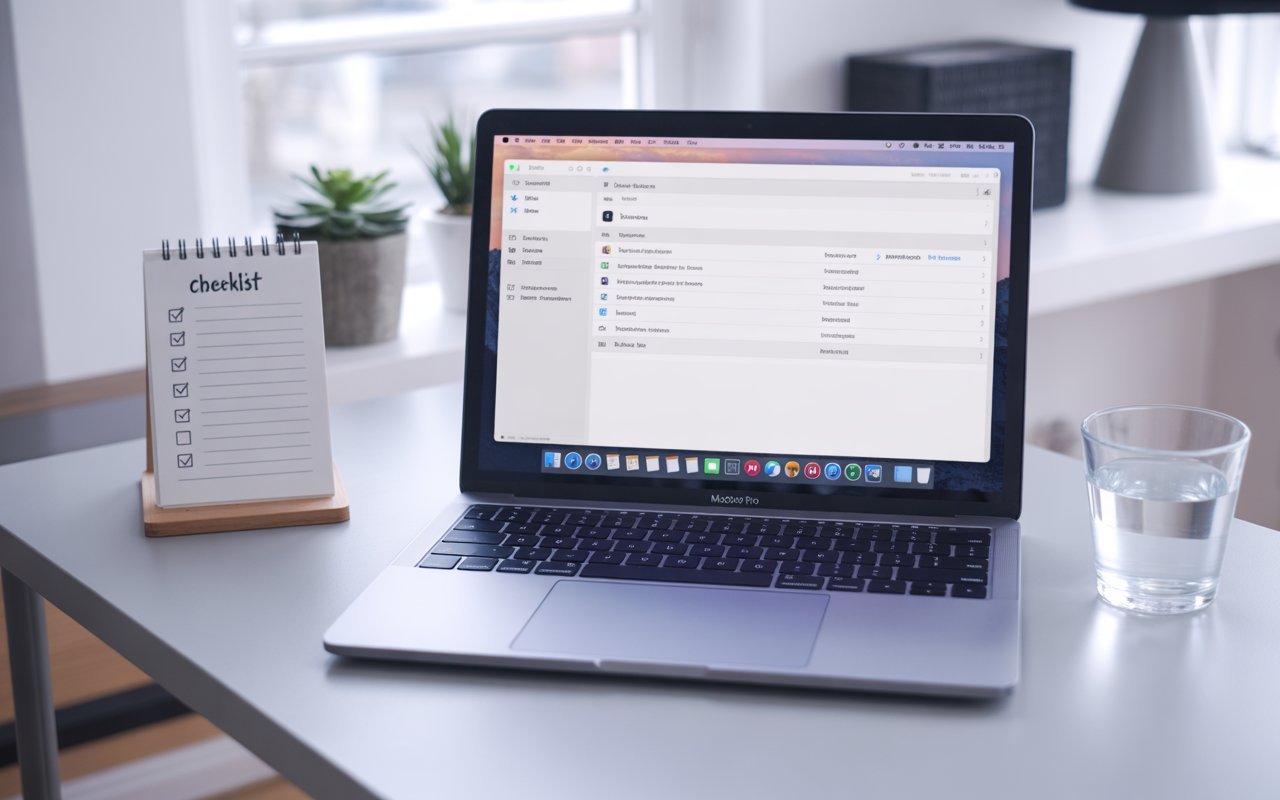
Work from the top of the checklist. Don’t skip straight to Recovery Mode before trying the SMC reset first. Don’t erase the disk before trying a reinstall. The fastest resolution for most users is Fix 4 (SMC reset) followed immediately by Fix 8 (Recovery Mode First Aid) if the reset alone doesn’t clear it.
Wrapping Up
Fan noise on a MacBook Pro that won’t boot is your Mac’s SMC telling you something prevented a clean startup — and in most cases, what prevented it is correctable with the resets and Recovery tools built into every Mac. The diagnostic information in this guide — particularly the fan timing (before vs after any display output) and what Apple Diagnostics reports — tells you exactly which fix applies. Use that information to go directly to the right fix rather than working through everything sequentially.
ⓘ Disclaimer: This article is for informational purposes only. CrazyErrors is not affiliated with Apple Inc. SMC reset procedures, Recovery Mode steps, and Apple Diagnostics instructions vary by Mac model and macOS version — always confirm your MacBook Pro model before applying the relevant reset sequence. Do not attempt to open the MacBook Pro chassis — this voids warranty coverage and risks additional damage. Liquid damage scenarios require immediate professional service. Check coverage status at checkcoverage.apple.com. For official Apple support, visit support.apple.com/mac.