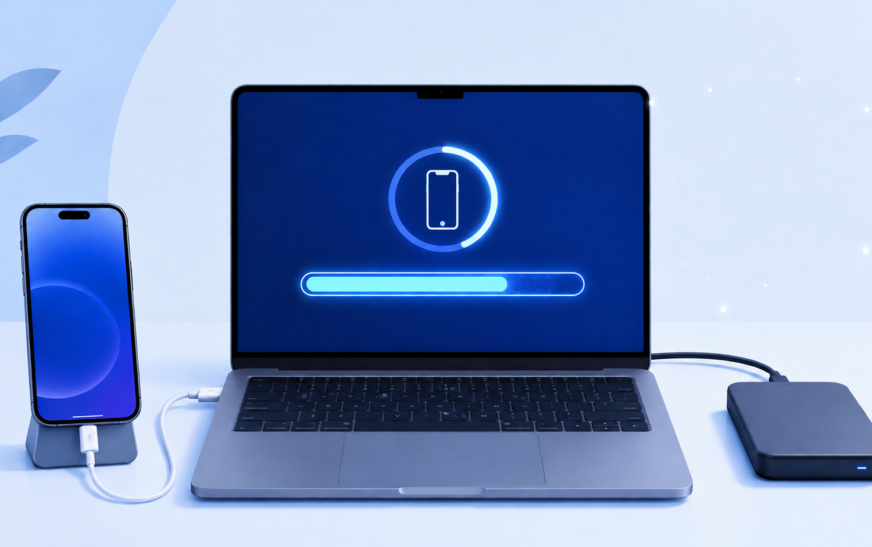
The best way to back up an iPhone without iCloud is to use Finder on Mac (or iTunes on Windows) — connect your iPhone via USB, open Finder, select your iPhone, and click “Back Up Now.” This creates a complete local backup of your entire iPhone including apps, messages, health data, and settings, stored on your computer. For photos specifically, Google Photos or connecting via USB and copying to your computer are the most reliable free alternatives to iCloud.
Not everyone wants to pay for more iCloud storage. Some people hit the 5 GB free limit and don’t want to upgrade. Others have privacy concerns about storing personal data on Apple’s servers. And sometimes — especially when setting up a new device or recovering from a problem — you just need a quick, complete backup right now without waiting for a cloud sync.
The good news is that iCloud isn’t the only way to protect your iPhone’s data. Apple has always supported local computer backups, and several reliable third-party options cover photos, contacts, and specific data types without needing iCloud at all. This guide covers every method — from the most complete (a full encrypted local backup) to the most targeted (backing up photos only) — so you can choose what works for your situation.
Methods at a Glance: Which One Is Right for You?
Compare Before Choosing| Method | What It Backs Up | Cost | Best For |
|---|---|---|---|
| Finder / iTunes (USB) | Everything — full backup | Free | Complete device backup before restore, upgrade, or repair |
| Google Photos | Photos and videos only | Free (15 GB) | Photo backup without iCloud Photos |
| iMazing (third-party) | Everything + selective export | Paid (~$34) | Power users, selective backup, SMS export |
| USB to Computer (manual) | Photos and videos only | Free | Quick photo transfer without any software |
| Google Drive / Dropbox / OneDrive | Files, photos (app-specific) | Free tier / paid for more | Cross-platform file access and photo backup |
| Export Contacts to vCard | Contacts only | Free | Contacts backup without iCloud |
| Email app export | Notes, emails (partial) | Free | Lightweight data export |
No single backup method covers everything — a Finder/iTunes backup covers the whole device but only lives in one place. A photo backup to Google Photos adds cloud redundancy. The safest approach is a full local backup via Finder or iTunes combined with at least one cloud photo backup. That way you’re covered even if your computer fails.
Method 1: Back Up iPhone Using Finder (Mac) or iTunes (Windows)
Most Complete — Recommended Starting PointThis is the gold standard of iPhone backups without iCloud. A Finder or iTunes backup creates a complete snapshot of your entire iPhone — every app, every message, every photo, all settings, health data, app data, saved passwords (if encrypted), and your device configuration — stored locally on your computer. It’s faster than iCloud for initial backup and restore, and your data never leaves your premises.
Back Up on Mac (macOS Catalina and later — using Finder)
Back Up on Windows (using iTunes)
Mac: ~/Library/Application Support/MobileSync/Backup/
Windows: C:\Users\[YourName]\AppData\Roaming\Apple Computer\MobileSync\Backup\
Consider copying this folder to an external hard drive or a second location regularly — a backup on the same computer as your data isn’t true redundancy.
If you encrypt your local backup, write the password down and store it somewhere safe — separate from your computer. If you forget an encrypted backup password, Apple cannot help you recover it. The entire backup becomes inaccessible. A password manager entry or a written note in a secure location is the right approach.
Method 2: Back Up Photos and Videos to Your Computer via USB
Free — Photos OnlyIf all you need is to protect your photos and videos — and you don’t need a full device backup — copying them directly from your iPhone to your computer over USB is completely free, takes no software beyond what’s already on your Mac or PC, and gives you full-resolution originals.
Copy Photos to Mac
Copy Photos to Windows PC
iPhone photos are saved in HEIC format by default — a compressed format that Windows older than Windows 11 can’t open natively. To fix this: on your iPhone go to Settings → Camera → Formats and select “Most Compatible” — this saves new photos as JPEG. Alternatively, install the free HEIF Image Extensions from the Microsoft Store to add HEIC support to Windows. You can also set iPhone to convert to JPEG when transferring: Settings → Photos → Transfer to Mac or PC → Automatic.
Method 3: Use Google Photos for Free Photo and Video Backup
Free 15 GB — Photos and Videos OnlyGoogle Photos is one of the most popular iCloud alternatives for photo backup. It’s free up to 15 GB (shared across your Google account), has excellent search and organisation features, is cross-platform, and works in the background exactly like iCloud Photos — automatically uploading new photos as you take them.
In Google Photos: tap your profile picture → Photo settings → Backup → enable “Back up while charging”. This prevents large uploads from draining your battery and uses less mobile data if you’re also on cellular. The app will intelligently back up in the background whenever your phone is plugged in and on Wi-Fi.
Google Photos backs up photos and videos only — not your text messages, app data, contacts, notes, health data, or device settings. It’s a photo safety net, not a complete iPhone backup. Use it alongside a Finder/iTunes backup, not instead of it, if full device protection is your goal.
Method 4: Back Up to External Hard Drive or USB Flash Drive
Full Offline Backup — No Cloud RequiredIf you want to back up your iPhone without any cloud service at all — no iCloud, no Google, nothing online — you can create a full local backup using Finder or iTunes and then move that backup to an external drive. This gives you a completely offline, private backup that you physically control.
On Mac — Move Backup to External Drive
Advanced Mac users can set up a symbolic link so Finder automatically saves iPhone backups to an external drive rather than the internal drive. This is useful if your Mac has limited storage. Open Terminal and run:
ln -s /Volumes/[YourDriveName]/iPhone\ Backups ~/Library/Application\ Support/MobileSync/Backup
Replace [YourDriveName] with your drive’s actual name. After this, all future Finder backups will save directly to the external drive automatically.
Method 5: Use iMazing for a Complete Local Backup With Full Control
Best Third-Party Option — PaidiMazing is one of the most respected third-party iPhone management tools available. Unlike Finder and iTunes which create opaque encrypted packages, iMazing lets you browse and selectively export specific data — individual messages, specific photos, just your contacts or calendar, health data as a readable file, and much more. It also supports incremental backups, backup scheduling, and wireless backup over Wi-Fi.
It’s not free — a licence costs around $34 for a single computer — but for anyone who wants granular control over their backups and the ability to access specific data without restoring the whole phone, it’s genuinely worth it.
How to back up with iMazing:
The standout feature is the ability to export individual text conversations as PDF, Word, or text files — something neither Finder nor iTunes can do. If you ever need a specific message thread for legal, personal, or record-keeping purposes, iMazing makes it accessible in minutes without restoring the whole phone.
Method 6: Back Up Contacts Without iCloud
Contacts Only — FreeIf you’re worried specifically about losing your contacts — which are arguably the most irreplaceable data on your phone — there are several ways to export and back them up without iCloud.
Export Contacts as vCard via iCloud.com (One-Time Export)
.vcf file downloads containing all your contacts — save it to your computer and back it up to an external driveSync Contacts to Google (Ongoing Backup)
After adding your Google account, go to Settings → Contacts → Default Account and select your Google account. New contacts you add will automatically sync to Google, keeping your contact backup current without any manual effort.
Method 7: Back Up Notes, Files, and Documents
Specific Data Types — Free OptionsFor specific types of content — notes, documents, and files — there are dedicated backup approaches that don’t require iCloud.
Export Apple Notes to PDF
Use Google Keep, Notion, or Evernote for Ongoing Notes Backup
If you rely heavily on notes, migrating to a cross-platform notes app like Google Keep, Notion, or Standard Notes means your notes live in the app’s own cloud — independent of iCloud entirely — and are accessible from any device or browser.
Back Up Files Using Google Drive or Dropbox
Method 8: Back Up iPhone to a NAS or Home Server
Advanced — Full Privacy, No CloudFor users who want the convenience of automatic wireless backups but refuse to use any cloud service, a Network Attached Storage (NAS) device creates your own private local cloud. Brands like Synology and QNAP make NAS devices that run apps specifically designed for iPhone backup — giving you automatic, scheduled, wireless backups to a device you own and physically control.
Using Synology NAS with iMazing or DS File:
A NAS solution is excellent for privacy-conscious users who want complete local control, but it requires an upfront hardware investment (a basic 2-bay NAS starts at around $200–$300 without drives) and some technical setup. For most users, a Finder/iTunes backup to an external hard drive is simpler and achieves the same privacy goal.
Method 9: Set Up Automatic Local Backups Using Finder
Automate Your Backups — FreeOne of the complaints about local backups is that they require manual action — you have to remember to plug in and hit “Back Up Now.” There are a few ways to make this more automatic without using any cloud service.
Enable automatic backup when iPhone connects to Mac:
Set up wireless backup via Wi-Fi (no cable needed after initial setup):
The simplest reliable system: plug your iPhone into your Mac every night while you sleep (most people charge at their desk anyway). With “Automatically sync when connected” enabled, a fresh backup runs automatically without you doing anything. Once a week, copy the backup folder to an external drive. This gives you daily local backups and weekly offsite backups with almost zero effort.
How to Restore iPhone From a Local Backup
When You Need to Use Your BackupA backup is only useful if you know how to restore from it. Here’s how to restore from a Finder or iTunes backup when setting up a new iPhone or recovering a reset device.
Restore from Finder (Mac):
Restoring from a backup replaces everything currently on the iPhone with the backup’s contents. If there’s recent data on the phone that isn’t in the backup — photos taken after the last backup, messages received since then — that data will be lost. Always create a fresh backup immediately before restoring if you have any current data worth keeping.
Pro Tips: Keeping Your iPhone Data Safe Without iCloud
Use the 3-2-1 backup rule. Keep at least 3 copies of your data, on 2 different types of storage, with 1 copy off-site (or in a different cloud). For iPhone: 1 copy on your Mac (Finder backup), 1 copy on an external hard drive, and 1 copy in Google Photos for photos specifically. This protects against any single point of failure.
Encrypt every local backup. An unencrypted Finder/iTunes backup doesn’t include your Health data, saved passwords, or HomeKit configuration. Encrypted backups include everything. The small additional step of setting an encryption password is worth it for a truly complete backup.
Back up before every iPhone software update. Major iOS updates are one of the most common triggers for people to wish they had a recent backup. Before updating to any major iOS version, take 10 minutes to create a fresh Finder or iTunes backup. It takes far less time than recovering lost data.
Verify your backup works before you need it. Once every few months, open Finder and confirm the “Latest Backup” date is recent. A backup system that quietly stopped working weeks ago isn’t protecting you. Spot-check by looking at the backup file size — a suspiciously small backup may indicate a failed or incomplete backup.
Your Mac has more hidden features for managing devices than most people know. Finder’s iPhone management capabilities go well beyond backups. Check out our guide on secret Mac features most users never discover — several of them are directly useful for iPhone management and data transfer. And if your Mac is running low on space for storing iPhone backups, our guide on freeing up MacBook storage without deleting files covers the best ways to make room.
Common Mistakes to Avoid
A single backup on your Mac provides no protection if your Mac fails, is lost, or is stolen at the same time as your iPhone. Always keep at least one additional copy of your backup on an external drive or in a different location. The backup of your backup is what actually saves you in a worst-case scenario.
Syncing music, photos, or apps between iTunes/Finder and your iPhone is not a backup. A backup creates a snapshot of your iPhone data. Syncing transfers specific content in specific directions. If you delete something on your iPhone, syncing may delete it on your computer too. Backups preserve a point-in-time copy of the data regardless of what happens later.
If your Mac’s internal drive fails — which happens — the Finder backup stored on that same drive is also lost. Always keep at least one copy of your iPhone backup on a separate physical drive: an external SSD, external hard drive, or USB flash drive that you store somewhere other than next to your computer.
An encrypted backup you can’t decrypt is worse than no backup at all — it’s just inaccessible data taking up space. Store your backup encryption password in a password manager, write it down in a secure place, or use a memorable passphrase you won’t forget. Apple cannot recover encrypted backup passwords under any circumstances.
FAQ: Backing Up iPhone Without iCloud
What is the best way to back up an iPhone without iCloud?
The most complete method is a local backup using Finder on Mac or iTunes on Windows — this backs up everything on your iPhone including apps, messages, photos, health data, and settings. Connect your iPhone via USB, open Finder or iTunes, select “Back Up Now,” and enable encryption for a complete backup. For photos specifically, Google Photos provides an excellent free ongoing backup to 15 GB without needing iCloud at all.
Does a Finder/iTunes backup include photos and messages?
Yes — a full Finder or iTunes backup includes photos, videos, text messages, iMessages, app data, settings, contacts, calendar data, and more. If you enable “Encrypt local backup,” it also includes saved passwords, Health app data, HomeKit configuration, and Wi-Fi passwords. Without encryption, these specific data types are excluded from the backup for security reasons.
How do I back up iPhone photos to my computer without iCloud?
Connect your iPhone to your Mac via USB and open the Photos app — your iPhone appears as a device in the sidebar and you can import all photos directly to your Mac. On Windows, connect via USB, open File Explorer, navigate to iPhone → Internal Storage → DCIM, and copy the photos to your PC. Alternatively, Google Photos provides automatic wireless photo backup without iCloud, free up to 15 GB.
Can I restore my iPhone from a local backup without iCloud?
Yes — open Finder on Mac or iTunes on Windows, connect your iPhone, and click “Restore Backup.” Select the backup you want to restore from, enter the encryption password if applicable, and the iPhone will be restored completely to the state it was in when that backup was created. This works for setting up a new iPhone, recovering from a factory reset, or switching to a new device.
How much storage does an iPhone backup take on a computer?
A typical iPhone backup ranges from 5 GB to 50 GB depending on how much content is on the device. Backups are compressed by Finder/iTunes, so they’re smaller than the actual iPhone storage in use. You can see backup sizes in Finder by clicking your iPhone → Manage Backups, or in iTunes under Preferences → Devices. Deleting old backups you no longer need frees up significant space on your Mac.
Is a local iPhone backup more secure than iCloud?
Local backups give you physical control of your data — it never leaves your premises and isn’t accessible to anyone who doesn’t have your computer and backup password. iCloud backups are encrypted in transit and at rest, but Apple has the encryption keys in most cases (unless you use Advanced Data Protection, which gives you the key). For the highest privacy, an encrypted local backup on a drive you control is the most private option. The trade-off is that local backups are lost if your computer and drives are destroyed simultaneously — cloud backups survive local disasters.
iPhone Backup Without iCloud — Methods Summary
- 1Finder (Mac) or iTunes (Windows) — full device backup, free, encrypted — best complete backup method
- 2USB photo transfer — connect and copy photos directly, free, no software needed
- 3Google Photos — automatic photo/video backup, free to 15 GB, cross-platform
- 4External hard drive — copy Finder backup to external drive for offline redundancy
- 5iMazing — complete backup + selective export of messages and specific data (~$34)
- 6Contacts export — vCard export from iCloud.com or sync to Google Contacts
- 7Google Drive / Dropbox — files and photos backup, free tier available
- 8NAS device — private local cloud, full control, requires hardware investment
- 9Automatic Wi-Fi sync — enable in Finder for wireless local backups without a cable
One Last Thing
Whatever backup method you choose, the most important thing is that you actually do it — regularly and before you need it. The best backup is the one that exists, not the perfect system you’re still planning. Start with a Finder backup today: plug in your iPhone, open Finder, click Back Up Now. It takes less time than reading this guide did, and it may save you everything if something goes wrong tomorrow.
If you have questions about which method is best for your specific setup — a particular type of data you need to protect, a storage limitation, or a device combination that needs a specific approach — the CrazyErrors team is happy to help you figure it out.
Wrapping Up
iCloud is convenient but it’s not the only option — and for many people, it’s not the right one. A local backup via Finder or iTunes gives you a complete, private, encrypted snapshot of your entire iPhone with no ongoing subscription required. Google Photos covers photos reliably and for free. An external drive adds the redundancy that makes any backup system genuinely trustworthy.
Pick the methods that fit your situation, set them up today, and you’ll have the peace of mind of knowing your iPhone data is protected — regardless of what happens to any single device, drive, or cloud account.
ⓘ Disclaimer: This article is for informational purposes only. CrazyErrors is not affiliated with Apple Inc., Google, Synology, iMazing, or any other product or service mentioned. Third-party app pricing and features are subject to change — verify current details at each provider’s official website before purchasing. For official Apple backup support, visit support.apple.com.