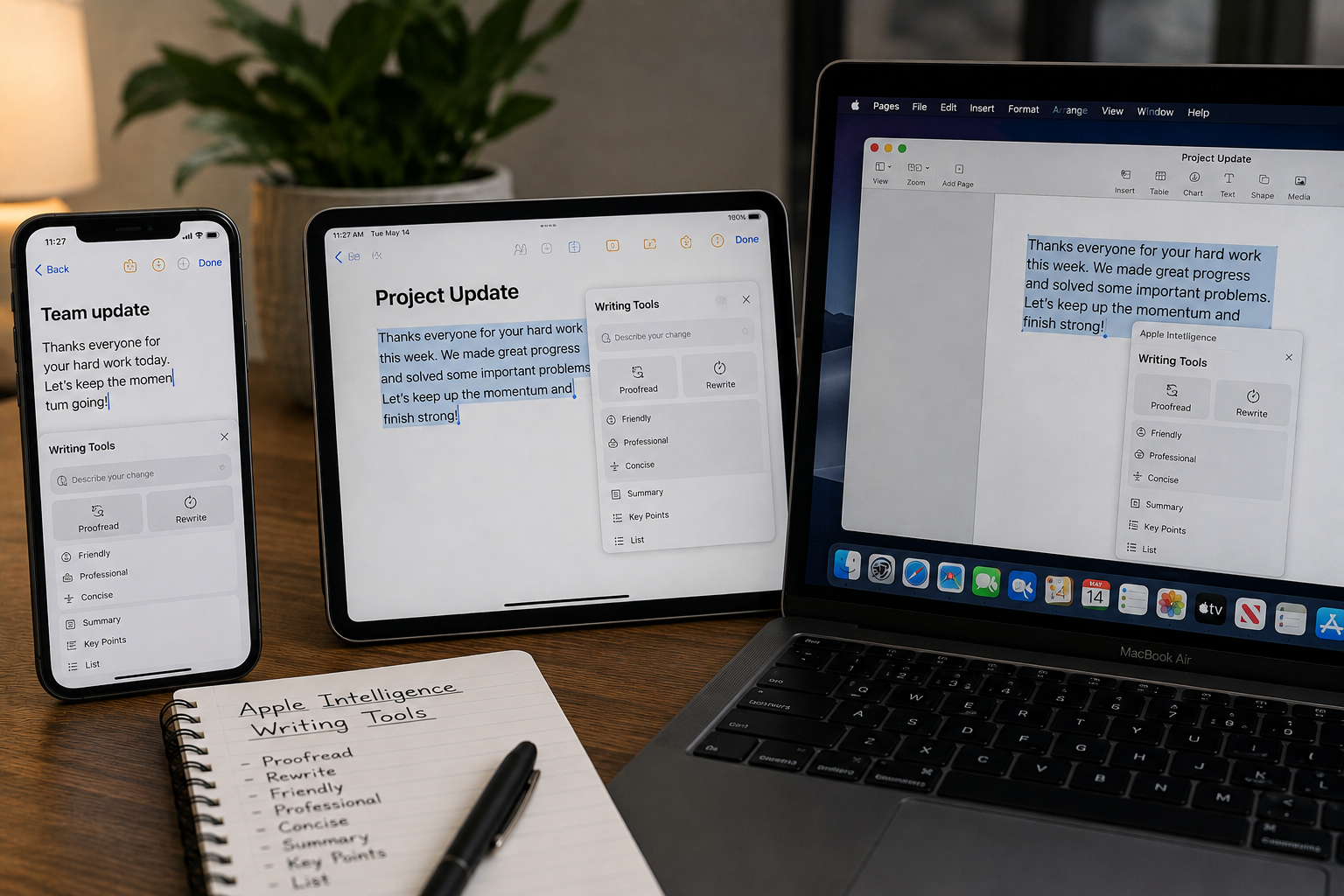
Universal Clipboard stops working when any one of its four required conditions is missing: both devices must be signed into the same Apple ID, both must have Wi-Fi on, both must have Bluetooth on, and Handoff must be enabled in settings on both devices. The fastest fix is to toggle Bluetooth and Wi-Fi off and back on both devices, then toggle Handoff off and on. Universal Clipboard content also expires after roughly two minutes — if you’re copying and then trying to paste on the other device too slowly, it may have already cleared.
You copy a link on your iPhone, switch to your Mac, press Command + V, and something completely different pastes — whatever was in the clipboard before. Or you try it the other way: copy text on your Mac and pick up your iPhone expecting it to be there, but it’s gone. Universal Clipboard, which Apple calls one of the signature Continuity features of the Apple ecosystem, simply isn’t cooperating.
This happens to a lot of people, and the frustrating part is that Universal Clipboard is invisible — there’s no indicator, no status light, no progress bar. When it works, it’s seamless. When it doesn’t, you have no idea why.
The cause is almost always one of the same few things: a missing setting on one device, the devices being too far apart, a Wi-Fi or Bluetooth stack that needs a reset, or the content expiring before you had a chance to paste. This guide walks through every fix in the right order so you can get cross-device copy and paste working reliably again.
How Universal Clipboard Actually Works
Understanding Why It FailsUniversal Clipboard is part of Apple’s Continuity feature set — the suite of technologies that lets your Apple devices work together seamlessly. Unlike iCloud, Universal Clipboard doesn’t route your copied content through Apple’s servers. It transmits clipboard data directly between your devices using a local encrypted connection over Bluetooth and Wi-Fi.
This means:
- Both devices must be physically close to each other — typically within 10 metres (30 feet)
- Both must be on the same Wi-Fi network or have Wi-Fi enabled
- Both must have Bluetooth enabled — even if they’re connected via Wi-Fi, Bluetooth is used for device discovery
- Both must be signed into the same Apple ID
- Handoff must be enabled on both devices
- The copied content expires from the Universal Clipboard after approximately 2 minutes
Any one of these conditions failing silently breaks Universal Clipboard entirely — and because there’s no error message, it simply looks like paste isn’t working.
A common misconception is that both devices need to be on the same Wi-Fi network for Universal Clipboard to work. They don’t — they just both need Wi-Fi enabled. The actual data transfer uses Bluetooth for initial discovery and can use a peer-to-peer Wi-Fi connection (similar to AirDrop) that works independently of your router. That said, being on the same network helps stability, and both being on the same network is required for older macOS and iOS versions.
Confirm Your Devices Are Compatible
Check Before TroubleshootingUniversal Clipboard has minimum software requirements. If either device is running an older OS version, the feature simply won’t work regardless of settings.
- iPhone and iPad: iOS 10 or later / iPadOS 13 or later
- Mac: macOS Sierra (10.12) or later
- Hardware: iPhone 5 or later, iPad (4th gen or later), iPad mini (1st gen or later), iPod touch (6th gen or later), MacBook (2012 or later), iMac (2012 or later), Mac mini (2012 or later), Mac Pro (2013 or later)
If either device doesn’t meet these requirements, Universal Clipboard is unavailable and no amount of settings changes will enable it. Check your device’s iOS/macOS version in Settings → General → About (iPhone/iPad) or System Settings → General → About (Mac).
Fix 1: Confirm Both Devices Are on the Same Apple ID
Most Common Root CauseUniversal Clipboard works exclusively between devices signed into the same Apple ID. If your iPhone is signed into one account and your Mac into another — even if it’s just an old or secondary account — clipboard sharing will silently fail every time.
Check Apple ID on iPhone or iPad:
Check Apple ID on Mac:
Apple IDs are case-sensitive and exact. An iPhone signed into john@icloud.com and a Mac signed into johnsmith@gmail.com will never share a clipboard — even if both belong to the same person. If you have multiple Apple IDs from years of account creation, make sure both devices use the same primary one.
Fix 2: Enable Handoff on Both Devices
Required Setting — Often Accidentally OffHandoff is the system feature that powers Universal Clipboard. If it’s disabled on either device, cross-device clipboard sharing stops working. macOS and iOS updates sometimes reset this setting.
Enable Handoff on iPhone or iPad:
Enable Handoff on Mac:
If Handoff is already enabled on both devices but Universal Clipboard still isn’t working, try toggling Handoff off on both devices, waiting 10 seconds, then toggling it back on. This resets the Handoff session between the devices and often fixes a stale connection that appears enabled but isn’t functioning.
Fix 3: Toggle Bluetooth and Wi-Fi Off and On
Fastest Hardware Stack ResetUniversal Clipboard uses Bluetooth for device discovery and peer-to-peer Wi-Fi for data transfer. When either radio stack gets into a stale or stuck state — which happens more often after sleep, after system updates, or after a long uptime — a simple toggle reset clears it without restarting the device.
On iPhone or iPad:
On Mac:
Swiping up to Control Centre on iPhone and tapping the Wi-Fi or Bluetooth icons does not actually turn them off — it disconnects from current networks but leaves the radios powered on in a scanning state. This is not the same as a full toggle reset. For Universal Clipboard troubleshooting, always toggle from Settings on iPhone/iPad or from the menu bar icon on Mac — not from Control Centre.
Fix 4: Restart Both Devices
Clears All Continuity StateA full restart clears the entire Handoff and Continuity session stack — including any stale device pairing records, cached Bluetooth connections, and clipboard session tokens. If Universal Clipboard worked before but stopped, a restart on both devices is one of the most consistently effective fixes.
Restart iPhone (Face ID models):
Restart Mac:
Fix 5: Sign Out of iCloud and Sign Back In
Refreshes Continuity AuthenticationUniversal Clipboard authenticates the clipboard sharing session through your iCloud account. When this authentication token expires or becomes corrupted — often after an iOS or macOS update — clipboard sharing silently fails even though everything looks correct in settings. Signing out and back in forces a fresh authentication.
On iPhone or iPad:
On Mac:
If possible, sign out and back in on one device first, test Universal Clipboard, and only move to the second device if the problem persists. Signing out of iCloud on both devices simultaneously means neither can authenticate the Handoff session until both are signed back in and the Continuity stack re-establishes the connection between them.
Fix 6: Check Mac Firewall Settings
Mac-Specific — Blocks Continuity TrafficmacOS has a built-in application firewall that can block the local network traffic Universal Clipboard uses to transfer clipboard data. If stealth mode is enabled, or if the firewall is blocking incoming connections, Handoff and Universal Clipboard will fail silently even when all other settings are correct.
If you have a third-party security suite, VPN, or Little Snitch installed on your Mac, these can also block the Bonjour and mDNS traffic that Universal Clipboard uses for device discovery. Try temporarily disabling third-party network security tools when testing — if Universal Clipboard works with them disabled, you’ll need to add an exception in the tool’s settings for Handoff traffic.
Fix 7: Reset Bluetooth Module on Mac
For Persistent Mac-Side FailuresWhen Universal Clipboard works from iPhone to Mac but not from Mac to iPhone — or vice versa — the Bluetooth module on the Mac may be in a bad state. Resetting it clears all cached Bluetooth device states and forces a clean re-initialisation of the Continuity stack.
The Bluetooth module reset specifically clears the BTLE (Bluetooth Low Energy) cache that macOS uses for Continuity device discovery. When this cache has stale entries — from devices that were previously connected but are no longer present — it can prevent new Continuity sessions from being established even when the iPhone is right next to the Mac.
Fix 8: Check Network Settings — VPN and Private Wi-Fi Address
For Users on VPN or With Private Wi-Fi AddressesTwo network settings that are increasingly common can silently break Universal Clipboard: an active VPN connection, and iOS’s Private Wi-Fi Address feature.
VPN:
Private Wi-Fi Address (iPhone/iPad):
Private Wi-Fi Address is a legitimate privacy protection — it prevents your iPhone from being tracked across different networks by your MAC address. Disabling it for home and trusted work networks is fine. Leave it enabled for public networks (coffee shops, airports, hotels) where the privacy protection is more important than Continuity features.
Fix 9: Check Content Type Restrictions
When Some Content Works but Not OthersUniversal Clipboard can copy text, images, photos, links, and rich content — but there are limits. Certain types of content either won’t transfer or will transfer differently than you expect.
Content that Universal Clipboard supports:
- Plain text and rich text (formatting may not always carry over)
- Links and URLs
- Photos from the Camera Roll
- Files copied within apps that support Universal Clipboard
Content that may not transfer:
- DRM-protected content — content that has copy restrictions applied won’t transfer via Universal Clipboard
- App-specific clipboard data — content copied inside sandboxed apps that don’t expose their clipboard to the system may not be accessible from another device
- Very large files — Universal Clipboard has a size limit; copying very large images or files may fail silently
- Passwords from Password Manager apps — for security, some password managers intentionally block clipboard sharing between devices
When troubleshooting Universal Clipboard, always test with the simplest possible content first — a short piece of plain text typed in Notes or Safari’s address bar. If plain text transfers but images don’t, the issue is content-type specific. If nothing transfers at all, the issue is at the connection level and the earlier fixes in this guide are the ones to focus on.
Fix 10: Update iOS/iPadOS and macOS
Fixes Known Continuity BugsApple updates the Continuity and Handoff stack with each OS release, and known Universal Clipboard bugs are regularly fixed in point updates. If the feature worked before and stopped after an update — or if it has never worked despite all settings appearing correct — an OS update on one or both devices may contain the fix.
Fix 11: Reset Network Settings on iPhone
For Persistent Failures After All Other FixesIf Universal Clipboard is still not working after every fix above, resetting network settings on the iPhone clears all Wi-Fi passwords, Bluetooth pairing records, VPN configurations, and network preference files — starting fresh with a completely clean networking stack. This is the most thorough network-level fix available without a full device reset.
Reset Network Settings removes all saved Wi-Fi passwords from your iPhone. Make sure you know the password for your home network before doing this reset, or find it in your router’s settings page. All other data on your iPhone — apps, photos, messages — is completely unaffected.
Pro Tips: Getting Universal Clipboard Working Reliably
Copy and paste within 2 minutes. Universal Clipboard content expires after approximately 2 minutes. If you copy on your iPhone, get distracted, and then try to paste on your Mac five minutes later, the clipboard has already cleared. Build the habit of pasting immediately after copying across devices.
Keep devices physically close together. Universal Clipboard relies on direct device-to-device communication. Move your iPhone and Mac within arm’s reach when you need clipboard sharing to work reliably — don’t expect it to work with devices in different rooms or on different floors of a building.
Prefer the same Wi-Fi network where possible. While Universal Clipboard technically works without both devices being on the same network, being on the same router reliably produces faster, more consistent clipboard transfers. If you notice intermittent failures, check whether one device is on a different network or has switched to cellular.
Check Handoff after every major iOS or macOS update. Major OS updates — especially iOS and macOS releases in the same cycle — can reset Handoff settings. After updating either device, visit Settings → General → AirPlay & Handoff on iPhone/iPad and System Settings → General on Mac to confirm Handoff is still enabled. It takes 10 seconds and saves significant frustration.
Your Mac and iPhone have more ways to work together than most people use. Universal Clipboard is just one of the Continuity features — Handoff, AirDrop, iPhone camera as Mac webcam (Continuity Camera), and iPhone as Mac microphone are all built in. Check out our guide on secret Mac features most users never discover for a full walkthrough of what the Apple ecosystem can do out of the box.
If Universal Clipboard still feels unreliable, AirDrop is always there as a fallback. For larger files or when you need certainty, AirDrop between iPhone and Mac is fast, reliable, and works for any file type. It uses the same Bluetooth and Wi-Fi infrastructure — if AirDrop works between your devices but Universal Clipboard doesn’t, the issue is specific to the Handoff/clipboard layer rather than the underlying radio connection.
Common Mistakes to Avoid
Tapping the Wi-Fi or Bluetooth buttons in iPhone’s Control Centre disconnects from current connections but keeps the radios active in a scanning state. For troubleshooting Universal Clipboard, this is not the same as a proper radio reset. Always use Settings → Wi-Fi and Settings → Bluetooth for a genuine toggle.
Universal Clipboard has a short expiry window — approximately 2 minutes. Unlike a regular clipboard that holds content until you replace it, the Universal Clipboard clears the cross-device content after a short timeout for security reasons. Copy and paste across devices in quick succession for reliable results.
A mismatch in Apple IDs is the most common cause of Universal Clipboard never working — and the most frequently overlooked. If you set up your Mac with one Apple ID years ago and your iPhone with a newer or different account, they’ve never been able to share a clipboard. Check both devices side by side to confirm the exact email address matches on both.
Content from certain apps — particularly streaming services, some PDF readers, and enterprise apps — has clipboard copying restricted at the app level. If you’re testing Universal Clipboard using content from one of these apps and it doesn’t paste on the other device, the restriction is app-level, not a Universal Clipboard failure. Test with plain text from Notes or a URL from Safari for an accurate test.
FAQ: Universal Clipboard Not Working
Why isn’t Universal Clipboard working between my iPhone and Mac?
The most common causes are: Handoff is disabled on one or both devices, the devices are signed into different Apple IDs, Bluetooth or Wi-Fi is off on one device, or the devices are too far apart. Check Settings → General → AirPlay & Handoff on iPhone to confirm Handoff is on, and System Settings → General on Mac to confirm the same. Then toggle Bluetooth and Wi-Fi off and back on in Settings (not Control Centre) on both devices and test again.
How long does Universal Clipboard content last?
Universal Clipboard content expires after approximately 2 minutes for security and privacy reasons. After that window, the content is only available in the local clipboard of the device you copied it on. To use Universal Clipboard reliably, paste on the other device immediately after copying — don’t wait minutes between the copy and paste actions.
Does Universal Clipboard work over cellular data?
Universal Clipboard doesn’t route data through the internet — it works locally between your devices using Bluetooth and peer-to-peer Wi-Fi. Wi-Fi just needs to be enabled on both devices; they don’t need to be connected to the same internet router. However, if one device has Wi-Fi completely off and is only on cellular data, Universal Clipboard will not work — Wi-Fi radio must be enabled even if not connected to a network.
Universal Clipboard works sometimes but not consistently — why?
Intermittent Universal Clipboard failures are usually caused by: the devices moving in and out of Bluetooth range, Low Power Mode on the iPhone reducing Continuity activity, a VPN turning on automatically and blocking local network traffic, or the clipboard content expiring before the paste is performed. The most common fix for intermittency is keeping both devices physically close together and pasting immediately after copying. Resetting the Bluetooth module on Mac (hold Option + click Bluetooth icon in menu bar → Reset the Bluetooth Module) also resolves many intermittent cases.
Can Universal Clipboard work between two iPhones or two Macs?
Yes — Universal Clipboard works between any combination of compatible Apple devices signed into the same Apple ID: iPhone to iPhone, Mac to Mac, iPhone to iPad, Mac to iPad, and so on. The requirements are the same regardless of device combination: same Apple ID, both Wi-Fi and Bluetooth on, Handoff enabled, and devices within range. The most common use case is iPhone to Mac, but the feature isn’t limited to that pairing.
Does Universal Clipboard work with Family Sharing accounts?
No. Universal Clipboard only works between devices signed into the exact same Apple ID — not just the same Family Sharing group. Family members have separate Apple IDs, so clipboard content doesn’t automatically share between a parent’s iPhone and a child’s iPad even within Family Sharing. Each person’s devices only share with their own devices signed into their own Apple ID.
Universal Clipboard Not Working — Fix Checklist
- 1Same Apple ID on both devices — check Settings → [Your Name] on iPhone and System Settings → [Your Name] on Mac
- 2Enable Handoff on both devices — Settings → General → AirPlay & Handoff (iPhone) and System Settings → General (Mac)
- 3Toggle Bluetooth and Wi-Fi off and on via Settings, not Control Centre — on both devices
- 4Restart both devices — clears entire Continuity session state
- 5Sign out of iCloud and back in — refreshes Continuity authentication token
- 6Check Mac Firewall — disable “Block all incoming connections” and stealth mode
- 7Reset Bluetooth Module on Mac — Option + click Bluetooth icon → Reset the Bluetooth Module
- 8Disable VPN and Private Wi-Fi Address for your home network
- 9Test with plain text only — DRM-restricted content won’t transfer
- 10Update iOS and macOS — Continuity bug fixes ship in point updates
- 11Reset Network Settings on iPhone — clears all networking state for a completely fresh start
One Last Thing
If you’ve worked through every fix and Universal Clipboard is still not working — particularly if AirDrop also doesn’t work between the same two devices — the issue may be at the Bluetooth or Wi-Fi hardware level rather than a settings problem. Try AirDrop between the devices as a diagnostic: if AirDrop works, Universal Clipboard’s issue is specifically in the Handoff layer. If AirDrop also fails, the underlying Continuity connection itself isn’t being established, which points to a hardware, network, or deeper software issue worth exploring with Apple Support.
Feel free to reach out to the CrazyErrors team — let us know which devices you’re using, which macOS and iOS versions they’re on, and which steps in this guide produced any change in behaviour. That detail usually identifies the exact cause quickly.
Wrapping Up
Universal Clipboard is one of the Apple ecosystem’s most useful everyday features — when it works, copying a tracking number on your iPhone and pasting it into a browser on your Mac feels like magic. When it stops, it’s disproportionately frustrating because there’s no error message and no obvious indication of what went wrong.
Almost every Universal Clipboard failure comes down to one of the same five conditions: wrong Apple ID, Handoff off on one device, Bluetooth or Wi-Fi not fully enabled, devices too far apart, or content that expired before you pasted. Work through the checklist, make sure all five prerequisites are genuinely met, and the feature will almost certainly snap back into working order.
ⓘ Disclaimer: This article is for informational purposes only. CrazyErrors is not affiliated with Apple Inc. Universal Clipboard availability and behaviour may vary by device model, iOS, iPadOS, and macOS version. Network configuration results may vary depending on router settings and network environment. For official Apple Continuity support, visit support.apple.com.