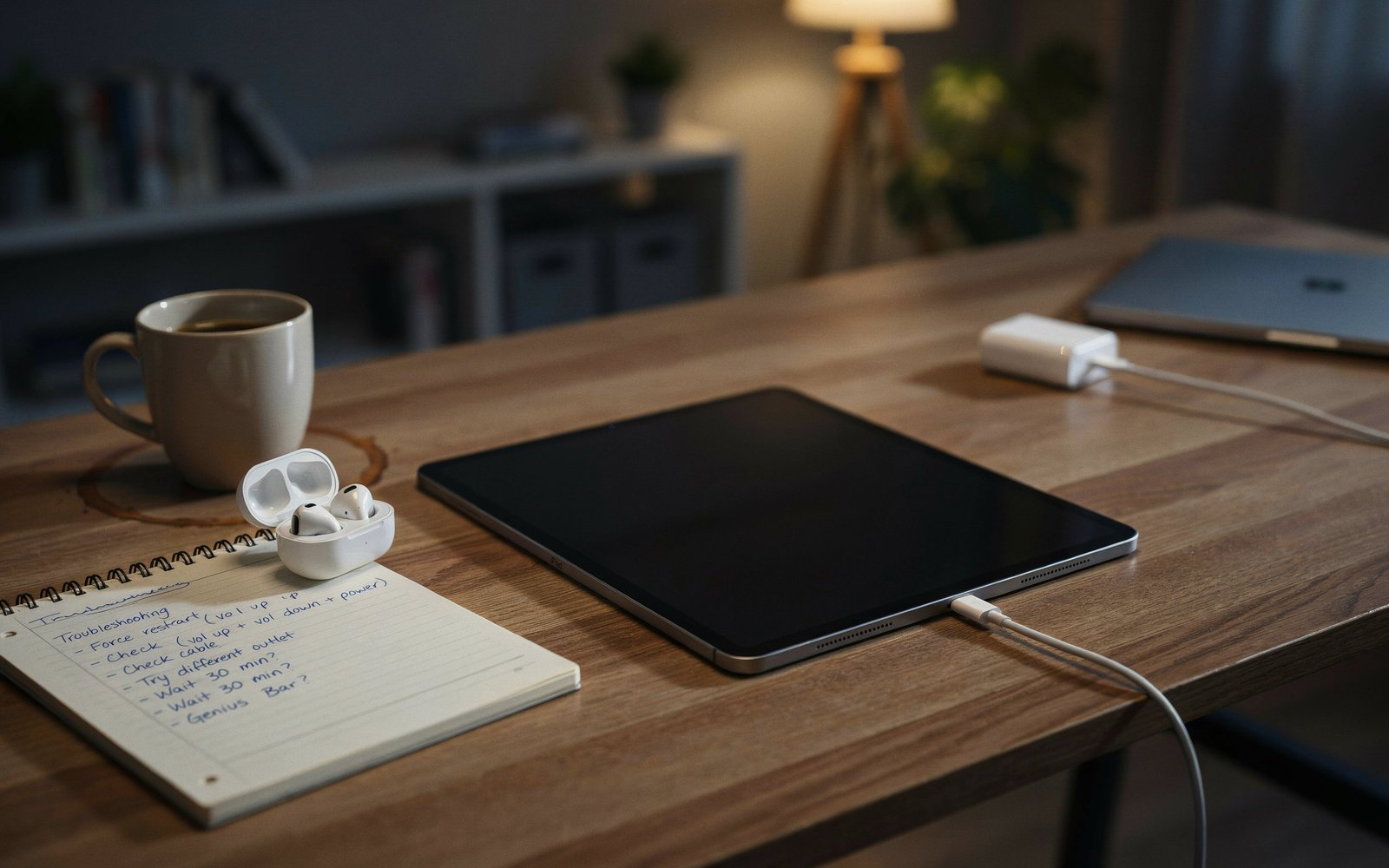
Apple Pencil not working or pairing is almost always caused by a dead or low battery, a broken Bluetooth pairing, or an iPadOS update resetting the connection. For Apple Pencil 2nd gen and Pencil Pro: detach from the iPad’s magnetic side, wait 5 seconds, and reattach firmly. For Apple Pencil 1st gen: remove the cap, plug directly into the iPad’s Lightning port for 15 seconds, then pair via the Bluetooth prompt. For Apple Pencil USB-C: connect using a USB-C cable directly to the iPad. If pairing still fails, go to Settings → Bluetooth, forget the Apple Pencil, and pair it again from scratch.
Your Apple Pencil was working perfectly yesterday. Today it does nothing — you tap the screen, you swipe with it, you press the button and not a single thing responds. Or you just unboxed a new Pencil and it refuses to pair no matter what you try. Either way, the frustration is real.
The good news is that Apple Pencil issues are almost never hardware failures. In the vast majority of cases something small broke in the pairing relationship, the battery ran down further than you realised, or an iPadOS update disrupted the Bluetooth connection. All of these are fixable in minutes.
This guide covers every Apple Pencil model — 1st gen, 2nd gen, USB-C, and Apple Pencil Pro — and every type of problem: won’t pair, won’t charge, stopped working mid-session, pressure sensitivity gone, tip not registering, double-tap not working, and more. Find your situation and follow the steps that match.
Step 0: Identify Which Apple Pencil You Have
Essential — Fixes Are Model-SpecificApple Pencil pairing and charging works completely differently depending on which generation you have. Using the wrong pairing method is the single most common reason people can’t get their Pencil connected. Take 30 seconds to identify your model before going further.
| Model | How to Identify | How It Pairs & Charges | Compatible iPads |
|---|---|---|---|
| Apple Pencil 1st Gen | Round barrel, Lightning connector under removable cap at flat end | Plug into iPad Lightning port to pair and charge | iPad (6th–10th gen), iPad mini (5th gen), iPad Air (3rd gen), iPad Pro 9.7″/10.5″/12.9″ (1st/2nd gen) |
| Apple Pencil 2nd Gen | Flat side on barrel, no cap or connector visible, magnetic attachment area on flat side | Attach magnetically to side of iPad to pair and charge wirelessly | iPad mini (6th gen), iPad Air (4th–5th gen), iPad Pro 11″ (1st–4th gen), iPad Pro 12.9″ (3rd–6th gen) |
| Apple Pencil USB-C | Round barrel with a USB-C port under a sliding cap at the flat end | Connect via USB-C cable to iPad to pair; charges via USB-C | iPad (10th gen), iPad mini (6th gen), iPad Air (4th–5th gen), iPad Pro with USB-C |
| Apple Pencil Pro | Flat side, squeeze gesture area, slightly shorter than 2nd gen, Apple logo visible | Attach magnetically to side of iPad to pair and charge wirelessly | iPad Air M2 (11″/13″), iPad Pro M4 (11″/13″), iPad mini A17 Pro |
Apple Pencil models are not cross-compatible — a 2nd gen Pencil will not work with an iPad that only supports 1st gen, and vice versa. If your Pencil refuses to pair despite all troubleshooting steps, double-check that your specific iPad model is compatible with your specific Pencil model using the table above. This is more commonly the issue than most people expect — especially when someone buys a Pencil as a gift without checking the iPad generation.
What’s Your Exact Problem?
Find Your Scenario❌ Apple Pencil won’t pair at all — never appears in Bluetooth
The Pencil doesn’t show up in Settings → Bluetooth or show a pairing prompt regardless of what you try. Start with Fix 1 (charge the Pencil), then Fix 2 (pairing steps for your model).
🟡 Pencil was paired, stopped working suddenly
Was working fine, then stopped mid-session or after the iPad went to sleep. Usually a dropped Bluetooth connection or a dead battery. Fix 3 and Fix 4 address this directly.
📱 Pencil paired but tip doesn’t draw / no pressure response
iPad recognises the Pencil (it shows in Bluetooth) but drawing doesn’t work or pressure sensitivity is gone. Often a screen protector, app-level setting, or a tip that needs replacing. Fix 6 and Fix 7 cover this.
👊 Double-tap or Squeeze gesture not working
The Pencil draws fine but the double-tap (2nd gen) or squeeze (Pencil Pro) gesture doesn’t switch tools. Almost always a settings issue. Fix 8 covers this specifically.
🔋 Apple Pencil not charging
The Pencil won’t show a charging indicator or the battery depletes unusually fast. Fix 1 and Fix 5 address charging issues for each model.
📲 Stops working after an iPadOS update
Everything worked before the update and nothing changed physically. The update reset the pairing or broke a Bluetooth setting. Fix 3 (forget and re-pair) and Fix 4 (iPad restart) resolve this for most users.
Fix 1: Charge Your Apple Pencil First
Always Start HereA completely drained Apple Pencil won’t respond to anything — it won’t pair, it won’t draw, and it won’t show any sign of life. Before concluding there’s a pairing problem, make sure the Pencil has enough charge to function. This is the cause more often than people expect because the Pencil’s battery drains even when not in use.
Apple Pencil 2nd Gen and Pencil Pro:
Apple Pencil 1st Gen:
Apple Pencil USB-C:
To see your Apple Pencil’s current battery level, swipe right on your iPad’s home screen to open the Today View — the Batteries widget shows the Pencil’s charge percentage. Alternatively, go to Settings → Apple Pencil and the battery percentage is displayed at the top. If it’s below 5%, charge for at least 15 minutes before troubleshooting anything else.
Fix 2: Pair Apple Pencil Correctly for Your Model
Model-Specific Pairing StepsEach Apple Pencil generation pairs differently. Using the wrong method is why pairing often seems impossible — you’re trying to pair a 2nd gen Pencil the way you’d pair a 1st gen, or searching in Bluetooth settings when the Pencil pairs automatically on attachment.
Pairing Apple Pencil 2nd Gen and Apple Pencil Pro
Pairing Apple Pencil 1st Gen
Pairing Apple Pencil USB-C
If the pairing popup doesn’t appear after connecting or attaching, the most likely causes are: the iPad screen was locked when you attached (unlock it first), Bluetooth is off (check Settings → Bluetooth), or the Pencil still has no charge (charge for 5 more minutes). The popup only appears when the iPad is actively awake and Bluetooth is enabled.
Fix 3: Forget Apple Pencil and Re-Pair From Scratch
Fixes Broken Pairing After UpdatesWhen an iPadOS update disrupts the Bluetooth pairing relationship — or when the Pencil shows as “Connected” in Bluetooth settings but doesn’t actually respond — the quickest resolution is to completely forget the device and pair it fresh. A stale pairing record with corrupted state is one of the most common post-update Apple Pencil issues.
After re-pairing, go to Settings → Apple Pencil (available when the Pencil is connected). This page confirms the Pencil is successfully paired, shows battery level, and lets you configure double-tap and squeeze behaviours. If this page shows the Pencil and battery level, the pairing is confirmed and fully functional.
Fix 4: Restart Your iPad
Clears Bluetooth State CompletelyA full iPad restart — not just locking the screen or putting it to sleep — clears the Bluetooth subsystem state completely and forces a fresh re-initialisation of all paired devices including the Apple Pencil. This is especially effective for Pencils that show as paired but don’t respond, or for post-update pairing failures.
iPad with Face ID (no Home button):
iPad with Home button:
Before a full restart, try toggling Bluetooth off and on from Settings → Bluetooth (not from Control Centre — the Control Centre toggle disconnects without fully resetting the stack). Wait 10 seconds after turning Bluetooth off before turning it back on. This is a lighter-weight version of the Bluetooth reset that works for intermittent connection drops without needing a full restart.
Fix 5: Fix Apple Pencil Charging Issues
Model-Specific Charging TroubleshootingIf your Apple Pencil isn’t charging or the battery drains extremely fast, the issue is usually a physical connection problem, a case blocking the magnetic charger, or a charging port with debris. Here’s how to address it by model.
Apple Pencil 2nd Gen and Pencil Pro Not Charging
Apple Pencil 1st Gen Not Charging
The Apple Pencil 1st gen doesn’t have a physical off switch — it enters a low-power sleep mode when not in use, but the battery still slowly drains over days and weeks. If you store the Pencil without using it for more than a week, charge it before expecting it to pair. A Pencil that’s been stored for a month or more may be fully drained and need 15–20 minutes of charging before showing any sign of life.
Fix 6: Check Screen Protector and Pencil Tip
Physical Causes of Non-Responsive DrawingTwo physical factors can cause the Apple Pencil to feel unresponsive even when it’s paired and charged: a screen protector that’s too thick or not compatible with Apple Pencil, and a worn-out or loose Pencil tip.
Screen protector check:
Pencil tip check and replacement:
Apple Pencil tips wear down with normal use — typically after several months of daily drawing or note-taking. Heavy users who write on paper-like screen protectors (which have a rougher texture) may wear through tips faster. If your Pencil’s pressure sensitivity has gradually gotten worse over time rather than failing suddenly, a worn tip is the most likely cause rather than a pairing or software issue.
Fix 7: Check App Settings and iPadOS Pencil Settings
When Pencil Works in Some Apps but Not OthersIf the Apple Pencil draws in some apps (like Notes) but does nothing in others, or if finger drawing has been disabled by mistake, this is a settings issue rather than a hardware or pairing problem.
Check Apple Pencil settings on iPad:
Check individual app settings:
Apple Notes is the most reliable test environment for Apple Pencil — it supports Pencil input at the system level with no additional settings to configure. If the Pencil draws correctly in Notes but not in a third-party app, the issue is definitively within that app’s settings, not the Pencil or iPad hardware.
Fix 8: Fix Double-Tap and Squeeze Gestures Not Working
Gesture-Specific FixesThe double-tap gesture (Apple Pencil 2nd gen) and squeeze gesture (Apple Pencil Pro) are powerful shortcuts for switching tools, but they need to be enabled in settings and configured per-app to work.
Enable and configure double-tap (Apple Pencil 2nd gen):
Enable and configure squeeze (Apple Pencil Pro):
Double-tap is detected by the touch-sensitive flat surface of the Pencil barrel, not the tip. It will not trigger if you tap on the screen — you must double-tap the Pencil barrel itself while the Pencil is positioned near the screen (within detection range). Some users spend time tapping the screen expecting a response and get frustrated when nothing happens.
Fix 9: Update iPadOS
For Post-Update IssuesIf an iPadOS update broke your Apple Pencil, a subsequent point update from Apple likely contains the targeted fix. Apple monitors Pencil-related bug reports after major updates and typically patches the most widely reported issues within weeks.
Fix 10: Reset All Settings on iPad
No Data Lost — Deep Settings ResetIf the Apple Pencil still won’t pair or respond after every fix above, resetting all iPad settings clears every system preference — including Bluetooth configuration tables, accessibility overrides, and input device settings — back to iPadOS defaults without deleting a single photo, app, or file.
“Reset All Settings” resets preferences only — your apps, photos, notes, and all personal data are completely untouched. “Erase All Content and Settings” is a full factory wipe that removes everything. They are completely different options and the wrong one will erase your iPad. Read the option text carefully before confirming.
Fix 11: Contact Apple Support for Hardware Issues
When All Software Fixes FailIf you’ve worked through every fix in this guide — the Pencil charges, the iPad shows it in Bluetooth, the tip is intact, the settings are correct — and the Pencil still doesn’t draw, there’s a possibility of a hardware fault in either the Pencil or the iPad’s touch digitiser. Both are repairable or replaceable through Apple.
- Apple Pencil hardware fault — The touch detection hardware inside the Pencil can fail, particularly if it was dropped. If the Pencil pairs but draws no line at all in any app including Notes, hardware failure is likely
- iPad digitiser or screen damage — If the Pencil works on another iPad but not your own, the issue is with the iPad’s screen or input hardware
- Warranty coverage — Apple Pencil is covered by Apple’s 1-year limited warranty and AppleCare+. Visit getsupport.apple.com to check your coverage and book a repair or replacement
Before visiting an Apple Store, try one quick test: borrow a friend’s compatible Apple Pencil and test it on your iPad, and test your Pencil on their compatible iPad. This two-minute test tells you definitively whether the fault is in the Pencil or the iPad — and saves time when you arrive at the store for a diagnosis.
Pro Tips: Keeping Your Apple Pencil Reliable
Don’t store the Apple Pencil 1st gen fully discharged for long periods. Lithium batteries suffer if left at zero charge for weeks or months. If you’re not going to use the Pencil for a while, charge it to around 50% before storing. A fully drained 1st gen Pencil that’s been stored for months may not recover and could need an Apple Store visit.
Keep the 2nd gen and Pencil Pro attached to the iPad when not in use. The magnetic charging keeps the Pencil topped up automatically so it’s always ready. Storing it in a drawer separately means it’ll drain and need recharging before it pairs each time you use it.
Don’t over-tighten replacement tips. Pencil tips screw in — they should be snug but not forced. Over-tightening can damage the thread inside the Pencil body, which is not user-serviceable.
Check the “Only Draw With Apple Pencil” setting after every iPadOS update. Major updates sometimes toggle this setting back to its default state. If your finger stops working in drawing apps after an update, this setting is the first thing to check in Settings → Apple Pencil.
Your iPad has more hidden features than most people realise. The Apple Pencil works with several lesser-known iPadOS capabilities — Quick Note, Scribble for text input, and markup features built into apps throughout the system. Check out our guide on hidden Apple features most users never discover to get more out of your Apple Pencil and iPad together.
Common Mistakes to Avoid
Apple Pencil does not appear as a discoverable Bluetooth device that you search for and pair like a speaker or keyboard. It only pairs through the specific connection method for each model — plugging into the Lightning port (1st gen), attaching magnetically (2nd gen / Pro), or connecting via USB-C. Searching in Bluetooth settings and finding nothing doesn’t mean the Pencil is broken.
The small cap covering the Lightning connector on the 1st gen Pencil is easy to lose and surprisingly important. Without it, the connector is exposed to debris, sweat, and pocket lint that gradually degrades the connection. Apple sells replacement caps — buy a spare if yours is getting loose.
Not every iPad app supports Apple Pencil input. Some apps treat all screen input as finger touches regardless of whether a Pencil is connected. If the Pencil draws correctly in Apple Notes but not in another app, the app may simply not have implemented Pencil support — check the app’s documentation or the App Store description before troubleshooting further.
The Apple Pencil compatibility matrix is strict and non-negotiable. A 2nd gen Pencil will not pair with an iPad that only supports 1st gen — not because of a pairing error, but because the hardware is literally incompatible. No amount of troubleshooting will make an incompatible Pencil work with the wrong iPad model.
FAQ: Apple Pencil Not Working and Pairing Issues
Why won’t my Apple Pencil pair with my iPad?
The most common reasons are: the Pencil battery is dead (charge it for at least 5–10 minutes first), Bluetooth is off on the iPad, you’re using the wrong pairing method for your Pencil model, or the Pencil model is incompatible with your iPad. Apple Pencil 2nd gen and Pro pair by attaching magnetically to the iPad’s side. Apple Pencil 1st gen pairs by plugging the Lightning connector into the iPad’s Lightning port. Apple Pencil USB-C pairs by connecting via USB-C cable. Searching for the Pencil in Bluetooth settings and tapping “connect” does not work for any model.
My Apple Pencil is connected in Bluetooth but won’t draw — why?
If the Pencil shows as connected in Bluetooth settings but doesn’t draw, check three things: the Pencil tip may be loose or worn (try tightening or replacing it), the app you’re drawing in may not support Apple Pencil input (test in Apple Notes first), or a screen protector may be too thick to allow proper Pencil detection. Also go to Settings → Apple Pencil and confirm the battery level is visible — if the page shows the Pencil and a percentage, it’s functioning at the system level and the issue is physical or app-specific.
Apple Pencil stopped working after iPadOS update — how do I fix it?
iPadOS updates occasionally reset the Bluetooth pairing or change Pencil-related settings. The fix: go to Settings → Bluetooth, find Apple Pencil in the My Devices list, tap the (i) button and select “Forget This Device.” Toggle Bluetooth off and back on, then re-pair using the correct method for your Pencil model. Also check Settings → Apple Pencil to make sure your preferred double-tap or squeeze settings weren’t reset by the update.
How do I know if my Apple Pencil is charging?
For 2nd gen and Pencil Pro: a small charging animation or battery percentage appears on the iPad screen within a few seconds of attaching magnetically. For 1st gen: plugging into the Lightning port shows a charging notification on screen. You can also check the battery level anytime in Settings → Apple Pencil (when the Pencil is connected) or in the Batteries widget in Today View. No charging indicator appearing after 30 seconds usually means the physical connection isn’t being made correctly.
Why does my Apple Pencil keep disconnecting?
Frequent disconnections are usually caused by: a nearly dead battery (the Pencil disconnects before it appears fully drained), Bluetooth interference from other devices in the area, or a stale pairing record that needs to be refreshed. Forget the device in Bluetooth settings, restart the iPad, and re-pair fresh. If the Pencil is 2nd gen or Pro and disconnects when you pick it up after the iPad slept, make sure the Pencil is attached to the iPad’s magnetic strip during sleep so it maintains the connection.
Can I use Apple Pencil with iPhone?
No. Apple Pencil is not compatible with iPhone — it only works with specific iPad models. The iPad’s display uses a different touch sensor configuration than iPhone that enables Apple Pencil detection. This is a hardware limitation, not a software restriction, and cannot be changed by any setting or update.
Apple Pencil Not Working — Complete Fix Checklist
- 1Charge the Pencil — attach magnetically (2nd gen/Pro), plug in Lightning (1st gen), or USB-C. Charge 5–10 minutes minimum
- 2Pair correctly for your model — magnetic attach (2nd gen/Pro), Lightning plug (1st gen), USB-C cable (USB-C)
- 3Forget and re-pair via Settings → Bluetooth → Forget This Device
- 4Restart the iPad to reset Bluetooth state completely
- 5Fix charging issues — check case clearance, clean contacts, check iPad battery level
- 6Check screen protector and tip — tighten or replace a loose/worn tip
- 7Check app and system Pencil settings — test in Apple Notes to isolate app-level issues
- 8Enable double-tap or squeeze in Settings → Apple Pencil
- 9Update iPadOS for Apple’s targeted patch
- 10Reset All Settings — no data lost, clears all system preferences
- 11Contact Apple Support if hardware fault is suspected
One Last Thing
If you’ve worked through this entire guide and the Apple Pencil still won’t pair or draw, bring both the Pencil and the iPad to an Apple Store. The Genius Bar can run a hardware diagnostic in minutes that rules out physical damage to either device. If the Pencil is under warranty or covered by AppleCare+, a faulty unit is typically replaced at no cost. It’s worth checking before buying a replacement Pencil on the assumption that yours is broken.
The CrazyErrors team is here if you need help working through a specific situation — let us know your Pencil model, iPad model, and exactly what happens (or doesn’t happen) when you try to connect, and we can usually point you to the exact cause.
Wrapping Up
Apple Pencil problems are almost always more fixable than they look. Whether it’s a dead battery, a wrong pairing method, a post-update Bluetooth hiccup, or a setting that quietly changed — the root cause is almost always something specific and addressable without any hardware replacement.
The most important thing to know is that each Pencil model pairs differently, and using the right method for your specific model makes the difference between ten frustrating minutes of nothing happening and a successful pair in thirty seconds. Charge it first, pair it the right way for your model, and work through the fixes above if needed. You’ll almost certainly have your Pencil working again before you finish the guide.
ⓘ Disclaimer: This article is for informational purposes only. CrazyErrors is not affiliated with Apple Inc. Product compatibility, features, and menu paths may vary by iPad model, Apple Pencil generation, and iPadOS version. Always verify compatibility between your specific Apple Pencil and iPad model before purchasing. For official Apple Pencil support, visit https://support.apple.com/ipad.