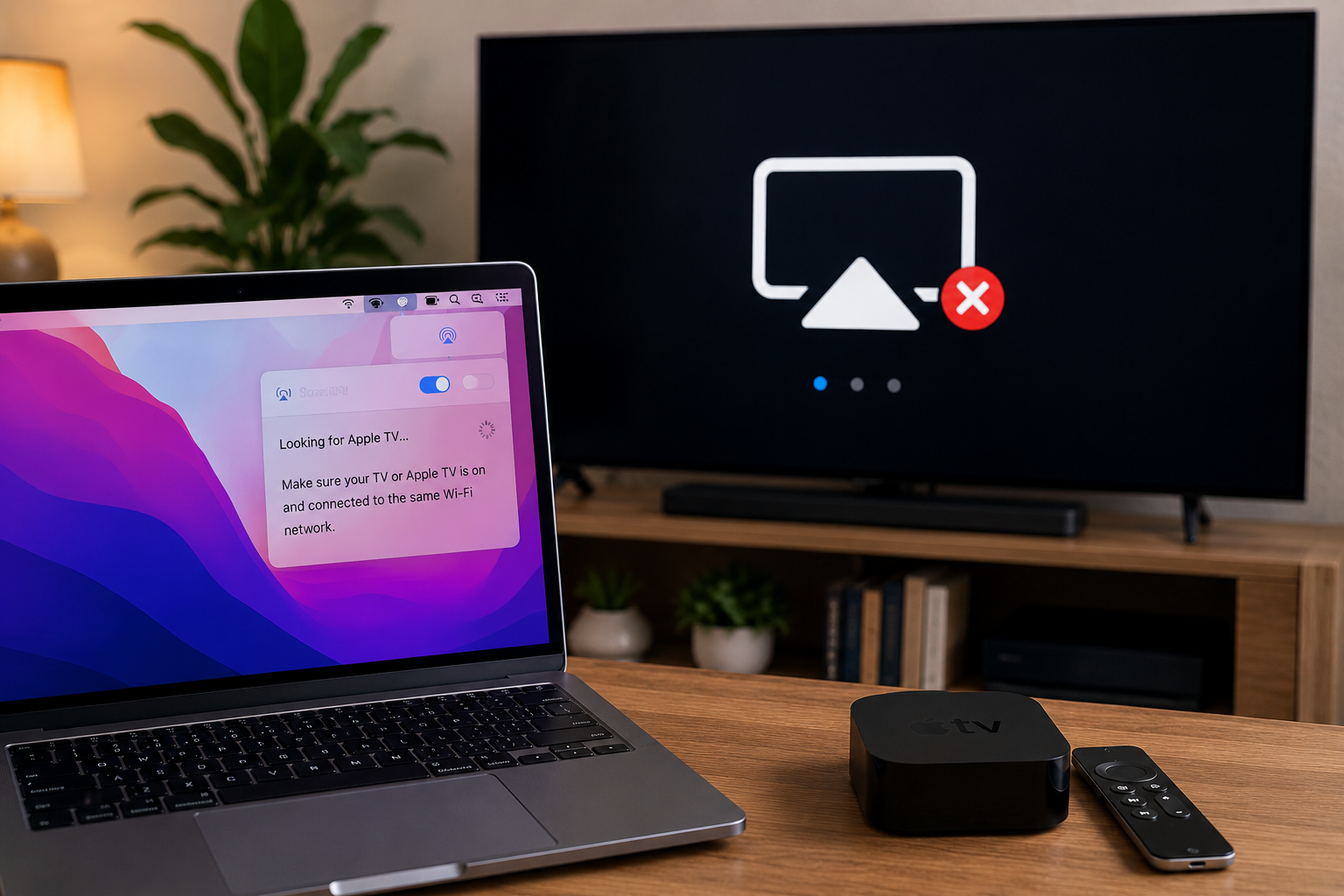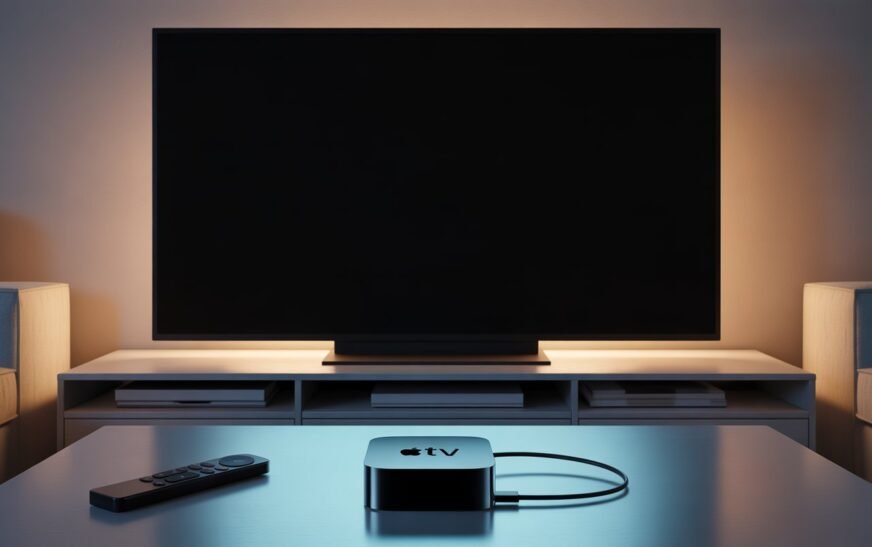
Apple TV showing a black screen or “No Signal” on your TV is almost always caused by one of three things: the TV is on the wrong HDMI input, an HDCP handshake failure between the Apple TV and the TV, or a resolution mismatch where Apple TV is trying to output a resolution the TV can’t display. The fastest fix is to unplug the Apple TV from power for 30 seconds, plug it back in, and make sure your TV is set to the correct HDMI input. If still black, hold the Menu + Volume Down buttons on the Siri Remote for 5 seconds to reset the display resolution to a safe default.
You sit down to watch something, turn on the TV, switch to the Apple TV input — and nothing. A black screen. Sometimes it says “No Signal.” Sometimes the screen just stays dark like nothing is connected at all, even though the Apple TV’s status light is on and the remote seems to be working.
It’s one of those problems that feels like something is physically broken but rarely is. The Apple TV and your TV are having a communication problem — usually around what resolution or signal format to use, a copy protection handshake that failed, or simply a HDMI connection that needs to be re-established. In most cases you’ll be watching your content again within five minutes.
This guide covers every cause and fix — from the simplest check (wrong input) to the deeper solutions for persistent or recurring black screen issues — for all Apple TV models including Apple TV 4K (3rd generation) and Apple TV HD.
First: Identify What Kind of Black Screen You Have
Narrows Down the Fix ImmediatelyNot all black screen situations on Apple TV have the same cause. Spend 60 seconds checking which scenario matches yours.
📺 Screen is completely black — no signal message
TV displays “No Signal,” “No Input,” or simply a black screen after you select the HDMI input. Apple TV status light is on (white or yellow). This is typically a wrong input selection, HDMI cable issue, or HDCP handshake failure. Fixes 1, 2, and 3 apply here.
🟡 Apple TV light is on but TV shows nothing
The Apple TV is powered and the indicator light is solid or blinking, but the TV produces no picture. The Apple TV is running but the video signal isn’t reaching the TV. Most likely a resolution mismatch or HDMI cable fault. Fixes 3, 4, and 5 are the starting point.
🔁 Screen was working, then went black mid-use
Picture disappeared while you were using Apple TV — during playback, after sleep, or after the TV turned off and back on. This is a HDCP renegotiation failure or sleep/wake HDMI handshake issue. Fixes 2, 3, and 6 apply.
🔆 Screen is black after a tvOS update
Apple TV updated overnight and now shows a black screen. The update may have changed the output resolution or HDR settings to something your TV doesn’t support. Fix 4 (resolution reset) and Fix 7 (display settings) are the most relevant.
📹 Works on one TV but not another
Apple TV shows a picture on one TV but goes black when connected to a different TV or monitor. This is almost always a resolution or HDR format incompatibility — the Apple TV is outputting a signal the second TV can’t handle. Fix 4 and Fix 7 address this.
Solid white light — Apple TV is on and running normally. The problem is between Apple TV and your TV (signal, resolution, HDMI). Blinking white light — Apple TV is starting up or updating. Wait 2–3 minutes before troubleshooting. No light at all — Apple TV isn’t receiving power. Check the power cable and outlet before anything else. Yellow/amber light — Apple TV is in a fault state and needs to be restarted.
Fix 1: Check the TV Input / Source
Start Here — Most Common CauseBefore anything else — and this is worth saying plainly because it’s the cause more often than anyone admits — check that your TV is actually on the correct HDMI input. Modern TVs have between 2 and 4 HDMI ports, and it’s very easy to have the Apple TV plugged into HDMI 2 while the TV is displaying HDMI 1.
If you have multiple HDMI devices connected (Apple TV, game console, Blu-ray player), it’s worth putting a small label on each cable near the TV port. Many TVs also let you rename inputs in the settings — “Apple TV” instead of “HDMI 2” saves a lot of confusion. Check your TV settings under Inputs or Channels for a rename option.
Fix 2: Power Cycle Everything
Fixes HDCP and Handshake FailuresHDCP — High-bandwidth Digital Content Protection — is a digital copy protection protocol that Apple TV and your TV negotiate every time they establish a connection. If this handshake fails or gets stuck in a bad state (which happens more often after sleep, after the TV restarts, or after a power fluctuation), both devices need to be fully power-cycled to renegotiate it from scratch.
Turning on the TV first gives it time to initialise its HDMI input and HDCP receiver before the Apple TV tries to establish a connection. When both devices power on simultaneously, the HDCP handshake timing can fail — which is why this problem often happens after power outages or surge protectors cutting power to everything at once.
Fix 3: Try a Different HDMI Cable and Port
Rules Out HardwareHDMI cables degrade. The connector pins can oxidise, the cable can develop internal breaks from being bent too tightly, and cheap cables simply don’t meet the signal integrity requirements for 4K HDR. If your Apple TV is a 4K model, it requires an HDMI 2.0 or HDMI 2.1 cable — older HDMI 1.4 cables will often show a black screen specifically because they can’t carry the 4K or HDR signal Apple TV is trying to send.
HDMI and display connection problems affect Macs too — especially after macOS updates. If you’re also struggling to get your MacBook to recognise an external monitor or TV, our guide on MacBook external display not being recognised covers every fix, including HDCP failures and cable compatibility — many of the causes are identical to what’s described here.
| HDMI Version | Max Resolution | Works With Apple TV 4K? |
|---|---|---|
| HDMI 1.4 | 1080p / 4K@30Hz only | ⚠ Limited — may cause black screen at 4K60 |
| HDMI 2.0 | 4K@60Hz, HDR10, Dolby Vision | ✔ Yes — recommended minimum |
| HDMI 2.1 | 4K@120Hz, 8K, eARC | ✔ Yes — best option for 4K HDR |
Many TVs have mixed HDMI port types — for example, HDMI 1 and 2 might be HDMI 2.0 while HDMI 3 and 4 are older HDMI 1.4 ports. Check your TV’s manual or manufacturer’s website to identify which ports support 4K or HDMI 2.0. Plugging an Apple TV 4K into an HDMI 1.4 port is a common cause of black screens and “No Signal” errors that seems like a device fault but is actually a port compatibility issue.
Fix 4: Reset Apple TV Display Resolution Using the Remote
Most Important Fix for Persistent Black ScreenThis is the fix for situations where the Apple TV is running and the HDMI connection is solid, but the screen stays black because Apple TV is outputting a resolution or refresh rate that your TV simply cannot display. This commonly happens after a tvOS update changes the output settings, or when you move an Apple TV from a 4K TV to a 1080p TV without resetting the resolution first.
Apple built a hidden resolution reset directly into the Siri Remote for exactly this situation.
On Siri Remote (3rd generation — the one with a clickpad and no touchpad ring):
On older Siri Remote (2nd generation — with touchpad ring at the top):
On Apple TV Remote (1st generation — silver/aluminium, no Siri button):
When you trigger the resolution reset, Apple TV switches to 540p — a low-resolution mode specifically chosen because it’s compatible with every TV ever made that has an HDMI port, including very old models. Once you can see the screen in this mode, navigate to Settings → Video and Audio → Resolution and choose the right setting for your TV (1080p for most TVs, 4K SDR or 4K HDR for 4K TVs).
Fix 5: Restart Apple TV From the Remote
Quick Software ResetSometimes the Apple TV software gets into a state where it needs a full restart to re-initialise the video output correctly. This is different from unplugging it — a software restart goes through the proper shutdown and startup sequence, which re-negotiates the HDMI connection cleanly.
If you can see the screen (even partially):
If the screen is completely black (remote restart):
If your Siri Remote doesn’t seem to be doing anything, first check whether the remote needs to be charged — the Siri Remote (3rd gen) charges via Lightning or USB-C and can lose charge over several weeks without use. Connect it to a charger for 15 minutes and try again. If the remote is charged but unresponsive, use the Apple TV Remote app on your iPhone as an alternative control method while troubleshooting.
Fix 6: Disable HDMI CEC / ARC Settings
For Sleep/Wake and Auto-Switch IssuesHDMI CEC (Consumer Electronics Control) is a feature that lets HDMI devices control each other — for example, turning on your TV automatically when you press play on the Apple TV, or switching the TV to the correct input automatically. It sounds convenient, but CEC is notoriously inconsistent across TV brands and firmware versions, and it’s a very common cause of black screen issues — particularly ones that happen after sleep or after the TV restarts.
Different TV brands use different names for this feature:
| TV Brand | CEC Feature Name | Where to Find It |
|---|---|---|
| Samsung | Anynet+ | Settings → General → External Device Manager |
| LG | SimpLink | Settings → General → HDMI Settings |
| Sony | BRAVIA Sync | Settings → Device Preferences → Inputs |
| Vizio | CEC | System → CEC |
| TCL / Hisense | HDMI CEC | Settings → System → HDMI CEC |
Disabling CEC means your TV will no longer automatically switch to the Apple TV input or turn on when you start using the remote. You’ll need to manually select the correct input on your TV each time. This is a worthwhile trade-off to stop recurring black screen issues — you can always re-enable CEC later if you want the auto-switching behaviour back.
Fix 7: Adjust HDR and Video Output Settings
For 4K Apple TV Black Screen After UpdatesApple TV 4K automatically tries to output the best video format your TV supports — but sometimes it gets this wrong, especially after a tvOS update changes the auto-detection logic. A TV that claims HDR10 support in its specs may not actually handle certain HDR signals from Apple TV correctly, resulting in a black screen the moment Apple TV switches into HDR mode.
Step 1 — Reset resolution first (if screen is black):
Use the remote resolution reset from Fix 4 to get the screen back, then continue.
Step 2 — Adjust video output settings:
Dolby Vision is the highest-quality HDR format Apple TV supports, but not all TVs that claim “Dolby Vision” handle every profile Apple TV sends. If your TV shows a black screen specifically during Dolby Vision content but works fine otherwise, go to Settings → Video and Audio → Format and switch from “Dolby Vision” to “HDR10” — this retains 4K HDR quality while avoiding the specific Dolby Vision profile causing the issue.
Fix 8: Check If an HDMI Switch or Splitter Is the Problem
For Users With AV Equipment Between Apple TV and TVIf your Apple TV is connected through an HDMI switch, AV receiver, soundbar, or HDMI splitter before reaching the TV, that intermediate device is a very common source of black screen issues. Each device in the HDMI chain has to successfully pass the HDCP handshake and the video signal — and many inexpensive HDMI switches struggle with 4K HDR signals or drop the HDCP handshake under certain conditions.
Every device in your HDMI chain — including any switch, splitter, or AV receiver — must support HDCP 2.2 for 4K content to pass through. If even one device in the chain only supports HDCP 1.4, Apple TV will fall back to 1080p or display a black screen when streaming 4K content. This is a very common issue with older soundbars and AV receivers connected between Apple TV and the TV.
Fix 9: Update tvOS
For Recurring or Intermittent IssuesKnown bugs in tvOS that cause HDMI or display issues are typically fixed in point updates. If your black screen issue is intermittent — works sometimes, fails after sleep, or fails with specific content — a tvOS update may contain the targeted fix.
Go to Settings → System → Software Updates and enable “Automatically Update.” Apple TV will download and install updates overnight when it’s in standby — so you always have the latest fixes without manually checking. This is especially useful for HDMI and display-related fixes that often arrive in minor point releases without fanfare.
Fix 10: Factory Reset Apple TV
Last Resort — Erases All SettingsIf every fix above has been tried and the Apple TV still shows a black screen or no signal, a factory reset gives the device a completely clean state — reinstalling tvOS and removing all configuration. This is the nuclear option, but it resolves issues caused by deeply corrupted system settings that no other fix can reach.
Method 1 — Reset from Apple TV settings (if screen is accessible):
Method 2 — Reset via iPhone Apple TV Remote app (if screen is black):
Method 3 — Reset via iTunes / Finder (Apple TV HD only):
A factory reset signs you out of all accounts, removes all downloaded apps and games, and clears all settings. Your Apple TV will need to be set up from scratch. App purchases and iCloud data are not lost — they restore when you sign back in. However, any local app data that wasn’t backed up to iCloud is gone permanently.
Pro Tips: Preventing Apple TV Black Screen Issues
Always plug Apple TV into a HDMI 2.0 or higher port. On most modern TVs, HDMI port 1 or the port labelled “HDMI ARC” or “HDMI eARC” is usually the highest-spec port — capable of 4K HDR and HDCP 2.2. Plugging Apple TV into that port from the start avoids a whole category of compatibility issues.
Use the original Apple TV power adapter. Third-party USB power adapters that don’t provide a stable 5V/1.5A output can cause Apple TV to behave erratically, including intermittent black screens during startup. Apple TV 4K (3rd gen) ships with its own power adapter — use it.
Don’t route Apple TV through a soundbar unless the soundbar supports HDCP 2.2. Many users connect Apple TV to a soundbar’s HDMI input, then connect the soundbar to the TV via HDMI ARC. This works — but only if the soundbar supports HDCP 2.2. Check your soundbar’s specs before routing 4K content through it.
Keep HDMI cables away from power cables. Running HDMI cables alongside power cables or behind power strips can cause signal interference, particularly at 4K HDR bandwidth. Route HDMI cables separately where possible, and avoid sharp bends near the connectors.
Check your TV’s HDMI Ultra HD Deep Color or Enhanced Format settings. Many TVs require you to explicitly enable 4K pass-through on each HDMI port. On Samsung TVs this is called “HDMI UHD Color,” on LG it’s “HDMI Ultra HD Deep Color,” and on Sony it’s “Enhanced Format.” If this isn’t enabled on the port your Apple TV is connected to, 4K HDR signals will either display at 1080p or show a black screen. Look in your TV’s picture or input settings for this option.
Common Mistakes to Avoid
When the screen is black, it’s tempting to press every button on the remote repeatedly. This can accidentally trigger a reset, pair the remote to a different device, or navigate the Apple TV into an unexpected state while you can’t see the screen. Press buttons deliberately with a purpose — don’t mash them hoping something changes.
The Apple TV status light tells you whether the device itself is running. A solid white light means the hardware is fine — the problem is the video signal path between Apple TV and the TV. Replacing an Apple TV because of a black screen that’s actually caused by a faulty HDMI cable or wrong input is an expensive mistake that happens more often than it should.
Auto resolution lets Apple TV choose the best output automatically — but “best” isn’t always what your TV can handle, especially across tvOS updates that may change the detection logic. Manually setting the resolution to your TV’s native spec in Settings → Video and Audio is more reliable than relying on auto-detection for everyday use.
Your TV has its own software that gets updated separately from Apple TV. A TV firmware update can change how it handles HDCP, HDR signals, or HDMI CEC — and sometimes a TV update breaks compatibility with previously working Apple TV settings. Check your TV’s settings for a software update option if black screen issues started after a TV firmware update.
FAQ: Apple TV Black Screen and HDMI Issues
Why does my Apple TV show a black screen with no signal?
The most common causes are the TV being on the wrong HDMI input, an HDCP digital copy protection handshake failing between Apple TV and the TV, a resolution or HDR format mismatch, or a faulty HDMI cable. Start by checking the TV input source, then power cycling both devices with a 30-second gap, and if still black, use the remote resolution reset (hold Back + Volume Down for 5 seconds on the Siri Remote) to force Apple TV into a safe display mode.
How do I reset Apple TV resolution when the screen is black?
With the Apple TV powered on (status light is solid white), press and hold the Back button and the Volume Down button on the Siri Remote simultaneously for 5 seconds. Release both buttons. Apple TV will reset its output to a low-resolution safe mode that nearly all TVs can display. Once you can see the screen, go to Settings → Video and Audio → Resolution and set it to match your TV.
What is HDCP and why does it cause a black screen on Apple TV?
HDCP (High-bandwidth Digital Content Protection) is a digital copy protection system that Apple TV and your TV negotiate every time they connect. If either device has a firmware issue, the cable doesn’t support HDCP 2.2, or the handshake fails during a wake-from-sleep cycle, the TV may display a black screen as a result of the failed authentication. Power cycling both devices with the TV on first usually resolves it by forcing a fresh handshake from scratch.
Apple TV light is on but no picture — what does this mean?
A solid white status light confirms the Apple TV hardware is running normally. The problem is in the video signal path — most likely a resolution or HDR format that your TV can’t display, a faulty HDMI cable, or a wrong TV input selection. The Apple TV itself isn’t broken. Use the remote resolution reset (Back + Volume Down for 5 seconds) to restore a picture, then adjust video settings to match your TV’s capabilities.
Why does Apple TV go black after the TV turns off and back on?
This is a classic HDCP re-handshake failure triggered when the TV restarts its HDMI inputs. When the TV comes back on, it requests a new HDCP authentication from Apple TV — and sometimes this renegotiation fails, leaving the screen black. Disabling HDMI CEC on both the TV and Apple TV (Settings → Remotes and Devices → Control TVs and Receivers) prevents the auto-switching behaviour that triggers the failed renegotiation. Power cycling both devices with the TV on first also re-establishes a clean handshake.
Does the Apple TV 4K work with any TV?
Apple TV 4K outputs 4K HDR video, but it’s also fully backward compatible with 1080p and even 720p TVs — it detects the TV’s capabilities and adjusts accordingly. Problems arise when the auto-detection gives incorrect results, or when intermediate devices (HDMI switches, soundbars, AV receivers) don’t support HDCP 2.2. On a 1080p TV, manually setting the resolution to 1080p 60Hz in Settings → Video and Audio ensures the most reliable connection without depending on auto-detection.
Apple TV Black Screen — Fix Checklist
- 1Check TV input / source — confirm the correct HDMI port is selected
- 2Power cycle both devices — unplug 30 seconds, turn TV on first, then Apple TV
- 3Try a different HDMI cable and port — HDMI 2.0 minimum for 4K Apple TV
- 4Reset display resolution — hold Back + Volume Down on Siri Remote for 5 seconds
- 5Restart Apple TV via remote — hold TV/Home + Volume Down until light blinks
- 6Disable HDMI CEC on both TV and Apple TV settings
- 7Adjust HDR and resolution settings — disable Match Dynamic Range, try SDR or HDR10
- 8Bypass HDMI switch or soundbar — connect Apple TV directly to TV to test
- 9Update tvOS — Settings → System → Software Updates
- 10Factory reset Apple TV — Settings → System → Reset and Update
One Last Thing
If you’ve been through every fix in this guide and the Apple TV is still showing a black screen — or the screen returns to black after a day or two — there’s one more angle worth checking: the TV itself. Some TV HDMI ports develop faults over time, especially on cheaper models. Plug a different HDMI device (a laptop, a games console, a streaming stick) into the same HDMI port Apple TV has been using and see if it shows a picture. If it also struggles, the TV’s HDMI port may be at fault rather than the Apple TV.
If everything checks out on the hardware side and the problem persists, the CrazyErrors team is happy to help work through your specific setup — let us know your Apple TV model, TV brand, and what the status light is doing when the black screen occurs.
Wrapping Up
An Apple TV black screen is almost never a sign that something is permanently broken. HDMI handshakes fail, resolutions get set to values a TV can’t display, CEC creates conflicts, and HDCP times out — all of these are software and signal issues that respond to the fixes in this guide.
The two fixes that solve it for the most users, the fastest: power cycling both devices with the TV turned on first, and using the remote resolution reset if the screen stays black. Between those two, the vast majority of Apple TV no-signal situations are resolved without any hardware replacement. Your Apple TV is almost certainly fine — it just needs to renegotiate its relationship with your TV, and now you know exactly how to make that happen.
ⓘ Disclaimer: This article is for informational purposes only. CrazyErrors is not affiliated with Apple Inc. or any TV manufacturer mentioned. Product names, menu paths, and remote button layouts may vary by Apple TV model and tvOS version. TV brand CEC feature names and menu locations may differ by model and firmware version. For official Apple TV support, visit support.apple.com/apple-tv.