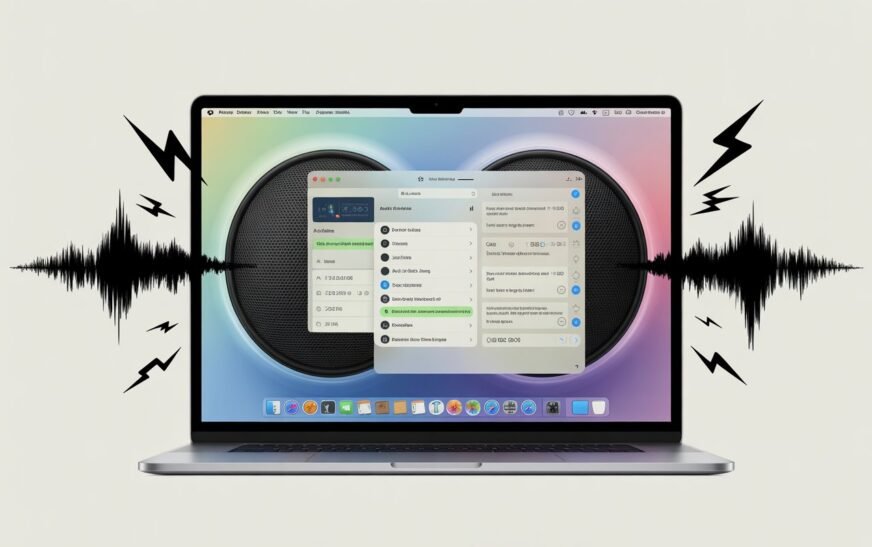
Audio crackling and popping after macOS Tahoe is almost always caused by the Core Audio daemon crashing or getting into a bad state during the update, a sample rate mismatch between your Mac and audio output device, or Bluetooth audio codec instability introduced in Tahoe’s updated wireless stack. The fastest fix is to restart the Core Audio process via Terminal (sudo killall coreaudiod) without rebooting your Mac. For persistent issues, resetting the audio output sample rate in Audio MIDI Setup resolves it for the majority of users.
You updated to macOS Tahoe and now your MacBook’s audio has turned on you. Music crackles. Video call audio pops mid-sentence. System sounds stutter. In some cases the audio cuts out entirely for a split second, then comes back distorted. It sounds like a hardware problem — like something physically broke — but your MacBook was completely fine before the update.
Nothing broke. macOS Tahoe made significant changes to the Core Audio framework and Bluetooth audio stack, and on some MacBooks those changes created a conflict between the new audio system and the existing audio configuration left over from the previous macOS version. The result is the crackling and popping you’re hearing.
The fixes range from a single Terminal command that takes ten seconds to a deeper reset of your audio configuration. Most users are done in under five minutes. This guide covers every scenario — built-in speakers, headphones, Bluetooth audio, and external USB audio interfaces — so you can find the right fix for your exact situation.
First: Identify Your Specific Audio Problem
Narrows Down the FixAudio crackling after a macOS update has several distinct causes, and which fix works depends on what’s actually producing the sound. Spend 30 seconds identifying your situation before applying fixes.
🔉 Built-in MacBook speakers crackling
Happens through the internal speakers regardless of volume level. Usually a Core Audio daemon issue or sample rate mismatch. Fixes 1, 2, and 3 in this guide resolve this in almost all cases.
🎧 Wired headphones or 3.5mm audio crackling
Consistent crackling through a headphone jack or USB-C to 3.5mm adapter. Often a sample rate mismatch or a corrupted audio device preference file. Fixes 2, 3, and 4 apply here.
📶 Bluetooth headphones or speakers crackling
Popping, stuttering, or dropout during Bluetooth audio. macOS Tahoe changed the default Bluetooth audio codec settings and introduced new AAC/aptX handling that conflicts with older Bluetooth devices on some Macs. Fixes 5 and 6 are specifically for this.
🎹 USB audio interface or external DAC crackling
Professional audio or home studio users experiencing clicks and pops through an external audio interface. macOS Tahoe changed USB audio driver behaviour and buffer handling. Fixes 3, 7, and 8 address this.
⏰ Audio crackles only after sleep or when switching apps
Crackling that appears specifically when the Mac wakes from sleep, or when switching between apps that use audio. This is a Core Audio state issue. Fixes 1 and 2 are the starting point.
Open the built-in app QuickTime Player, go to File → New Audio Recording, and monitor the input meter. If you see signal spikes even when no audio is playing, Core Audio is in a bad state and Fix 1 (restarting coreaudiod) will almost certainly resolve it immediately. If the meter looks clean, the issue is in the output chain — move to Fix 2 and beyond.
Why macOS Tahoe Causes Audio Crackling
Understanding the Root CausemacOS Tahoe introduced the most significant revision to Apple’s Core Audio framework in several years. Core Audio is the low-level system that handles all sound on your Mac — every output device, every input, every sample rate conversion, and every audio process talking to every other audio process. When a major change lands in this framework, edge cases emerge on configurations it wasn’t tested against.
Core Audio daemon instability — The coreaudiod process — the background daemon that manages all audio routing — can enter a broken state after a major OS update, especially when it encounters audio preferences or device configurations written by the previous macOS version. This causes crackling, popping, and volume anomalies.
Sample rate mismatch — macOS Tahoe changed the default sample rate handling for several audio output paths. If your audio device was configured at a specific sample rate under the previous macOS — say, 48,000 Hz for a USB interface or 44,100 Hz for built-in output — and Tahoe’s default is now different, the system performs real-time sample rate conversion that introduces audible artefacts when not done correctly.
Bluetooth codec reset — macOS Tahoe updated the Bluetooth audio stack with new codec negotiation behaviour. Some Bluetooth headphones and speakers that previously connected using AAC (Apple’s preferred high-quality codec) now fall back to the lower-quality SBC codec, which can produce a codec mismatch that manifests as audio glitches and stuttering.
Third-party audio plugin conflicts — Audio Unit plugins, virtual audio drivers (like Loopback, BlackHole, or SoundSource from Rogue Amoeba), and audio processing tools installed under the previous macOS may be incompatible with Tahoe’s updated Core Audio API, causing them to inject distortion into the audio path.
Power management changes — macOS Tahoe made adjustments to how the audio hardware is powered during low-activity periods. On some MacBook models, the audio subsystem powers down more aggressively between sounds, and the power-up latency when audio starts again produces a pop or click at the beginning of each audio event.
Fix 1: Restart Core Audio Without Rebooting
Start Here — Takes 10 SecondsThis is the fastest fix and works for the majority of post-update audio issues. Killing the coreaudiod process forces macOS to restart it fresh — clearing whatever broken state it’s in — without requiring you to restart your Mac or lose any open work.
sudo killall coreaudiodThe sudo killall coreaudiod command terminates the Core Audio daemon immediately. macOS detects this and automatically restarts it within seconds — fresh, with no corrupted state carried over from the previous session. Think of it as a targeted restart of just the audio system, leaving everything else running exactly as it was.
If running this command fixes the crackling but the problem returns after a few hours or after the Mac sleeps, it means coreaudiod is repeatedly entering a bad state — usually caused by a conflicting audio plugin or a misconfigured sample rate. Run the command again as a temporary fix, then continue with Fix 2 and Fix 3 to address the root cause.
Fix 2: Fix the Sample Rate in Audio MIDI Setup
Most Effective Permanent FixSample rate mismatch is the most common cause of persistent crackling after a macOS update. When the sample rate of your audio output device doesn’t match what macOS is trying to send it, the system performs real-time conversion — and if that conversion is done at a poor quality setting or with mismatched buffer sizes, you hear it as clicks, pops, and distortion.
Audio MIDI Setup is a built-in Mac utility that lets you manually set the exact sample rate and bit depth for every audio device connected to your Mac.
General music and media playback: 44100 Hz (matches the standard audio CD rate — most music files are mastered at this rate). Video and streaming: 48000 Hz (broadcast and video production standard). USB audio interface: match whatever your interface’s driver reports as its native rate. Mismatching these causes the Mac to constantly resample in real time, which is the source of the crackling.
Fix 3: Restart Your Mac and Reset Audio Preferences
Clean Slate for AudiomacOS stores audio device preferences — sample rates, volume levels, default input/output settings — in a set of preference files that can become corrupted during a major update. Deleting these files forces macOS Tahoe to recreate them with clean, default values.
~/Library/Preferencescom.apple.audio.DeviceSettings.plistcom.apple.audio.SystemSounds.plistcom.apple.coreaudio.plist
Do not empty the Trash immediately after moving these files. Keep the originals on your Desktop for at least one day. If other audio settings you rely on disappear — saved device configurations, custom sample rates in Audio MIDI Setup — you’ll want those originals to restore from.
Fix 4: Change Sound Output and Back Again
30-Second Reset TrickThis sounds too simple to work, but it genuinely does for a specific type of crackling: audio that pops or crackles only during the first few seconds of playback after silence, or when switching between apps. Switching the output device and switching back forces macOS to reinitialise the audio path completely.
You can also do this more directly:
When you switch audio output, macOS tears down the current audio routing graph and rebuilds it for the new device. Switching back rebuilds it again — this time fresh, without the stale state that was causing the artefacts. It’s functionally similar to running sudo killall coreaudiod but achieved through the GUI and slightly less forceful.
Fix 5: Fix Bluetooth Audio Crackling and Stuttering
Bluetooth-Specific FixIf the crackling and popping is specifically through Bluetooth headphones or speakers, the cause is almost always one of three things after macOS Tahoe: codec negotiation failure (your device fell back to SBC from AAC), Bluetooth interference from other 2.4 GHz devices, or a stale Bluetooth pairing that needs to be re-established under Tahoe’s updated Bluetooth stack.
Step 1 — Remove and re-pair the Bluetooth device:
Step 2 — Reset Bluetooth module if re-pairing doesn’t help:
Resetting the Bluetooth module will temporarily disconnect all paired Bluetooth devices — keyboard, mouse, trackpad, and audio devices. If you’re using a Bluetooth keyboard and mouse, make sure you have a USB keyboard or the built-in keyboard accessible before triggering the reset. All devices will reconnect automatically after the module restarts — you don’t need to re-pair them.
Fix 6: Delete Bluetooth Preference Files
For Persistent Bluetooth Audio IssuesIf Bluetooth audio continues to crackle or stutter after re-pairing and resetting the module, the Bluetooth system preference files — which store codec preferences and device connection history — may have become corrupted during the Tahoe update. Deleting them forces a complete reset of the Bluetooth subsystem configuration.
/Library/Preferencescom.apple.Bluetooth.plist~/Library/Preferences for any files starting with com.apple.Bluetooth and move those to the Desktop tooFix 7: Adjust Buffer Size for USB Audio Interfaces
For External Audio Interface UsersIf you use an external USB audio interface — Focusrite Scarlett, PreSonus AudioBox, MOTU, Universal Audio, or similar — and it started crackling after macOS Tahoe, the issue is almost certainly related to buffer size. macOS Tahoe changed how USB audio devices are handled at the driver level, and the buffer size your interface was set to under the previous macOS may now be too small for stable operation.
Increase the buffer size in your DAW or audio software:
Also set the sample rate in Audio MIDI Setup to match your interface:
Most professional audio interface manufacturers (Focusrite, PreSonus, Universal Audio, MOTU, Apogee) release macOS compatibility updates alongside or shortly after major macOS releases. Visit your manufacturer’s website and check the downloads section for a macOS Tahoe-compatible driver or firmware update for your specific interface model. Running an outdated driver under a new macOS is a leading cause of clicks and pops in professional audio setups.
Fix 8: Identify and Remove Conflicting Audio Plugins
For Users With Third-Party Audio SoftwareAudio Unit plugins, virtual audio drivers, and system-level audio tools installed under the previous macOS can inject distortion or instability into the Tahoe audio stack if they haven’t been updated for compatibility. Common culprits include virtual audio routing software (Loopback, BlackHole, Soundflower), equaliser apps (Boom 3D, Equalizer APO equivalents), and system audio enhancers.
sudo killall coreaudiod in Terminal to restart Core Audio fresh without those plugins loadedSoundflower, a popular free virtual audio routing tool, has not been actively maintained in recent years and often breaks on major macOS updates. If you have Soundflower installed, it’s very likely the source of crackling on macOS Tahoe. Consider replacing it with BlackHole (free, actively maintained, Tahoe-compatible) or Loopback (paid, from Rogue Amoeba — consistently one of the first to update for new macOS versions).
Fix 9: Disable Spatial Audio and Personalised Sound Features
macOS Tahoe SpecificmacOS Tahoe expanded Spatial Audio and Personalised Loudness features for compatible MacBooks and AirPods. On some configurations, these features — particularly when processing audio from non-Apple sources — introduce artefacts that sound like intermittent crackling or subtle distortion. Disabling them for troubleshooting quickly tells you if they’re involved.
If you use AirPods Pro or AirPods Max, macOS Tahoe added more aggressive head-tracking integration. When head tracking is active and the gyroscope data is being processed in real time, it occasionally creates micro-stutters in the audio stream that sound like very fast crackling. Go to System Settings → Accessibility → AirPods and disable head-tracking if you see it enabled.
Fix 10: Reset NVRAM (Intel Macs) and Restart
For Intel MacBook UsersOn Intel-based MacBooks, NVRAM stores a small set of system configuration data including audio output volume settings and device preferences. A corrupted NVRAM entry can cause the audio subsystem to initialise incorrectly after a major macOS update, producing crackling that persists even after Core Audio restarts.
NVRAM resets work differently on Apple Silicon — the system handles this automatically and there’s no manual key combination to force it. On M-series Macs, the equivalent action is running a safe boot (hold Power button at startup until “Loading startup options” appears, then hold Shift while clicking Continue) which clears certain system caches and reinitialises hardware states including audio.
Fix 11: Update macOS Tahoe to the Latest Point Release
Always Check ThisApple monitors post-release bug reports closely and typically issues a point update within two to four weeks of a major macOS release that addresses the most commonly reported issues. Audio crackling — being one of the most reported problems after major macOS updates — almost always gets a targeted fix in the first or second point release.
macOS point releases (e.g. macOS Tahoe 15.0.1, 15.1) often include Core Audio driver fixes and audio hardware firmware updates that aren’t explicitly called out in the release notes. They’re bundled silently because Apple doesn’t want to advertise that the initial release had issues — but they’re there, and they frequently resolve exactly the kind of post-update audio problems described in this guide.
Pro Tips: Keeping Audio Clean on macOS Tahoe
Run sudo killall coreaudiod as your first response whenever audio acts up. Bookmark this command or keep it in a notes app. It takes ten seconds, requires no restart, and resolves a significant portion of macOS audio issues instantly. Any time you hear crackling after waking from sleep, switching apps, or connecting a new audio device — this is the first thing to try.
Keep all audio devices at the same sample rate. If you regularly switch between your MacBook’s built-in speakers, a USB interface, and Bluetooth headphones, set all of them to 48000 Hz in Audio MIDI Setup. Having different devices at different sample rates means macOS has to resample audio every time you switch output — an operation that can introduce artefacts if the system is under any load.
Keep third-party audio software updated immediately after macOS updates. Developers like Rogue Amoeba (Loopback, SoundSource, Audio Hijack) and Focusrite typically release Tahoe-compatible versions within days of the macOS release. Check their sites immediately after any macOS update rather than waiting for the apps to prompt you — a day or two with an incompatible audio plugin is enough to produce persistent crackling.
Use a wired connection for critical audio work. If your work involves recording, podcasting, or any situation where audio quality is non-negotiable, wired headphones or a proper USB audio interface will always be more stable than Bluetooth — especially across macOS updates that change the Bluetooth audio stack. Bluetooth is convenient for casual listening; wired is reliable for work.
Your Mac has more built-in audio and sound tools than most people realise. Audio MIDI Setup, Wireless Diagnostics, and several hidden accessibility audio features are all included in macOS. Check out our guide on secret Mac features you probably didn’t know about — several of them are genuinely useful for audio troubleshooting and setup.
If you have a storage space problem, that can make audio issues worse. Core Audio writes temporary files during processing. When disk space is critically low, these writes can fail and cause audio stuttering. Make sure your Mac has adequate free space — see our guide on freeing up MacBook storage without deleting files if you’re running low.
Common Mistakes to Avoid
Crackling that starts exactly when a macOS update is installed and didn’t exist before is almost never a hardware fault. The MacBook’s audio hardware didn’t change — the software driving it did. Work through all the software fixes before concluding that your speaker or audio hardware needs repair.
Testing audio at 100% volume while troubleshooting can damage your hearing and your speakers. Test at a comfortable listening volume — 40–60%. If crackling only appears at very high volumes, that’s a separate issue (likely speaker distortion at the hardware limit) rather than the Core Audio software issue this guide addresses.
An Audio Unit plugin from 2021 that hasn’t been updated since macOS Monterey is not going to work cleanly on macOS Tahoe. Outdated plugins in your DAW’s plugin folder can silently inject distortion into every audio session. Check your DAW’s plugin manager for any plugins flagged as incompatible and disable or remove them before troubleshooting further.
Very low buffer sizes (32 or 64 samples) on a USB audio interface sound great in theory — low latency for recording — but they require the CPU to service the audio buffer extremely frequently. If your Mac is doing anything else (background tasks, iCloud sync, Spotlight indexing post-update), the CPU can miss a buffer service cycle and you hear it as a click or pop. 256 samples is a stable starting point on any M-series Mac with Tahoe.
FAQ: MacBook Audio Crackling After macOS Tahoe
Why is my MacBook making a crackling or popping sound after the macOS Tahoe update?
macOS Tahoe made significant changes to the Core Audio framework, Bluetooth audio stack, and USB audio driver handling. These changes can leave the Core Audio daemon in a bad state after the update, create sample rate mismatches with connected audio devices, or break compatibility with third-party audio software. Running sudo killall coreaudiod in Terminal restarts the audio system and resolves the issue for most users within seconds.
How do I stop the crackling sound on my Mac without restarting?
Open Terminal and run sudo killall coreaudiod (enter your password when prompted). This restarts the Core Audio daemon without rebooting your Mac — your audio will cut out for 2–3 seconds then return cleanly. This works for crackling, popping, distorted audio, and missing system sounds without closing any open apps or losing unsaved work.
What is the best sample rate setting to stop crackling on a Mac?
Open Audio MIDI Setup (search for it in Spotlight), select your output device, and try 48000 Hz if you’re on 44100 Hz, or vice versa. For most general use — streaming, music, video — 48000 Hz at 32-bit Integer is stable on Apple Silicon Macs with macOS Tahoe. For USB audio interfaces, match the sample rate in Audio MIDI Setup to the rate set in your DAW to avoid real-time resampling, which is the most common source of clicks and pops.
My Bluetooth headphones crackle constantly after macOS Tahoe — what do I do?
First, forget and re-pair the device: go to System Settings → Bluetooth, tap the info button next to your headphones, and select “Forget This Device,” then re-pair. This renegotiates the audio codec under Tahoe’s updated Bluetooth stack. If that doesn’t help, hold Shift + Option and click the Bluetooth menu bar icon, then select “Reset the Bluetooth Module” — this is the most thorough reset available without reinstalling macOS.
Why does my Mac audio crackle only when waking from sleep?
macOS Tahoe made changes to how the audio hardware is powered during sleep. When the Mac wakes, there’s a brief delay while the audio subsystem powers back up — and if Core Audio tries to play audio before the hardware is ready, you hear a pop or crackle at that transition. Running sudo killall coreaudiod in Terminal resets this. For a longer-term fix, try disabling Power Nap under System Settings → Battery, which reduces how aggressively the system powers down audio hardware during sleep.
Will Apple fix the audio crackling issue in a future macOS Tahoe update?
Based on the pattern from previous major macOS releases, Apple typically addresses the most widely reported post-update audio issues within the first one to three point updates (e.g. macOS Tahoe 15.0.1 or 15.1). These fixes are often bundled in Core Audio driver updates that don’t appear in the release notes. Keeping macOS updated and checking for software updates regularly is the best way to receive these fixes as they become available.
MacBook Audio Crackling After macOS Tahoe — Fix Checklist
- 1Restart Core Audio: run
sudo killall coreaudiodin Terminal — fastest fix - 2Fix sample rate in Audio MIDI Setup — try 48000 Hz or 44100 Hz
- 3Delete audio preference files and restart to regenerate them cleanly
- 4Switch output device and back — resets the audio routing graph instantly
- 5Re-pair Bluetooth device and reset the Bluetooth module for wireless audio issues
- 6Delete Bluetooth preference files for persistent wireless crackling
- 7Increase buffer size to 256+ samples for USB audio interfaces
- 8Identify and remove conflicting audio plugins — especially Soundflower
- 9Disable Spatial Audio and head tracking for Tahoe-specific distortion
- 10Reset NVRAM on Intel Macs — or Safe Boot on Apple Silicon
- 11Update to the latest macOS Tahoe point release for Apple’s official fix
One Last Thing
If you’ve worked through every fix in this guide and the crackling is still there — particularly if it’s accompanied by the audio cutting out entirely or distorting at random rather than just crackling during playback — it’s worth reaching out for a closer look. Persistent audio issues after multiple fix attempts can sometimes indicate a very specific configuration conflict that’s easy to resolve once the exact cause is identified.
The CrazyErrors team is happy to help. Let us know which type of audio output is affected (built-in, Bluetooth, USB interface), whether it happens constantly or only in certain situations, and how long the issue has been present — that detail is usually enough to narrow it down immediately.
Wrapping Up
Audio crackling and popping after macOS Tahoe is frustrating — especially when everything was working perfectly the day before the update. But it’s almost always a software issue, not a hardware one. The Core Audio daemon, sample rate settings, Bluetooth codec negotiation, and third-party audio plugins are the usual suspects, and all of them are fixable without any hardware replacement or macOS reinstall.
Start with sudo killall coreaudiod in Terminal — it resolves the issue for most users in ten seconds flat. If that brings it back but the crackling returns, the sample rate fix in Audio MIDI Setup is the next most effective step. Between those two, the vast majority of post-Tahoe audio problems are resolved. Your MacBook’s audio hardware is fine — it just needs the software layer telling it what to do to be in a clean, consistent state.
ⓘ Disclaimer: This article is for informational purposes only. CrazyErrors is not affiliated with Apple Inc. or any third-party software developer mentioned. Terminal commands should be entered exactly as shown. Results may vary depending on your macOS version, MacBook model, and audio configuration. For official Apple support, visit support.apple.com.