
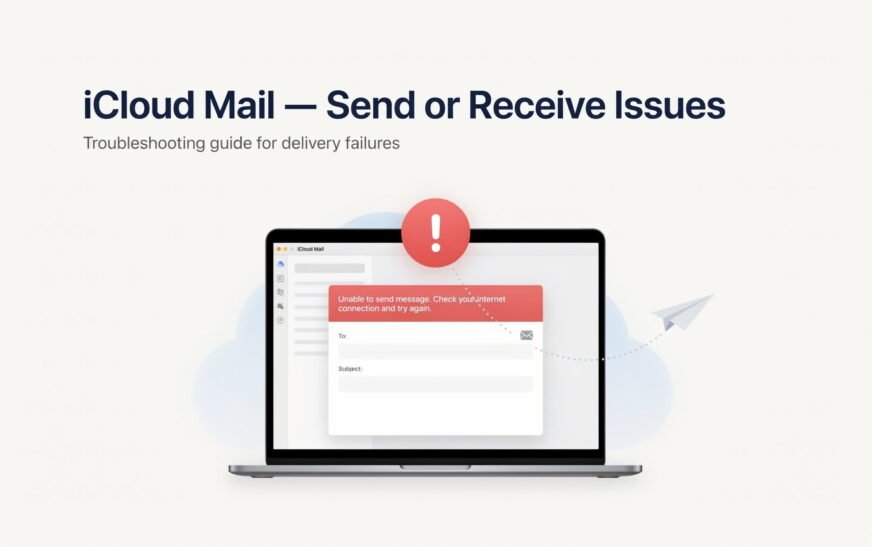
iCloud Mail not sending or receiving is most often caused by one of four things: iCloud Mail is not enabled in Settings, iCloud’s servers are temporarily down, your iCloud storage is full (preventing new emails from being received), or a connectivity issue is blocking the Mail app. Start by checking Apple’s System Status page to confirm iCloud Mail is operational, then go to Settings → [Your Name] → iCloud → Mail and confirm it’s toggled on. If both are fine, remove and re-add your iCloud account in Settings → Mail to reset the connection.
You open Mail, tap Compose, write your email — and it just sits in the Outbox going nowhere. Or you know someone sent you an email hours ago but your inbox is empty. iCloud Mail is one of those services that works invisibly when it’s fine and becomes extremely frustrating the moment it stops.
The causes range from simple (iCloud Mail wasn’t turned on) to specific (iCloud servers are down for maintenance) to technical (IMAP and SMTP settings are wrong on a third-party client). This guide covers every scenario — on iPhone, iPad, Mac, and third-party email apps — so you can find and fix the exact cause affecting your account.
Identify Your Specific Problem
Narrows Down the Fix Immediately📤 Emails not sending — stuck in Outbox
Mail shows emails queued in Outbox or gives a “Cannot Send Mail” error. Most commonly caused by an SMTP authentication issue, wrong outgoing server settings, or an iCloud account that needs to be refreshed. Fix 3, Fix 5, and Fix 8 are most relevant.
📥 Emails not arriving — inbox not updating
You’re expecting emails that aren’t appearing. Could be iCloud Mail disabled, storage full, a fetch/push settings issue, or emails landing in Junk. Fix 1, Fix 4, Fix 6, and Fix 7 cover this.
🔄 Mail was working, stopped suddenly
Worked fine, then stopped — often after an iOS/macOS update or an iCloud account session expiry. Fix 2 (Apple System Status), Fix 3 (toggle Mail in iCloud settings), and Fix 9 (remove and re-add account) are the starting points.
💻 Not working in third-party app (Outlook, Gmail, Spark, Airmail)
iCloud Mail works in Apple’s Mail app but not in a third-party client. Two-factor authentication requires an app-specific password for third-party clients — Fix 10 covers this specifically.
⚠️ Getting error messages — “Cannot Get Mail,” “Authentication Failed”
Specific error messages point to specific causes. “Cannot Get Mail” usually means a server connection issue. “Authentication Failed” means the password or token has expired. Fix 5 and Fix 9 address these directly.
Before troubleshooting your device or app, visit icloud.com/mail in a browser and sign in. If emails send and receive correctly in the browser, the problem is with your Mail app, device, or account configuration — not with iCloud Mail itself. If icloud.com/mail also doesn’t work, the issue is with your iCloud account or Apple’s servers.
Fix 1: Confirm iCloud Mail Is Enabled
Start Here — Most Common Overlooked SettingiCloud Mail is not automatically active on every Apple device — it has to be explicitly enabled. It’s also the first setting that gets toggled off when people try to free up iCloud storage or when they set up a new device quickly without going through all the options. If it’s off, no emails will send or arrive and the Mail app will simply appear empty.
On iPhone or iPad:
On Mac:
Even with Mail toggled on in Settings, if you’ve never activated iCloud Mail at the account level, it won’t work. Sign in at icloud.com, click the Mail app, and if prompted to set up an iCloud email address, complete that setup. Once the @icloud.com address is active, email will flow on all your devices.
Fix 2: Check Apple System Status
Rules Out Apple Server Issues — Takes 30 SecondsiCloud Mail runs on Apple’s servers — and sometimes those servers experience outages, maintenance windows, or degraded performance. When this happens, no amount of local troubleshooting will fix it. Checking the System Status page takes 30 seconds and immediately tells you whether the problem is on Apple’s end.
Apple typically resolves iCloud service disruptions within a few hours. Emails sent to your iCloud address during an outage are not lost — they queue on the sending server and will be delivered once iCloud Mail comes back online. You don’t need to ask anyone to resend anything.
Fix 3: Toggle iCloud Mail Off and Back On
Resets the Mail Sync ConnectionWhen iCloud Mail was previously working but has suddenly stopped — especially after an iOS or macOS update — the sync connection between the Mail app and iCloud’s servers can get stuck in a stale state. Toggling the Mail switch in iCloud Settings forces a fresh connection to be established.
On iPhone or iPad:
After toggling iCloud Mail back on, force-close the Mail app and reopen it fresh. On iPhone/iPad: swipe up from the bottom (or double-press Home) to see open apps, swipe up on Mail to close it, then tap the Mail icon to reopen. This ensures the app picks up the refreshed iCloud connection rather than using a cached session.
Fix 4: Check iCloud Storage — A Full Account Blocks Incoming Mail
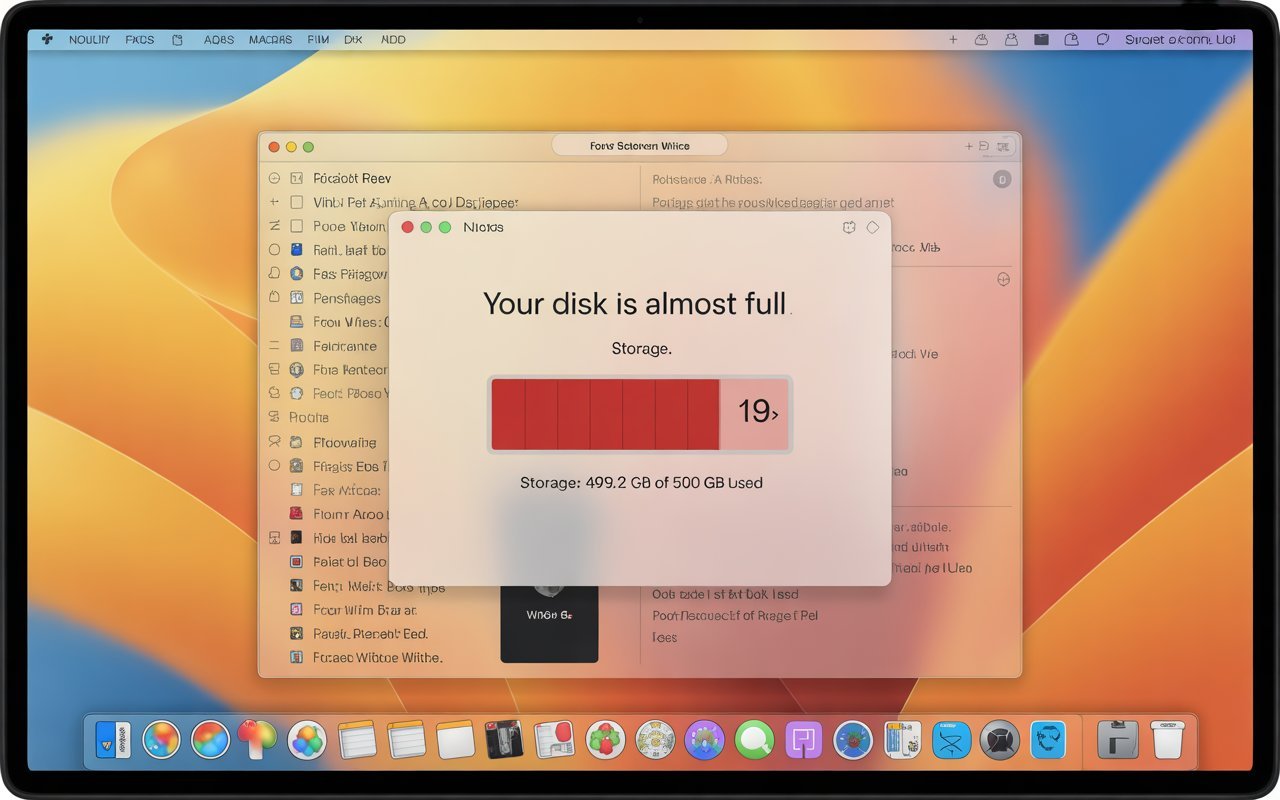
Stops New Emails Arriving When FullThis is one of the most commonly missed causes of iCloud Mail not receiving emails. When your iCloud storage is 100% full, Apple’s servers cannot store any new incoming emails — they bounce back to the sender or queue until space is available. Your inbox simply stops receiving anything.
When iCloud storage is full and incoming emails are blocked, senders typically receive a bounce-back notification saying the mailbox is full. Those emails are not held in a queue — they bounce immediately. Once you free up space, you’ll need to ask senders to resend any important emails that bounced during the full period. Emails sent before the mailbox filled up remain in your inbox.
Fix 5: Check and Fix Fetch / Push Settings
Controls How Often Mail Checks for New EmailsiCloud Mail supports Push delivery — emails arrive in real-time as they’re received, without waiting for the Mail app to check. If Push is disabled or Mail is set to Manual fetch, you’ll only receive emails when you manually open the app and pull to refresh — which can look like mail isn’t working when it’s just not being fetched automatically.
On iPhone or iPad:
Push: iCloud’s server notifies your device the instant a new email arrives — real-time delivery. Fetch: your device checks for new emails on a schedule (every 15, 30, or 60 minutes). Manual: only checks when you open the Mail app. For iCloud Mail to behave like you expect — emails arriving immediately — Push must be on. Fetch and Manual are appropriate when you want to conserve battery on older devices.
Fix 6: Check Your Junk and Spam Folder
Expected Emails May Be FilteredBefore concluding emails aren’t arriving, check your Junk folder — iCloud’s spam filter sometimes catches legitimate emails, especially from new senders, newsletters, or emails from domains it doesn’t recognise. An email appearing in Junk is not a Mail failure — it’s the filter working as designed, just more aggressively than you’d like.
Also check iCloud Mail Filters on iCloud.com:
Fix 7: Verify Network Connection and VPN
Connection Issues Block Mail SilentlyiCloud Mail requires an active internet connection to send and receive. This seems obvious, but network issues — particularly VPNs routing traffic through restricted servers or certain Wi-Fi networks blocking iCloud services — can cause Mail to appear broken while the rest of the internet works fine.
Many enterprise and school networks block iCloud services at the firewall level for security or compliance reasons. If iCloud Mail only fails on your work or school Wi-Fi, this is almost certainly the cause — and it’s a network policy decision, not a Mail problem. Use mobile data for iCloud Mail when on these networks, or contact your IT department about access.
Fix 8: Fix iCloud Mail SMTP / Outgoing Mail Server Settings
For Emails Stuck in OutboxWhen emails are stuck in the Outbox and won’t send, the outgoing mail server (SMTP) configuration is often the cause — particularly if someone has manually configured iCloud Mail or if the settings were altered by an update. Verifying the SMTP settings takes these specific values for iCloud Mail.
Correct iCloud Mail server settings:
| Setting | Incoming Mail (IMAP) | Outgoing Mail (SMTP) |
|---|---|---|
| Server | imap.mail.me.com | smtp.mail.me.com |
| Port | 993 | 587 |
| SSL/TLS | Yes (SSL) | Yes (STARTTLS) |
| Authentication | Password | Password |
| Username | Your full iCloud email (e.g. name@icloud.com) | Your full iCloud email |
Verify SMTP settings on iPhone or iPad:
Verify SMTP settings on Mac:
After correcting SMTP settings, go to the Outbox folder in Mail, open each stuck email, and tap Send again. On Mac: select the email in Outbox and press Send (or use Message → Send Again). The email will attempt to send using the corrected server settings.
Fix 9: Remove and Re-Add Your iCloud Account
Refreshes Expired Authentication TokeniCloud accounts use authentication tokens rather than passwords for ongoing email access. These tokens can expire — especially after a password change, a security update, or a long period of inactivity — causing authentication failures that prevent email from sending or receiving. Removing and re-adding the account forces a fresh token to be issued.
On iPhone or iPad:
On Mac:
Removing an iCloud account from the Mail app removes access to the account on that device — it does not delete any emails. All your emails remain in iCloud and re-appear immediately when you add the account back. You do not need to back up or export anything before removing the account from Mail.
Fix 10: Generate an App-Specific Password for Third-Party Mail Apps
Required for Outlook, Thunderbird, Spark, and Other Non-Apple ClientsIf you use iCloud Mail in a third-party email client — Microsoft Outlook, Thunderbird, Spark, Airmail, Gmail app, or any other app that isn’t Apple Mail — you cannot use your regular Apple ID password to authenticate. Apple requires an app-specific password for any third-party app accessing iCloud Mail. Using your regular password will always fail with an authentication error.
Generate an app-specific password:
App-specific passwords are full credentials for your iCloud Mail account. Store each one in a password manager immediately after generating it — Apple will never show it to you again. If you lose it, you’ll need to revoke it and generate a new one. Never share an app-specific password with anyone, and never enter it on a website or service you don’t control.
Fix 11: Sign Out of Apple ID and Sign Back In
Refreshes All iCloud Services at OnceWhen iCloud Mail is misbehaving alongside other iCloud services — Notes not syncing, Contacts not updating, Calendar behind — it often indicates the entire iCloud session has expired rather than a Mail-specific problem. Signing out of your Apple ID and back in refreshes all iCloud services simultaneously.
On iPhone or iPad:
Signing out of your Apple ID is a broad action that affects all iCloud services — it removes access to iCloud Drive, Photos sync, Find My, and everything else temporarily. If iCloud Mail is your only problem, try the more targeted fixes first (Fix 3 toggle, Fix 9 remove account from Mail). Only sign out of the full Apple ID if multiple iCloud services are misbehaving simultaneously.
Fix 12: Rebuild the Mailbox on Mac
Mac-Specific — Fixes Missing or Duplicate EmailsOn macOS, the Mail app maintains a local index of your mailbox that can become corrupted or out of sync with iCloud’s server. Rebuilding the mailbox forces Mail to re-download all messages from the server and rebuild the local index from scratch — fixing missing emails, emails that appear twice, search results that don’t match what’s actually in the mailbox, and similar display issues.
If Mail on Mac shows accounts as offline: go to Mailbox → Take All Accounts Online. This reconnects all configured email accounts simultaneously and often immediately resolves accounts that appear disconnected after a network interruption or system sleep.
Fix 13: Check Two-Factor Authentication and Account Security
If You Recently Changed Your Apple ID PasswordIf you recently changed your Apple ID password or were prompted to re-authenticate due to a security alert, iCloud Mail access on your devices may have been revoked. Apple requires re-authentication after password changes to confirm the devices are still authorised by the account owner.
If you change your Apple ID password, every app-specific password you’ve ever generated is immediately and automatically revoked. Every third-party email client configured with an app-specific password will stop working until you generate new ones. Go to appleid.apple.com → Sign-In and Security → App-Specific Passwords and generate a fresh one for each app.
Pro Tips: Keeping iCloud Mail Running Reliably
Keep your iCloud storage well below 100%. Letting iCloud storage fill completely doesn’t just stop new emails from arriving — it blocks all iCloud syncing including Photos, Contacts, and Backups. Aim to keep at least 20% of your iCloud storage free. Check it monthly in Settings → [Your Name] and clear old backups from devices you no longer own.
Use a strong, unique Apple ID password and Two-Factor Authentication. Two-Factor Authentication on your Apple ID protects your iCloud Mail from unauthorised access. Without it, a compromised password gives anyone full access to your emails. Enable it in Settings → [Your Name] → Sign-In & Security → Two-Factor Authentication if not already active.
Check icloud.com/mail when Mail seems broken on a device. Accessing iCloud Mail via browser is a one-minute diagnostic that immediately tells you whether the problem is account-side or device-side. If email works in the browser, the fix is on the device. If it doesn’t work in the browser either, the issue is with the account, server, or storage.
Set up email forwarding as a backup. In icloud.com/mail Settings → General → Forwarding, you can forward a copy of all iCloud Mail to another email address (Gmail, Outlook, etc.). This gives you a backup inbox that continues working even during iCloud Mail outages — and means you’ll never miss an important email during a brief iCloud disruption.
Regularly review and revoke unused app-specific passwords. Go to appleid.apple.com → App-Specific Passwords and look at the list of apps with active passwords. If you see apps you no longer use, revoke those passwords. Each active app-specific password is an active credential to your iCloud Mail — fewer active passwords means a smaller attack surface.
Common Mistakes to Avoid
Microsoft Outlook, Thunderbird, Spark, and other non-Apple mail clients cannot authenticate with your regular Apple ID password — Apple blocks this for security reasons. These apps require an app-specific password generated at appleid.apple.com. Entering your regular password in a third-party client will always fail with an authentication error, no matter how many times you try.
Spending 30 minutes troubleshooting your device during an Apple server outage accomplishes nothing — the problem will resolve on its own when the outage ends. Always check apple.com/support/systemstatus as the first step. If iCloud Mail shows a yellow status, put your phone down and check again in an hour.
Port 25 is the traditional SMTP port but is blocked by almost all internet service providers to prevent spam. iCloud Mail’s SMTP must use port 587 with STARTTLS. If you’re configuring iCloud Mail manually in any application and using port 25, it will never work. Always use 587.
Before concluding an expected email was never delivered, check your Junk folder on both the Mail app and icloud.com/mail, and review any filtering rules you may have set up. iCloud’s spam filter and any custom rules can redirect emails away from your inbox silently. A missing email is almost always somewhere — found in Junk, caught by a rule, or bounced back due to full storage.
FAQ: iCloud Mail Not Working
Why is iCloud Mail not sending or receiving emails?
The most common causes are: iCloud Mail is not enabled in Settings → [Your Name] → iCloud → Mail, iCloud’s servers are experiencing an outage (check apple.com/support/systemstatus), your iCloud storage is full preventing new emails from being received, the Push setting is turned off causing delayed delivery, or the iCloud account needs to be refreshed (remove and re-add in Settings → Mail → Accounts). Start with these five checks in order before going into more detailed fixes.
How do I fix iCloud Mail “Authentication Failed” error?
Authentication Failed means your device’s credentials for iCloud Mail have expired or been revoked. On Apple Mail (iPhone/iPad/Mac): go to Settings → Mail → Accounts, tap the iCloud account, and re-enter your Apple ID password when prompted. For third-party apps (Outlook, Thunderbird, Spark): you need to generate a new app-specific password at appleid.apple.com — regular Apple ID passwords don’t work in third-party clients. If you recently changed your Apple ID password, all existing app-specific passwords were revoked and need to be regenerated.
Why are my iCloud emails not showing up on one device?
If iCloud Mail works on other devices but not one specific one, the issue is device-specific rather than account-wide. Try: toggle iCloud Mail off and on in Settings → [Your Name] → iCloud on the affected device, check Push is enabled in Settings → Mail → Accounts → Fetch New Data, and restart the device. If still not syncing, remove the iCloud account from Settings → Mail → Accounts and re-add it — the account refresh almost always resolves single-device sync issues.
Can I use iCloud Mail on Android or Windows?
Yes. iCloud Mail works on any device that supports IMAP email. On Android, use any IMAP email app (Gmail, Outlook, etc.) and configure it manually with server imap.mail.me.com (port 993, SSL) for incoming and smtp.mail.me.com (port 587, STARTTLS) for outgoing. Use your full iCloud email as the username. For the password, generate an app-specific password at appleid.apple.com — your regular Apple ID password won’t work. On Windows, you can also access iCloud Mail through Outlook using the iCloud for Windows app from Apple.
My iCloud Mail worked before — why did it suddenly stop after an update?
iOS, iPadOS, and macOS updates occasionally reset Mail settings, expire authentication tokens, or change how iCloud accounts are handled. The most effective fix for post-update iCloud Mail failures is to toggle iCloud Mail off and back on in Settings (Fix 3), and if that doesn’t work, remove the iCloud account from Mail and re-add it (Fix 9). These two steps resolve the majority of post-update iCloud Mail issues by forcing a fresh connection and authentication.
How do I know if iCloud Mail is down?
Visit apple.com/support/systemstatus and look for “iCloud Mail” in the list. A green circle means the service is operational. A yellow circle with a description means there’s a known issue. You can also follow @AppleSupport on social media — Apple typically acknowledges significant service outages there. During a confirmed outage, emails sent to your iCloud address are queued by senders and will arrive once service is restored — you don’t need to take any action.
iCloud Mail Not Working — Complete Fix Checklist
- 1Confirm iCloud Mail is enabled — Settings → [Your Name] → iCloud → Mail: On
- 2Check Apple System Status — apple.com/support/systemstatus for iCloud Mail outage
- 3Toggle iCloud Mail off and on — resets the sync connection
- 4Check iCloud Storage — full storage blocks incoming mail; free space or upgrade
- 5Set Mail to Push — Settings → Mail → Accounts → Fetch New Data → Push: On
- 6Check Junk folder and Mail rules — expected emails may be filtered
- 7Check network and disable VPN — some networks block iCloud Mail ports
- 8Verify IMAP/SMTP settings — imap.mail.me.com / smtp.mail.me.com, port 993/587
- 9Remove and re-add iCloud account in Mail — refreshes authentication token
- 10Generate app-specific password — required for all third-party mail clients
- 11Sign out of Apple ID and sign back in — if multiple iCloud services are failing
- 12Rebuild mailbox on Mac — Mailbox → Rebuild in the Mac Mail app
- 13Re-authenticate after password change — regenerate all app-specific passwords
One Last Thing
If iCloud Mail is still not working after going through this entire guide — particularly if it’s failing on all your devices simultaneously and Apple’s System Status shows everything as green — it may be worth contacting Apple Support directly. They can check your specific account for any flags, restrictions, or server-side issues that aren’t visible through the standard status page. Reach out at getsupport.apple.com.
The CrazyErrors team is happy to help too — let us know which specific error message you’re seeing, which device and app you’re using, and which fixes you’ve already tried.
Wrapping Up
iCloud Mail not working is almost always one of a small set of specific, fixable causes — iCloud Mail toggled off, storage full, Push delivery disabled, expired authentication, or the wrong server settings in a third-party app. The fixes are methodical and most people resolve the issue within the first three or four steps.
The most important things to check first: confirm iCloud Mail is actually enabled in your iCloud settings, verify Apple’s servers aren’t experiencing an outage, and make sure your iCloud storage isn’t completely full. Between those three checks, the majority of iCloud Mail issues are explained and resolved. Everything else in this guide handles the remaining edge cases.
ⓘ Disclaimer: This article is for informational purposes only. CrazyErrors is not affiliated with Apple Inc. iCloud Mail server settings, pricing, and features are subject to change — always verify current details at support.apple.com. This guide covers general troubleshooting steps based on publicly available Apple documentation and is not a substitute for official Apple Support. For account-specific issues, contact Apple Support directly at getsupport.apple.com.