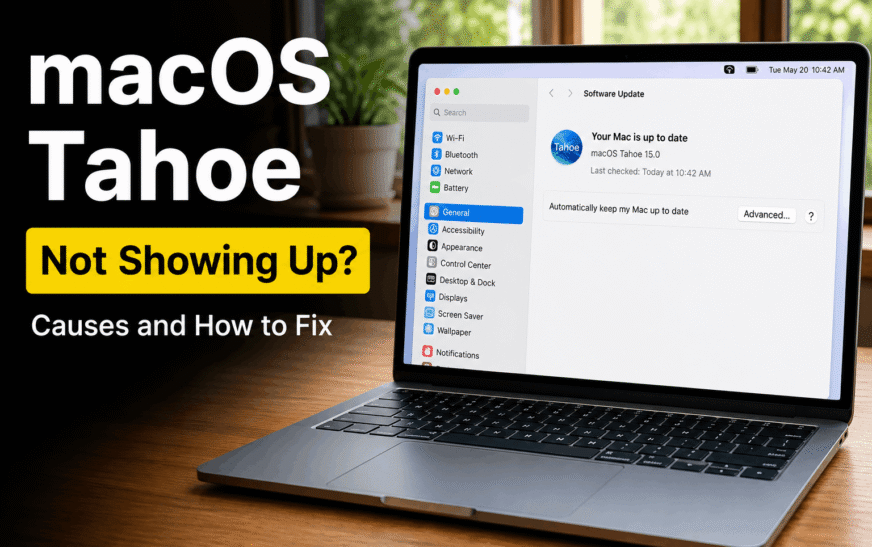
macOS Tahoe not showing up in Software Update is usually caused by one of three things: Apple staggers the update rollout gradually rather than releasing it to all eligible Macs simultaneously, your Mac doesn’t meet the minimum hardware requirements, or a stuck update cache is hiding the available update. Start by going to System Settings → General → Software Update and clicking the circular refresh/check button to force a fresh check. If it still doesn’t appear after confirming your Mac is compatible, the rollout simply may not have reached your specific device yet — Apple’s staged rollout can take days to weeks after the initial release.
You’ve heard about macOS Tahoe, maybe seen friends or colleagues already running it, and you go to Software Update on your own Mac expecting to see it ready to install — but it’s just not there. The update list shows nothing new, or it shows an older update, or it claims your Mac is already “up to date” when you know a newer macOS version exists.
This is one of the more confusing situations because there’s no error message to troubleshoot — the update is simply absent, with no explanation. The good news is that there’s almost always a specific, identifiable reason, and most of them are completely normal rather than something wrong with your Mac.
Identify Your Specific Situation
Narrows Down the Cause🆕 Mac is new or recent — update never appeared at all
Most likely a staged rollout delay or a compatibility issue. Fix 1 (rollout timing) and Fix 2 (compatibility check) are the starting points.
💻 Mac is several years old
Your Mac may not meet macOS Tahoe’s minimum hardware requirements. Check the compatibility list in Fix 2 first — if your Mac isn’t listed, no troubleshooting will make the update appear.
🔄 Software Update shows “Your Mac is up to date” but you know it isn’t
This usually means the update cache needs refreshing, or you’re on a Beta/Developer Program profile interfering with the regular release channel. Fix 3 and Fix 6 apply here.
🏢 Mac is managed by work or school (MDM)
Organisations frequently delay major macOS rollouts intentionally for compatibility testing. Fix 7 covers this.
📀 Update shows “Downloading” but never completes, or fails partway
This is a different problem from the update not appearing — see Fix 4 and Fix 5 for download and installation failures specifically.
Before troubleshooting, confirm macOS Tahoe is in general availability and not still in beta. Apple sometimes refers to upcoming versions in keynotes and previews months before public release, and developer/public beta versions require explicit enrollment — they don’t show up as a normal Software Update for everyone. Check apple.com/macos to confirm the current public release status.
Fix 1: Understand Apple’s Staged Rollout
The Most Common ExplanationApple does not release major macOS updates to every eligible Mac at once. Instead, it uses a staged (phased) rollout — pushing the update to a percentage of devices first, monitoring for issues, and gradually expanding availability over days to a few weeks. This is intentional and is done specifically to catch widespread bugs before they affect every Mac at once.
This means two people with identical, fully compatible Mac models can see completely different availability — one has the update ready to install, the other doesn’t see it at all yet, purely due to the rollout timing.
While there’s no guaranteed way to force your way into an earlier wave of the staged rollout, restarting your Mac and checking again immediately afterward occasionally surfaces an update that a background check missed. It doesn’t override Apple’s rollout schedule, but it ensures you’re not missing an update that’s already become available to your device.
Fix 2: Confirm Your Mac Is Compatible With macOS Tahoe
Check This Before Anything ElseEvery major macOS release supports a specific list of Mac models — and that list gets shorter with each new release as older hardware ages out. If your Mac isn’t on the supported list, Software Update will never show macOS Tahoe, no matter how many times you check or how long you wait. There’s no workaround for genuinely unsupported hardware through official channels.
Apple typically supports major macOS releases on Macs from roughly the previous 6–8 years, though this varies by release. As a rough guide, if your Mac was released in the last 5 years, it’s very likely compatible. If it’s 7+ years old, compatibility becomes less certain and should be checked directly against Apple’s official list rather than assumed.
If your specific Mac model isn’t on the official macOS Tahoe compatibility list, there is no supported way to install it through Software Update — and unofficial patcher tools that bypass compatibility checks (such as OpenCore Legacy Patcher) carry real risks: instability, lost features, security vulnerabilities, and no support from Apple if anything goes wrong. For a daily-use Mac, staying on the last fully-supported macOS version for your hardware is almost always the safer choice.
Fix 3: Force a Fresh Software Update Check
Clears a Stuck Update CachemacOS caches the results of its last Software Update check rather than querying Apple’s servers every single time you open the panel. If this cache is stale — particularly after Apple released a new update recently — your Mac might be showing outdated information that says you’re “up to date” when a newer version is actually available.
sudo softwareupdate --listIf sudo softwareupdate --list shows no updates at all, it confirms (independent of any GUI caching issue) that Apple’s servers genuinely have nothing new available for your specific Mac at this exact moment — which usually means either you’re already on the latest available version for your hardware, or the staged rollout hasn’t reached your Mac yet.
Fix 4: Check Your Internet Connection and Date/Time Settings
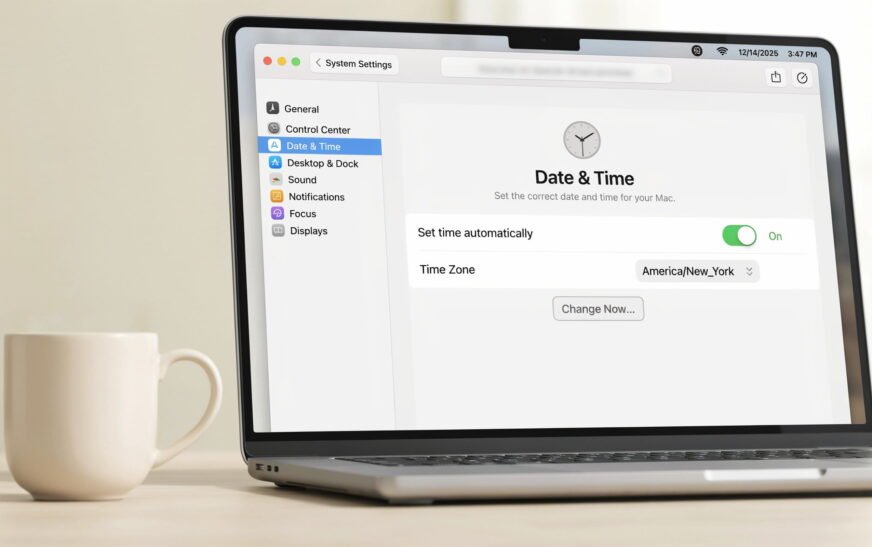
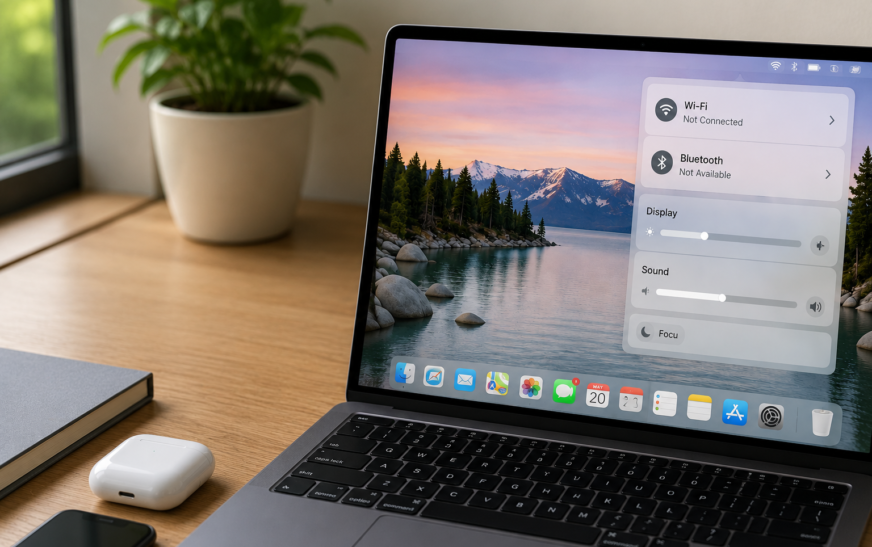
Connection or Clock Issues Can Hide UpdatesSoftware Update requires a stable connection to Apple’s servers, and — less obviously — an accurate system clock. If your Mac’s date and time are significantly wrong, secure connections to Apple’s update servers can fail silently, with Software Update simply showing no results rather than a clear error.
Fix 5: Check Available Storage Space
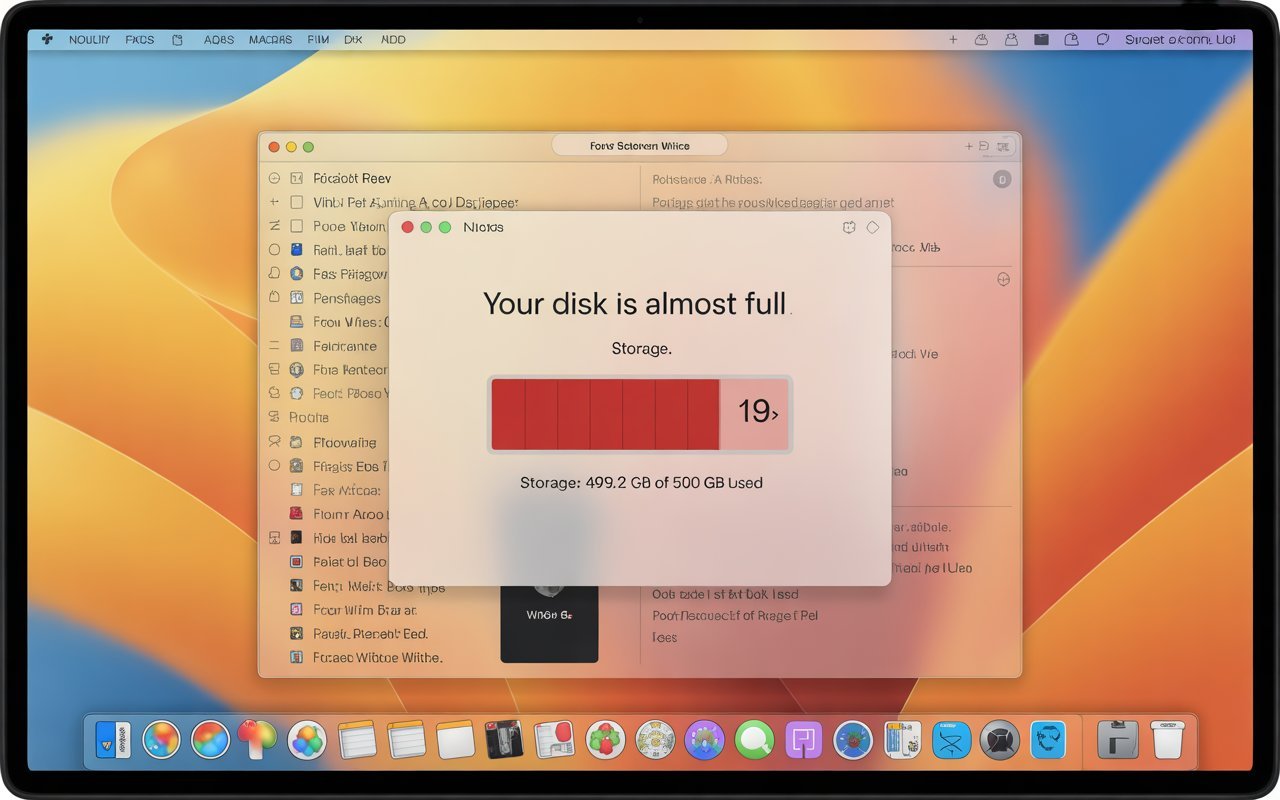
Low Storage Can Hide or Block UpdatesMajor macOS updates require a substantial amount of free space — both for the downloaded installer and temporary files used during installation. If your Mac is critically low on storage, Software Update may not display the update at all, or it may show it but fail partway through downloading.
Even if Software Update does show the option to install with limited free space, attempting a major OS upgrade with less than 20 GB free is risky — an installation that runs out of space partway through can leave your Mac in an unstable, hard-to-recover state. Always free up generous space before attempting any major macOS upgrade.
Fix 6: Check if You’re Enrolled in a Beta Software Program
Can Interfere With the Normal Release ChannelIf your Mac was ever enrolled in the Apple Beta Software Program or Developer Program — even briefly, even a long time ago — it may still be pointed at a different software update channel that doesn’t immediately reflect the standard public release schedule. This can cause both “missing updates” and unexpected beta versions appearing.
Simply visiting beta.apple.com once and forgetting about it can leave a configuration profile installed on your Mac indefinitely. Check System Settings → Privacy & Security → Profiles for anything related to “Beta Software” or “Seed” and remove it if you no longer want beta updates — this often resolves update visibility issues that have lingered for months without explanation.
Fix 7: Check for MDM or Organisational Restrictions
For Work, School, or Managed MacsIf your Mac is owned or managed by an employer, school, or any organisation, IT administrators frequently delay the rollout of major macOS updates intentionally — sometimes by months — while they test compatibility with internal software, security tools, and required configurations. This is a deliberate policy decision, not a bug, and it’s extremely common in enterprise and education environments.
Never attempt to remove a management profile from a work-owned or school-owned Mac to force an update through. This can break required security configurations, remove access to internal resources, and in many organisations is a violation of IT policy. Always go through your IT department for managed devices.
Fix 8: Reset NVRAM and SMC (For Persistent Detection Issues)
For Intel Macs With Stubborn Update Visibility ProblemsIn rare cases on Intel Macs, corrupted NVRAM settings can interfere with how the system communicates update eligibility status, even when the Mac is fully compatible and the rollout has reached the device. Resetting it is safe and occasionally resolves persistent “update not showing” issues that nothing else fixes.
NVRAM resets via key combination don’t apply to Apple Silicon Macs. If you’re on an M1, M2, M3, or M4 Mac and suspect a deeper system-level issue is hiding the update, a Safe Mode boot followed by a normal restart achieves a similar effect by clearing certain cached system states.
Fix 9: Download macOS Tahoe Directly From the App Store (Alternative Path)
Bypasses Software Update EntirelyIf your Mac is confirmed compatible and the rollout has clearly reached other similar Macs, but Software Update still isn’t showing it for some unexplained reason, downloading the installer directly from the App Store is an alternative path that sometimes succeeds when Software Update doesn’t.
Apple also occasionally provides direct download links for major macOS installers through its developer resources, primarily intended for IT administrators creating bootable installer drives. These require an Apple Developer account (free tier is sufficient) to access. This isn’t a way to bypass eligibility — your Mac still needs to be compatible — but it’s a legitimate alternative source if both Software Update and the App Store search aren’t surfacing the installer for you.
Pro Tips: Staying Current Without the Frustration
Don’t rush a major macOS update the day it’s released. Waiting one to two weeks after a major release lets Apple push out an early point update (e.g. 26.0.1) that addresses the most urgent post-launch bugs. There’s a real benefit to not being in the very first wave, beyond just the rollout timing being out of your control anyway.
Enable automatic updates so you don’t have to keep manually checking. Go to System Settings → General → Software Update → Automatic Updates and turn on “Install macOS Updates.” Your Mac will then install the update automatically once it’s eligible and available, without you needing to remember to check.
Keep at least 30–50 GB of free storage as a standing habit. This ensures you’re always ready for a major update the moment it becomes available, rather than having to scramble to free space when the update finally appears. See our guide on freeing up MacBook storage without deleting files for how to maintain healthy free space long-term.
Back up before any major macOS upgrade, regardless of how excited you are to install it. A Time Machine backup or a Finder/iTunes backup takes far less time than recovering from a failed upgrade would. Major version upgrades carry more risk than routine point updates — back up first every time.
Common Mistakes to Avoid
The staged rollout is the explanation for the vast majority of “missing update” reports in the first few weeks after any major macOS release. Checking daily and seeing nothing change is completely normal during this period — it doesn’t indicate a fault with your specific Mac.
Tools that bypass Apple’s hardware compatibility checks can technically get a newer macOS version running on older, unsupported Macs, but they come with real downsides: missing features, instability, security risks, and zero support from Apple. For a primary work or daily-use machine, this trade-off is rarely worth it.
Starting a major macOS installation without sufficient free space is one of the most common causes of failed, stuck, or corrupted upgrades. Always confirm at least 30 GB of free space before clicking Install, even if the system doesn’t explicitly block you from starting with less.
FAQ: macOS Tahoe Not Showing Up
Why isn’t macOS Tahoe showing up in my Software Update?
The most common reason is Apple’s staged rollout — major macOS updates are released to a percentage of eligible Macs first and gradually expanded over days to weeks, meaning two compatible Macs can show different availability at the same time purely due to rollout timing. Other causes include your Mac not meeting the minimum hardware requirements, low storage space, an active beta software enrollment, or — for managed devices — an organisation deliberately delaying the rollout.
How long does it take for a major macOS update to become available to all Macs?
Apple’s staged rollouts for major macOS releases typically expand to the vast majority of eligible Macs within one to three weeks of the initial release date, though this varies by release. If it’s been longer than three weeks and the update still hasn’t appeared on a confirmed-compatible Mac, work through the other fixes in this guide — particularly checking for beta enrollment and forcing a fresh check via Terminal.
How do I check if my Mac is compatible with macOS Tahoe?
Find your exact Mac model and year via Apple menu → About This Mac, then compare it against Apple’s official compatibility list at apple.com/macos. If your specific model and year isn’t listed, Software Update will never show macOS Tahoe for that device, regardless of how long you wait or how many times you check.
Can I force macOS Tahoe to appear before the rollout reaches my Mac?
There is no official, supported way to force your way into an earlier wave of Apple’s staged rollout. Running sudo softwareupdate --list in Terminal queries Apple’s servers directly and can sometimes surface an update that the System Settings cache hasn’t displayed yet, but it cannot make an update appear before Apple’s servers have actually made it available to your specific device.
I was in the macOS beta program — why don’t I see the public release?
If your Mac has an active beta software profile, it may be checking against the beta update channel rather than the standard public release channel, which can cause unexpected behaviour including missing or delayed public updates. Go to System Settings → General → Software Update and look for a Beta Updates management option, or check System Settings → Privacy & Security → Profiles for a beta-related profile and remove it, then restart and check again.
macOS Tahoe Not Showing Up — Fix Checklist
- 1Understand the staged rollout — it may simply not have reached your Mac yet; check every few days
- 2Confirm hardware compatibility — check your exact Mac model and year against Apple’s official list
- 3Force a fresh check — use the refresh button or
sudo softwareupdate --listin Terminal - 4Check internet connection and system clock — secure connections can fail silently with a wrong clock
- 5Free up storage space — at least 20–30 GB free is recommended before a major update appears or installs
- 6Check for beta software enrollment — remove any beta profile interfering with the public channel
- 7Check for MDM restrictions — work/school Macs may have updates intentionally delayed by IT
- 8Reset NVRAM (Intel) or Safe Boot (Apple Silicon) — for persistent detection issues
- 9Try the App Store directly — search “macOS Tahoe” as an alternative to Software Update
One Last Thing
If you’ve confirmed your Mac is fully compatible, you have plenty of free storage, you’re not enrolled in any beta program, and the update still hasn’t appeared after three or more weeks since the public release, it’s worth checking Apple’s official support communities or contacting Apple Support directly — there may be a specific regional rollout delay or an account-related factor that isn’t visible through standard troubleshooting.
The CrazyErrors team is happy to help if you’re unsure which scenario applies to you — let us know your exact Mac model and year, how long you’ve been checking, and whether you’ve ever used any Apple beta programs on the device.
Wrapping Up
macOS Tahoe not showing up in Software Update is, in the overwhelming majority of cases, completely normal — either the staged rollout hasn’t reached your Mac yet, or your Mac doesn’t meet the hardware requirements for this particular release. Neither of these is something you can troubleshoot away; the first resolves itself with time, and the second is a hardware limitation rather than a fixable software issue.
For the smaller number of cases where something genuinely is interfering — a stale update cache, low storage, a lingering beta profile, or an MDM restriction — the fixes in this guide cover all of them. Work through the checklist in order, and in almost every case, the update will appear once the actual underlying cause is addressed.
ⓘ Disclaimer: This article is for informational purposes only. CrazyErrors is not affiliated with Apple Inc. macOS Tahoe release timing, compatibility requirements, and rollout schedules are determined solely by Apple and subject to change. For official information on macOS Tahoe and current compatibility, visit apple.com/macos and support.apple.com.