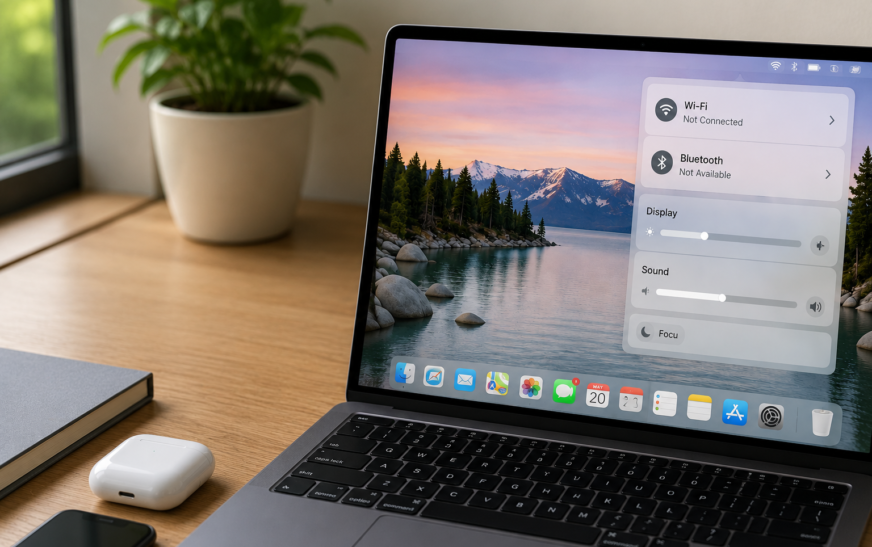
Bluetooth and WiFi repeatedly disconnecting after updating to macOS Tahoe is a known post-update issue caused by corrupted network/Bluetooth preference files left over from the previous macOS version, a stuck wireless daemon, or — on some Macs — a USB-C/Thunderbolt interference conflict that Tahoe’s updated radio management made worse. The fastest fix is to delete the network and Bluetooth preference files and restart, which forces macOS Tahoe to rebuild a clean configuration. If the drops are specifically tied to plugging in a USB-C device, switching to the 5 GHz WiFi band resolves it immediately.
You updated to macOS Tahoe and now your WiFi drops every few minutes, your Bluetooth mouse and keyboard randomly disconnect and reconnect, and AirPods cut out mid-call. None of this happened before the update — your hardware hasn’t changed, your router hasn’t changed, but something about how macOS Tahoe manages wireless connections clearly has.
This is one of the most disruptive categories of post-update bugs because it affects basic productivity — every dropped connection interrupts whatever you were doing. The good news is that this pattern is well understood, has several distinct causes, and nearly all of them are fixable without downgrading macOS or replacing any hardware.
Identify Your Specific Pattern
Narrows Down the Fix📶 Bluetooth devices disconnect and reconnect repeatedly
Mouse, keyboard, AirPods, or other Bluetooth accessories drop and rejoin on their own. Usually a Bluetooth preference corruption or module issue. Fix 2, Fix 4, and Fix 6 are most relevant.
📱 WiFi drops entirely and reconnects on its own
Internet disappears for a few seconds to a minute, then comes back without you doing anything. Usually a network preference issue or DNS/DHCP problem introduced by the update. Fix 1, Fix 3, and Fix 5 apply.
🔌 Problems only happen when a USB-C or Thunderbolt device is plugged in
This is a known electromagnetic interference pattern, made more noticeable on some Macs by Tahoe’s updated radio management. Fix 7 addresses this specifically.
💤 Connections drop specifically after sleep or waking the Mac
Tahoe changed how wireless hardware powers down during sleep on some Macs. Fix 4 and Fix 8 cover wake-related wireless issues.
🔁 Both WiFi and Bluetooth drop at the same time, together
When both radios fail simultaneously, it usually points to a shared wireless chip/driver issue rather than two separate problems. Fix 2 (combined module reset) and Fix 9 (firmware/SMC) are the priority fixes.
Before troubleshooting, check whether other Macs on the same WiFi network are also dropping connection — if so, the router or network itself may be the cause, not macOS Tahoe specifically. Also check Apple’s community forums and support pages for your specific Mac model and macOS Tahoe combination; widely reported hardware-specific bugs are often acknowledged with a fix already in progress.
Why macOS Tahoe Causes Bluetooth and WiFi Instability
Understanding the Root CausemacOS Tahoe made meaningful changes to how the operating system manages wireless radios — partly for battery efficiency, partly to support newer WiFi and Bluetooth standards. These changes can interact poorly with existing configuration data left over from the macOS version you upgraded from.
Stale network and Bluetooth preference files — macOS stores detailed configuration about every network you’ve joined and every Bluetooth device you’ve paired in preference files. When these were written by an older macOS version and Tahoe’s wireless stack expects a different format or additional fields, the mismatch can cause intermittent failures, repeated reconnections, or devices that connect successfully but drop shortly after.
Wireless daemon (process) instability — Background processes that manage WiFi (airportd) and Bluetooth (bluetoothd) can enter unstable states after a major OS update, particularly if they’re handling configuration data in a format the new macOS version doesn’t fully expect.
Power management changes — Tahoe adjusted how aggressively wireless hardware powers down during idle periods and sleep, to improve battery life. On some Mac models, this exposes timing issues where the radio doesn’t power back up cleanly, causing the connection drops people experience right after waking the Mac.
USB-C/Thunderbolt electromagnetic interference — This isn’t new to Tahoe, but changes to how Tahoe manages radio frequency coexistence between Thunderbolt and WiFi/Bluetooth can make existing interference more noticeable on certain Mac models, particularly M3 and M4 MacBooks where the antenna sits close to the port cluster.
Fix 1: Delete and Rebuild Network Preference Files
Most Effective Fix for WiFi DropsThis is the single most effective fix for WiFi instability after a macOS Tahoe update. Removing the system’s stored network configuration forces macOS to rebuild it entirely fresh, using Tahoe’s current format rather than carrying over potentially incompatible settings from the previous macOS version.
/Library/Preferences/SystemConfigurationcom.apple.airport.preferences.plist, com.apple.network.identification.plist, NetworkInterfaces.plist, and preferences.plistThis fix clears saved WiFi network passwords from your Mac’s system-level configuration. Have your WiFi password ready before doing this, or look it up on your router beforehand. Your other Mac settings, files, and apps are completely unaffected — only network configuration is reset.
Fix 2: Reset the Bluetooth Module and Preference Files
For Bluetooth-Specific DropsJust as network preferences can become incompatible with Tahoe’s updated stack, Bluetooth preference files can hold pairing data and connection state from the previous macOS version that doesn’t translate cleanly. Resetting the Bluetooth module and its preference files forces a completely clean Bluetooth state.
Step 1 — Reset the Bluetooth module:
Step 2 — If drops continue, delete the Bluetooth preference file:
/Library/Preferencescom.apple.Bluetooth.plist to your Desktop as a backupIf only one specific Bluetooth device (e.g. just your mouse, but not your AirPods) keeps disconnecting, you don’t need the full reset above. Go to System Settings → Bluetooth, click the (i) next to that specific device, select “Forget This Device,” then re-pair it fresh. This narrower fix resolves device-specific pairing corruption without resetting the entire Bluetooth subsystem.
Fix 3: Renew DHCP Lease and Flush DNS
Quick Fix for Intermittent WiFi DropsSometimes what looks like WiFi “dropping” is actually your Mac losing its IP address lease or holding onto stale DNS records that cause connectivity to appear broken even though the radio connection itself is fine. This is a two-minute fix worth trying before more invasive options.
sudo dscacheutil -flushcache; sudo killall -HUP mDNSResponderFix 4: Disable Wake for Network Access and Power Nap Temporarily
For Drops After Sleep/WakeIf your WiFi or Bluetooth specifically breaks after the Mac wakes from sleep, Tahoe’s updated power management for wireless hardware during low-power states may be the cause. Temporarily disabling features that keep network hardware semi-active during sleep can isolate and resolve this.
Disabling Wake for Network Access trades away a convenience feature (the ability for the Mac to respond to network requests, like remote login or file sharing, while asleep) to stabilise the wireless connection. If you rely on remote access to your Mac while it’s asleep, this trade-off may not be acceptable — in that case, focus on the preference file resets in Fix 1 and Fix 2 instead.
Fix 5: Create a New Network Location
Clean Slate for Network ConfigurationmacOS stores all your network settings — WiFi preferences, proxy configuration, DNS overrides, VPN settings — under a profile called a “Location.” If this got corrupted during the Tahoe upgrade, creating a brand new Location gives you a completely clean network configuration to start from, without losing your other Mac data.
Don’t delete your original “Automatic” location. If the new location causes unexpected issues — like missing VPN profiles or proxy settings — you can switch back instantly from the Network settings dropdown. Once the new location is confirmed stable for a week, it’s safe to delete the old one if you want to clean up.
Fix 6: Update Bluetooth Accessory Firmware
For Specific Accessories Dropping RepeatedlyIf the dropping issue is isolated to one specific accessory — a particular mouse, keyboard, or headphone model — outdated firmware on that accessory may not be fully compatible with how macOS Tahoe negotiates the Bluetooth connection. Many accessory manufacturers release firmware updates specifically in response to new macOS versions.
Fix 7: Fix WiFi Drops When USB-C Devices Are Plugged In
For Interference-Pattern DropsIf your WiFi or Bluetooth specifically becomes unstable only when a USB-C hub, external drive, or Thunderbolt dock is connected, this is electromagnetic interference — USB 3.0 and Thunderbolt cables emit radio frequency noise that overlaps with the 2.4 GHz wireless band. This isn’t unique to Tahoe, but Tahoe’s updated radio coexistence management can make it more noticeable on certain Mac models.
Fix 8: Reset SMC (Intel Macs) or Safe Boot (Apple Silicon)
For Wake-Related Hardware-Level IssuesThe System Management Controller (SMC) on Intel Macs handles power management for components including wireless hardware. If wireless drops happen specifically around sleep/wake cycles and the software fixes above haven’t resolved it, an SMC reset clears the power management state at a lower level than any settings change can reach.
SMC Reset — MacBooks with T2 chip (Intel, 2018 and later):
For Apple Silicon Macs — Safe Boot instead:
Fix 9: Update to the Latest macOS Tahoe Point Release
Always Check ThisWidespread Bluetooth and WiFi instability after a major macOS release is exactly the category of bug Apple prioritises fixing quickly, because it affects basic usability for a large number of users. Checking for and installing the latest point release is one of the most important steps in this entire guide.
Wireless connectivity bugs that affect a broad range of Mac models tend to be addressed quickly because they generate a large volume of support contacts and community reports. If your specific symptom matches what’s widely reported, there’s a good chance Apple has already shipped or is about to ship a targeted fix in a point release.
Pro Tips: Keeping WiFi and Bluetooth Stable Long-Term
Don’t make multiple changes at once. If you’re working through this guide, change one thing, then monitor for several hours to a full day before moving to the next fix. Making several changes simultaneously makes it impossible to know which one actually solved the problem — information that’s useful if the issue ever returns.
Keep a record of what fixed it. Note which specific fix resolved your issue. If you ever do a clean install or set up a new Mac, you’ll know in advance which preference reset or setting change to apply proactively.
Check for macOS updates regularly during the first month after a major release. The highest rate of bug fixes for any macOS version happens in the first 4–6 weeks after release. Enabling automatic updates (Settings → General → Software Update → Automatic Updates) ensures you get these fixes as soon as they’re available.
If your Mac is also running low on storage, that can compound wireless instability. Background processes — including network and Bluetooth daemons — can behave erratically when the system has very little free disk space to work with. See our guide on freeing up MacBook storage without deleting files if your Mac’s drive is nearly full.
Common Mistakes to Avoid
If WiFi instability started exactly when you updated to macOS Tahoe and your router hasn’t changed, the most likely cause is on the Mac side. Test by connecting a different device (phone, another computer) to the same network — if it stays stable while your Mac drops, the issue is specific to your Mac’s configuration, not your router or internet provider.
Widely reported post-update wireless bugs are exactly the kind of issue Apple tends to fix fastest. Checking for and installing the latest macOS Tahoe point update should happen early in your troubleshooting, not as an afterthought.
It’s tempting to delete every preference file, reset SMC, reset NVRAM, and create a new network location all in one sitting. Doing this makes it impossible to identify what actually fixed the problem, and increases the chance of introducing a new, unrelated issue. Work through fixes one at a time with a testing period in between.
FAQ: macOS Tahoe Bluetooth and WiFi Breaking Repeatedly
Why did my WiFi and Bluetooth start dropping after updating to macOS Tahoe?
macOS Tahoe made changes to how the system manages wireless radios, and these changes can conflict with network and Bluetooth preference files that were created under the previous macOS version. The mismatch causes intermittent disconnections, repeated reconnections, and unstable pairing. Deleting the relevant preference files (network configuration in /Library/Preferences/SystemConfiguration and com.apple.Bluetooth.plist) and letting macOS rebuild them fresh resolves this for most affected users.
Is the macOS Tahoe WiFi and Bluetooth issue something Apple is fixing?
Widespread connectivity issues affecting many users after a major macOS release are typically among the highest-priority fixes Apple addresses in point updates (e.g. 26.0.1, 26.1) within weeks of the initial release. Keeping macOS updated to the latest available version is one of the most effective long-term fixes, alongside the preference file resets covered in this guide.
Will resetting network preferences delete my saved WiFi passwords?
Yes — deleting the network preference files removes saved WiFi network passwords from your Mac. You’ll need to re-enter the password for your WiFi network(s) after restarting. No other data, files, or settings are affected by this fix.
Why does only one Bluetooth device keep disconnecting while others stay connected?
This points to a device-specific pairing issue rather than a system-wide Bluetooth problem. Forget that specific device in System Settings → Bluetooth (click the info button next to it, then “Forget This Device”) and re-pair it fresh. Also check whether that specific accessory has a firmware update available, since accessory firmware compatibility with a new macOS version can vary by manufacturer and model.
Does plugging in a USB-C device really cause WiFi and Bluetooth to drop?
Yes — this is a documented electromagnetic interference pattern. USB 3.0 and Thunderbolt cables emit radio frequency noise that overlaps with the 2.4 GHz wireless band used by both WiFi (on the 2.4 GHz band) and Bluetooth. Switching to 5 GHz WiFi, using better-shielded cables and hubs, and keeping cables away from the Mac’s antenna area (typically along the display lid edge on MacBooks) all reduce this interference significantly.
macOS Tahoe Bluetooth/WiFi Breaking — Fix Checklist
- 1Delete and rebuild network preference files — most effective fix for WiFi drops
- 2Reset Bluetooth module and preference file — most effective fix for Bluetooth drops
- 3Renew DHCP lease and flush DNS — quick fix for intermittent connectivity
- 4Disable Wake for Network Access / Power Nap — for drops after sleep/wake
- 5Create a new Network Location — clean slate for corrupted network config
- 6Update Bluetooth accessory firmware — for one specific device dropping repeatedly
- 7Switch to 5 GHz WiFi — for drops tied to USB-C/Thunderbolt interference
- 8Reset SMC (Intel) or Safe Boot (Apple Silicon) — for wake-related hardware issues
- 9Update to the latest macOS Tahoe point release — Apple’s official fix, check often
One Last Thing
If you’ve worked through this entire guide and WiFi or Bluetooth are still unstable, it’s worth documenting the exact pattern — which device, what triggers it, how often it happens — and checking Apple’s official support communities for others reporting the identical combination of Mac model and macOS Tahoe version. Widely matched reports often mean a fix is already in progress, and Apple Support can sometimes provide guidance specific to a known, acknowledged issue.
The CrazyErrors team is happy to help you narrow down your specific pattern — let us know your Mac model, which radio (WiFi, Bluetooth, or both) is affected, and whether it’s tied to any specific trigger like sleep or plugging in a device.
Wrapping Up
Repeated WiFi and Bluetooth breakage after a macOS Tahoe update is disruptive, but it’s a well-understood category of post-update issue with a clear set of fixes. In the majority of cases, the cause is configuration data left over from the previous macOS version that doesn’t play well with Tahoe’s updated wireless stack — and resetting that configuration resolves it.
Start with the network and Bluetooth preference file resets — these solve the issue for most affected users. If your specific pattern involves USB-C devices or sleep/wake cycles, the targeted fixes for those scenarios address the remaining cases. And don’t skip checking for the latest point release — Apple moves quickly on widely reported connectivity bugs.
ⓘ Disclaimer: This article is for informational purposes only. CrazyErrors is not affiliated with Apple Inc. Terminal commands and preference file edits should be followed carefully as described. Results may vary depending on your Mac model, macOS Tahoe version, and specific hardware configuration. For official Apple support, visit support.apple.com.