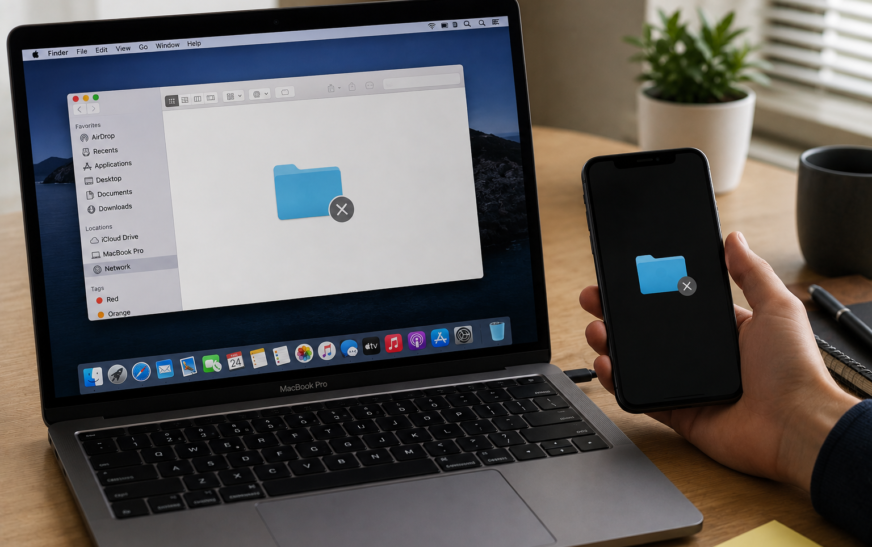
Mac File Sharing not working is almost always caused by File Sharing being turned off in System Settings, both Macs not being on the same local network, or the Mac’s firewall blocking SMB connection requests. Start by going to System Settings → General → Sharing → File Sharing: On on the Mac you want to share from. Then on the connecting Mac, open Finder → Network in the sidebar. If the sharing Mac doesn’t appear, connect directly using its IP address via Finder → Go → Connect to Server → smb://[IP address]. Connecting by IP bypasses the network discovery step and works even when Finder’s Network browser shows nothing.
Mac File Sharing not working is one of those issues that seems like it should be simple — both Macs are on the same WiFi, Apple made both of them, and macOS has had file sharing built in for decades. Yet somehow, the other Mac doesn’t appear in Finder, or it appears but refuses to connect, or you connect successfully but get a permissions error the moment you try to access any folder. Each of these failures has a different root cause and a specific fix.
This guide covers the complete setup process for Mac-to-Mac file sharing, Mac-to-Windows sharing, and every common failure mode from Finder not showing other computers to SMB authentication errors and firewall blocks. Whether you’re setting up file sharing for the first time or something that was working fine stopped after a macOS Tahoe update, the fixes are here in the right order.
What’s Your Specific Problem?
Find Your Symptom First💻 The other Mac doesn’t appear in Finder’s Network at all
Network discovery (Bonjour) isn’t reaching the other Mac — could be different networks, firewall block, or File Sharing being off on the target Mac. Fix 1, Fix 2, and Fix 5 cover this.
🔒 Mac appears in Finder but connection fails or asks for password repeatedly
Network discovery works but authentication is failing. Either the wrong username/password is being used, guest access is off, or the account type doesn’t match. Fix 3 and Fix 6 address this.
🚫 Connected successfully but folders show “Operation Not Permitted”
You’re in — but the sharing permissions on the specific folder aren’t configured to allow your account access. Fix 4 (folder permissions) is the direct fix.
🖥️ Windows PC can’t see or connect to the Mac
Mac-to-Windows sharing requires SMB protocol and a specific set of settings on the Mac side. Fix 8 and Fix 9 cover cross-platform sharing setup specifically.
⏳ File transfer starts but stalls, drops, or is extremely slow
Connection works but transfers are unreliable. Almost always a WiFi quality issue or an SMB protocol negotiation problem. Fix 10 and Fix 11 apply.
🔄 Was working before macOS Tahoe update, now broken
macOS Tahoe changed some default SMB settings and tightened firewall defaults. Fix 7 (SMB settings), Fix 5 (firewall), and Fix 12 (reset sharing config) cover post-update breakage.
Before spending time on Finder Network browsing issues, try connecting directly by IP address. On the Mac you’re sharing from, go to System Settings → General → Sharing and note the address shown — it looks like smb://192.168.x.x. On the connecting Mac, press Command + K in Finder and enter that address. If this works but Finder Network browsing doesn’t, the fix is in Fix 5 (network discovery). If this also fails, the issue is deeper — authentication, permissions, or firewall.
How Mac File Sharing Works — What Can Break
Understanding the SystemMac File Sharing uses SMB (Server Message Block) — the same protocol Windows uses — as its primary sharing protocol since macOS Ventura phased out the older AFP (Apple Filing Protocol). SMB requires several conditions to be met simultaneously: File Sharing must be enabled on the host Mac, both Macs must be on the same local network, the Mac’s firewall must allow SMB traffic through, the connecting user must have an account or guest access on the host, and the specific folders being shared must have the correct permissions assigned.
| What’s Breaking | Symptom | Fix |
|---|---|---|
| File Sharing turned off | Mac invisible in Finder Network | Fix 1 |
| Different networks / WiFi bands | Mac not found on network | Fix 2 |
| Wrong user account or password | Auth error on connection | Fix 3 |
| Folder permissions not set | “Operation Not Permitted” on files | Fix 4 |
| Firewall blocking SMB / Bonjour | Mac visible but won’t connect | Fix 5 |
| Guest access disabled | No-password connection fails | Fix 6 |
| SMB settings changed in Tahoe | Broke after update, Windows can’t connect | Fix 7, Fix 8 |
| VPN routing traffic off local network | Other Mac invisible despite same WiFi | Fix 11 |
Fix 1: Enable File Sharing on the Host Mac
Start Here — File Sharing Is Off by DefaultFile Sharing on Mac is disabled by default and must be explicitly turned on. This sounds obvious, but it’s the cause of a surprising number of “Mac File Sharing not working” reports — particularly after a macOS update, which occasionally resets the Sharing settings to their defaults. The host Mac is the one whose files you want to access from another device.
macOS Tahoe has been observed resetting Sharing preferences on some Macs during the update process. After any macOS update, it takes less than a minute to open System Settings → General → Sharing and confirm that File Sharing, Screen Sharing, and any other services you rely on are still toggled on. This single check prevents hours of troubleshooting after updates.
Fix 2: Confirm Both Macs Are on the Same Network
The Most Overlooked Root CauseFile Sharing only works across a local network — both Macs must be connected to the same router. On routers that broadcast separate 2.4 GHz and 5 GHz networks with different names, it’s easy for one Mac to be on the 2.4 GHz band and the other on the 5 GHz band. On most routers these appear as different networks to the devices, and Bonjour discovery — the technology that makes Macs visible to each other — doesn’t cross between them.
ping 192.168.x.xMany routers create a separate Guest network for visitors and an IoT network for smart home devices. Devices on these networks are intentionally isolated from the main network — a Mac on the Guest network cannot do file sharing with a Mac on the main network, by design. Both Macs must be on your main home or office network, not a guest or secondary SSID.
Fix 3: Fix User Accounts and Sharing Permissions
For “Authentication Failed” and Password Loop ErrorsWhen you connect to another Mac via File Sharing, macOS authenticates you as a specific user on the host Mac. If the account you’re using to connect doesn’t exist on the host Mac, or the password has changed, or the account doesn’t have sharing permissions, the connection will fail with an authentication error — sometimes asking for a password repeatedly without ever accepting it.
- Read & Write — can read files and make changes
- Read Only — can view and copy files but not modify them
- Write Only (Drop Box) — can add files but not see existing contents
- No Access — blocked from connecting
The username for File Sharing is the short name of the account on the host Mac — not the full name shown at login. To find it: on the host Mac, open System Settings → Users & Groups, click your account, and look at the Account Name field (shown in smaller grey text under the full name). Use exactly this short name when connecting from another device.
Fix 4: Add and Configure Shared Folders
For “Operation Not Permitted” After ConnectingEnabling File Sharing doesn’t automatically share all your folders — by default, only the Public folder inside your home directory is accessible to others. To share specific folders, you need to explicitly add them to the Shared Folders list and assign permissions for each one. Connecting to a Mac without doing this means landing in a very limited view with almost no files accessible.
- Click the account name next to the folder
- Use the dropdown to set Read & Write, Read Only, or Write Only
- Set “Everyone” to No Access unless you want anyone on the network to see this folder
While you can add your entire home directory to Shared Folders, this gives connected users access to everything in it — Desktop, Documents, Downloads, Library, and all applications. Share only specific subfolders that you actually want others to access. Create a dedicated shared folder (e.g. ~/Shared Files/) to keep the shared scope deliberate and auditable.
Fix 5: Fix the Firewall — The Silent File Sharing Blocker
Mac Visible but Connection Always FailsThe Mac firewall can block the ports that File Sharing uses — specifically SMB (port 445), NetBIOS (ports 137–139), and Bonjour/mDNS (port 5353) — without producing any error message that clearly identifies the firewall as the cause. The connection attempt simply times out or fails silently. This is the most common reason a Mac appears in Finder Network but every attempt to connect fails.
Temporarily turn the firewall completely off on the host Mac and immediately try connecting from the other device. If the connection succeeds with the firewall off, the firewall is definitively the cause. You can then turn it back on and configure it to allow File Sharing specifically rather than leaving it off permanently.
When you enable File Sharing in System Settings → Sharing, macOS should automatically configure the firewall to allow the necessary ports. If you enabled File Sharing before turning on the firewall, the automatic rule may not have been applied. Try toggling File Sharing off and back on (with the firewall already on) — this triggers the automatic firewall rule creation.
Fix 6: Enable and Configure Guest Access
For Connecting Without Entering a PasswordGuest access lets any Mac on the same network connect to your shared folders without entering a username or password — useful for a home environment where you want to drop files onto another Mac without any authentication. Guest access is disabled by default in macOS Tahoe’s more conservative sharing settings.
Enabling “Everyone: Read & Write” on shared folders allows any device on your local network — including smartphones, smart TVs, and any device that joins your WiFi — to modify or delete files in your shared folders without entering any credentials. If you share a WiFi password with guests or have IoT devices on your network, keep guest access to Read Only or, better, disable guest access entirely and use specific user accounts for File Sharing.
Fix 7: Fix SMB Protocol Settings for macOS Tahoe
For Post-Update Breakage and Windows Connection IssuesmacOS Tahoe tightened the default SMB security settings compared to earlier versions — specifically disabling older SMB 1.0 and SMB 2.0 negotiation to improve security. While this is a positive change, it can break connections to older Windows machines (Windows 7 and earlier), certain NAS devices, and some home network routers that only support older SMB versions. Adjusting the SMB configuration via Terminal restores compatibility without compromising security for modern devices.
cat /etc/nsmb.confsudo nano /etc/nsmb.conf[default]
protocol_vers_map=6
signing_required=no6 enables SMB 2 (value 2) + SMB 3 (value 4) combined — modern and compatible
sudo launchctl stop com.apple.smbd
sudo launchctl start com.apple.smbdIn System Settings → General → Sharing → File Sharing (Info button), click Options at the bottom. Make sure “Share files and folders using SMB” is checked, and check the box next to each user account you want to enable SMB access for. Checking the user box prompts for their password to store the SMB credential hash — this is required for Windows and cross-platform SMB connections.
Fix 8: Set Up Mac-to-Windows File Sharing
Full Setup Guide for Cross-Platform SharingConnecting a Windows PC to a Mac’s shared folders requires a few specific configurations on both sides. The Mac needs SMB file sharing enabled with Windows-compatible user credentials, and the Windows PC needs to connect using the Mac’s workgroup name and the correct network path format. The most common failure points are the user credential hash not being generated on the Mac side, and Windows using an incorrect path format.
On the Mac (host):
On the Windows PC:
\\192.168.x.xWindows 11 version 22H2 and later require SMB packet signing by default. If your Windows 11 PC is connecting to a Mac and getting “Windows cannot access \\IP-address” errors, the SMB signing requirement may be the cause. In the /etc/nsmb.conf file (Fix 7), set signing_required=yes to match Windows 11’s expectation. Alternatively, on the Windows side, you can disable required signing via Group Policy — but this is only appropriate on a trusted private network.
Fix 9: Connect by IP Address When Finder Shows Nothing
Instant Workaround for Finder Network Discovery FailuresFinder’s Network browser relies on Bonjour — Apple’s zero-configuration network discovery — to automatically find other Macs and shared devices. Bonjour can fail for several reasons (firewall, different subnets, certain router settings) without affecting the actual ability to connect. Connecting directly by IP address bypasses Bonjour entirely and works even when the Network browser shows nothing.
smb:// addresssmb://192.168.x.xBy default, your router assigns a different IP address to the host Mac each time it connects (DHCP). If the IP changes, your saved favourite server address stops working. To prevent this: in your router’s admin interface, assign a DHCP reservation (sometimes called “static lease” or “fixed IP”) to the host Mac’s network adapter using its MAC address. This ensures the host Mac always gets the same IP address, making the smb:// address you saved permanently reliable.
Fix 10: Fix Slow File Transfer Speeds
For Transfers That Work but Are Unexpectedly SlowMac File Sharing that connects successfully but transfers files slowly is almost always a network issue — not a File Sharing configuration problem. The theoretical maximum for a 5 GHz WiFi 6 connection is around 500–900 Mbps in practice, while a Gigabit Ethernet connection can deliver 900 Mbps+ consistently. If your transfers are a fraction of what the connection speed should support, something in the network path is creating a bottleneck.
iperf3 if available, or simply time a large file transfer and calculate MB/sA Thunderbolt cable between two Macs creates a direct 10 Gbps network connection — the fastest possible option for large file transfers between two Macs. Both Macs automatically configure IP addresses (link-local addressing) and the connection appears in System Settings → Network as “Thunderbolt Bridge.” File Sharing over this connection delivers real-world speeds of 400–600 MB/s for large files — roughly 10x faster than typical WiFi and 5x faster than Gigabit Ethernet.
Fix 11: Disable VPN During File Sharing
VPN Routes Local Traffic Off Your NetworkAn active VPN on either Mac routes all network traffic — including local network requests — through a remote server. From the VPN’s perspective, File Sharing traffic to 192.168.x.x is just regular network traffic that needs to go through the tunnel. This makes the host Mac completely unreachable from the connecting Mac even though both are physically on the same WiFi.
192.168.0.0/16 or 10.0.0.0/8 depending on your router’s addressing schemeFix 12: Flush DNS and Reset Network Settings
When the Host Mac’s Name Can’t Be ResolvedConnecting to another Mac using its name (e.g. smb://Johns-MacBook.local) rather than its IP address requires DNS resolution. When the DNS cache on the connecting Mac contains a stale or incorrect entry for the host Mac’s name, the connection fails even if the IP address route is working perfectly. Flushing the DNS cache forces a fresh resolution of the host Mac’s current address.
sudo dscacheutil -flushcache; sudo killall -HUP mDNSResponderFix 13: Reset the Sharing Configuration Completely
When Nothing Else Restores Broken SharingIf Mac File Sharing is not working despite File Sharing being enabled, firewall rules being correct, and both Macs being on the same network, the sharing daemon itself may be in a corrupted state. A full reset of the sharing configuration — including the SMB daemon preference files — gives the system a clean slate to rebuild from.
sudo launchctl stop com.apple.smbdsudo rm -f /Library/Preferences/SystemConfiguration/com.apple.smb.server.plist
sudo rm -f /etc/nsmb.confPro Tips: Making Mac File Sharing Reliable Long-Term
Always connect by IP address, not by name. Finder’s Network browser is convenient when it works, but it relies on Bonjour discovery that can be disrupted by router updates, macOS updates, and network changes. Saving the host Mac’s smb://IP address as a Favourite Server in Connect to Server (Command + K) gives you a reliable one-click connection that works regardless of whether Finder’s Network browser is behaving.
Assign a static IP to every Mac you share files from. DHCP-assigned addresses change when a router restarts or the Mac reconnects to the network. If you use File Sharing regularly, the five minutes it takes to set a DHCP reservation in your router for each sharing Mac’s MAC address eliminates the single most common “it was working yesterday” failure. Every modern router supports this — it’s typically in the router admin interface under DHCP settings or LAN settings.
After any macOS update, re-check Sharing settings immediately. macOS updates have a history of resetting or partially resetting the Sharing configuration — specifically the per-user SMB credential hashes that Windows connections require. Make it a habit to open System Settings → General → Sharing after every macOS or macOS Tahoe update, confirm File Sharing is on, and re-enable SMB for each user account in the Options panel. Check our hidden Mac features guide for other post-update settings worth reviewing.
Use AirDrop for occasional one-off transfers instead of File Sharing. If you only occasionally need to move files between Macs on the same network, AirDrop is faster to set up than File Sharing and requires no configuration at all — just make sure both Macs have AirDrop set to “Everyone” or “Contacts Only” in the Finder sidebar. File Sharing is better for persistent shared folder access or large-scale transfers. If your Mac is running low on storage from accumulated files, see our guide on freeing up MacBook storage without deleting files before transferring more content.
Common Mistakes to Avoid
When connecting to another Mac via File Sharing, the username is the short account name on the host Mac — not the Apple ID email address, not the full display name. Using an Apple ID email as the username will always produce an authentication error. Find the correct short name in System Settings → Users & Groups on the host Mac.
Folders on external drives can be added to Shared Folders, but if the external drive is formatted as NTFS (common for drives that have been used with Windows), macOS has read-only access by default. File Sharing a folder from an NTFS drive means connected users also get read-only access regardless of what permissions you set in the Sharing panel. Use APFS or macOS Extended (HFS+) formatted drives for folders you want to share with full read and write access.
After finishing a File Sharing session, eject the mounted network volume from Finder — right-click it in the sidebar and choose Eject, or drag it to the Trash. Leaving shared volumes mounted keeps an active SMB session open between the two Macs, which occasionally causes the host Mac to slow down slightly from the persistent session overhead and can interfere with File Sharing reconnection attempts later.
DHCP-assigned IP addresses are temporary and change when a router restarts or a device reconnects to the network. An smb://192.168.x.x address that worked last week may point to a different device today. If connections that previously worked suddenly fail, check the current IP address of the host Mac in System Settings → General → Sharing before assuming something is broken. Setting up static IP assignment on your router (Fix 9 tip) eliminates this permanently.
FAQ: Mac File Sharing Not Working
Why is Mac File Sharing not working even with File Sharing turned on?
Mac File Sharing not working despite the toggle being on is most commonly caused by the Mac’s firewall blocking SMB connections, both Macs being on different WiFi bands or networks, or an active VPN routing local traffic through a remote server. The fastest diagnostic is to connect by IP address directly via Finder → Go → Connect to Server (Command + K) and entering smb://[IP address]. If that connects, Finder’s Bonjour discovery is the issue. If it also fails, check the firewall in System Settings → Network → Firewall and disable “Block all incoming connections.”
How do I find another Mac on my network for File Sharing?
Open Finder and look in the left sidebar under Locations for the other Mac’s name — it should appear automatically if both Macs are on the same network and File Sharing is enabled on the host. If it doesn’t appear, press Command + K to open Connect to Server and type smb://[IP address] where the IP is from System Settings → General → Sharing on the host Mac. You can also try smb://[MacName].local using the Mac’s hostname shown in System Settings → General → Sharing.
Why can’t my Windows PC connect to my Mac’s shared folders?
Windows-to-Mac file sharing requires two things that are often missed: SMB file sharing must be explicitly enabled in the Options section of File Sharing settings, and the user account must have its SMB password hash generated by checking the account checkbox in the Windows File Sharing section. Without this credential hash, Windows can’t authenticate against the Mac even with the correct password. Go to System Settings → General → Sharing → File Sharing → Options, check “Share files using SMB,” and check the box next to each user account you want Windows to access.
Why does File Sharing say “Operation Not Permitted” when I open a folder?
An “Operation Not Permitted” error after connecting means the folder you’re trying to access hasn’t been added to the Shared Folders list with the correct permissions for your account, or the “Everyone” permission is set to No Access. In System Settings → General → Sharing → File Sharing settings, add the specific folder to the Shared Folders list, select it, and set your user account to Read & Write. Also check that the folder itself has the correct macOS file permissions — open it in Finder, press Command + I, and check the Sharing & Permissions section at the bottom.
Is AFP still supported in macOS Tahoe for File Sharing?
AFP (Apple Filing Protocol) was the traditional Mac-to-Mac sharing protocol but Apple deprecated it in macOS Ventura and it is not available for outgoing connections in macOS Tahoe. All Mac File Sharing now uses SMB (Server Message Block) as the primary protocol. SMB is fully supported on both Mac and Windows and is more modern and secure than AFP. If you have older devices (Macs running macOS Big Sur or earlier, or old Time Capsules) that only support AFP, they will not be able to connect to a macOS Tahoe Mac via File Sharing.
Can I use Mac File Sharing over the internet, not just local network?
Standard Mac File Sharing using SMB is designed for local networks only — it is not secure for direct exposure to the internet and macOS does not natively support SMB over the internet. For remote file access between Macs over the internet, the recommended approaches are: iCloud Drive (for syncing specific folders), Back to My Mac alternatives such as Tailscale or ZeroTier (which create a secure virtual local network between your Macs regardless of location), or a VPN with split tunneling configured to allow local network access on the remote end.
Mac File Sharing Not Working — Complete Fix Checklist
- 1Enable File Sharing — System Settings → General → Sharing → File Sharing: On
- 2Confirm same network — both Macs on identical WiFi network name and band; ping test to confirm
- 3Fix user accounts and access — add correct users in File Sharing settings; use short account name not Apple ID
- 4Add and configure shared folders — add specific folders; set Read & Write or Read Only per user
- 5Fix firewall settings — disable “Block all incoming connections” and Stealth Mode on host Mac
- 6Configure guest access — enable Guest User and set “Everyone” access level in File Sharing Users
- 7Fix SMB protocol settings — create /etc/nsmb.conf with protocol_vers_map=6
- 8Set up Windows-to-Mac sharing — enable SMB in Options, generate NTLM hashes per user
- 9Connect by IP address directly — Command + K → smb://IP bypasses Bonjour discovery
- 10Fix slow transfer speeds — use Ethernet; try Thunderbolt networking for max speed
- 11Disable VPN — or configure split tunneling to exclude local subnet
- 12Flush DNS and renew DHCP — clears stale hostname and address entries
- 13Full sharing config reset — delete SMB plist files, restart, reconfigure from scratch
One Last Thing
Mac File Sharing not working is genuinely fixable in almost every case — the system is robust and the failure points are well-defined. The combination of “turn on File Sharing, connect by IP, check the firewall” resolves the issue for the large majority of users within five minutes. The more complex fixes — SMB configuration, Windows credential hashes, and the full sharing reset — cover the remaining cases that the basic steps don’t reach.
Once it’s working, it works reliably. Saving the host Mac’s smb:// address as a Favourite Server and assigning it a static IP via your router’s DHCP reservation means you can reconnect to the shared folders in two clicks from anywhere on your network, indefinitely.
Wrapping Up
File Sharing between Macs — and between Macs and Windows PCs — is one of the most practical local network features macOS offers. Getting it configured correctly takes about five minutes once you know which settings to check, and the result is a seamless way to move files, access documents on another machine, or maintain a shared folder that everyone on the network can reach.
ⓘ Disclaimer: This article is for informational purposes only. CrazyErrors is not affiliated with Apple Inc. or Microsoft Corporation. Terminal commands should be followed carefully as written. File Sharing over local networks is designed for trusted private networks — do not expose SMB sharing directly to the internet. For official Apple File Sharing guidance, visit support.apple.com.