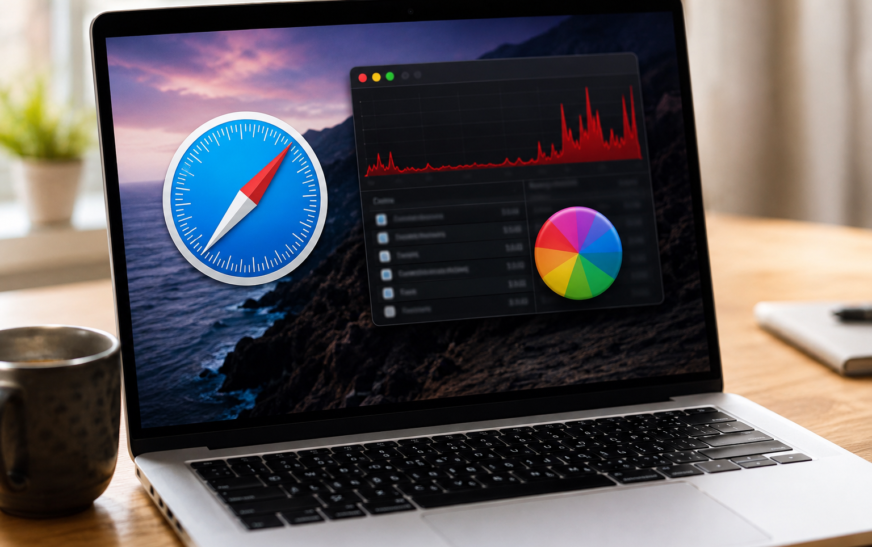
Mac Safari running slow, spiking CPU, or crashing is most commonly caused by a misbehaving browser extension, an overloaded cache, or a runaway WebKit process tied to a specific tab or website. The fastest fixes are: open Activity Monitor and look for any Safari-related process consuming above 80% CPU, then close the tab linked to it — and disable all Safari extensions at once via Safari → Settings → Extensions to see whether speed improves instantly. Clearing the Safari cache (Safari → Settings → Advanced → Show Features for Web Developers → Empty Caches) takes under 10 seconds and resolves slowness in a large number of cases.
Mac Safari running slow after a macOS update or over time is something most Mac users experience — pages take noticeably longer to load, scrolling becomes choppy, the fan spins up for no obvious reason, or Safari freezes entirely on certain websites. Sometimes the whole Mac slows down because Safari is consuming so much CPU in the background that other apps suffer too.
The frustrating part is that Safari is Apple’s own browser, built specifically for Mac hardware, and yet it develops performance problems that Chrome or Firefox don’t always share — and vice versa. The causes are well understood: an extension that wasn’t updated for the current macOS version, a cache database that’s grown large and fragmented, a specific website running heavy JavaScript that Safari handles differently than other browsers, or background Safari features that pre-load content without you realising. Every one of these has a direct fix. This guide covers all of them.
What Are You Actually Experiencing?
Match Your Symptom to the Right Fix💨 Safari is slow on every page, not just one site
General slowness across all websites points to cache corruption, too many open tabs consuming RAM, or a background extension affecting all page rendering. Fix 2, Fix 3, and Fix 4 cover this directly.
🌡️ Mac fan spins up and everything slows down while using Safari
A Safari process — either a tab or an extension — is consuming excessive CPU and pushing the Mac into thermal throttling. Activity Monitor (Fix 1) identifies the exact culprit within 30 seconds.
📴 One specific website causes Safari to freeze or crash
Site-specific freezing usually points to heavy JavaScript, autoplay video, or a web font loading issue that Safari handles differently. Fix 7 (disable extensions for that site), Fix 9 (content blockers), and Fix 11 (WebKit flags) apply here.
📥 Safari crashes on launch or when opening a new tab
Crash on launch is almost always a corrupted cache, a damaged Safari preference file, or a broken extension. Fix 3, Fix 5, and Fix 10 address launch crashes in that order of likelihood.
🔄 Safari was fast yesterday, slow today — nothing obvious changed
Sudden slowness without obvious cause often coincides with a macOS background update applying overnight, an extension auto-updating to a broken version, or the Safari cache hitting a size threshold. Fix 2 and Fix 4 are the starting points.
🧩 Safari is slow but Chrome or Firefox is fast on the same sites
Browser-specific slowness rules out the network and confirms the issue is in Safari’s engine, settings, or extensions. The fix is almost always an extension conflict (Fix 4) or a Safari-specific cache issue (Fix 3).
Before spending time on fixes, run this test: open a new Safari window with no extensions (hold Shift while clicking Safari’s Dock icon to open in Private Browsing, which disables most extensions). Navigate to a site that’s been slow. If it loads quickly in Private Browsing, an extension is the cause — Fix 4 is your first stop. If it’s still slow in Private Browsing, the issue is in Safari’s cache or settings rather than extensions.
Why Safari Slows Down — The Root Causes
Understanding What’s HappeningSafari uses a multi-process architecture — each tab runs in its own Safari Web Content process, and extensions each run in a separate process too. This design isolates crashes (a bad tab doesn’t take down the whole browser) but it means a single misbehaving tab or extension can consume CPU and RAM independently, often without any visible indicator in Safari itself.
| Root Cause | What You Notice | Best Fix |
|---|---|---|
| Runaway WebKit process (bad tab) | Fan spins, Mac slows universally | Fix 1 — Activity Monitor |
| Too many open tabs | RAM pressure, general sluggishness | Fix 2 — Tab management |
| Bloated / corrupted cache | Slow page loads, stale content | Fix 3 — Clear cache |
| Misbehaving extension | Slow on all sites, extension process high CPU | Fix 4 — Disable extensions |
| Corrupted Safari preferences | Crash on launch, weird behaviour | Fix 5 — Reset preferences |
| Background pre-loading features | High CPU even on idle tabs | Fix 6 — Disable pre-loading |
| Outdated Safari / macOS | Crashes on modern websites | Fix 7 — Update macOS |
| DNS resolution delays | Pages hang before loading begins | Fix 8 — Flush DNS |
| iCloud Tabs sync conflict | Slow on launch, high CPU after sign-in | Fix 9 — iCloud Tabs |
| WebGL / GPU rendering issue | Video sites slow, GPU process high CPU | Fix 11 — Hardware acceleration |
Fix 1: Find the Exact Cause Using Activity Monitor
Start Here — Identifies the Culprit in Under a MinuteBefore trying any settings change, spend 60 seconds in Activity Monitor. This tool shows every process running on your Mac, including each Safari tab and extension as a separate process, along with exactly how much CPU and RAM each one is consuming. When Mac Safari is running slow because of a specific tab or extension, Activity Monitor will show you the offender immediately — usually a Safari Web Content process pegged at 90–150% CPU.
Safari Web Content— a specific tab is the problemSafari— the main Safari process itself is the issuecom.apple.WebKit.Networking— network layer is overloaded- An extension name — an extension process is the culprit
Safari Web Content processes — each open tab runs its own — switch to Safari and close tabs one at a time while watching Activity Monitor to see which tab’s process disappears and CPU dropsIn Activity Monitor’s Energy tab, the “Energy Impact” column shows which apps are drawing the most power — which directly correlates with CPU usage and fan activity. Safari-related processes consuming high energy here will be the same ones causing slowness and fan noise. The Energy tab also shows “Avg Energy Impact” over the last 12 hours, which is useful for catching extensions that slow Safari even when you’re not actively using it.
Fix 2: Reduce Open Tabs — Safari’s Biggest RAM Consumer
Immediate Impact on Speed and Fan NoiseEach open Safari tab maintains its own WebKit process, loads JavaScript, keeps page state in memory, and periodically refreshes background content. Twenty open tabs don’t just use more RAM — they compete for CPU cycles as background page timers fire, autoplay pauses and resumes, and each tab’s service workers run periodic network checks. The result is a Safari that feels sluggish even when you’re only looking at one page.
Safari’s Reading List (the glasses icon in the sidebar) saves pages for offline reading without keeping them open as live tabs. Press Command + Shift + D to add the current page to your Reading List. Unlike a bookmark, Reading List downloads the page content immediately so you can read it offline later — a perfect replacement for tabs you’re “keeping open to read later.”
Fix 3: Clear Safari Cache, History, and Website Data
Fastest Fix for General SlownessSafari stores cached versions of websites to speed up repeat visits — but this cache database grows continuously and can become fragmented or corrupted over time. A cache that’s several gigabytes in size with years of accumulated data often loads pages slower than no cache at all, because Safari wastes time checking stale cached entries that don’t match the current page before fetching fresh ones anyway.
Clear the cache only (keeps history and passwords):
Clear everything including history and cookies (more thorough):
Removing all website data clears the login cookies that keep you signed into websites — you’ll need to log back into every site you visit after doing this. If you’d prefer not to, use “Empty Caches” from the Develop menu instead, which only removes the cache and leaves cookies intact.
Fix 4: Disable Safari Extensions — One by One
Extensions Are the Single Most Common Cause of Safari SlownessSafari extensions run inside every page you load — they intercept network requests, modify page content, inject JavaScript, and in some cases run background processes continuously. An extension that worked fine on the previous macOS version may not have been updated for macOS Tahoe’s updated WebKit engine, consuming disproportionate CPU on every page and causing exactly the kind of general slowness that looks like a Safari problem but is actually an extension problem.
In most cases, the problematic extensions fall into a few categories: ad blockers that haven’t updated their filter lists for months, VPN or privacy extensions that intercept every network request, password managers with aggressive auto-fill scanning, and social media helpers that monitor page content continuously. These aren’t bad tools — they just occasionally have versions that haven’t caught up with a new macOS or WebKit update. Check the App Store for updates before removing them permanently.
If a specific site is slow but others are fine, you don’t need to disable extensions everywhere. In Safari’s toolbar, click the Settings icon (looks like sliders) to the left of the address bar and choose Manage Extensions for the current site — you can selectively turn off individual extensions for just that domain without affecting other websites.
Fix 5: Reset Safari Preferences
For Crashes on Launch and Persistent Weird BehaviourSafari stores its configuration — startup page, default zoom, security settings, Advanced options — in preference files. When these files become corrupted after a macOS update or an unexpected shutdown while Safari was writing to them, Safari can crash on launch, behave erratically, or run slowly in ways that clearing the cache doesn’t fix.
~/Library/Preferencescom.apple.Safari.plist — move it to your Desktop as a backup~/Library/SafariUserNotificationPermissions.plist and PerSitePreferences.db to Desktop if present
Fix 6: Disable Safari Background Pre-Loading Features
For High CPU Even When You’re Not Actively BrowsingSafari includes several “smart” background features designed to make browsing feel faster — but each one consumes CPU and network bandwidth even when you’re not actively clicking anything. On an older Mac or one with limited RAM, these features can collectively cause enough background activity to make the entire system feel sluggish.
The pre-loading features in Safari consume battery even when your Mac is sitting idle with Safari open in the background. Disabling them — especially “Preload Top Hit” — can meaningfully extend battery life on MacBooks, in addition to reducing background CPU usage that contributes to fan noise and heat.
Fix 7: Update macOS and Safari
Website Crashes Often Fixed by a Single UpdateSafari’s rendering engine (WebKit) updates with every macOS update, and individual websites frequently adopt new web standards that only fully work with the latest WebKit version. If specific websites crash Safari or load incorrectly while others work fine, a macOS update that brings a newer WebKit version often resolves it without any other changes.
Unlike Chrome or Firefox, Safari is not available as a standalone download — it updates as part of macOS. This means if your Mac is too old to receive the latest macOS update, Safari is also stuck on an older WebKit version. If you’re running macOS Monterey or earlier and experiencing compatibility issues with modern websites, switching to Chrome or Firefox (which have their own update schedules independent of macOS) for those specific sites is the practical workaround.
Fix 8: Flush DNS Cache — Fix Pages That Hang Before Loading
For Slow Page Starts, Not Slow Page RenderingThere’s a meaningful difference between a page that starts loading slowly and one that renders slowly. If Safari shows a blank white page for 5–10 seconds before anything appears, the delay is happening before the page content even begins downloading — and DNS resolution is the most likely cause. DNS (Domain Name System) translates website addresses like google.com into the IP addresses Safari actually connects to. When the DNS cache is stale or your DNS server is slow, every new page visit carries that initial delay.
sudo dscacheutil -flushcache; sudo killall -HUP mDNSResponder- Cloudflare:
1.1.1.1and1.0.0.1(fastest globally) - Google:
8.8.8.8and8.8.4.4
Fix 9: Fix iCloud Tabs Sync Slowdown
When Safari Is Slow Immediately After Login or StartupiCloud Tabs syncs your open Safari tabs across all your Apple devices — but when this sync gets stuck or conflicts with a large number of tabs on another device, it can cause Safari to spin on launch or consume elevated CPU while repeatedly attempting to resolve the sync state. If Safari is particularly slow right after you log in or immediately after startup, iCloud Tabs is a likely contributor.
Fix 10: Clear Safari’s Local Storage and Database Files
For Deep Cache Corruption That “Empty Caches” Doesn’t FixThe Develop → Empty Caches option clears Safari’s main disk cache, but several other storage locations accumulate data independently — including IndexedDB databases, WebSQL storage, local storage objects, and service worker caches. These can contain corrupted or oversized data from specific websites that Empty Caches doesn’t touch.
rm -rf ~/Library/Caches/com.apple.Safari
rm -rf ~/Library/Caches/com.apple.WebKit.WebContent
rm -rf ~/Library/Caches/com.apple.WebKit.Networkingrm -rf ~/Library/WebKitClearing the WebKit storage directory removes local data stored by web apps — things like offline game saves, cached documents in web-based editors, and locally stored preferences in web apps that use browser storage rather than account-based sync. If you use any web apps that store data locally (web-based tools, progressive web apps), you may lose unsaved local data. Account-based data that syncs to a server is unaffected.
Fix 11: Disable and Re-enable Hardware Acceleration
For GPU-Related Slowness on Video SitesSafari uses GPU hardware acceleration to render pages and decode video — normally this makes Safari faster and more power-efficient. On some Macs, particularly after a macOS update changes GPU driver behaviour, hardware acceleration can cause high GPU process usage on video sites or pages with complex animations, making those sites unusually slow while CPU-rendered pages work fine.
Fix 12: Use Safari Profiles to Isolate Extension Conflicts
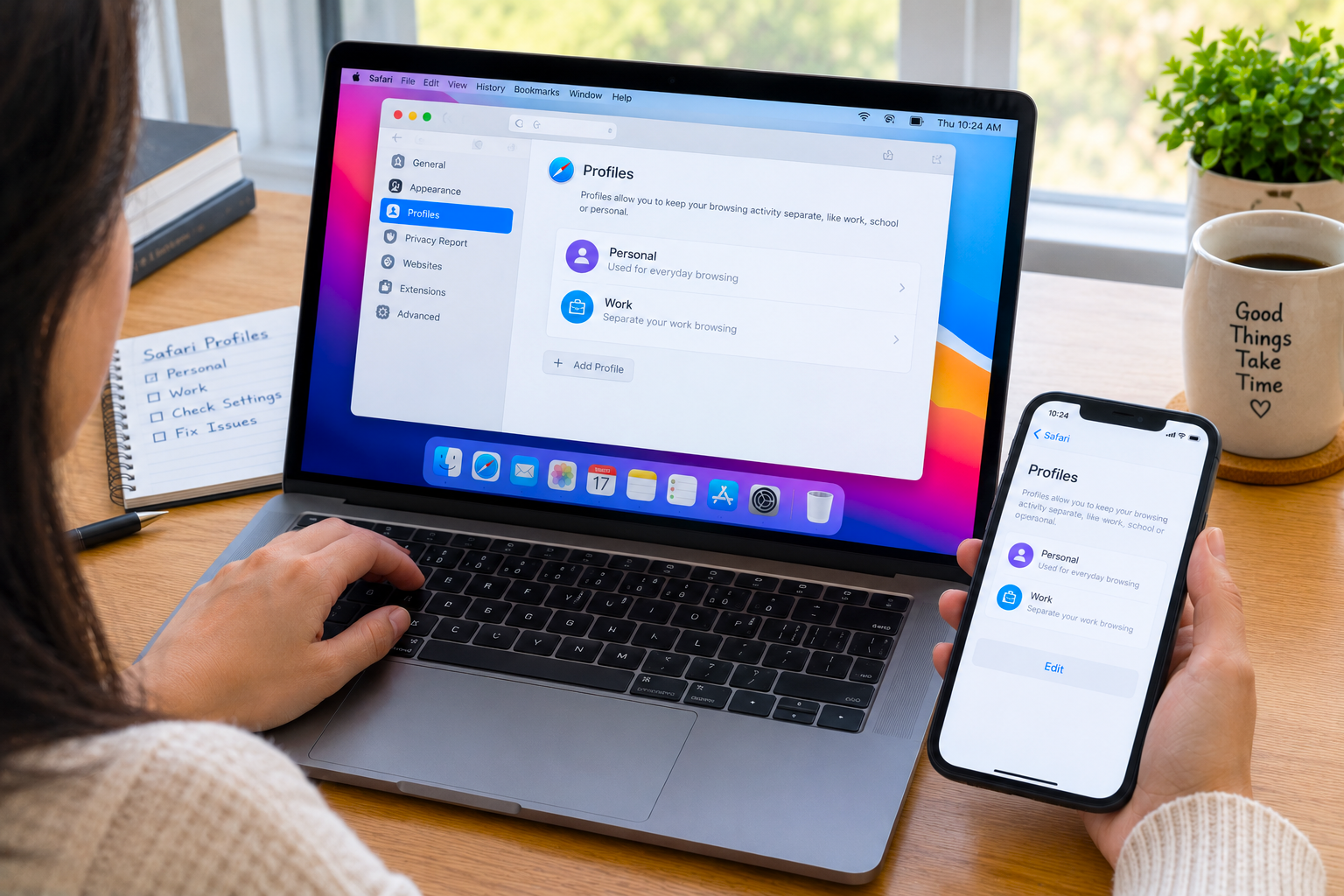
For Users Who Need Extensions but Want Clean Browsing TooSafari Profiles — introduced in macOS Sonoma and refined in Tahoe — let you create completely separate browsing environments within the same Safari app, each with its own extensions, cookies, history, and settings. Creating a clean profile with no extensions lets you browse at full speed without disabling extensions in your main profile, and it’s a permanent solution rather than a temporary troubleshooting step.
Beyond troubleshooting, Safari Profiles are genuinely useful for keeping work and personal browsing separate — different sets of extensions, cookies, and saved passwords for each context. A Work profile with only essential extensions and a Personal profile with your usual set means you always have a known-fast environment available alongside your fully configured one.
Fix 13: Reset Safari Completely
Nuclear Option — When Nothing Else WorksIf Mac Safari is still running slow after working through every fix above, a complete reset removes all customisation, extensions, cached data, and preference files, restoring Safari to exactly the state it was in when macOS was first installed. This is the most thorough fix — and because your bookmarks, passwords (stored in iCloud Keychain), and browsing history (stored in iCloud if Safari sync is on) are separate from the configuration being reset, less data is lost than it might seem.
rm -rf ~/Library/Safari
rm -rf ~/Library/Caches/com.apple.Safari
rm -rf ~/Library/Caches/com.apple.WebKit.WebContent
rm -rf ~/Library/Caches/com.apple.WebKit.Networking
rm -rf ~/Library/WebKit
rm ~/Library/Preferences/com.apple.Safari.plistThe complete reset removes your local browsing history, saved website logins stored only in Safari (not in iCloud Keychain), custom per-site settings, and all installed extensions. Passwords saved to iCloud Keychain are safe and restore automatically. If you have passwords saved only in Safari and not in iCloud Keychain, export them first: Safari → Settings → Passwords → Export All Passwords.
Pro Tips: Keeping Safari Fast Long-Term
Clear Safari cache monthly, not just when it gets slow. Treating cache clearing as periodic maintenance — rather than a reactive fix — prevents the gradual slowdown that comes from years of accumulated cached data. Set a reminder to run Develop → Empty Caches once a month. It takes five seconds and keeps Safari consistently fast without affecting any saved data.
Keep your extension count below five. Each active Safari extension adds overhead to every page you load — the more extensions, the higher the cumulative impact. Audit your extensions every few months and remove any you haven’t consciously used in the past 30 days. A lean extension set is the single most sustainable way to keep Safari fast across macOS updates.
Restart Safari — not just close and reopen it — weekly. There’s a meaningful difference between closing the Safari window and actually quitting Safari. Press Command + Q to fully quit and reopen periodically — this clears in-memory WebKit process state that accumulates over days of continuous browsing. Many users find Safari noticeably snappier after a full quit-and-relaunch even if they’ve been using the same tabs all week.
Watch your Mac’s storage — Safari needs free space. Safari uses your Mac’s disk for temporary files, WebKit storage, and video buffer caching. When the Mac’s internal drive falls below 10 GB free, Safari’s disk operations slow significantly and can trigger stuttering on video sites. Keep your Mac’s storage healthy — our guide on freeing up MacBook storage without deleting files covers the fastest ways to reclaim space without losing anything important.
Use Safari’s built-in tools instead of extension equivalents where possible. Safari has native ad blocking (Intelligent Tracking Prevention), a built-in password manager (iCloud Keychain), a Reading Mode for distraction-free reading, and built-in privacy reports. Using these native tools instead of third-party extension equivalents removes the most common sources of extension-related slowness. Our hidden Mac features guide covers several more built-in Safari capabilities most users never discover.
Common Mistakes to Avoid
Chrome is often suggested as a fix for Safari slowness, and it sometimes helps with specific websites — but Chrome has significantly higher baseline RAM usage than Safari and lacks the battery efficiency optimisations Apple has built specifically for Mac hardware. On a MacBook, Chrome commonly uses 30–50% more battery than Safari for equivalent browsing. Fixing Safari is almost always the better long-term choice than switching browsers.
A red memory pressure graph in Activity Monitor while Safari is open means your Mac is out of RAM and using slower disk-based virtual memory instead. No amount of Safari cache clearing or extension disabling fixes RAM exhaustion — the real fixes are closing tabs, reducing the number of apps open simultaneously, or upgrading RAM if your Mac supports it. Misdiagnosing RAM pressure as a Safari settings problem leads to a lot of wasted troubleshooting time.
Video that buffers or plays in low quality in Safari is almost always a network speed or streaming service issue, not a Safari problem. Run a speed test at fast.com or speedtest.net in Safari — if your download speed matches what your ISP provides, Safari is not the bottleneck. Check whether the same video plays at higher quality on another device on the same network before spending time on Safari-specific fixes.
FAQ: Mac Safari Running Slow
Why is Mac Safari running slow after a macOS update?
Mac Safari running slow after a macOS update is most often caused by extensions that haven’t been updated for the new WebKit version bundled with the update, a cache database that needs to be rebuilt for the new format, or a preference file that contains settings from the previous macOS version that are now incompatible. Start by clearing the cache (Develop → Empty Caches), then disable all extensions and re-enable them one by one. Update all extensions from the App Store. In most cases, one of these three steps resolves the post-update slowness within a few minutes.
Why does Safari use so much CPU on my Mac?
High Safari CPU usage is most commonly caused by a runaway WebKit process tied to a specific tab running heavy JavaScript — news sites with autoplay video, cryptocurrency tickers, and sites with live data feeds are frequent culprits. Open Activity Monitor, click the CPU tab sorted by usage, and look for Safari Web Content processes consuming over 80%. Close tabs one at a time while watching Activity Monitor to identify which tab is the cause. If no specific tab is responsible, a Safari extension is the next most likely source — disable all extensions and re-enable them individually to find the offender.
How do I speed up Safari on a Mac without losing bookmarks or passwords?
The safest speed improvements that don’t affect bookmarks or passwords are: clear the cache via Develop → Empty Caches (preserves everything), disable unused extensions in Safari → Settings → Extensions, turn off “Preload Top Hit in the background” in Search settings, and flush the DNS cache via Terminal. These four changes together resolve the majority of Safari slowness cases without touching any saved data. Bookmarks and passwords in iCloud Keychain are also preserved through a full Safari reset if a more thorough fix is eventually needed.
Why does Safari crash on certain websites on Mac?
Safari crashes on specific websites are usually caused by one of three things: the WebKit version bundled with your current macOS is incompatible with a JavaScript feature that website uses (fix: update macOS), an extension is conflicting with that site’s page content (fix: disable extensions for that site via the Settings icon in the toolbar), or a cached corrupted version of that site’s data is causing the crash on load (fix: go to Safari → Settings → Privacy → Manage Website Data, search for that site, and remove its data). If the site crashes in a clean Safari profile with no extensions, a macOS update is the solution.
Is Safari slower than Chrome on Mac?
On modern Macs, Safari and Chrome perform comparably on most benchmarks — but their performance characteristics differ. Safari is more battery-efficient and has lower RAM baseline usage, while Chrome has better compatibility with some web apps and newer JavaScript features. On Apple Silicon Macs specifically, Safari benefits from optimisations Apple has built into both the chip and the browser that Chrome doesn’t fully replicate. The perception that “Chrome is faster” often reflects specific websites that perform better in Chrome due to how they handle different rendering engine behaviours, not an across-the-board speed difference.
Why is Safari slow on one specific website but fast everywhere else?
Site-specific slowness in Safari almost always points to either an extension conflicting with that site’s page structure, or the site using web technologies that behave differently in Safari’s WebKit engine versus Chrome’s Blink engine. Test the slow site with all extensions disabled — use Private Browsing, which disables most extensions. If it’s faster in Private Browsing, an extension is the cause. If it’s still slow, the site itself has a Safari-specific performance issue, which can often be reported to the website’s support team as a bug.
Mac Safari Running Slow — Complete Fix Checklist
- 1Check Activity Monitor — find the exact process causing high CPU or memory pressure
- 2Close unnecessary tabs — each tab runs its own process; close all you don’t actively need
- 3Clear Safari cache — Develop → Empty Caches; for deeper clean also clear History and Website Data
- 4Disable all extensions — re-enable one by one to identify the slow one
- 5Reset Safari preferences — delete com.apple.Safari.plist for crash-on-launch issues
- 6Disable background pre-loading — turn off Preload Top Hit, Safari Suggestions, and tab restore on launch
- 7Update macOS and extensions — fixes WebKit compatibility issues with modern websites
- 8Flush DNS and switch DNS servers — fixes pages that hang before loading begins
- 9Reset iCloud Tabs sync — fixes slowness on Safari launch caused by large synced tab counts
- 10Clear extended cache folders via Terminal — WebKit, WebContent, and WebKit.Networking directories
- 11Toggle hardware acceleration — for GPU-related slowness on video or animation-heavy sites
- 12Create a clean Safari Profile — isolates extension conflicts permanently without disabling extensions globally
- 13Full Safari reset via Terminal — complete removal of all Safari data; last resort before reinstalling macOS
One Last Thing
Mac Safari running slow is almost always a software issue with a clear, fixable cause — not a sign that your Mac is getting old or that you need to switch browsers. In most cases, clearing the cache and disabling extensions resolves it within minutes. The fixes in this guide cover every layer from the most common surface-level cause to the deepest configuration reset, so working through them from the top gives you a systematic path from slow Safari back to a browser that runs the way it’s designed to.
If you’re still experiencing slowness after the complete reset in Fix 13, the issue may be hardware-level — insufficient RAM for your current browsing habits, or a failing SSD causing slow disk reads. Activity Monitor’s memory pressure graph and Disk Utility’s First Aid will confirm or rule those out.
Wrapping Up
Safari is genuinely one of the best browsers available on Mac when it’s running well — battery-efficient, deeply integrated with macOS, and fast on Apple Silicon. Getting it back to that state after slowness sets in is usually a matter of clearing out accumulated data and finding the one extension or tab that’s misbehaving. Keep the extension list lean, clear the cache periodically, and Safari will stay fast through macOS updates without needing intervention.
ⓘ Disclaimer: This article is for informational purposes only. CrazyErrors is not affiliated with Apple Inc. Terminal commands should be followed carefully as written — deleting cache directories is safe and all data rebuilds automatically, but always confirm you are running the correct command before executing. For official Apple Safari support, visit support.apple.com/safari.