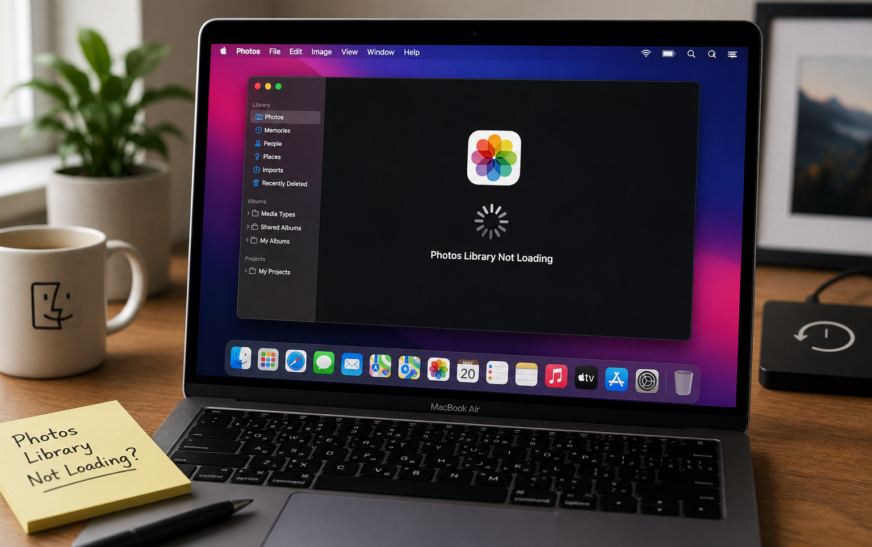
Mac Photos library not loading and showing a spinning wheel is most commonly caused by a corrupted library database, not enough free storage on your Mac, or an iCloud Photos sync that stalled mid-process. The fastest fix is to hold Command + Option while opening Photos — this launches the built-in Library Repair tool, which fixes most database corruption without any data loss. If the spinning wheel appears every time Photos opens, start with Fix 1 (force quit and reopen) and Fix 3 (Library Repair) before trying anything else.
When your Mac Photos library is not loading and the spinning wheel just keeps going, every photo and video you’ve taken sits locked behind an app that won’t respond. The library opens, you see the grey or blank interface, the spinning beach ball appears, and nothing you click makes any difference. Sometimes it eventually loads after several minutes; other times it never does and the whole app needs to be force quit.
The causes span a fairly short list — a damaged library database, insufficient storage space on the Mac, a stalled iCloud Photos sync, a library stored on a slow or disconnecting external drive, or a macOS permissions issue with the Photos folder. The good news is that most of these are fixed in minutes without touching your actual photo data. This guide covers every fix in the right order, starting with the ones that resolve the issue for the majority of users.
Before using the built-in Photos Library Repair or any Terminal command in this guide, make sure your Photos library is backed up. While repair tools are designed to be non-destructive, running a repair on an already-corrupted database carries a small risk of data loss. Copy your Photos library file to an external drive before proceeding — it’s the file named Photos Library.photoslibrary in your Pictures folder.
What Are You Seeing?
Identify Your Exact Symptom🌀 Photos opens but spins indefinitely — never loads
The app launches, shows the interface briefly, then the spinning wheel appears and nothing loads. Usually a corrupted library database or critically low disk space. Fix 1, Fix 2, and Fix 3 are the priority.
🖼️ Photos loads but thumbnails are blank or grey squares
The library structure loads but individual photo thumbnails fail to render. The thumbnail cache is corrupted or missing. Fix 5 (rebuild thumbnails) resolves this directly.
☁️ Photos spins only when iCloud sync is active
The library loads fine on its own but freezes when downloading from iCloud or during a large sync. A stalled iCloud Photos process is the cause. Fix 6 addresses iCloud-specific spinning.
💾 Library is on an external drive and won’t load
Photos either can’t find the library or spins when trying to access it from an external drive. Drive speed, connection type, or the drive sleeping mid-access are the likely culprits. Fix 7 covers external drive issues.
⚠️ “Photos Library is damaged” message appears
An explicit corruption message from Photos itself. This is actually a helpful prompt — the app has detected the problem. Fix 3 (Library Repair) and Fix 8 (rebuild from scratch) are the steps to take.
🔄 Photos loads slowly after macOS Tahoe update
Worked fine before the update, now spins for several minutes on every launch. The library database format may need updating to match the new Photos version, or permissions changed during the update. Fix 4 and Fix 9 apply.
Open Finder → Pictures folder. You’ll see a file called Photos Library.photoslibrary — right-click it and choose Get Info to see its size. A library larger than 100 GB stored on an almost-full Mac drive is a very common reason Photos spins on launch. Also check whether there are multiple .photoslibrary files — Photos may be trying to open the wrong one.
What’s Inside a Photos Library — Why It Can Break
Understanding the ProblemA Photos library isn’t a simple folder of image files — it’s a complex database package containing your original photos, edited versions, thumbnails (called “derivatives”), face recognition data, metadata, and a SQLite database that indexes everything. When Photos opens the library, it reads this database first, then renders thumbnails from the derivatives folder. If any part of this process fails or stalls, you get the spinning wheel.
| What’s Failing | Symptom You See | Fix |
|---|---|---|
| SQLite library database corrupted | Spins indefinitely, never loads | Fix 3 — Library Repair |
| Not enough free disk space | Spins on launch, may crash | Fix 2 — Free storage |
| Thumbnail cache corrupted | Loads but grey/blank thumbnails | Fix 5 — Rebuild thumbnails |
| iCloud sync stalled mid-process | Spins when connected, works offline | Fix 6 — iCloud reset |
| External drive too slow or disconnecting | Spins only with external library | Fix 7 — Drive check |
| macOS permissions on library folder | Spins after macOS update | Fix 9 — Repair permissions |
| Corrupt preferences file | Spins despite healthy library | Fix 10 — Delete prefs |
Fix 1: Force Quit Photos and Relaunch
Start Here — Takes 30 SecondsWhen Photos is stuck on the spinning wheel, simply closing the app from the Dock doesn’t fully terminate all background processes Photos runs — including the image analysis and iCloud sync daemons. Force quitting clears all of these simultaneously and gives Photos a completely clean start on the next launch.
photolibraryd, photoanalysisd, PhotosIf Photos loads normally after force quitting all its background processes, the issue was a stuck daemon rather than library corruption. No further fixes are needed. If it spins again on the next launch, the cause is something deeper — continue to Fix 2.
Fix 2: Free Up Disk Space on Your Mac
Critical — Photos Needs Room to WorkPhotos requires free disk space not just for storing photos, but for writing temporary files during database operations, rendering thumbnails, and processing iCloud downloads. When your Mac’s storage is critically low — under 5–10 GB free — Photos can spin indefinitely on launch because it cannot complete even basic read operations that require temporary write space.
rm -rf ~/Library/Caches/com.apple.PhotosOn Macs with large photo libraries, the Photos cache folder at ~/Library/Caches/com.apple.Photos can grow to several gigabytes. Deleting it doesn’t remove any photos — it only removes the cached render data that Photos rebuilds automatically. For a complete guide to recovering storage space on your Mac, see our guide on freeing up MacBook storage without deleting files.
Fix 3: Run the Built-In Photos Library Repair Tool
Most Effective Fix for Database CorruptionPhotos has a built-in library repair tool that most users never know exists. It runs a complete integrity check on the library database, repairs broken references between photos and their metadata, rebuilds damaged index entries, and restores the internal database structure without touching any original photo or video files. This resolves Mac Photos library not loading issues caused by corruption in the vast majority of cases.
Closing Photos or putting the Mac to sleep during the library repair process can make the corruption worse. Keep the Mac awake, plugged into power, and leave Photos alone until the repair completes and the library opens. For large libraries (100 GB+), the repair can take 30–90 minutes.
If you have multiple .photoslibrary files, you can run the repair tool on any of them. Hold Command + Option while opening Photos — before the repair dialogue appears, Photos will ask which library to open. Select the one that’s having issues, and the repair tool will run on that specific library.
Fix 4: Restart Your Mac in Safe Mode First
Isolates Third-Party Software ConflictsIf Photos spins on launch regardless of repair attempts, a third-party app or system extension may be interfering with Photos’ ability to access its library database. Safe Mode starts macOS with only essential Apple processes — no third-party extensions, no login items, no non-essential caches. If Photos loads correctly in Safe Mode, a third-party app is the cause.
Apple Silicon Mac (M1, M2, M3, M4):
Intel Mac:
Even if Photos still spins in Safe Mode, the Safe Mode boot itself clears several system caches — including font caches, kernel extension caches, and dynamic link editor caches — that occasionally interfere with app launches. Many users find that Photos loads normally after a Safe Mode boot and a subsequent normal restart, even without identifying a specific third-party conflict.
Fix 5: Rebuild the Photos Thumbnail Cache
For Blank or Grey ThumbnailsThe spinning wheel that appears when scrolling through photos — rather than on launch — is almost always caused by missing or corrupted thumbnail data. Photos stores pre-rendered thumbnails (called “derivatives”) in a separate folder within the library package to speed up browsing. When this folder is corrupted or incomplete, Photos has to regenerate thumbnails on demand, causing the spinning wheel every time you scroll.
Photos Library.photoslibrary and choose Show Package Contents — this lets you see inside the library bundleFor a library with tens of thousands of photos, the thumbnail rebuild process can take several hours. Photos will be usable during this time — you can browse photos and the thumbnails load as you scroll — but expect some areas to show grey placeholders until the rebuild catches up. Keep the Mac plugged in and avoid closing Photos during the initial rebuild.
Fix 6: Fix a Stalled iCloud Photos Sync
When Spinning Happens During iCloud ActivityIf you use iCloud Photos and the spinning wheel appears specifically when Photos is downloading or uploading — visible in the status bar at the bottom of the Photos window — a stalled iCloud sync process is the cause. iCloud syncs can stall after a network interruption, a macOS update, or after importing a very large batch of photos that exceeds a single sync window.
If iCloud Photos is stalling for everyone, the issue may be on Apple’s side rather than your Mac. Check apple.com/support/systemstatus to see the current iCloud Photos service status. A yellow or red indicator next to iCloud Photos means Apple is experiencing issues — in that case, wait a few hours and the sync will resume on its own without any changes on your Mac.
Fix 7: Fix Photos Library on an External Drive
For Libraries Stored Outside the Internal DriveStoring a Photos library on an external drive is common for users with large libraries, but it introduces connection-related failure modes that don’t exist for libraries on the internal drive. USB drives that go to sleep, slow read speeds, and connection drops mid-operation all cause the spinning wheel — not because Photos is broken, but because the library data isn’t being delivered fast enough.
If your external drive disconnects while Photos is open and writing to the library database, it can cause severe corruption — the type that the built-in repair tool can’t fix. If your external drive has a history of disconnecting (loose cable, intermittent power, USB hub issues), move the Photos library to a more reliable drive before the next unexpected disconnection corrupts the database.
Fix 8: Switch to a Different or New Library to Test
Isolates Whether the Problem Is the Library or the AppCreating a new empty Photos library takes 10 seconds and immediately answers the most important diagnostic question: is the spinning wheel caused by the library itself, or by something in Photos or macOS? If a brand new library opens instantly, the existing library is the problem. If a new library also spins, Photos or the Mac environment is the issue.
Fix 9: Repair Permissions on the Photos Library
For Spinning After macOS UpdatemacOS Tahoe and earlier updates occasionally change folder permission configurations — including access permissions on the Pictures folder and the Photos library bundle inside it. When Photos no longer has full read/write access to its own library, it spins on launch while silently failing to open database files it needs.
chmod -R u+rw ~/Pictures/"Photos Library.photoslibrary"The Terminal command above uses quotes around the library name because the default name “Photos Library.photoslibrary” contains a space. If you’ve renamed your library, replace "Photos Library.photoslibrary" with your library’s actual name in quotes. If you’re unsure of the exact name, open Finder → Pictures, right-click the library, and choose Get Info to see the exact filename.
Fix 10: Delete Photos Preference Files
Resets Hidden Configuration That Can Block LoadingPhotos stores configuration settings — which library to open, display preferences, window positions, and sync states — in preference files outside the library itself. When these files become corrupted or contain settings incompatible with the current macOS version, Photos can enter a state where it spins endlessly on launch without ever successfully reading the library.
~/Library/Preferencescom.apple.Photos.plistcom.apple.photolibraryd.plist
~/Library/Containers/com.apple.PhotosFix 11: Use Terminal to Vacuum the Photos Database
Advanced — For Large Libraries That Load SlowlyThe Photos library uses a SQLite database internally. Over time — especially in libraries with tens of thousands of photos, many deletions, and years of edits — this database develops fragmentation and unused space (called “dead pages”) that slow down every read operation. The SQLite VACUUM command compacts the database, reclaims this dead space, and can dramatically improve Photos load times without affecting any photo data.
cd ~/Pictures/"Photos Library.photoslibrary"/databasels -la *.dbphotos.db and Photos.sqlite
sqlite3 Photos.sqlite "VACUUM;"VACUUM rewrites the entire SQLite database — if the process is interrupted (power loss, force quit, disk error), the database can be left in an unreadable state. Only run this command when your Mac is plugged into power and you have a backup of the Photos library on an external drive. This is an advanced fix — use Fix 3 (Library Repair) first, as it’s safer and covers most of the same ground.
Fix 12: Reinstall macOS to Restore Photos
If Photos Itself Is Corrupted, Not the LibraryIf the test library in Fix 8 also spins, the Photos application itself — rather than your library — is the broken component. macOS reinstallation from Recovery Mode rewrites all system apps including Photos, replacing any corrupted app components with clean versions, without removing any personal data or library files.
Pro Tips: Keeping Photos Running Smoothly
Run Library Repair every 6–12 months proactively. You don’t have to wait for the Mac Photos library not loading problem to appear before using the repair tool. Running it periodically — hold Command + Option while opening Photos — catches minor database inconsistencies before they grow into full spinning wheel failures. It takes 5–15 minutes and leaves the library in better shape.
Keep at least 20 GB free on the drive housing your Photos library. The buffer requirement isn’t just for the library itself — Photos needs working space for thumbnail generation, iCloud downloads, and edit processing. Keeping comfortable free space prevents the storage-related spinning that’s one of the most common causes of Mac Photos library not loading issues. Check our guide on freeing up MacBook storage without deleting files for quick wins that don’t require deleting any photos.
Use “Optimize Mac Storage” in iCloud Photos if your library is large. If iCloud Photos is enabled and set to “Download Originals to this Mac,” your Photos library grows on the Mac at the same rate as it does in iCloud. For large libraries on Macs with limited internal storage, switching to “Optimize Mac Storage” keeps full-resolution originals safely in iCloud while storing compressed versions locally — dramatically reducing the library’s footprint and the chance of storage-related spinning.
Store Photos library on an SSD, not a spinning HDD. If your Photos library lives on an external drive, the single biggest performance upgrade you can make is switching from a spinning hard drive to an SSD. Photos’ database access patterns involve many small random reads that SSDs handle in milliseconds and spinning drives handle in tens of milliseconds — a difference that becomes very visible in a library with tens of thousands of photos.
Don’t force quit Photos while it’s syncing or importing. Force quitting Photos during an active iCloud sync, import, or editing session leaves the database in an uncommitted state — the digital equivalent of pulling a book out of a librarian’s hands mid-cataloguing. If you need to close Photos quickly, use Photos → Quit Photos from the menu bar and give it a few seconds to commit its current operation before the app closes. Check out our hidden Mac features guide for more tips on managing Mac apps efficiently.
Common Mistakes to Avoid
When Photos won’t load, the library file may seem useless — but your photos are still in there, intact. Deleting the .photoslibrary file removes every photo and video inside it permanently. The fix is almost always a repair or settings change, not deletion. Never move the library to Trash as a “reset” — always try repair first.
Right-clicking the library and choosing “Show Package Contents” lets you see inside, but manually deleting files inside the package — other than the derivatives folder in Fix 5 — can cause irreversible data loss. The database files, originals folder, and metadata inside the package must not be manually modified or deleted. Use only the repair tools described in this guide.
The Library Repair tool writes extensively to the database during the repair process. If the external drive that holds your library disconnects partway through a repair, the result is a database in a partially-repaired state that’s worse than the original corruption. Only run Library Repair when the library is on a stable, reliably connected drive.
Library Repair and the VACUUM command are both generally safe, but they operate on a file that may already be partially damaged. The combination of existing corruption and an interrupted repair can produce a result that’s unrecoverable. Copy your Photos Library.photoslibrary file to an external drive before running any repair tool — it’s a step that takes a few minutes and prevents potentially irreversible outcomes.
FAQ: Mac Photos Library Not Loading
Why is my Mac Photos library not loading and showing a spinning wheel?
Mac Photos library not loading is most often caused by a corrupted library database, not enough free disk space on the Mac, or a stalled iCloud Photos sync process. The fastest fix is to hold Command + Option while opening Photos to launch the built-in Library Repair tool — this repairs database corruption without touching any photo data and resolves the spinning wheel issue for the majority of users. If the spinning wheel only appears during iCloud activity, disabling and re-enabling iCloud Photos in Settings resets the stalled sync.
Will repairing the Photos library delete my photos?
No — the Photos Library Repair tool does not delete, modify, or move any original photos or videos. It only repairs the database structure, index entries, and internal file references that Photos uses to organise and display your library. Your original photo files are stored in a separate “originals” folder inside the library package and are not touched by the repair process. That said, always make a backup of the entire library before running any repair, as an already-corrupted database carries a small risk of further issues during repair.
How long does Photos Library Repair take?
Library Repair time depends entirely on how many photos are in the library. A small library of a few thousand photos typically repairs in 5–15 minutes. A large library with 50,000 or more photos can take 1–3 hours. Do not close Photos or put the Mac to sleep during the repair — interrupting it can worsen the corruption. Keep the Mac plugged in and leave Photos running until the repair completes and the library opens normally.
Why do my Photos thumbnails show as grey or blank?
Grey or blank thumbnails in Photos indicate that the thumbnail cache — stored in a “derivatives” folder inside the library package — is missing or corrupted. Photos can still access your original photos, but it hasn’t been able to generate the preview images it uses for fast browsing. The fix is to navigate into the library package via “Show Package Contents,” move the derivatives folder to your Desktop, and let Photos rebuild it from scratch. Thumbnails will gradually reappear as Photos generates fresh previews.
Can I move my Photos library to an external drive to fix the spinning wheel?
Moving the library to an external drive can help if the spinning wheel is caused by insufficient internal storage — but it can also make things worse if the external drive is slow, uses a USB hub connection, or tends to go to sleep. For reliable Photos library performance on an external drive, use an SSD connected directly to a Thunderbolt or USB-C port on the Mac, enable “Prevent disk from sleeping” in Energy Saver, and always eject the drive properly before disconnecting it.
Photos says my library is damaged — will I lose my photos?
The “Photos Library is damaged” message is alarming but doesn’t mean your photos are gone. It means the database index is corrupted — the catalogue that tells Photos where everything is, not the photos themselves. In most cases, the original photo files are still intact inside the library package even when the database is damaged. Run Library Repair (Command + Option while opening Photos) first — if that doesn’t resolve it, you can open the library package and manually access your originals in the “originals” folder inside.
Mac Photos Library Not Loading — Complete Fix Checklist
- 1Force quit Photos and all background processes — clears stuck daemons via Activity Monitor
- 2Free up disk space — need at least 10–15 GB free; delete Photos cache at
~/Library/Caches/com.apple.Photos - 3Run Library Repair — hold Command + Option while opening Photos
- 4Boot in Safe Mode — isolates third-party app conflicts, also clears system caches
- 5Rebuild thumbnail cache — move derivatives folder out of library package, let Photos rebuild
- 6Reset iCloud Photos sync — disable and re-enable iCloud Photos in Settings
- 7Fix external drive issues — run First Aid, disable disk sleep, connect directly not via hub
- 8Test with a new empty library — confirms whether problem is library or app
- 9Repair permissions — fix via Privacy & Security settings and Terminal chmod command
- 10Delete Photos preference files — remove com.apple.Photos.plist and restart
- 11VACUUM the SQLite database — advanced fix for large libraries loading slowly
- 12Reinstall macOS from Recovery Mode — fixes corrupted Photos app itself
One Last Thing
A Mac Photos library not loading is almost never the end of your photos — even when the app refuses to open and the spinning wheel is permanent, the original files sit safely inside the library package waiting to be accessed. Library Repair resolves the issue for the vast majority of users in under an hour. For the remainder, the combination of preference file deletion, permissions repair, and a macOS reinstall covers everything that Library Repair doesn’t.
The only scenario where photos are genuinely at risk is an external drive failure — and even then, recovery tools can often retrieve files from a drive with filesystem damage. Back up your Photos library to an external drive regularly, and a spinning wheel becomes an inconvenience rather than a crisis.
Wrapping Up
The spinning wheel in Photos is the app’s way of saying it’s struggling to read or process something — not that anything is gone. Work through the checklist from the top, confirm each fix before moving to the next, and Photos will be back to its normal, fast self. The Library Repair tool in particular is one of Apple’s most underused built-in features, and it quietly solves problems that look like they’d require hours of work.
ⓘ Disclaimer: This article is for informational purposes only. CrazyErrors is not affiliated with Apple Inc. Terminal commands in this guide should be followed carefully as written. Always back up your Photos library before running any repair tool or database command. Results may vary depending on the extent of library corruption and macOS version. For official Apple Photos support, visit support.apple.com/photos.