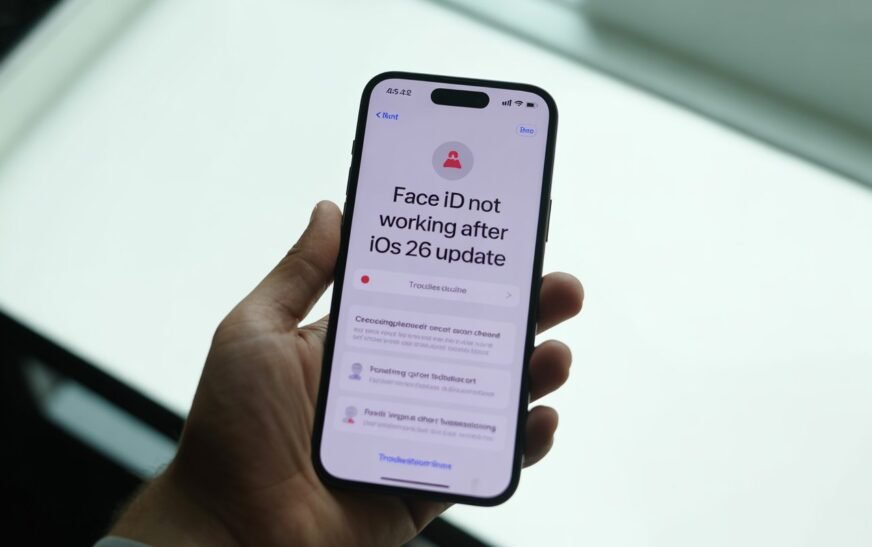
Face ID stopping after an iOS 26 update is a known post-update issue. The fastest fix is to go to Settings → Face ID & Passcode → Reset Face ID, then set it up again from scratch. If that doesn’t work, a restart, toggling Face ID off and on, or resetting all settings (without erasing data) resolves the problem for most users. Hardware issues are rare — this is almost always a software glitch introduced by the update.
You updated to iOS 26, everything seemed fine, and then your iPhone stopped recognising your face. Suddenly you’re typing your passcode every single time, Apple Pay isn’t working, your apps won’t unlock, and it feels like something fundamental broke during the update.
You’re not imagining it — and you’re far from alone. Face ID issues after a major iOS update are one of the most reported problems every year, and iOS 26 is no exception. The TrueDepth camera hardware itself is almost certainly fine. What’s happened is that the update interrupted or corrupted something in the Face ID software stack — the biometric data, the authentication settings, or a system process that manages how your face data is used.
The fixes are straightforward, and most people get Face ID working again in under five minutes. This guide covers every solution in order from fastest to most thorough, so you can stop at whichever one works for you.
Before You Start: Check These First
30-Second ChecksA few quick checks before running through the full fixes — sometimes the answer is simpler than you think:
Is your iPhone in a case with a thick top edge?
The TrueDepth camera array sits at the top of the screen (notch or Dynamic Island area). A case that covers or partially blocks the top bezel can interfere with Face ID — even one that previously worked fine if it shifted slightly during removal and reinstallation.
Is the camera area dirty or obscured?
Oil, smudges, or a screen protector bubble covering the TrueDepth camera can prevent Face ID from working properly. Wipe the top of your screen gently with a clean, dry cloth and check if there are any bubbles in your screen protector near the camera.
Are you holding the phone differently than usual?
Face ID requires a clear, unobstructed view of your face at a certain distance (about 10–20 inches). If your phone angle changed — lying flat on a table when you usually hold it upright — it may not recognise you. Try holding it at a normal viewing angle directly in front of your face.
Is Face ID set up at all after the update?
Some iOS updates prompt you to set up Face ID again as part of the update process. If you dismissed that prompt, Face ID may simply be in an unconfigured state. Go to Settings → Face ID & Passcode and check whether a face is enrolled.
iOS 26 introduced significant changes to the system’s biometric authentication framework. Apple has confirmed awareness of Face ID issues following the update and has indicated a point release is in progress. In the meantime, the fixes in this guide resolve the issue for the vast majority of affected users.
Fix 1: Restart Your iPhone
Try This First — 1 MinuteIt sounds obvious, but a fresh restart after a major update is genuinely effective. iOS 26 made significant changes to background system services, and some of them need a clean boot cycle to initialise correctly. A restart is not the same as the phone waking from sleep — it fully reloads all system processes including the biometric authentication daemon.
On iPhone X and later (notch or Dynamic Island models):
After entering your passcode, try unlocking with Face ID. For many users, this alone brings it back.
Fix 2: Toggle Face ID Off and Back On
Quick Settings ResetToggling Face ID features off and on can clear a stuck authentication state without losing your enrolled face data. This is particularly effective when Face ID works for some things (like unlocking the phone) but not others (like Apple Pay or specific apps).
This fix is especially effective when Face ID shows “Face ID is not available — try again later” or when it works intermittently. The toggle reset clears the authentication state without touching your enrolled face data.
Fix 3: Reset Face ID and Set It Up Again
Most Effective FixThis is the fix that works for the majority of users with Face ID problems after iOS 26. When a major iOS update changes the biometric framework, the existing Face ID data can become misaligned with the new system — re-enrolling your face gives iOS 26 a clean, properly formatted biometric record to work with.
After setting up your main Face ID, go back to Settings → Face ID & Passcode and tap “Set Up an Alternate Appearance.” Even if you only have one face to enrol, doing a second scan in slightly different lighting or at a slightly different angle improves Face ID’s recognition accuracy significantly — especially useful if you wear glasses sometimes but not always.
Fix 4: Check Screen Protector and Camera Cleanliness
Physical CheckThis might seem too simple to mention, but it’s a genuine cause that gets overlooked. The TrueDepth system uses an infrared camera, a dot projector, and a flood illuminator — all packed into a tiny area at the top of your screen. Any physical obstruction affects all three simultaneously.
Screen protector issues:
Camera cleaning:
Thick tempered glass protectors or privacy screen protectors that extend to the very top edge of the phone can block infrared signals used by the TrueDepth system. If your Face ID problems started right when you applied a new screen protector — even if the update timing coincided — the protector may be the actual cause.
Fix 5: Make Sure Attention Detection Isn’t the Issue
Often OverlookediOS has a feature called Require Attention for Face ID, which means Face ID will only unlock when you’re actively looking at the screen with your eyes open. If you’re wearing sunglasses that block infrared (most do), lying at an angle, or your attention is slightly off, it can appear as if Face ID has stopped working entirely.
Also check Settings → Accessibility → Face ID & Attention. There’s an option called “Accessibility Options” during Face ID setup that reduces the movement required for enrollment — helpful if you have limited neck or head mobility. If this was previously set and the update reset it, Face ID may now require more movement range than you’re providing.
Fix 6: Update to the Latest iOS 26 Version
Patch FixIf the initial iOS 26 release introduced a bug affecting Face ID, Apple typically issues a point update (e.g. iOS 26.0.1 or iOS 26.1) within days or weeks that contains a targeted fix. Checking for and installing the latest available version is always worth doing before going deeper into troubleshooting.
iOS updates require at least 50% battery or a connected charger to proceed. Plugging in before updating is a good habit — an interrupted update due to battery failure can create additional software issues beyond the one you started with.
Fix 7: Reset All Settings
No Data Lost — More ThoroughThis option resets every system setting on your iPhone — Wi-Fi passwords, display preferences, notification settings, privacy permissions, and Face ID configuration — back to their defaults. Crucially, it does not delete your photos, apps, messages, or personal data. It’s a deep settings reset without being a factory wipe.
This works well when Face ID problems are accompanied by other post-update glitches like Wi-Fi behaving strangely, notification sounds being wrong, or display brightness acting unexpectedly — signs that the update left the settings database in an inconsistent state.
“Reset All Settings” and “Erase All Content and Settings” are two completely different actions. Reset All Settings keeps all your data intact and only clears system preferences. Erase All Content and Settings is a full factory reset that deletes everything. Read the option carefully before confirming.
Fix 8: Restore iPhone via iTunes or Finder (Last Resort)
If Nothing Else WorksIf Face ID still isn’t working after every fix above, restoring your iPhone through iTunes (Windows) or Finder (Mac) reinstalls iOS 26 from scratch and gives you a completely clean system. This is more involved than the other fixes and erases your iPhone, so it should only be attempted after everything else has failed — and after creating a backup.
Step 1 — Back up your iPhone first:
Step 2 — Restore via Finder (Mac) or iTunes (Windows):
If restoring from a backup brings back the same Face ID problem, it’s possible the issue was embedded in the backup itself. In that case, set up the phone as a new device after the restore — manually reinstall your apps and sign back into your accounts. This is more work, but it guarantees a completely clean slate.
Fix 9: Contact Apple Support or Visit an Apple Store
Hardware May Be InvolvedIf Face ID still does not work after a full restore and fresh setup, there’s a possibility — though uncommon — that the TrueDepth camera hardware was affected during or before the update. This can happen in a few specific situations:
- Your iPhone was dropped or had impact damage around the top edge prior to the update
- A previous screen repair was done by a non-Apple-authorised technician — third-party screen replacements frequently cause Face ID issues because the TrueDepth array is paired to the logic board and cannot simply be swapped
- There’s an underlying hardware issue that the iOS update exposed by changing how the biometric system initialises
Apple’s diagnostic tools can quickly determine whether the issue is hardware or software in under a few minutes. If your iPhone is under warranty or covered by AppleCare+, a hardware repair or replacement may be available at no cost. You can book an appointment at getsupport.apple.com.
Face ID is tied to the original TrueDepth module that shipped with your iPhone — it is not transferable. If your screen was repaired by a non-Apple shop and Face ID stopped working afterward (even if the timing aligns with an update), the screen repair is likely the cause. Only Apple or Apple Authorised Service Providers can replace a screen while preserving Face ID functionality.
Why Does iOS 26 Break Face ID in the First Place?
Understanding the CauseFace ID data is stored in a dedicated hardware component called the Secure Enclave — a separate processor on the iPhone’s chip that handles biometric data in complete isolation from the rest of the system. iOS itself can’t read your Face ID data; it only receives a yes or no authentication result from the Secure Enclave.
When a major iOS update changes the biometric framework — how iOS communicates with the Secure Enclave, how authentication tokens are generated, or how third-party apps request Face ID access — the existing Face ID enrollment can end up mismatched with the new system’s expectations. It’s not that your face data was deleted; it’s that the “handshake” between iOS and the Secure Enclave broke during the migration.
Re-enrolling Face ID creates a new record that matches the iOS 26 framework exactly, which is why Fix 3 (Reset Face ID) resolves the issue for most users. The underlying hardware and your biometric data are intact — the software layer just needs to be re-synced.
Pro Tips: Keep Face ID Working Reliably
Always enter your passcode after a restart before expecting Face ID to work. iOS requires passcode authentication once after every restart before Face ID activates. This is a security requirement, not a bug. If you restart your phone and Face ID seems broken, entering your passcode first usually resolves it immediately.
Set up an Alternate Appearance after every major iOS update. After resetting and re-enrolling Face ID following an update, also enrol an Alternate Appearance. This gives Face ID two sets of reference data to work with, making it more resilient to lighting changes, glasses, hat brim angles, and gradual changes in your appearance.
Don’t let Face ID “fail” repeatedly without entering your passcode. After five failed Face ID attempts, iOS disables Face ID and requires a passcode. If Face ID seems broken and you keep trying it, you may end up in a temporary lockout. Enter your passcode to reset the attempt counter and then try Face ID again fresh.
Keep your screen protector trimmed correctly. If you apply screen protectors yourself, make sure there’s a clean cutout around the TrueDepth camera area. Even a millimetre of overlap can reduce reliability. Branded protectors that are certified for Face ID compatibility will specify this in their product description.
Update iOS promptly when point releases drop after a major update. The first few weeks after a major iOS release typically include one or two stability patches. These often contain silent fixes for biometric issues that were reported in the initial release. Staying current on minor updates is one of the easiest ways to avoid lingering post-update bugs.
Common Mistakes to Avoid
The quality of Face ID enrollment directly affects how well it performs afterward. Set it up indoors with normal lighting, holding the phone at a natural viewing distance and angle. Setting it up in a dark room or at an extreme tilt gives the system incomplete reference data that leads to frequent failures.
Many users assume Face ID is broken when it doesn’t work after a restart. iOS always requires the passcode once after restarting before Face ID becomes active — this is by design. Enter your passcode first, then test Face ID.
Third-party screen replacements almost always break Face ID because the TrueDepth module is hardware-paired to the original logic board. Only Apple-authorised repairs preserve Face ID. If you need a screen replacement, go to Apple or an Apple Authorised Service Provider.
The vast majority of Face ID issues after iOS updates are software-related and fixable without any repair. Work through all the software fixes before concluding the hardware is at fault — most users who visit the Apple Store for Face ID issues after an update are sent home with a working phone after a settings reset.
FAQ: Face ID Not Working After iOS 26
Why did Face ID stop working after updating to iOS 26?
iOS 26 made changes to the biometric authentication framework that handles communication between iOS and the iPhone’s Secure Enclave. Existing Face ID enrollment data can become misaligned with the new system after a major update. This isn’t a hardware failure — it’s a software compatibility issue. Resetting Face ID and re-enrolling it under iOS 26 resolves the problem for the overwhelming majority of affected users.
Will resetting Face ID delete anything else on my iPhone?
No. Resetting Face ID only removes the biometric face data stored in the Secure Enclave. It does not affect your apps, photos, messages, contacts, passwords, or any other data on your iPhone. Your passcode remains active throughout, so you can always unlock your phone while Face ID is being re-configured.
Face ID says “Move iPhone a Little Lower” or “Face Not Recognised” constantly — what does this mean?
This usually means the TrueDepth camera can’t get a full view of your face. Common causes include: holding the phone at an unusual angle, a screen protector partially covering the camera area, or insufficient lighting. Try holding the phone directly in front of your face at a normal reading distance in a well-lit room. If the problem persists after repositioning, resetting and re-enrolling Face ID typically clears it.
Face ID works to unlock my phone but not for Apple Pay — why?
Face ID for Apple Pay uses a slightly different authentication flow than screen unlocking. If the Apple Pay toggle under Settings → Face ID & Passcode was reset by the iOS 26 update, it may have been turned off. Go to Settings → Face ID & Passcode, enter your passcode, and make sure the Apple Pay toggle is enabled. Also check that your cards are still active in the Wallet app.
My Face ID is greyed out in Settings after the update — what do I do?
A greyed-out or unavailable Face ID option in Settings usually indicates a hardware issue — either the TrueDepth camera is disconnected, damaged, or not being recognised by iOS. This can happen if the phone was dropped near the time of the update, if a screen repair was performed, or in rare cases if the update itself triggered a hardware detection error. A forced restart is worth trying first. If it remains greyed out after a restart and a Reset All Settings, an Apple Store visit is the next step.
How do I use my iPhone without Face ID while I fix the issue?
Your passcode always works as a fallback whenever Face ID isn’t available. You can unlock your phone, authorise Apple Pay, approve App Store purchases, and access Password-protected autofill all using your six-digit (or alphanumeric) passcode. Face ID is a convenience layer — iOS is fully functional without it while you troubleshoot.
Face ID Not Working After iOS 26 — Fix Order
- 1Restart your iPhone and enter your passcode once before testing Face ID
- 2Toggle Face ID off and on in Settings → Face ID & Passcode
- 3Reset Face ID and re-enrol — works for most post-update issues
- 4Check screen protector and camera area for obstruction or misalignment
- 5Disable Require Attention for Face ID temporarily to isolate the cause
- 6Update to the latest iOS 26 point release for Apple’s official patch
- 7Reset All Settings — no data lost, clears corrupted system preferences
- 8Restore via Finder or iTunes — fresh iOS install as a last resort
- 9Contact Apple Support if hardware is suspected
One Last Thing
If none of the fixes above have resolved your Face ID issue, or if the problem came back after initially being fixed, it’s worth reaching out for a closer look. Persistent post-update Face ID failures sometimes have a very specific cause that’s easy to address once identified — a particular app conflict, a Secure Enclave state issue, or a device-specific quirk. The CrazyErrors team is happy to help you work through it.
Wrapping Up
Face ID stopping after an iOS 26 update is frustrating, but it’s almost always fixable without any hardware repair. The most effective solution for the vast majority of users is resetting Face ID and re-enrolling it fresh under iOS 26 — that single step resolves the issue in most cases. If it doesn’t, working through the rest of the fixes in order gets you to a resolution without needing to visit an Apple Store.
Your Face ID hardware almost certainly isn’t broken. The update just needs to be told, in a language it understands, what your face looks like again. Set it up fresh, make sure your screen is clean and unobstructed, and it’ll be back to working as reliably as it always has.
ⓘ Disclaimer: This article is for informational purposes only. CrazyErrors is not affiliated with Apple Inc. or any of its subsidiaries. All steps are based on publicly available information and general troubleshooting best practices. iOS versions and menu paths may vary. For official support, visit support.apple.com.