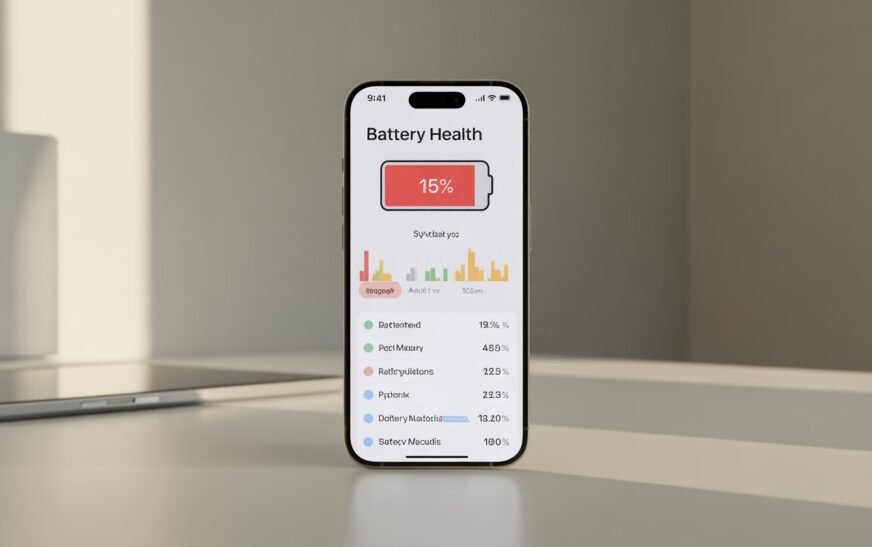
iPhone Battery draining fast after iOS 26 is normal for the first 24–72 hours — the system runs intensive background tasks (re-indexing, re-optimising) right after a major update that temporarily increase battery usage. If the drain continues beyond 3 days, the most effective fixes are: turning off Background App Refresh, disabling Always-On features added in iOS 26, checking which apps are consuming the most battery in Settings, and doing a clean restart. Most users recover normal battery life within a week without touching anything. If not, the fixes in this guide get you there faster.
You updated to iOS 26 and now your iPhone barely makes it through the day. It used to last comfortably — maybe even into the next morning — and now it’s hitting 20% by mid-afternoon. Nothing obvious changed. You didn’t install new apps, your usage habits are the same, and yet the battery icon seems to drain in real time right in front of you.
This happens to a significant number of iPhone users after every major iOS update, and iOS 26 is no different. The reasons are specific and well-understood at this point, and the solutions are practical — no factory reset required in most cases, no hardware replacement, no dark mode hacks or screen-dimming tricks that barely make a difference.
This guide covers what’s actually happening to your battery after iOS 26, how to tell whether it’s temporary or a real problem, and exactly how to fix it if it doesn’t sort itself out.
Step 1: Wait 48–72 Hours Before Doing Anything
Read This FirstThis isn’t a throwaway line — it’s genuinely the most important thing to understand about post-update battery drain, and skipping it will have you applying fixes to a problem that was going to solve itself anyway.
Every time iOS installs a major update, the system kicks off a wave of intensive background tasks that run for hours, sometimes days:
- Spotlight re-indexing — rebuilds the entire searchable index of your apps, files, contacts, and messages from scratch
- iCloud sync re-verification — iOS 26 checks the sync state of your iCloud Drive, Photos, and app data against the server
- Machine learning model re-training — Siri, predictive text, autocorrect, and on-device AI features re-learn your patterns for iOS 26’s updated models
- App re-optimisation — apps that need to update their data structures for iOS 26 compatibility run background jobs automatically
- Photo library re-analysis — the Photos app re-scans your entire library to build memories, face recognition clusters, and scene detection for any new iOS 26 features
All of this CPU and background network activity is happening even when your screen is off. Your phone is essentially working overtime in the background, and the battery pays for it. This is temporary, expected, and not a sign that anything is wrong.
Give it at least 48 hours of normal use — ideally 72 — with the phone charging normally overnight, before concluding that you have a real battery problem. Many users who apply fix after fix in the first day after an update are solving a problem that would have disappeared on its own by day three.
Go to Settings → Battery and scroll down to the battery usage section. If you see “Background Activity” consuming a significant share of battery usage — especially from apps like Photos, Siri, or system services — the post-update optimisation is still in progress. Check back in 24 hours and the numbers will likely look very different.
Why Is My iPhone Battery Draining So Fast After iOS 26?
Understanding the Real CausesBeyond the temporary post-update background processing, iOS 26 introduced several new features that — if left at default settings — consume noticeably more battery than iOS 25. Understanding what they are helps you decide which ones are worth the battery cost and which ones you can safely turn off.
Enhanced Always-On features — iOS 26 expanded the scope of always-on display processing and ambient sensing on supported iPhone models. These features are genuinely useful but they keep the display processing hardware in a semi-active state continuously.
Expanded AI processing — Apple Intelligence features in iOS 26 run more on-device than previous versions. On-device processing is better for privacy, but it means the Neural Engine is active more frequently throughout the day — consuming power that previous iOS versions didn’t use at this level.
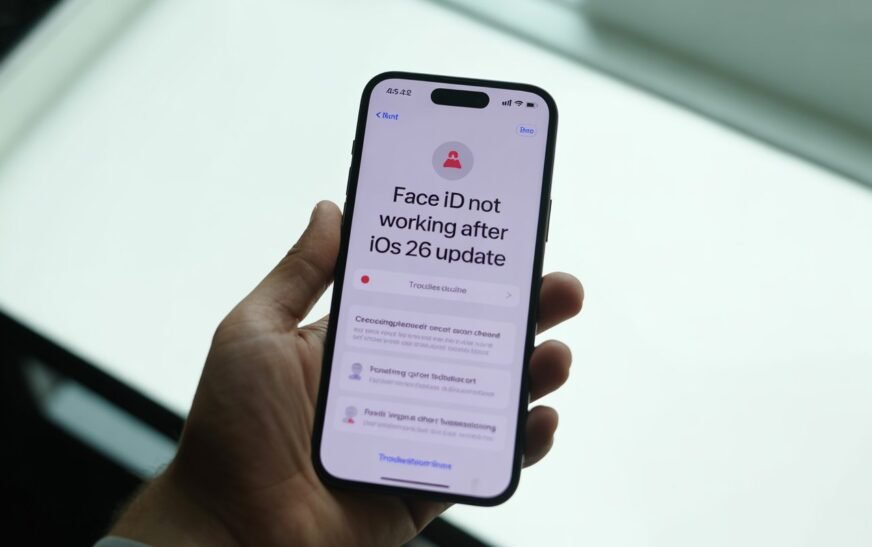
Other iOS 26 post-update issues — Battery drain isn’t the only thing iOS 26 disrupted for some users. If you’re also experiencing biometric problems, our guide on Face ID not working after iOS 26 covers all the fixes in detail.
More aggressive background app refresh defaults — iOS 26 reset Background App Refresh settings for many apps as part of the update process. Apps that you had previously restricted from refreshing in the background may have been re-enabled.
Location services re-enabled for some apps — Similar to background refresh, some apps had their location permissions reset or upgraded to “Always On” during the iOS 26 update, which quietly drains battery around the clock.
Push notifications and fetch frequency — iOS 26 changed the default fetch behaviour for some email accounts and messaging apps. If your email was previously set to manual fetch and is now set to push or frequent fetch, that alone can account for several hours of battery loss per day.
Cellular and Wi-Fi antenna changes — iOS 26 tweaked the radio power management stack. On some devices, this results in the cellular antenna staying in a higher-power state longer before stepping down — noticeable on phones in areas with moderate signal strength.
Fix 1: Check Battery Usage by App
Start Here — Identifies the Real CulpritBefore adjusting anything, find out exactly which apps and services are actually using your battery. This takes two minutes and tells you where to focus your effort instead of applying fixes at random.
What to look for:
- High background usage on an app you rarely open actively — this is a background process running when it shouldn’t be
- Social media apps (Instagram, TikTok, Facebook, Twitter/X) showing significant background usage — these are frequent offenders after iOS updates reset their background privileges
- System services showing high usage — this is usually the post-update optimisation still running and should decrease over time
- An unfamiliar app near the top of the list — some apps update themselves to iOS 26 in ways that cause unusually high CPU usage temporarily
Healthy battery usage shows apps consuming battery roughly proportional to how much you actually use them — mostly “Screen On” time, with minimal background usage for apps that don’t need background activity. If any single app shows more background usage than screen-on usage and it’s not something like a podcast or navigation app, that’s worth investigating.
Fix 2: Turn Off Background App Refresh
High Impact — Low RiskBackground App Refresh lets apps update their content while you’re not using them. For most apps, this is completely unnecessary — you don’t need Instagram’s feed refreshed while you’re sleeping. iOS 26 may have re-enabled this for apps you’d previously restricted.
To turn it off globally:
To turn it off selectively (recommended approach):
Very few. Maps and navigation apps benefit from it. Music and podcast apps use it to pre-download content. Most other apps — social media, news, weather, shopping — are perfectly fine loading fresh content when you open them. Turning background refresh off for these apps has zero impact on how they work when you’re actively using them.
Fix 3: Review and Restrict Location Services
Significant Battery ImpactLocation is one of the biggest battery drains on any smartphone, and iOS 26 reset location permissions for a number of apps as part of the update. Apps set to “Always” location access — meaning they track your location continuously, even when you’re not using them — are a major drain that most people don’t know is running.
Apps that commonly request or silently switch to “Always” location access include: weather apps, food delivery apps, social media platforms, rideshare apps, and fitness trackers. Most of these only need location when you actively open them — “While Using” is entirely sufficient.
Fix 4: Manage Push Email and Fetch Settings
Overlooked Battery DrainEvery time your iPhone fetches email — especially via push, where the server contacts your device as soon as a new email arrives — it wakes the cellular radio, connects to the internet, and processes data. If you have multiple email accounts set to push or frequent fetch, this happens dozens or hundreds of times per day, adding up to meaningful battery usage by evening.
Setting email to “Manual” means your iPhone only checks for new mail when you open the Mail app. For most people — especially if you also get email notifications from a work app or have a notification badge on the Mail icon — this is perfectly fine and saves a noticeable amount of battery over the course of a day.
Fix 5: Turn Off or Reduce Always-On and iOS 26 Display Features
iOS 26 SpecificiOS 26 introduced expanded display activity features on supported iPhone models. While these are visually appealing and genuinely useful in some contexts, they keep display hardware processing active far more than in previous iOS versions — and this has a real cost on battery life.
Reduce screen brightness and auto-brightness:
Disable Always-On Display (iPhone 14 Pro and later):
Reduce ProMotion refresh rate activity (iPhone 13 Pro and later):
The display is typically responsible for 30–40% of total battery usage on an iPhone under normal use. Changes to display settings — brightness, refresh rate, always-on state — have a proportionally larger impact on battery life than almost any other setting change you can make.
Fix 6: Audit Apple Intelligence and Siri Settings
iOS 26 SpecificiOS 26 significantly expanded on-device Apple Intelligence features, with more AI processing happening locally rather than in the cloud. While this is better for privacy, it means the Neural Engine and CPU are active more frequently throughout the day — even when you’re not actively using any AI features.
Reduce “Listen for Hey Siri” sensitivity:
Turn off Apple Intelligence features you don’t use:
Apple Intelligence features are genuinely useful — the goal isn’t to disable everything, but to be selective. Keep the ones you actually use. Turning off features you’ve never interacted with gives you battery savings without any practical trade-off.
Fix 7: Turn Off Unnecessary Notifications
Quick and EasyEach notification that arrives on your iPhone wakes the display, processes the content (including notification summaries in iOS 26), and writes to storage. With dozens of apps sending notifications throughout the day, the cumulative battery cost is real — and most of those notifications aren’t worth receiving.
Fix 8: Enable Low Power Mode When Needed
Immediate ReliefLow Power Mode reduces background activity, lowers display brightness, slows visual effects, and pauses automatic downloads. On iOS 26, it also temporarily reduces the frequency of Apple Intelligence background processing. It’s not a permanent solution, but it’s the fastest way to stretch a low battery until you can charge.
Low Power Mode typically extends remaining battery life by 30–50% compared to normal operation. If you’re at 30% and need to last another three hours, enabling it gives you a realistic chance of making it. iOS automatically turns it off when the battery reaches 80% after charging.
Fix 9: Check Battery Health
Important If Your iPhone Is 2+ Years OldIf you’ve had your iPhone for two or more years, there’s a possibility that your battery health has degraded to the point where iOS 26’s slightly higher baseline power demand is exposing an existing capacity problem. A battery that was managing just fine under iOS 25 may genuinely struggle with iOS 26 if it’s already at 80% health or below.
If your battery is below 80%, the combination of natural degradation and iOS 26’s increased baseline is likely the main factor. Apple offers battery replacements through its Self Repair program, Apple Stores, and Apple Authorised Service Providers — often for less than you might expect, especially if you have AppleCare+.
Fix 10: Restart Your iPhone (Properly)
Often Skipped — Actually EffectiveA full restart — not just locking the screen or waking from sleep — clears the RAM of accumulated background processes, resets system daemons that may have entered runaway states after the update, and gives iOS 26 a clean slate to manage power correctly. Many users haven’t done a proper restart since installing iOS 26.
Building a habit of restarting your iPhone once a week — not because anything is wrong, but as routine maintenance — keeps background processes from accumulating over time. iOS handles most of this automatically, but a weekly restart acts as a reliable reset that prevents small inefficiencies from compounding. For more iPhone features and shortcuts most people don’t know about, check out our guide on hidden Apple features worth knowing.
Fix 11: Reset All Settings
No Data Lost — Resets Power Management BaselineIf battery drain continues after working through all the fixes above, iOS 26 may have left your device’s power management configuration in an inconsistent state during the update migration. Reset All Settings wipes every system preference — including power management thresholds, location caches, and background scheduler settings — back to their iOS 26 defaults without deleting a single photo, app, or message.
“Reset All Settings” and “Erase All Content and Settings” are completely different. The first keeps all your data and only resets preferences. The second deletes everything. Read the screen carefully before tapping confirm — the wording is easy to misread quickly.
Pro Tips: Getting Better Battery Life on iOS 26 Long-Term
Use Optimised Battery Charging. Go to Settings → Battery → Battery Health & Charging and make sure “Optimised Battery Charging” is on. This learns your daily charging routine and delays charging past 80% until shortly before you typically unplug — reducing the time your battery spends at high charge levels, which is the primary cause of long-term battery degradation.
Avoid charging to 100% every night if you can help it. Lithium batteries degrade faster when consistently held at full charge. iOS 26’s Optimised Battery Charging handles this automatically if you have a consistent routine, but if you tend to charge at random times, manually stopping at 80–90% extends the life of your battery over months and years.
Keep your iPhone out of extreme heat. Heat is the single biggest accelerator of battery degradation. Leaving your iPhone on a car dashboard in summer, charging while in a hot case, or using it intensively in direct sunlight in warm weather all contribute to faster capacity loss. Apple recommends keeping iPhone below 35°C (95°F) during use.
Use Wi-Fi instead of cellular when possible. Cellular radios use significantly more power than Wi-Fi, especially in areas with weak signal where the antenna has to work harder to maintain a connection. When you’re at home or in a trusted location, connecting to Wi-Fi instead of relying on cellular saves meaningful battery throughout the day.
Turn off Haptic Feedback for the keyboard if you don’t need it. Keyboard haptics — the subtle vibration with each key press — was introduced relatively recently and uses the Taptic Engine continuously while typing. It’s a small cost per tap but adds up over a day of messaging. Go to Settings → Sounds & Haptics → Keyboard Feedback and toggle Haptic off if you’re willing to trade it for battery.
Common Mistakes to Avoid
This is one of the most persistent iPhone myths. Force-closing apps from the app switcher does not save battery — iOS suspends background apps automatically, and forcing them closed means they have to fully reload the next time you open them, which actually uses more power. Only force-close an app if it’s misbehaving or visibly using resources in Battery Usage.
When your iPhone is in a new location without a known Wi-Fi network, it actively scans for networks continuously. If you’re travelling or commuting through areas without saved Wi-Fi networks, the radio is scanning constantly. In these situations, turning Wi-Fi off from Control Center (while keeping cellular on) stops this background scanning and extends battery life noticeably.
Applying aggressive settings changes in the first day after an iOS update gives you an inaccurate baseline. The phone is doing background work that will stop on its own. Make a note of your battery at 9am and 9pm for the first three days — if the drain is still clearly abnormal after 72 hours of normal use, then the fixes above are warranted.
Uncertified USB-C or Lightning cables can cause inefficient charging — more energy is lost as heat, the battery charges more slowly, and in some cases the cable actively interferes with the battery management system. Use Apple’s original cable or an MFi-certified third-party cable from a reputable brand.
FAQ: iPhone Battery Draining Fast After iOS 26
Is it normal for battery to drain fast after an iOS update?
Yes — it’s one of the most commonly reported experiences after every major iOS release. The first 24–72 hours after a major update involve intensive background processing: Spotlight re-indexing, iCloud re-syncing, app re-optimisation, and machine learning model updates. All of this runs in the background even when the screen is off, consuming battery at a higher rate than normal. For most users, battery life returns to normal within 3 days without any changes.
How long does the battery drain after iOS 26 last?
For most users, the abnormal post-update battery drain settles down within 48 to 72 hours of normal use. Some devices — particularly those with large photo libraries, many installed apps, or significant iCloud data — may take up to 5–7 days for all background tasks to complete. If your battery is still draining unusually fast after a full week, the fixes in this guide address the specific causes most likely responsible.
Why is my iPhone battery percentage dropping so fast on iOS 26?
Beyond the temporary post-update background work, iOS 26 introduced new features — expanded Apple Intelligence processing, more aggressive always-on capabilities, and reset background app permissions — that consume more power than iOS 25 at default settings. Checking Settings → Battery → Battery Usage by App is the fastest way to identify exactly what’s consuming your battery and whether it’s temporary system activity or a specific app running out of control.
Should I turn off 5G to save battery on iOS 26?
5G uses noticeably more power than 4G LTE, especially in areas where 5G coverage is patchy — the radio works harder switching between 5G and LTE as you move. If you’re in an area with inconsistent 5G coverage, switching to LTE can meaningfully extend your battery. Go to Settings → Cellular → Cellular Data Options → Voice & Data and select “LTE” instead of “5G Auto.” If you have consistent, strong 5G in your area, the difference is less significant.
Can iOS 26 damage my iPhone’s battery permanently?
No. iOS updates do not damage battery hardware. What can affect long-term battery health is sustained heat — if your iPhone runs warm for extended periods during post-update background processing, it’s worth leaving it in a cool location during the first day or two after updating. But normal post-update activity is not harmful to the battery itself, and any capacity loss from the update period is negligible in practical terms.
My battery was fine before iOS 26 — do I need a new battery?
Probably not, if the drain started immediately after the update. That pattern is characteristic of post-update software causes — background tasks, reset settings, new feature defaults — not hardware failure. Work through the fixes in this guide first. If the battery is at 80% health or below and the iPhone is 2+ years old, a replacement is worth considering regardless — but that’s separate from the iOS 26 issue specifically.
iOS 26 Battery Drain — Fix Checklist
- 1Wait 48–72 hours — post-update background tasks resolve on their own for most users
- 2Check Battery Usage by App — find the actual culprit before changing anything
- 3Turn off Background App Refresh for social media, shopping, and news apps
- 4Review Location Services — change “Always” to “While Using” for most apps
- 5Switch email to Manual or Hourly fetch instead of Push
- 6Reduce display brightness and limit frame rate — display is the biggest power draw
- 7Audit Apple Intelligence and Siri features — turn off what you don’t use
- 8Cut unnecessary notifications or switch to Scheduled Summary
- 9Enable Low Power Mode when you need to stretch the battery
- 10Check Battery Health — below 80% may need a replacement
- 11Restart your iPhone properly to clear runaway background processes
- 12Reset All Settings if nothing else works — no data lost
One Last Thing
If your battery drain is severe — losing more than 30–40% in a few hours of light use even after a full week post-update — or if your phone is getting unusually warm during normal tasks, it’s worth having Apple take a look. They can run a more detailed battery diagnostic that goes beyond what the Battery Health screen shows and identify if there’s a specific hardware or software issue that needs direct attention.
Feel free to reach out to the CrazyErrors team too — describe your usage pattern, which apps are at the top of your Battery Usage list, and how long it’s been since the update. That context usually narrows it down to a specific cause very quickly.
Wrapping Up
Fast battery drain after iOS 26 is one of those problems that feels alarming but is usually temporary and fixable. The majority of users just need to wait a few days for the system to settle. For everyone else, the combination of auditing your battery usage by app, tightening up background refresh and location settings, and adjusting the new iOS 26 display and AI features gets your battery back to where it was — or better.
Your iPhone’s battery is almost certainly fine. iOS 26 just needs a little help running the way it’s supposed to on your specific device. Give it the right settings, give it a couple of days, and you should be back to a full day of comfortable battery life without watching the percentage tick down every hour.
ⓘ Disclaimer: This article is for informational purposes only. CrazyErrors is not affiliated with Apple Inc. or any of its subsidiaries. Battery performance figures are based on general user experience and publicly available information. Individual results vary depending on device model, usage patterns, and battery health. For official support, visit support.apple.com.