Touch ID not working on Mac after a macOS Tahoe update is most commonly caused by the update resetting Touch ID settings, expiring the iCloud authentication session that Touch ID depends on, or leaving fingerprint enrollment in a corrupted state. The fastest fix is to go to System Settings → Touch ID & Password and delete all saved fingerprints, then re-enroll them fresh. If Touch ID doesn’t respond at all and the button shows no reaction, restart your Mac first — a fresh boot after the Tahoe update is often all it takes to restore normal function.
If Touch ID is not working on Mac after a macOS Tahoe update, you are not alone — this is one of the most common post-update complaints reported by Mac users each year. You updated, everything looked fine, and then you went to unlock your Mac with your fingerprint — nothing. The Touch ID button doesn’t light up, or it flashes but won’t recognise your print, or macOS keeps falling back to asking for your password even though Touch ID should be working. This is one of the more frustrating post-update experiences because Touch ID is something you use dozens of times a day without thinking about it, and when it breaks, you notice immediately.
The causes range from simple settings resets that take a minute to fix, to authentication session issues that need an iCloud sign-out and back in, to sensor-level problems that need an Apple Store visit. This guide identifies which type of problem you have and takes you through every fix in the right order — software first, hardware only if necessary.
What Are You Actually Seeing?
Find Your Exact Symptom👍 Touch ID button does nothing — no light, no response
Resting your finger on the sensor produces no reaction at all. Could be a software freeze or — less commonly — a hardware issue. Start with Fix 1 (restart) and Fix 2 (System Settings check).
⚡ Touch ID flashes or pulses but doesn’t recognise your fingerprint
The sensor is active and detecting contact but can’t match your fingerprint. Fingerprint data may have been corrupted during the update. Fix 3 (re-enroll fingerprints) resolves this in most cases.
🔒 Touch ID works for unlocking but not for Apple Pay or App Store purchases
Different Touch ID functions use different authentication paths. The iCloud authentication session for purchases may have expired after the update while local unlock still works. Fix 5 addresses this.
💻 Touch ID works on some user accounts but not others
Touch ID settings and fingerprint enrollment are per-user on Mac. The affected account needs its fingerprints re-enrolled — see Fix 3. Also check whether that user has Touch ID enabled in their System Settings.
⚠️ “Touch ID is not available” message appears in System Settings
macOS cannot communicate with the Touch ID sensor. This points to either a software-level communication failure or a hardware issue. Fix 6 (SMC reset), Fix 7 (NVRAM), and Fix 8 (Safe Mode) isolate which it is.
🔄 Touch ID worked briefly after the update then stopped again
An intermittent failure after initial working function often points to a conflicting third-party app or extension that loaded after the initial post-update restart. Fix 9 (third-party conflicts) is the priority here.
macOS Tahoe made changes to how the Secure Enclave — the dedicated security chip inside every Mac that stores fingerprint data — communicates with the rest of the operating system. These changes improve security and support newer authentication standards, but they also mean that fingerprint data enrolled under a previous macOS version sometimes needs to be re-verified or re-enrolled after upgrading. This isn’t a flaw — it’s the system protecting the integrity of stored biometric data when the OS-level authentication layer updates.
When macOS Requires Password Instead of Touch ID — This Is Normal
Understanding Required FallbacksBefore troubleshooting, it’s worth knowing that there are several situations where macOS deliberately requires your password instead of Touch ID — even when Touch ID is working perfectly. These are security features, not bugs.
| Situation | Why Password Is Required |
|---|---|
| Just restarted or shut down | Touch ID requires password after every restart or cold boot for security |
| Mac has been locked for more than 48 hours | Extended lock periods require password re-entry to re-enable Touch ID |
| 5 failed Touch ID attempts | Too many failed attempts temporarily disables Touch ID until password is entered |
| Just completed a macOS update | The update process requires password authentication before Touch ID re-activates |
| Changing system security settings | Modifications to security preferences always require explicit password confirmation |
| Screen lock via Control + Command + Q | Manual screen lock requires password to re-enable Touch ID on that session |
If your Mac just finished the macOS Tahoe installation and is asking for your password — that’s expected. Enter your password once, and Touch ID should resume working normally from that point. If it doesn’t, that’s when the fixes below apply.
Fix 1: Restart Your Mac
Start Here — Resolves Most Post-Update Touch ID IssuesA complete restart after a major macOS update is the single most effective first step. The Tahoe installation process runs through several stages, and Touch ID’s Secure Enclave communication is fully initialised only after a clean boot of the newly installed system — not during the installation restart itself. Many users find Touch ID working perfectly after one deliberate restart once the update is fully settled.
If Touch ID works after following these steps, you’re done. The issue was simply that the Touch ID session wasn’t fully established after the Tahoe installation. No further fixes are needed — Touch ID should continue working normally through sleep, lock, and wake cycles from this point.
Fix 2: Confirm Touch ID Is Enabled in System Settings
Check This Before Re-Enrolling FingerprintsmacOS Tahoe occasionally resets certain Touch ID toggles during the update process — specifically the per-function permissions that control what Touch ID is allowed to authenticate. The Touch ID sensor may be working perfectly but if the unlock, Apple Pay, or App Store authentication toggle is off, it won’t respond for that function.
- Use Touch ID to unlock your Mac
- Use Touch ID for Apple Pay (if you use Apple Pay)
- Use Touch ID for purchases in iTunes Store, App Store, and Apple Books
- Use Touch ID for autofilling passwords
- Use Touch ID for fast user switching (if you have multiple accounts)
Touch ID on Mac has separate enable/disable controls for each authentication purpose. It’s possible for “Unlock your Mac” to be on while “App Store purchases” is off — which would explain why Touch ID unlocks the screen but prompts for a password when buying an app. Check all toggles, not just the unlock one.
Fix 3: Delete and Re-Enroll Fingerprints
Most Effective Fix for Recognition FailuresWhen Touch ID is not working on Mac specifically because it pulses or activates but fails to recognise your fingerprint consistently, the most likely cause is that the fingerprint data stored in the Secure Enclave became mismatched with the authentication layer update that macOS Tahoe introduced. Re-enrolling your fingerprints creates fresh, Tahoe-compatible biometric records from scratch.
You can add up to 3 fingerprints on Mac. For the best recognition rate — especially with the same finger you use most — enroll that finger twice using slightly different positioning each time. This gives the Secure Enclave more reference data to match against, significantly improving recognition in real-world conditions like slightly damp fingers or different angles of approach.
The Touch ID button position on MacBooks and Magic Keyboards is most naturally reached by the index or middle finger of your dominant hand. Thumbs are commonly enrolled but produce worse recognition rates because the approach angle varies much more than with index finger presses. If you’re re-enrolling, experiment with the finger you naturally rest on the button first.
Fix 4: Clean the Touch ID Sensor
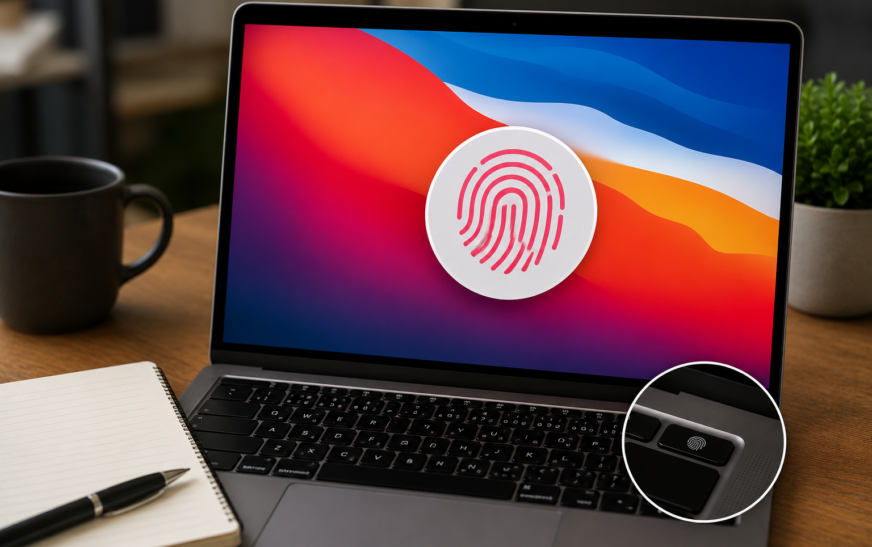
Quick Physical Check — Often OverlookedThe Touch ID sensor on MacBooks is a capacitive sensor built into the power button. Like any capacitive surface, it can be affected by skin oils, moisture, dust, or a screen protector/case residue around the button area. A dirty sensor produces inconsistent reads — sometimes working, sometimes failing, in a pattern that mimics a software problem but is actually physical.
Alcohol-based cleaners can damage the protective coating on the Touch ID button over time and are not recommended by Apple for cleaning this specific surface. Use only a dry or slightly water-dampened microfibre cloth.
Fix 5: Sign Out of Apple ID and Sign Back In
For Touch ID Failing on Apple Pay and Store PurchasesTouch ID for Apple Pay, App Store purchases, and iCloud Keychain autofill relies on an iCloud authentication session separate from the local biometric session used for screen unlock. A macOS Tahoe update often causes this cloud-side authentication to expire, which is why Touch ID unlocks the Mac fine but fails specifically on purchase and payment authentication.
Apple Pay and App Store purchases tie Touch ID authentication to a live iCloud session using your Apple ID credentials. When a macOS update invalidates the previous session token, the system silently falls back to password authentication for all purchase flows — even though local fingerprint unlock still works. Signing out and back in issues a fresh session token, restoring Touch ID for everything including payments.
Fix 6: Reset SMC (Intel) or Run a Safe Boot (Apple Silicon)
When Touch ID Shows “Not Available” in System SettingsIf System Settings shows Touch ID as “not available” or the entire Touch ID section is greyed out, the hardware communication between the sensor and the Secure Enclave has broken down at a level deeper than settings changes can reach. On Intel Macs, an SMC (System Management Controller) reset can restore this communication. On Apple Silicon Macs, a Safe Boot achieves a comparable reset of low-level hardware state.
SMC Reset — MacBook with T2 chip (Intel, 2018–2020):
SMC Reset — Older Intel MacBook (pre-2018, non-T2):
Apple Silicon (M1 through M4) — Safe Boot:
Fix 7: Reset NVRAM (Intel Macs)
For Persistent “Not Available” After SMC ResetNVRAM on Intel Macs holds certain boot-time configuration data that can include Touch ID initialisation state. If the SMC reset didn’t restore Touch ID availability, resetting NVRAM clears this configuration layer and lets macOS Tahoe rebuild it fresh on the next startup.
NVRAM reset via key combination is an Intel Mac-specific procedure. Apple Silicon Macs (M1, M2, M3, M4) manage NVRAM differently and don’t support this key combination. For Apple Silicon, the Safe Boot method in Fix 6 is the equivalent procedure.
Fix 8: Check for Third-Party App and Extension Conflicts
If Touch ID Works in Safe Mode but Not NormallyCertain third-party apps can conflict with macOS Tahoe’s updated Touch ID implementation — particularly password managers (1Password, Bitwarden, LastPass), security utilities, corporate device management profiles, and system extension-based apps that hook into macOS’s authentication framework. If Touch ID works after a Safe Boot (Fix 6) but fails again after a normal startup, a third-party component is the cause.
If your Mac is managed by an employer or school (check for a management notice in System Settings → Privacy & Security → Profiles), Touch ID settings may be restricted or disabled by a Mobile Device Management policy. These restrictions can be tightened after a major macOS update as profiles are re-applied. Contact your IT department if you suspect this is the case — they can adjust the Touch ID policy settings from their MDM console.
Fix 9: Delete Touch ID Preference Files
For Persistent Failures After Re-EnrollmentmacOS stores Touch ID configuration and per-function authorisation data in preference files. When these become corrupted or incompatible with macOS Tahoe’s updated biometric authentication layer, deleting them forces a complete rebuild of Touch ID configuration on next startup — often resolving issues that survive re-enrollment alone.
biometrickit or touchid in the filenameFix 10: Reinstall macOS Tahoe
If Touch ID Consistently Shows “Not Available”If the Touch ID section in System Settings shows “Not Available” consistently across restarts — and both the SMC reset and NVRAM reset haven’t changed this — there’s likely a system file corruption in the Touch ID subsystem introduced during the Tahoe installation. A macOS reinstall from Recovery Mode rewrites all system components including the Secure Enclave communication framework, without touching any of your personal data.
Fix 11: When It’s a Hardware Problem — Signs and Next Steps
If All Software Fixes Have FailedIf you’ve worked through every fix in this guide and Touch ID still shows as “Not Available” or the sensor produces no response whatsoever, the issue may be hardware rather than software. Touch ID hardware problems on Mac are uncommon but do occur — particularly after physical impacts or liquid exposure, on older MacBooks with significant hinge wear, or occasionally as a manufacturing defect.
Signs that point to hardware rather than software:
- Touch ID shows “Not Available” after a clean macOS reinstall
- The power button/Touch ID button feels physically different — loose, sunken, or doesn’t click correctly
- The Mac was dropped or exposed to liquid before the Touch ID issue started
- Apple Diagnostics (hold D during startup on Intel, or Command + D in startup options on Apple Silicon) returns a sensor-related error
- Touch ID worked correctly on previous macOS versions before Tahoe and shows “Not Available” after a Tahoe clean install — not an upgrade
On Apple Silicon MacBooks, the Touch ID button and its associated Secure Enclave are cryptographically paired to the logic board — replacing the sensor requires Apple’s proprietary repair process. A third-party repair that replaces only the button will result in Touch ID being permanently disabled, even with a brand-new sensor. Only Apple or an Apple Authorised Service Provider can repair or replace Touch ID hardware on Apple Silicon Macs.
Pro Tips: Keeping Touch ID Working Reliably on macOS Tahoe
Enter your password after every macOS update before trying Touch ID. This is the most common source of post-update frustration — pressing the Touch ID button immediately after an update and assuming it’s broken when it simply needs that first password entry to re-activate. Make it a habit: update, restart, enter password at the login screen, then use Touch ID from that point forward.
Enroll 2–3 fingerprints for the same finger at different angles. macOS allows up to 3 fingerprints per user. Using all three slots to enroll the same primary finger in slightly different positions (tip, slightly left, slightly right) dramatically improves recognition rates, especially first thing in the morning when fingertip texture is slightly different.
Keep the Touch ID button clean and dry. Capacitive fingerprint sensors work best with clean, dry fingertips and a clean sensor surface. If Touch ID becomes inconsistent after exercise, cooking, or outdoor work, wiping both your finger and the sensor before use resolves most false rejections.
After any macOS update, briefly check Touch ID settings. Spend 30 seconds confirming all your Touch ID function toggles are still enabled in System Settings → Touch ID & Password after every major update. Updates occasionally reset individual toggles — catching this immediately prevents days of frustration trying to understand why Touch ID authenticates unlocking but not purchases.
Your Mac has a lot more built-in than most users explore. Touch ID is just one of many convenience features that macOS manages. Our guide on hidden Mac features most users never discover covers features like Handoff, Universal Clipboard, and other ecosystem tools that work alongside Touch ID for a smoother daily workflow.
Common Mistakes to Avoid
This is the single most common source of “Touch ID is broken” reports after updates. macOS requires a password entry after every restart before Touch ID activates — this is a security requirement, not a malfunction. Press a key or move the trackpad at the login screen to see the password field, enter your password, and Touch ID will work from that point forward in that session.
Deleting and re-adding fingerprints feels like a drastic step but it takes under two minutes and resolves the majority of post-update Touch ID recognition failures. It’s much more effective than trying other fixes first while leaving potentially corrupted fingerprint data in place.
The “Touch ID is not available” message in System Settings appears for software reasons far more often than hardware failures. An SMC reset (Fix 6) and macOS reinstall (Fix 10) fix this in the majority of cases. Only after those are tried and fail should hardware be considered as the cause.
FAQ: Touch ID Not Working on Mac After macOS Tahoe
Why did Touch ID stop working after I updated to macOS Tahoe?
Touch ID not working on Mac after a macOS Tahoe update happens because Tahoe updated the communication layer between the operating system and the Secure Enclave — the dedicated chip that stores fingerprint data. After this update, the existing fingerprint enrollment sometimes needs to be re-verified or recreated to be compatible with Tahoe’s authentication framework. The most common fix is to enter your password once after the first post-update restart, then go to System Settings → Touch ID & Password, delete all fingerprints, and re-enroll them fresh. This takes about two minutes and resolves the issue for most users.
Touch ID unlocks my Mac but doesn’t work for App Store or Apple Pay — why?
These are separate authentication systems. Screen unlock uses a local biometric session, while App Store purchases and Apple Pay require your Touch ID to be linked to an active iCloud authentication token. After a macOS update, this cloud-side token often expires, causing purchase authentication to fall back to password even when unlock still works. The fix is to sign out of your Apple ID in System Settings and sign back in — this refreshes the iCloud authentication token and restores Touch ID for all purchase and payment functions.
Touch ID says “Not Available” in System Settings — what does that mean?
This means macOS cannot communicate with the Touch ID sensor — either at a software configuration level or a hardware level. Start with an SMC reset (Intel) or Safe Boot (Apple Silicon), then re-enroll fingerprints. If the sensor remains “Not Available” after an SMC reset, NVRAM reset, and macOS reinstall, it’s likely a hardware issue requiring an Apple Store diagnosis.
How many fingerprints can I add on Mac?
Each user account on a Mac can store up to 3 fingerprints. Fingerprints are stored per-user — different user accounts have completely independent fingerprint enrollment and Touch ID settings. You can use all three slots for different fingers, or enroll the same finger three times at slightly different angles for better recognition rates.
Does Touch ID work differently on Apple Silicon vs Intel Macs?
Yes. On Apple Silicon Macs (M1, M2, M3, M4), Touch ID authentication is handled by a more tightly integrated Secure Enclave that’s part of the Apple chip itself. This integration is more robust and generally produces fewer post-update failures. On Intel Macs with T2 chip (2018 onwards), the Secure Enclave is in the T2 chip — also robust but occasionally needs an SMC reset after major macOS updates. Older Intel Macs without a T2 chip handle Touch ID with less hardware security integration, which can make software fixes like NVRAM reset more impactful.
Can I use Touch ID on a Mac without logging into iCloud?
Yes, partially. Touch ID for unlocking your Mac and authenticating system-level actions works entirely locally without an iCloud account. However, Touch ID for Apple Pay, App Store and iTunes purchases, and iCloud Keychain autofill all require an active iCloud account and authentication session. If you’ve never signed into iCloud or have signed out, Touch ID will only work for screen unlock and local password prompts.
Touch ID Not Working on Mac — Complete Fix Checklist
- 1Restart and enter password first — Touch ID requires one password entry after every restart
- 2Check all Touch ID toggles — System Settings → Touch ID & Password, confirm each function is enabled
- 3Delete and re-enroll fingerprints — most effective fix for recognition failures
- 4Clean the sensor and your fingertip — dry, lint-free cloth, no alcohol
- 5Sign out of Apple ID and back in — restores Touch ID for purchases and Apple Pay
- 6Reset SMC (Intel) or Safe Boot (Apple Silicon) — for “Not Available” errors
- 7Reset NVRAM — Intel Macs only, after SMC reset
- 8Check third-party app conflicts — test in Safe Mode, disable login items
- 9Delete Touch ID preference files — force a clean rebuild of configuration
- 10Reinstall macOS from Recovery Mode — preserves data, rewrites system components
- 11Apple Store diagnosis — if hardware failure is suspected after all software fixes
One Last Thing
Touch ID not working on Mac after a macOS Tahoe update almost always comes down to one of three things — needing that first password entry after restart, fingerprint data that needs re-enrolling, or the iCloud authentication session having expired for purchase-related functions. In the vast majority of cases, one of the first five fixes in this guide resolves it within minutes.
If you’re in the minority where “Touch ID is not available” persists after an SMC reset and reinstall, book a Genius Bar appointment with a description of what you’ve tried. Telling Apple exactly which software fixes you’ve already applied speeds up the diagnostic significantly — they’ll know to go straight to hardware testing rather than repeating steps you’ve already taken.
Wrapping Up
Touch ID on Mac is one of the most seamless, invisible features in the Apple ecosystem — you stop thinking about passwords almost immediately after setting it up. When it breaks after a macOS update, it breaks the flow of every interaction that depended on it without you realising how much that was until it’s gone.
The fix is almost always software-level and quick. Restart, re-enroll, sign back into iCloud, check the toggles — these four steps resolve the issue for the overwhelming majority of users. The hardware path is rarely needed, but when it is, an Apple Store is the right next step rather than attempting any physical repair on a device where the Touch ID sensor is cryptographically paired to the logic board.
ⓘ Disclaimer: This article is for informational purposes only. CrazyErrors is not affiliated with Apple Inc. Touch ID repair on Apple Silicon Macs requires Apple or Apple Authorised Service Provider involvement due to hardware pairing requirements. Results may vary depending on your Mac model and macOS Tahoe version. For official Apple Touch ID support, visit support.apple.com/touch-id.