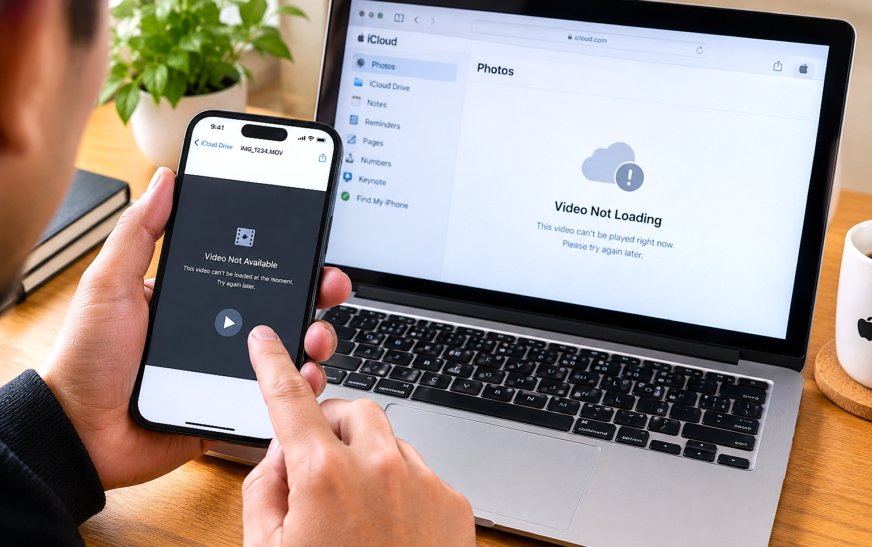
When a video sent via iCloud is not loading, the issue is almost always one of three things: a weak or unstable internet connection preventing the download from completing, the sender’s iCloud storage being full so the video never actually uploaded, or the iCloud link having expired after 30 days. Start by checking your WiFi signal and switching from cellular to WiFi (or vice versa) — iCloud video downloads require a stable connection and often stall on a congested cellular network. If connection isn’t the issue, ask the sender to check their iCloud storage in Settings → [Name] → iCloud — a full iCloud account prevents video uploads entirely, which means there’s nothing at the other end of the link to download.
Receiving a video sent via iCloud that refuses to load is one of the more confusing iPhone and Mac experiences. The message arrives, you tap the video thumbnail or the “Tap to Load” prompt, a spinning indicator appears — and then nothing. It keeps spinning. Or it disappears and the video remains locked behind an unresponsive thumbnail. The video exists, the link was sent, and your device is clearly trying to do something — but the download never completes.
This happens because videos sent via iCloud in Messages aren’t embedded directly in the conversation. When a video is too large for a standard MMS attachment — typically anything over about 100 MB — iOS and macOS automatically upload it to iCloud and insert a link into the message thread. The recipient’s device then downloads the video from iCloud when they tap it. This chain — sender’s device, iCloud upload, recipient’s device download — has several points where it can break, and each failure point has a specific fix.
This guide covers every cause in order of likelihood and walks through the fix for each one on both iPhone/iPad and Mac.
Which Scenario Are You In?
Three Distinct Situations — Each Has Different Priority Fixes📱 “Tap to Load” video in iMessage/Messages won’t download
Someone sent you a video in iMessage and the message shows a thumbnail with a “Tap to Load” or loading spinner, but tapping it does nothing or it spins indefinitely. This is the most common scenario — the video was uploaded to iCloud by the sender, but your device can’t download it. Fix 1 (connection check), Fix 2 (force close Messages), and Fix 4 (iCloud sign-in) are the priority fixes here.
🖼️ A video in your iCloud Photos won’t play — loading indicator spins
You tap a video in your Photos app and it shows a cloud icon with a loading spinner that never finishes. Your device has iCloud Photos enabled with “Optimise Storage” — the video exists in iCloud but the full file isn’t on your device and won’t download. Fix 1 (WiFi), Fix 6 (Low Power Mode), Fix 7 (device storage), and Fix 9 (iCloud Photos settings) directly address this.
🔗 An iCloud link or Shared Album video won’t open
Someone shared a video via an iCloud link (the kind you copy from iCloud Drive) or via a Shared Album, and it won’t play. This could be an expired link, a permissions issue, or the sender’s iCloud account no longer hosting the file. Fix 3 (check iCloud status), Fix 12 (ask sender to resend) and checking link expiry are the relevant fixes.
Why Videos Sent via iCloud Stop Loading — All Causes
What’s Actually Happening at Each Point in the Download Chain| Cause | Who’s Affected | Go-To Fix |
|---|---|---|
| Weak WiFi or poor cellular signal | Recipient | Fix 1 — Check connection |
| Messages or Photos app bug / stuck state | Recipient | Fix 2 — Force close and reopen |
| Apple’s iCloud servers are slow or down | Both | Fix 3 — Check iCloud status |
| iCloud sign-in session expired | Recipient or sender | Fix 4 — Sign out and back in |
| Sender’s iCloud storage is full — video never uploaded | Sender (blocks recipient) | Fix 5 — Check sender’s iCloud storage |
| Low Power Mode blocking background downloads | Recipient | Fix 6 — Disable Low Power Mode |
| Device storage too full to download video | Recipient | Fix 7 — Free up device storage |
| VPN or proxy blocking iCloud download servers | Recipient | Fix 8 — Disable VPN |
| iCloud Photos not enabled — can’t access shared media | Recipient | Fix 9 — Enable iCloud Photos |
| Outdated iOS/macOS with known iCloud bug | Both | Fix 10 — Update software |
| Network settings corrupted — DNS blocks iCloud | Recipient | Fix 11 — Reset network settings |
| iCloud link expired (30-day limit) or revoked | Recipient | Fix 12 — Ask sender to resend |
Fix 1: Check Your Internet Connection
Start Here — The Cause in the Majority of CasesiCloud video downloads require a consistent, reasonably fast internet connection to complete. A connection that works for browsing and app use can still be too slow or unstable to pull down a multi-hundred-megabyte video file. The download stalls partway through, the app shows a perpetual spinner, and the video never becomes playable. Switching networks or improving signal strength resolves this immediately.
Apple’s iCloud servers deliver video content at full speed over WiFi but may throttle delivery on cellular connections — both because cellular networks are shared and because iOS itself limits background data usage on cellular to preserve your data allowance. If a video won’t load on cellular after 30 seconds of trying, switch to WiFi before troubleshooting anything else. A good home WiFi connection can download a 500 MB video in under two minutes; a congested cellular connection might time out before finishing.
Fix 2: Force Close and Reopen the App
Clears App State Causing the Download to FreezeThe Messages app and Photos app both maintain an active download queue for iCloud content. When one download fails — due to a brief network drop, a background app limit, or a timing issue — the queue can get stuck, causing all subsequent “tap to load” attempts to appear to start but never actually progress. Force closing the app clears this queue entirely and gives the download a completely clean attempt on relaunch.
On iPhone / iPad:
On Mac:
If force-closing Messages doesn’t resolve the stuck download, a full device restart takes it one step further — it clears all background processes, flushes the network connection cache, and resets the download queue for all apps simultaneously. On iPhone X or later: hold the Side button and either Volume button until the slider appears, then drag to power off. After 30 seconds, hold the Side button to restart. On iPad: similar process, or hold the Top button if it’s a button-only iPad model.
Fix 3: Check iCloud Server Status
Rule Out Apple’s Side Before Spending Time on Your DeviceiCloud video delivery runs through Apple’s servers. During periods of high traffic, maintenance windows, or actual outages, video downloads from iCloud can stall or fail completely — producing the exact same “spinning indicator that never finishes” symptom as a local configuration problem. A 30-second check of Apple’s System Status page confirms whether iCloud is the cause before you spend time on device-side fixes.
- iCloud Drive
- iMessage
- iCloud Photos
- iCloud Mail (if using iCloud mail to share)
Apple’s System Status page reflects confirmed, widespread service issues. A slowdown affecting a specific region, a particular type of content, or a subset of users may not appear on the status page even when real users experience failures. If the status page shows green but you’re seeing widespread iCloud issues across all your devices, check @AppleSupport on social media — regional slowdowns are often reported there before the status page updates.
Fix 4: Sign Out of iCloud and Sign Back In
For Authentication Failures Blocking the Video DownloadiCloud video downloads require an authenticated Apple ID session. When this authentication token expires — after a password change, an extended period offline, or certain iOS updates — the device technically shows as signed in but iCloud downloads silently fail because the underlying session credential is no longer valid. Signing out and back in forces a complete fresh authentication and usually resolves this class of loading failure immediately.
On iPhone / iPad:
On Mac:
During the sign-out period, iCloud features stop syncing — new iMessages won’t arrive, iCloud Photos won’t update, and Find My is temporarily inactive. This is brief and everything resumes normally as soon as you sign back in. All data in iCloud remains safe throughout this process — signing out of iCloud on a device doesn’t affect what’s stored in your iCloud account.
Fix 5: Check the Sender’s iCloud Storage
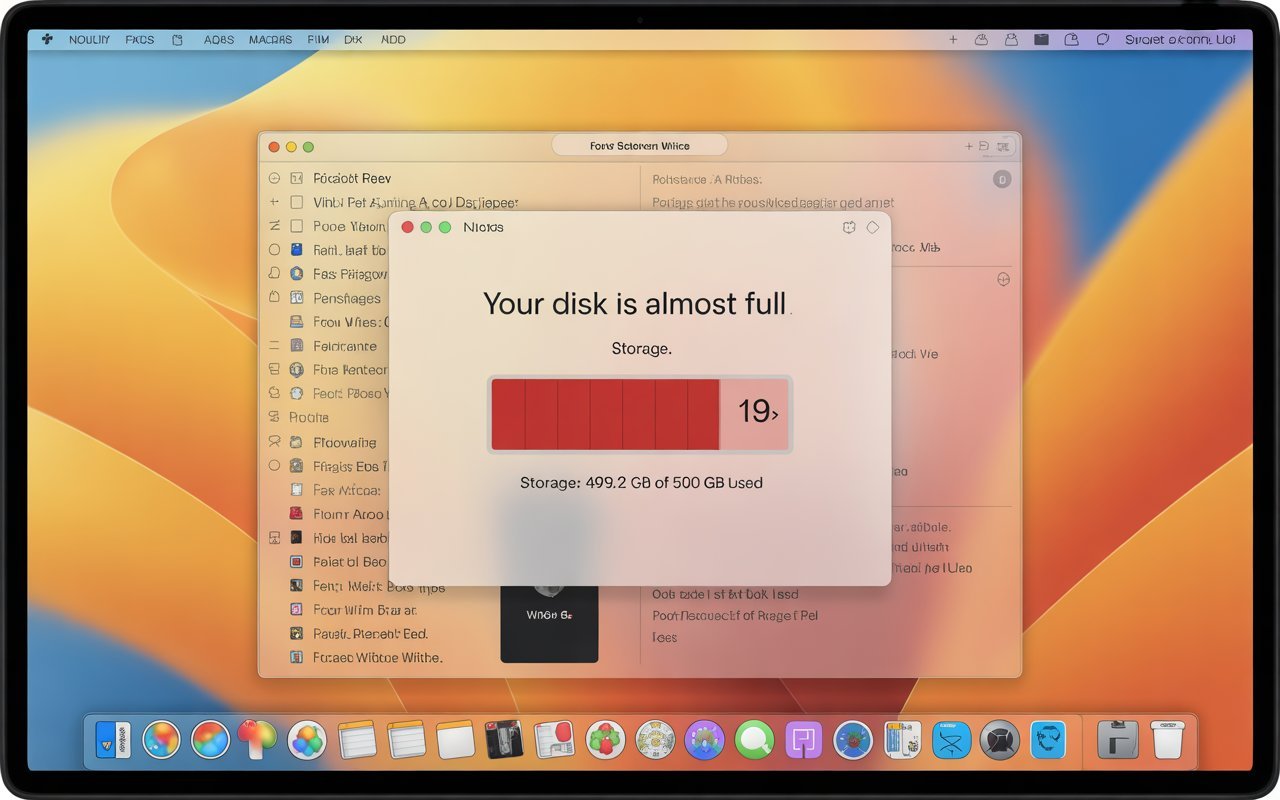
When the Video Never Actually Uploaded — Nothing to DownloadWhen someone sends a video via iMessage and iCloud, their device uploads the video to iCloud first, then sends a link to the recipient. If the sender’s iCloud account is full — no available storage — the upload fails silently. The message arrives in the recipient’s conversation, a thumbnail may even appear, but there’s no video at the other end of the link because the upload never completed. No amount of tapping or network fixing on the recipient’s side will help because the content simply doesn’t exist in iCloud.
- Delete old device backups: Settings → [Name] → iCloud → Manage Account Storage → Backups — delete backups from old devices no longer in use
- Delete iCloud Photos content no longer needed
- Upgrade iCloud storage plan: Settings → [Name] → iCloud → Manage Account Storage → Change Storage Plan
Apple provides 5 GB of free iCloud storage with every Apple ID. A single iPhone backup can be 3–8 GB by itself, and iCloud Photos can consume tens or hundreds of gigabytes for users with large photo libraries. The 5 GB free tier fills up quickly for anyone actively using an iPhone, often without the user noticing. If you or someone sending you videos regularly hit this limit, iCloud+ plans start at $0.99/month for 50 GB — a practical solution for regular video sharing via iMessage.
Fix 6: Disable Low Power Mode
Low Power Mode Actively Blocks Background iCloud DownloadsLow Power Mode is a battery-saving feature that reduces or pauses background activity on iPhone and iPad — and iCloud downloads are explicitly on the list of things it restricts. When Low Power Mode is enabled, tapping “Tap to Load” on an iCloud video may appear to start a download but never complete it, because the background download process is throttled or paused by the power management system. Disabling it allows iCloud downloads to proceed at full speed.
If you’re seeing the spinning cloud icon on videos in your Photos app (indicating the video is in iCloud but not yet on your device), Low Power Mode is one of the most common causes. Even on WiFi, Low Power Mode pauses “Optimise Storage” video downloads to preserve battery. Disabling it even briefly allows the Photos app to download all queued videos from iCloud in one batch. You can also open the specific video and hold — after a few seconds of pressing, the download often triggers even in Low Power Mode.
Fix 7: Free Up Space on Your Device
Insufficient Storage Silently Blocks Video DownloadsiCloud videos are downloaded as temporary files before being placed in their final location on your device. This two-step write process requires free space not just for the final video, but for the temporary download file during the transfer. When device storage falls below approximately 1–2 GB free, downloads begin failing silently — the spinner appears, the download starts, and then stops without error when it runs out of space to write to. Checking and clearing device storage is a critical step that many users overlook.
- Offload unused apps: Settings → General → iPhone Storage → Offload Unused Apps — keeps app data but removes the app binary, freeing significant space
- Delete large apps not in use: tap any app in the storage list and tap Delete App
- Clear Safari cache: Settings → Safari → Clear History and Website Data
- Delete old conversations in Messages — video and audio attachments in message threads can consume gigabytes over time
Go to Settings → General → iPhone Storage → Messages — you’ll often find Messages consuming 5–20 GB in photos, videos, and GIFs accumulated over years of conversations. Tap Review Large Attachments to see and delete the largest ones without leaving the conversation. This is usually the fastest way to recover several gigabytes for downloading new content like the video that isn’t loading.
Fix 8: Disable VPN
VPNs Frequently Block or Slow iCloud Content DeliveryVPN services route your internet traffic through their own servers, which Apple’s iCloud content delivery network can interpret as suspicious access — particularly when the VPN server is in a different country from your registered Apple ID region. iCloud responds by slowing or refusing video downloads routed through certain VPN IP ranges. Additionally, VPNs that use DNS filtering may block access to iCloud’s content delivery domains entirely. If a VPN is running on your device, disabling it is one of the fastest tests for why an iCloud video won’t load.
Fix 9: Check iCloud Photos Settings
For Videos in Your Photos App Showing a Cloud Icon and Not DownloadingiCloud Photos with “Optimise iPhone Storage” enabled stores full-resolution photos and videos in iCloud, keeping only smaller previews on the device to save space. When you tap a video in the Photos app, it should download the full video from iCloud automatically. If this download isn’t happening — the video shows a spinning cloud icon indefinitely — either iCloud Photos is misconfigured, the connection is insufficient, or a toggle needs to be cycled to kick the download queue back into action.
iCloud Photos is designed to download original videos on WiFi by default. On cellular, full-resolution video downloads may be restricted to preserve your data plan. If you’re trying to download a video and only have cellular available, go to Settings → Photos → Cellular Data and enable “Download Videos” under the Cellular Data section. This allows iCloud Photo Library to download original videos on cellular, though it will use your data allowance.
Fix 10: Update iOS, iPadOS, or macOS
Known iCloud Bugs Fixed in Software UpdatesApple regularly patches iCloud-related bugs in iOS, iPadOS, and macOS point releases. iCloud video loading failures, Messages download queue bugs, and iCloud Photos sync issues that appeared after a major OS version update are frequently fixed in the very next point release (for example, the fix for a bug introduced in iOS 26.0 often appears in iOS 26.1 or 26.0.1). If the video loading issue started after a recent update, checking for a newer update is a fast path to a fix.
On iPhone / iPad:
On Mac:
Go to Settings → General → Software Update → Automatic Updates and enable both “Download iOS Updates” and “Install iOS Updates”. With these on, minor bug-fix updates install overnight while the phone is charging, keeping iCloud and Messages working correctly without requiring manual update checks. The update installs silently and the phone restarts once before you wake up.
Fix 11: Reset Network Settings
For Persistent Connection Issues That Survive Other FixesNetwork settings on iPhone and iPad accumulate configuration data over time — WiFi passwords, cellular APN settings, DNS configurations, and proxy settings. When any of these become corrupted — particularly custom DNS entries or proxy configurations that interfere with iCloud’s servers — iCloud downloads can fail in ways that look exactly like a server or app problem. Resetting network settings clears all of this and forces the device to rebuild its network configuration from defaults, which often resolves persistent iCloud connectivity issues.
This reset removes every saved WiFi network and password from the device — not just the current one. Before resetting, note down the passwords for any WiFi networks you regularly use (home, work, any frequently visited places) so you can reconnect after the reset. Your apps, photos, contacts, and all other data remain completely untouched — only network-specific settings are cleared.
Fix 12: Ask the Sender to Resend the Video
For Expired Links and Videos That Never UploadediCloud video links shared through iMessage expire after 30 days. If the original message was sent more than a month ago, the video content has been removed from Apple’s temporary iCloud sharing storage and the link is permanently broken — no device-side fix will restore it because the content no longer exists at that URL. Asking the sender to resend is the only resolution. It’s also the fastest fix when the sender’s iCloud was full during the original send.
- AirDrop — instant, no size limit, no cloud dependency (both devices need to be nearby)
- iCloud Shared Album — no expiry, recipient can download at any time
- Google Drive or Dropbox link — works cross-platform, no size limit
- WhatsApp or Telegram — both support large video files without iCloud dependency
AirDrop transfers videos directly between Apple devices over WiFi and Bluetooth — no iCloud upload, no link, no expiry, no storage requirement. A 500 MB video transfers in under 30 seconds via AirDrop on a good WiFi network. If both people are in the same location, AirDrop is always faster and more reliable than the iCloud link method for large video files. The sender goes to Photos, selects the video, taps Share → AirDrop, and selects the recipient’s device.
Pro Tips: Getting iCloud Videos to Load Reliably Every Time
Always download important videos immediately when received. The iCloud link that carries the video only lasts 30 days — after that it’s gone permanently from Apple’s temporary storage. When someone sends you a video that matters, download it as soon as it arrives rather than leaving it as a “tap to load” thumbnail for later. Once downloaded, the video is on your device and plays without any iCloud dependency. You can also save it to Photos to ensure it’s backed up to your own iCloud account.
Make sure you have enough iCloud storage before sending large videos. Before sharing a long video via iMessage, check your iCloud storage first — Settings → [Name] → iCloud shows your current usage. If you’re within 500 MB of your storage limit, the video upload will fail and your recipient will get a broken link. Either free up space or upgrade your iCloud plan before sending. For regular video sharing, the 50 GB iCloud+ plan is more than sufficient for most users.
Switch to WiFi before loading an iCloud video. Large video downloads via iCloud work most reliably on a stable WiFi connection. Before tapping “Tap to Load” on a large video, confirm you’re on WiFi rather than cellular — particularly if the video is a long clip from an event or trip. Starting the download on cellular and losing signal partway through leaves you with a partially downloaded file that has to start again, which can look like a permanent loading failure.
Consider using iCloud Shared Albums for regular video sharing with the same people. For families or groups who share videos frequently, iCloud Shared Albums remove the 30-day expiry problem entirely — videos in a shared album stay available indefinitely and every album member can download any video at any time. Set up a Shared Album in Photos app by tapping the + icon in the Albums tab and choosing New Shared Album. Our guide on iOS 26 issues and fixes covers other iCloud-related problems introduced in recent updates, and our hidden Mac features guide has tips for managing iCloud content more efficiently on Mac.
Common Mistakes to Avoid
Tapping the video multiple times doesn’t queue multiple downloads or accelerate the process — it typically restarts the same download request from the beginning, which can actually make things slower. Tap once, then wait 20–30 seconds before checking whether the download started. If nothing has happened after 30 seconds, that’s the signal to check the connection or try a different fix — not to tap again.
The “video sent via iCloud not loading” problem is almost always a delivery or configuration issue — not a problem with the video file itself. The video exists on the sender’s device and played fine before being sent. A video that doesn’t load through the iCloud link mechanism is not a corrupted video; it’s a broken delivery chain. Asking the sender to share the same video via AirDrop or another method almost always proves the video itself is perfectly fine.
Deleting the conversation in Messages removes the iCloud video link permanently — and if the 30-day window on that link hasn’t expired, you’ve lost the only reference to that specific upload. The video won’t be in your Photos app (it was never downloaded) and the sender would need to resend it. Never delete a message thread as a troubleshooting step for a video loading issue. Force close the app and check the connection instead.
Attempting to download a video when device storage is at 0 bytes free doesn’t just fail — it can cause the Photos app to crash, the Messages app to freeze on the loading spinner indefinitely, and occasionally corrupts the download cache for that conversation. Check storage first: Settings → General → iPhone Storage. If it shows “0 bytes available,” free space before making any download attempts.
FAQ: Video Sent via iCloud Not Loading
Why is a video sent via iCloud not loading?
A video sent via iCloud stops loading for several common reasons: your internet connection is too slow or unstable to complete the download, the sender’s iCloud storage was full when they sent it so the video never actually uploaded, the iCloud link has expired after 30 days, Low Power Mode is blocking the background download, or your device has insufficient storage space to save the downloaded video. Start by checking your WiFi connection and switching networks if needed, then confirm Low Power Mode is off (Settings → Battery). If those don’t resolve it, ask the sender to check their iCloud storage — a full account on the sender’s end means there’s nothing to download regardless of what you do on your end.
How long does an iCloud link for a video stay active?
iCloud video links shared through iMessage remain active for 30 days from the date they were sent. After 30 days, Apple removes the video from its temporary iCloud sharing storage and the link becomes permanently broken — tapping it produces no download, and no device-side fix can restore it because the content no longer exists. If a video was sent more than 30 days ago and hasn’t been downloaded, the only solution is to ask the sender to resend it, which generates a fresh upload with a new 30-day window. To avoid this problem, download any important videos immediately when they arrive.
How do I make a video in iCloud Photos load and play?
When a video in your Photos app shows a cloud icon with a loading spinner (indicating it’s stored in iCloud but not on your device), tap the video and wait for it to download — this usually takes 5–30 seconds on a good WiFi connection. If the spinner keeps going without completing: first confirm you’re on WiFi (Settings → WiFi), then disable Low Power Mode (Settings → Battery), and check that you have at least 1–2 GB of free device storage (Settings → General → iPhone Storage). If the download still won’t complete, go to Settings → Photos and toggle iCloud Photos off and back on — this restarts the sync and download queue.
Why does iCloud video loading keep failing even with good WiFi?
Persistent iCloud video loading failures on a good WiFi connection usually point to one of three less-obvious causes: a VPN running on the device that’s blocking iCloud’s content delivery servers (disable it via Settings → VPN & Device Management), an expired Apple ID session that needs refreshing (sign out of iCloud and sign back in via Settings → [Name] → Sign Out), or corrupted network settings accumulating incorrect DNS or proxy configurations (reset via Settings → General → Transfer or Reset iPhone → Reset → Reset Network Settings). The VPN check is particularly easy to overlook — many people forget a VPN is running in the background.
Can I download a video from iCloud if the sender deleted it?
If the sender deleted the video from their own device after sending it, the iCloud link still works for its remaining 30-day window — the upload to Apple’s temporary storage is independent from what the sender keeps on their device. However, after the 30-day window, the video is gone from iCloud storage regardless, and the sender can only resend it if they have a copy elsewhere (another device, iCloud Photos backup, or a saved backup). If the 30-day window is still active and the link is working on your end, download the video immediately and save it to your Photos library to ensure you have a permanent copy.
Why does the iCloud video show a spinning indicator and never load on Mac?
An iCloud video that shows a persistent loading spinner in Messages on Mac is most commonly caused by a stale iCloud authentication session on the Mac, or the Mac being signed into a different Apple ID than the one that received the message. Check System Settings → [Name] to confirm the Apple ID matches the one in Messages (Messages → Settings → iMessage). If the accounts match, sign out of iCloud on the Mac and sign back in. Also confirm iCloud Drive is enabled in System Settings → [Name] → iCloud → iCloud Drive — without iCloud Drive active, Messages can’t download iCloud video content on Mac.
Video Sent via iCloud Not Loading — 12 Proven Fixes Checklist
- 1Check internet connection — switch between WiFi and cellular; toggle Airplane Mode on/off; restart router
- 2Force close and reopen Messages or Photos — swipe up in App Switcher; reopen app; retry the video
- 3Check Apple iCloud status — apple.com/support/systemstatus; confirm iCloud Drive, iMessage, and iCloud Photos are green
- 4Sign out of iCloud and back in — Settings → [Name] → Sign Out; choose Keep a Copy; sign back in after 20 seconds
- 5Check sender’s iCloud storage — ask sender to check Settings → [Name] → iCloud; if full, they need to free space and resend
- 6Disable Low Power Mode — Settings → Battery → Low Power Mode → Off; yellow battery icon confirms it’s on
- 7Free up device storage — Settings → General → iPhone Storage; need at least 2 GB free; offload apps or delete message attachments
- 8Disable VPN — Settings → VPN & Device Management; disconnect VPN app; test without VPN; use split tunneling if needed
- 9Check iCloud Photos settings — Settings → Photos; confirm iCloud Photos On; toggle off/on to restart sync; enable cellular downloads if needed
- 10Update iOS/macOS — Settings → General → Software Update; install any available update; known iCloud bugs fixed in point releases
- 11Reset network settings — Settings → General → Transfer or Reset → Reset → Reset Network Settings; note WiFi passwords first
- 12Ask sender to resend — for 30-day expired links; suggest AirDrop, iCloud Shared Album, or Google Drive as reliable alternatives
One Last Thing
When a video sent via iCloud won’t load, it’s rarely a problem with the video itself — it’s almost always a delivery chain issue with a specific, findable cause. Connection quality and Low Power Mode together account for the majority of cases. Sender storage and expired links cover most of the rest. Working through the checklist from Fix 1 resolves the problem for nearly every user before reaching Fix 6.
The most important habit to build going forward: download videos from important messages as soon as they arrive, before the 30-day window closes. A video that’s downloaded and saved to your Photos library never needs iCloud to play again — it’s yours permanently.
Wrapping Up
iCloud video sharing is a convenient system that works seamlessly most of the time — but the chain between sender’s device, iCloud storage, and recipient’s download has enough moving parts that any one link can break. This guide covers every known failure point in that chain. Start with the connection check and Low Power Mode — together they fix the problem faster than anything else. If those don’t clear it, the sender’s iCloud storage check often reveals the real cause in seconds.
ⓘ Disclaimer: This article is for informational purposes only. CrazyErrors is not affiliated with Apple Inc. iCloud storage limits, link expiry periods, and feature availability may change with future iOS and macOS updates. Information reflects iOS 26 and macOS Tahoe as of 2026. For official iCloud support, visit support.apple.com/icloud.