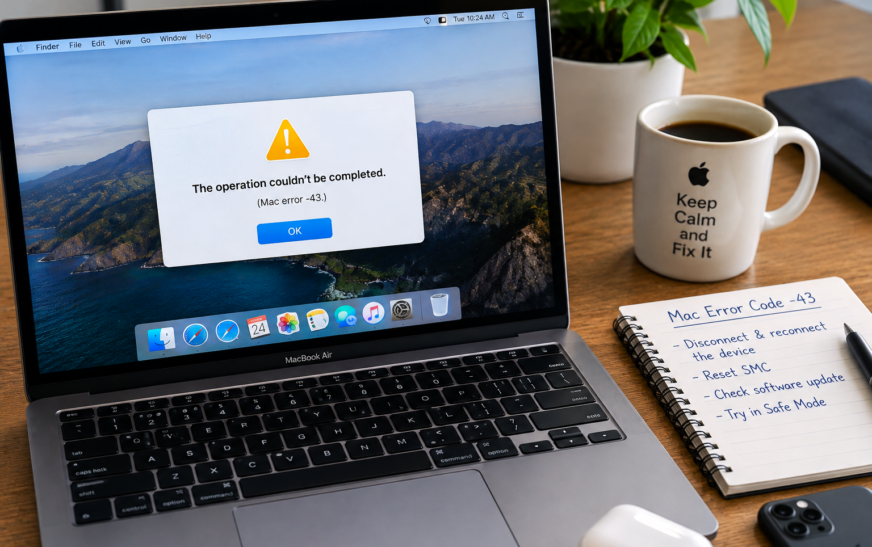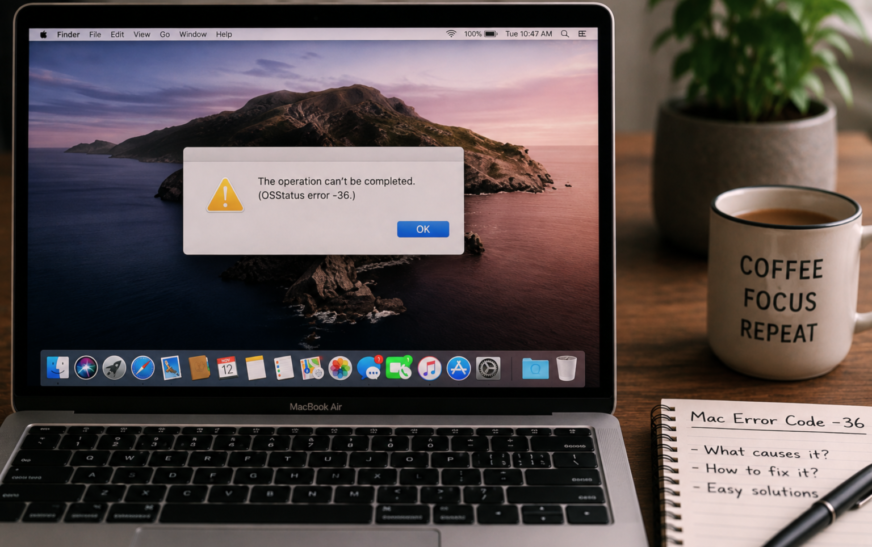
Mac Error Code -36 (“The Finder can’t complete the operation because some data in [file] can’t be read or written”) almost always appears when copying files to or from an external drive formatted as FAT32 or exFAT. The most effective fix is a one-line Terminal command: open Terminal, type dot_clean followed by a space, then drag the problem folder directly into the Terminal window and press Return. This removes the hidden ._ AppleDouble files that macOS creates on non-Mac file systems and are the root cause of Error -36 in the majority of cases. If dot_clean doesn’t resolve it, the drive may have bad sectors — run Disk Utility → First Aid on the drive to check.
Mac Error Code -36 is one of those errors that appears at the worst possible moment — halfway through copying a folder of important files to an external drive, right when you’re about to hand a USB stick to someone, or when moving photos from a camera card to your Mac. The Finder shuts down the entire copy operation with a message that gives you very little to work with: “The Finder can’t complete the operation because some data in [filename] can’t be read or written. (Error code -36).”
The error looks catastrophic but it’s almost never a sign that your files are damaged or your drive is failing. In the vast majority of cases, Error -36 is caused by invisible hidden files called ._ AppleDouble files — background metadata files that macOS automatically creates whenever you copy anything to a drive that isn’t formatted in Apple’s native file system. These hidden files conflict with certain drive formats and trigger the error. The fix takes about 30 seconds once you know the right Terminal command.
What Actually Causes Mac Error Code -36
Understanding the Root Cause Helps You Choose the Right FixWhen you copy a file from your Mac to an external drive — particularly one formatted as FAT32 or exFAT for Windows compatibility — macOS doesn’t just write the file itself. It also tries to write a companion hidden file that starts with ._ (dot-underscore) followed by the original filename. These are called AppleDouble files, and they store macOS-specific metadata: resource forks, extended attributes, Finder labels, and other information that Apple’s file systems handle natively but FAT32 and exFAT cannot.
When these hidden ._ files become corrupted — or when the destination file system doesn’t support them cleanly — the Finder encounters a read/write failure on the metadata file, not on your actual file. It then cancels the entire copy operation and surfaces Error -36. Your real file is usually completely fine. The Finder is just unable to complete its background metadata work.
| Cause | Most Common Scenario | Most Effective Fix |
|---|---|---|
Corrupted ._ AppleDouble files on drive |
Copying to/from FAT32 or exFAT external drive | Fix 1: dot_clean Terminal command |
| Drive has bad sectors or hardware errors | Error occurs on random files, not consistently one folder | Fix 2: Disk Utility First Aid |
| File or folder name contains special characters | Copying from Mac to Windows-formatted drive | Fix 5: Rename the file |
| File is locked or in use by another process | Error on a specific file that other fixes don’t clear | Fix 6: Unlock the file |
| Faulty USB/Thunderbolt cable or port | Error is intermittent; works sometimes, fails others | Fix 7: Swap cable and port |
| Destination drive format incompatible with file size | Copying a file larger than 4 GB to a FAT32 drive | Fix 8: Reformat drive to exFAT or APFS |
| Destination drive full | Error appears after a large batch copy starts | Free space on destination drive |
In macOS’s internal error code system, -36 maps to ioErr — an input/output error at the disk layer. It means the operating system attempted to read or write data and the storage device reported a failure for that specific operation. This is distinct from Error -43 (file not found) or Error -8072 (copy path too long). The ioErr code tells you the problem is between macOS and the storage device — not a network issue, not a permissions issue, and not a software compatibility issue.
30-Second Diagnostic: Identify Your Situation
Run These Checks Before Choosing a Fix💾 Error appears when copying to an external USB or SD card drive
Almost certainly the AppleDouble ._ file issue. Check the drive’s format in Disk Utility — if it’s FAT32 or exFAT, Fix 1 (dot_clean) resolves this in 30 seconds. This is the most common scenario for Error -36.
🗂️ Error appears when copying between two Mac drives or to APFS
AppleDouble files aren’t the cause here — APFS and Mac OS Extended handle metadata natively. More likely a bad sector on the source drive or a locked/corrupted file. Fix 2 (Disk Utility First Aid) and Fix 6 (unlock file) are the priority.
📄 Error is triggered by one specific file, not all files
A single problematic file points to that file being locked, having an unusually long name, containing special characters in the filename, or having corrupted extended attributes. Fix 5 (rename), Fix 6 (unlock), and Fix 4 (copy via Terminal) address single-file errors.
🔁 Error appears on large files but small files copy fine
A strong sign the destination drive is formatted as FAT32, which has a hard 4 GB per-file size limit. Any file over 4 GB will always fail to copy to a FAT32 drive regardless of other fixes. Reformatting the drive to exFAT (Fix 8) is the permanent solution.
🔌 Error is intermittent — sometimes works, sometimes doesn’t
Intermittent errors strongly suggest a hardware connection problem: a loose or degraded USB cable, a faulty port on the Mac or the drive enclosure, or a drive beginning to develop bad sectors. Fix 7 (cable and port) and Fix 2 (First Aid) address this pattern.
📷 Error appears when importing from a camera SD card
Camera SD cards are formatted in FAT32 or exFAT by default. Error -36 appears because of AppleDouble conflicts with the card’s file system. Fix 1 (dot_clean on the SD card) or Fix 3 (copy via Terminal) typically resolves camera card import errors immediately.
Fix 1: Run dot_clean in Terminal
Start Here — Fixes Error -36 in 90% of CasesThe dot_clean command is a macOS utility built specifically to deal with AppleDouble files — the hidden ._ files that cause Error -36 on FAT32 and exFAT drives. Running it on the folder you’re trying to copy merges or removes the problematic hidden companion files, clearing the way for the Finder to complete the copy operation cleanly. This is the right first fix for anyone seeing Error -36 on an external drive, USB stick, or SD card.
dot_clean followed by a single space — do not press Return yet:
dot_clean dot_clean command. You should see something like:
dot_clean /Volumes/MyDrive/MyFolderTo run dot_clean on an entire external drive rather than a specific folder — useful if errors are appearing across multiple folders:
# Replace "MyDrive" with your external drive's actual name
dot_clean -m /Volumes/MyDrive
The -m flag tells dot_clean to merge the AppleDouble files rather than just delete them — this preserves any metadata that can be preserved while eliminating the corrupted files causing the error.
dot_clean scans the target folder for pairs of files — for example, photo.jpg and its hidden companion ._photo.jpg. Where the ._ companion file is corrupted or can’t be written cleanly to the drive’s file system, dot_clean either merges the metadata back into the main file (where the file system supports it) or removes the problematic companion file. The result is a folder that macOS can copy without the metadata write failure that triggers Error -36.
A common mistake is running dot_clean on the destination drive after the error. The ._ files causing Error -36 live in the source folder — the folder you’re copying from — not the destination. Always run dot_clean on the original source folder. If you’re copying from an external drive to your Mac, run dot_clean on that external drive’s folder. If you’re copying from your Mac’s Downloads or Desktop to an external drive, run dot_clean on the Downloads or Desktop folder that contains the problem files.
Fix 2: Run First Aid in Disk Utility
For Bad Sectors, Disk Errors, and Intermittent FailuresWhen Error -36 appears on files spread across a drive rather than concentrated in one folder — or when dot_clean doesn’t resolve it — the problem is more likely at the disk level itself: bad sectors, a corrupted directory structure, or filesystem inconsistencies that make certain areas of the drive unreadable. Disk Utility’s First Aid function scans for and repairs these issues without touching your files.
- “The volume appears to be OK” or “Operation successful” — no disk-level errors found; the cause of Error -36 is elsewhere
- “Errors were found and repaired” — Disk Utility fixed filesystem issues; retry your copy operation
- “Errors were found but could not be repaired” — the drive has damage beyond software repair; back up all data immediately and consider replacing the drive
If Disk Utility reports errors it cannot repair, the drive has physical damage — bad sectors or hardware failures that software cannot fix. Do not continue using the drive as your primary storage for important files. Back up everything you can access immediately using a different method (Terminal cp command, a data recovery tool). Then either reformat the drive (which marks bad sectors and works around them) or replace it. Continuing to use a drive with unrepaired errors risks progressive data loss.
Fix 3: Copy the File Using Terminal Instead of Finder
Bypasses the Finder’s Metadata Write RequirementThe Finder always attempts to copy both the file and its metadata companion files. When the metadata copy fails, the Finder cancels everything — including the actual file transfer. Terminal’s cp command (short for “copy”) copies only the file data itself, bypassing the metadata write step entirely. This often gets files across when the Finder refuses to complete the operation.
cp /path/to/source/file.jpg /path/to/destination/-r flag (recursive):
cp -r /path/to/source/folder/ /path/to/destination/cp -r (with a space at the end), drag the source folder into Terminal, type another space, then drag the destination folder into Terminal. The command fills itself in automaticallycp -rv /path/to/source/folder/ /path/to/destination/For copying large numbers of files, rsync is a better choice than cp. If an rsync transfer is interrupted — by a disconnected drive, a Mac going to sleep, or a power cut — it resumes from where it left off rather than starting over. Use: rsync -av --progress /source/folder/ /destination/folder/. The --progress flag shows real-time transfer speed and completion percentage. rsync is already installed on every Mac — no additional software needed.
Fix 4: Prevent macOS from Writing .DS_Store Files to External Drives
A Permanent Fix That Stops Error -36 From RecurringmacOS creates .DS_Store files (and their associated ._ companion files) in every folder it opens on an external drive. On FAT32 and exFAT drives, the process of creating these hidden files is the trigger for Error -36. You can tell macOS to stop creating these hidden metadata files on network and external drives entirely — a one-time Terminal command that permanently prevents this class of Error -36 from appearing.
defaults write com.apple.desktopservices DSDontWriteNetworkStores -bool TRUE.DS_Store or companion ._ metadata files to the drive._ and .DS_Store files already on the external drive, run dot_clean (Fix 1) on the entire drive after this commanddefaults write com.apple.desktopservices DSDontWriteNetworkStores -bool FALSEThe DSDontWriteNetworkStores preference was originally designed for network-mounted drives. On directly connected USB and Thunderbolt drives, macOS may still write .DS_Store files despite this setting — the behaviour varies between macOS versions. If Error -36 persists on a directly attached external drive after this fix, combine it with dot_clean (Fix 1) and consider reformatting the drive to exFAT (Fix 8) as the permanent long-term solution.
Fix 5: Rename Files With Special Characters or Long Names
For Error -36 on Specific Files That Other Fixes Don’t ClearFAT32 and exFAT file systems have strict rules about which characters are allowed in filenames. macOS’s APFS and Mac OS Extended are much more permissive — they allow colons, slashes, question marks, asterisks, and other characters that FAT32 and exFAT explicitly prohibit. When you try to copy a file with a problematic character in its name to a FAT32 or exFAT drive, Error -36 appears because the destination file system simply cannot create a file with that name.
/ \ : * ? " < > |(forward slash, backslash, colon, asterisk, question mark, quote, angle brackets, pipe)- Filenames ending with a period or space
- Filenames longer than 255 characters
- Accented or non-Latin characters in some older FAT32 implementations
find command to identify them all:
# Lists all files in the folder with colons in the name
find /path/to/folder -name "*:*"macOS has a quirk: when you type a colon in a filename in the Finder, macOS silently converts it to a forward slash internally. The Finder displays it as a colon but stores it as a slash. This means a file that appears harmless in the Finder — “Meeting Notes: March 2026” — actually contains a character that FAT32 and exFAT cannot handle. If Error -36 appears on a file whose name contains a colon, renaming it to remove the colon (or replacing it with a dash or hyphen) resolves the error.
Fix 6: Unlock Locked or In-Use Files
When Error -36 Targets One Specific File PersistentlymacOS allows files to be “locked” — a Finder-level attribute that prevents modification or deletion. When the Finder tries to copy a locked file and encounters any other issue during the process, Error -36 can appear alongside a permissions-related failure. Additionally, files actively being used by another application (a video being played, a document being edited) are locked by the OS during use and can’t be copied until the using application releases them.
# Unlock a single file
chflags nouchg /path/to/file

# Unlock all files in a folder recursively
chflags -R nouchg /path/to/folder/Fix 7: Check the Physical Cable and Port
For Intermittent Error -36 That Appears RandomlyError -36 is an I/O error — an input/output failure at the hardware connection layer. A cable that’s beginning to fail, a dust-blocked USB port, or a loose connection between the drive enclosure and its internal disk can all generate exactly this error at the OS level. The pattern that suggests hardware is the cause: Error -36 appears on different files each time, or the same copy sometimes works and sometimes doesn’t with no other changes.
Unplugging an external drive while a write operation is in progress — even one that looks finished on screen — can corrupt the drive’s directory structure and create exactly the kind of filesystem damage that produces Error -36. Always right-click the drive in the Finder sidebar and select Eject before unplugging. On a Mac, the Eject step flushes any pending writes to disk before disconnecting the hardware link, which is what prevents corruption.
Fix 8: Reformat the External Drive to exFAT or APFS
The Permanent Solution for FAT32-Related Error -36FAT32 is a file system designed in the 1970s — it has a hard limit of 4 GB per file and generates AppleDouble metadata conflicts with macOS that cause Error -36. If your drive is formatted as FAT32 and you want to eliminate Error -36 permanently without working around it with dot_clean every time, reformatting is the lasting fix. The choice of new format depends on how you plan to use the drive:
| Format | Use This When | Mac Read/Write | Windows Read/Write | File Size Limit |
|---|---|---|---|---|
| exFAT | Drive shared between Mac and Windows | ✔ | ✔ | No practical limit |
| APFS | Mac-only use; SSD or flash drive | ✔ | ✘ | No practical limit |
| Mac OS Extended (HFS+) | Mac-only use; traditional hard drive | ✔ | ✘ | No practical limit |
| FAT32 | Legacy compatibility only | ✔ | ✔ | 4 GB per file |
Formatting a drive erases every file on it — completely and permanently. Before reformatting, copy everything on the drive to your Mac or another storage location. Verify the backup before proceeding. Once you click Erase in Disk Utility, recovery of the previous content is not possible through standard means.
- Name: enter a name for the reformatted drive
- Format: choose exFAT if you need Windows compatibility, or APFS for Mac-only use
- Scheme: choose GUID Partition Map
Fix 9: Reset the Finder
When Error -36 Appears Across Multiple Drives Without a Clear PatternIn rare cases, the Finder process itself develops a state issue that causes copy errors across multiple drives. Resetting the Finder — which is different from restarting the Mac — refreshes the process without logging out or rebooting anything else. It takes five seconds and is worth trying when Error -36 appears seemingly at random without a consistent pattern related to drive format or file type.
killall FinderFix 10: Check and Repair Extended Attributes With xattr
For Stubborn Files That Fail Even After dot_cleanmacOS files can carry extended attributes — invisible metadata tags that store information like download quarantine flags, Finder tags, and application-specific data. When these extended attributes become corrupted or contain data the destination file system can’t handle, they can trigger Error -36 on specific files even after dot_clean has been run. The xattr Terminal command lets you view and remove these attributes.
xattr followed by a space and drag the file into Terminal:
xattr /path/to/problematic/file.jpgcom.apple.quarantine, com.apple.FinderInfo, com.apple.metadata:kMDItemWhereFroms), extended attributes are presentxattr -c /path/to/problematic/file.jpgxattr -rc /path/to/folder/Removing extended attributes from photos, videos, documents, and other media files does not damage the files themselves. The extended attributes macOS stores are supplementary metadata — Finder tags, download source information, quarantine flags — not part of the file’s actual content. A JPEG photo after xattr -c opens identically to before; a video plays identically. The only thing lost is macOS-specific metadata that the file system uses for organisational features, none of which are needed for the file to function normally.
Pro Tips: Preventing Mac Error Code -36
Format external drives you use only with Mac as APFS or Mac OS Extended from the start. The majority of Error -36 cases happen on FAT32 or exFAT drives. If a drive is exclusively for Mac use — a backup drive, a photo archive, an editing drive — formatting it as APFS eliminates the entire class of AppleDouble conflicts that cause Error -36. Reformatting an existing drive takes 5 minutes; avoiding Error -36 indefinitely is worth that investment.
Use exFAT instead of FAT32 for cross-platform drives. FAT32 has no practical advantages over exFAT for modern use. exFAT has no per-file size limit, handles macOS metadata more cleanly, and is supported natively by macOS, Windows, and modern Linux without additional software. Any drive that you intend to share between Mac and Windows should be formatted exFAT rather than FAT32. Many drives ship formatted as FAT32 for maximum legacy compatibility — it’s worth reformatting them on first use.
Run dot_clean periodically on drives you use frequently between Mac and Windows systems. Even with exFAT, macOS accumulates ._ metadata files over time on external drives — particularly on drives that are also connected to Windows computers, which don’t automatically clean up these files. Running dot_clean -m /Volumes/YourDrive every few weeks on frequently used cross-platform drives prevents metadata file accumulation that eventually triggers Error -36. Keep your Mac’s storage in good shape for all operations — our guide on freeing up MacBook storage covers the fastest ways to recover disk space.
Eject external drives properly — always. The single most preventable cause of filesystem damage on external drives is physically unplugging them while a write is in progress or while the drive’s directory is cached in memory. macOS writes data to external drives asynchronously — even if no copy dialog is visible, background writes may still be in progress. The Eject option in the Finder sidebar (or pressing the Eject button next to the drive name) guarantees all pending writes complete before the drive disconnects.
Common Mistakes to Avoid
The ._ AppleDouble files causing Error -36 live in the source folder — the folder you’re copying from. Running dot_clean on the destination (where the copy is going) doesn’t clean the source metadata and won’t resolve the error. Always run dot_clean on the original location of the files that are failing to copy.
This message from Disk Utility’s First Aid is not a minor advisory. It means the drive has physical or logical damage that the software cannot fix. Continuing to use the drive as primary storage for important files is a significant risk — drives with unrepaired errors can fail progressively and quickly. Back up everything accessible immediately, then decide whether to reformat (which works around bad sectors) or replace the drive.
Reformatting permanently and irreversibly erases all data on a drive. There is no undo. Before selecting Erase in Disk Utility, confirm that every file on the drive has been safely copied to another location and that those copies are accessible and intact. Verifying the backup before erasing takes an extra five minutes — skipping this step has cost many people their data.
Error -36 almost never means the files themselves are damaged. The error refers to a failure in the metadata write process or a disk I/O error at the connection level. In the vast majority of cases, the actual file content is completely intact and accessible. The file didn’t copy — it wasn’t corrupted. Running dot_clean or copying via Terminal typically gets the files across without any data loss.
FAQ: Mac Error Code -36
What is Mac Error Code -36 and what causes it?
Mac Error Code -36 is an input/output error that appears as “The Finder can’t complete the operation because some data in [filename] can’t be read or written.” It’s caused by a failure in reading or writing data between macOS and a storage device. The most common cause is a conflict between macOS’s hidden AppleDouble metadata files (the invisible ._ files macOS creates automatically) and external drives formatted as FAT32 or exFAT, which don’t support these files natively. Other causes include bad sectors on the drive, a faulty cable or connection, locked files, filenames containing special characters incompatible with the destination file system, or files larger than 4 GB being copied to a FAT32 drive.
How do I fix Mac Error Code -36 with Terminal?
The fastest Terminal fix for Mac Error Code -36 is the dot_clean command. Open Terminal (Command + Space, type Terminal, press Return), type dot_clean followed by a space, then drag the problem folder from Finder into the Terminal window and press Return. This removes the corrupted AppleDouble hidden files causing the error. After dot_clean completes (it runs silently with no output on success), retry the copy operation in Finder. For a more thorough fix, add the -m flag: dot_clean -m /Volumes/YourDrive to process an entire drive.
Why does Error Code -36 appear when copying to an external hard drive?
Error Code -36 when copying to an external hard drive almost always occurs because the drive is formatted as FAT32 or exFAT. When macOS copies files to these drives, it also tries to write hidden companion files (called AppleDouble or ._ files) that store macOS-specific metadata. FAT32 and exFAT don’t support these files cleanly, and when the hidden file write fails, macOS cancels the entire copy and shows Error -36. Running dot_clean on the source folder (Fix 1) resolves this in most cases. For a permanent fix, reformatting the drive to exFAT (if you need Windows compatibility) or APFS (for Mac-only use) eliminates the underlying conflict.
Will Error Code -36 cause me to lose my files?
No — Mac Error Code -36 does not damage or delete your files. The error appears when the copy operation fails, meaning the file was not successfully copied to the destination, but the original file in its source location remains completely intact. The error relates to a failure in macOS’s metadata write process or a disk I/O issue, not to any damage to the file’s actual content. Your files are safe in their original location — the goal of the fixes in this guide is to complete the copy that Error -36 interrupted, not to repair damaged files.
What does dot_clean do and is it safe to run?
dot_clean is a macOS system utility that finds and resolves conflicts between regular files and their hidden AppleDouble companion files (the invisible ._ files that macOS creates on external drives). It either merges the companion file’s metadata back into the main file or removes the problematic companion file entirely. dot_clean is completely safe to run — it doesn’t modify the actual content of your files, it doesn’t delete any visible files, and it doesn’t affect the drive’s directory structure. It only processes the hidden ._ metadata companion files. Running it on any folder or drive is safe and reversible in the sense that the ._ files it removes will be recreated by macOS the next time the folder is opened.
Error Code -36 appears on a specific file only — how do I fix it?
When Mac Error Code -36 targets one specific file consistently while all other files copy normally, check three things in order. First, check the filename for special characters like colons, slashes, or question marks that the destination file system doesn’t support — rename the file to remove them. Second, select the file, press Command + I, and check whether the Locked checkbox is ticked in the Get Info window — if it is, uncheck it. Third, run xattr -c /path/to/file in Terminal to remove any corrupted extended attributes from the file. One of these three causes accounts for nearly all single-file Error -36 occurrences.
Mac Error Code -36 — 10 Proven Fixes Checklist
- 1Run dot_clean on source folder — open Terminal, type
dot_clean, drag folder in, press Return; add-mflag for full drive - 2Run Disk Utility First Aid — open Disk Utility, select the volume, click First Aid; run on physical drive entry too
- 3Copy via Terminal instead of Finder — use
cp -r /source/ /destination/orrsync -av --progressfor large transfers - 4Disable .DS_Store on external drives —
defaults write com.apple.desktopservices DSDontWriteNetworkStores -bool TRUE; restart Mac - 5Rename files with special characters — remove colons, slashes, question marks, asterisks from filenames; check for names over 255 characters
- 6Unlock locked files — Command + I → uncheck Locked; or
chflags nouchg /path/to/filein Terminal - 7Check cable and port — swap cable, try different USB port, bypass USB hub, connect directly to Mac
- 8Reformat drive to exFAT or APFS — back up first; Disk Utility → Erase; choose exFAT (cross-platform) or APFS (Mac-only)
- 9Reset the Finder — Option + right-click Finder in Dock → Relaunch; or
killall Finderin Terminal - 10Remove extended attributes with xattr —
xattr -c /path/to/filefor single file;xattr -rc /path/to/folder/for all files in folder
One Last Thing
Mac Error Code -36 looks alarming on first encounter but it’s one of the more solvable Mac errors once you understand what it’s actually reporting. In nine out of ten cases, the fix is dot_clean run in Terminal — a 30-second operation that removes the hidden metadata files causing the conflict. The remaining cases are almost always a cable issue, a locked file, or a drive format limitation that the other fixes address directly.
The underlying lesson is worth keeping: FAT32 and macOS were never designed to work together seamlessly. Any drive you use primarily with your Mac is better formatted as APFS or exFAT — and making that switch once is worth far more than running dot_clean every time Error -36 appears. For more tips on managing your Mac’s storage and keeping it running smoothly, see our guide on freeing up MacBook storage without deleting files and explore other hidden Mac features that make file management faster.
Wrapping Up
Error Code -36 on Mac is almost never what it seems at first glance. The Finder’s error message makes it sound like your data is unreadable — but the actual problem is a hidden metadata file conflict that dot_clean resolves in seconds. Work through the checklist from Fix 1, use Disk Utility’s First Aid to rule out hardware issues, and consider reformatting cross-platform drives to exFAT for a permanent solution. Your files are almost certainly fine.
ⓘ Disclaimer: This article is for informational purposes only. CrazyErrors is not affiliated with Apple Inc. Terminal commands listed in this guide modify file system metadata — always verify you’re running commands on the correct path before pressing Return. Back up important data before reformatting any drive. Information reflects macOS Tahoe (2026) but dot_clean, xattr, and cp commands are available on all modern macOS versions. For official macOS support, visit support.apple.com/mac.