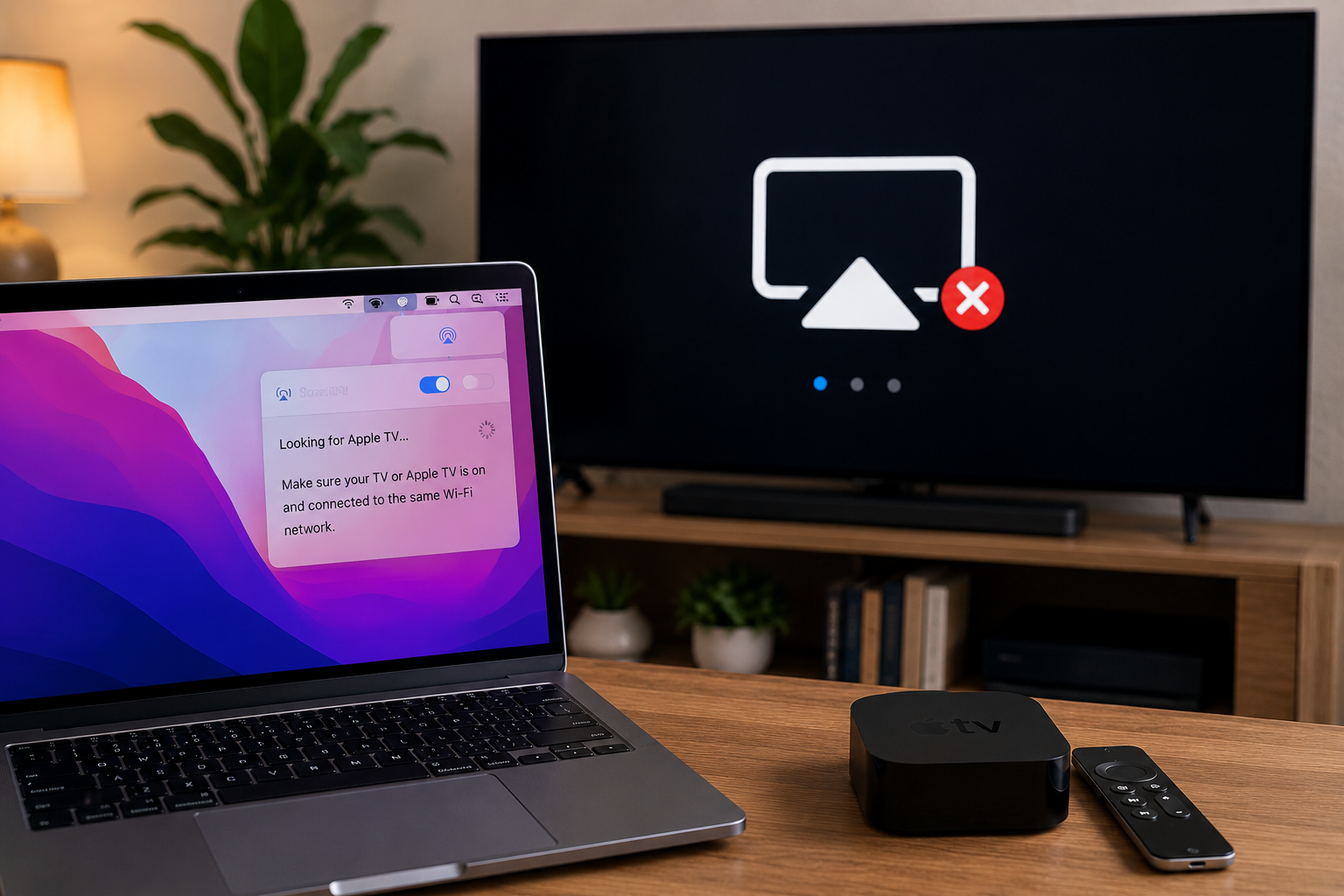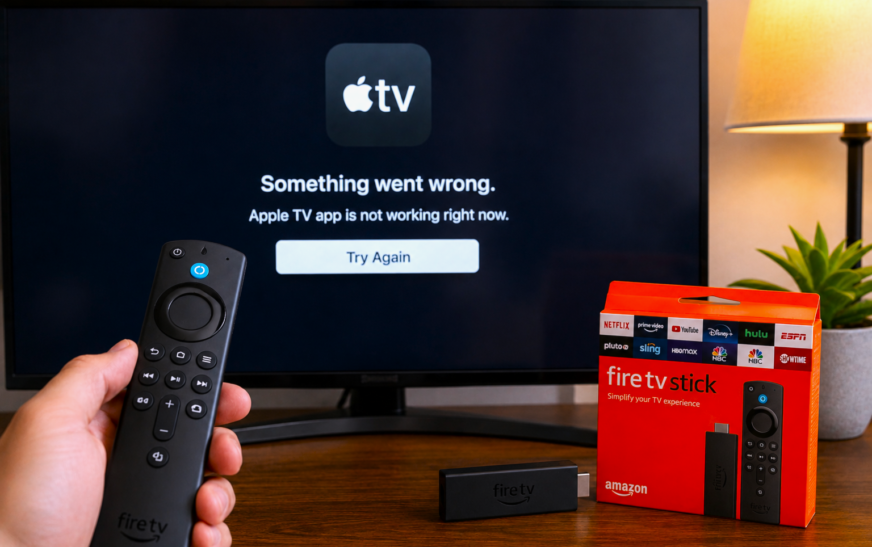
When the Apple TV app is not working on Firestick, the fastest fix is a three-step sequence that resolves the issue for most users: force-close the app by holding the Home button and selecting the Apple TV app to quit, then restart your Firestick by going to Settings → My Fire TV → Restart, and finally clear the app cache by going to Settings → Applications → Manage Installed Applications → Apple TV → Clear Cache. If the app still fails to open or stream after these three steps, re-entering your Apple ID credentials resolves the majority of remaining cases — particularly after a Firestick or app update.
The Apple TV app not working on Firestick is one of the most commonly searched streaming device problems — and the frustration makes sense. You open the app expecting to watch your favourite Apple TV+ show, and instead you get a frozen loading screen, an error code you’ve never seen before, an endless spinner that never resolves, or a crash straight back to the Firestick home screen. The app itself has no obvious way to diagnose what went wrong.
The causes are well understood: a corrupted app cache that accumulated bad data, a Firestick that hasn’t been restarted in weeks, a version of the Apple TV app that has a bug fixed in a newer update, authentication issues after an Apple ID password change, or a Firestick storage situation so full that the app can’t run properly. This guide covers all of them in the right order — quickest fixes first, deeper solutions for persistent problems later.
Which Symptom Are You Seeing?
Match Your Exact Problem to the Right Fix📴 App opens to a black screen or endless loading spinner
The Apple TV app launches but never loads any content — just a black screen or a spinning wheel. Almost always a cache or internet connection issue. Fix 1, Fix 3, and Fix 4 address this directly.
💥 App crashes immediately when you try to open it
The app launches briefly then closes straight back to the Firestick home screen. Usually caused by a corrupted cache, outdated app version, or full Firestick storage. Fix 4, Fix 5, and Fix 10 are the priority.
🔴 “Something went wrong” or error code on screen
An explicit error message from the Apple TV app itself. Could be authentication, server-side, or network-related. Check Fix 7 (Apple ID sign-in) and Fix 8 (check Apple servers) before assuming something is broken on your end.
📶 App opens but content won’t play or stream keeps buffering
The interface loads but video won’t start or buffers constantly. Almost certainly a WiFi speed or connection issue. Fix 3 (internet connection) and Fix 9 (VPN) are the direct fixes.
🔒 “Sign In” screen keeps appearing or sign-in fails repeatedly
Authentication failure — the app can’t verify your Apple ID. Could be a password change, an expired session, or a region mismatch. Fix 7 covers Apple ID issues comprehensively.
🔄 App worked yesterday but stopped after an update
A Firestick system update or Apple TV app update introduced a bug or reset the app’s authentication state. Clear cache (Fix 4) first, then check for a newer update that fixes the issue (Fix 5), and re-sign in (Fix 7) if needed.
Before working through any fixes, quickly test whether the issue is app-specific or device-wide. Open a different streaming app on the same Firestick — Netflix, Prime Video, or YouTube. If other apps also buffer or fail to load, the problem is your internet connection or the Firestick itself, not the Apple TV app specifically. If other apps work fine but Apple TV doesn’t, the problem is the app, its cache, or your Apple ID authentication.
Fix 1: Force Close and Relaunch the Apple TV App
Start Here — Takes 10 SecondsThe Apple TV app on Firestick can get stuck in a broken state where it’s technically still running in the background but won’t respond correctly. This is different from the app being closed — a suspended app in Firestick’s background can have corrupted session data that prevents a fresh launch from working correctly. Force closing clears this suspended state completely.
If the Apple TV app loads normally after a Force Stop and relaunch, the app was stuck in a bad session state. This happens periodically on Firestick because apps are never fully closed — they’re suspended in the background indefinitely. If this recurs frequently, it’s a sign that clearing the app cache (Fix 4) would provide a more durable fix.
Fix 2: Restart Your Firestick
The Most Effective Single Fix — Do This Before Anything ElseA Firestick that hasn’t been restarted in days or weeks accumulates memory clutter — background processes consuming RAM, stale cached data across multiple apps, and network connections that have drifted into inconsistent states. The Apple TV app is more RAM-intensive than simpler apps, so it’s often the first app to exhibit problems when the Firestick is memory-constrained. A restart clears all of this simultaneously.
Alternative restart methods:
While the Firestick is restarting, unplug your WiFi router for 30 seconds and plug it back in. This refreshes the network connection from both ends — the Firestick gets a fresh network session and the router clears any stale connection to the Firestick. A double restart of both devices together resolves a surprisingly large number of streaming app failures that survive a Firestick-only restart.
Fix 3: Check and Fix Your Internet Connection
For Buffering, Black Screen, and “Can’t Connect” ErrorsApple TV+ streams in 4K HDR at up to 29 Mbps — higher than Netflix 4K (15 Mbps) — so it’s more demanding of your internet connection than most streaming services. A connection that’s stable enough for YouTube or Netflix can still produce black screens or buffering on Apple TV+ if it’s at the lower edge of what’s needed. Confirming your connection is stable and fast enough is one of the most important checks before going deeper.
- HD streaming: at least 5 Mbps download
- 4K HDR streaming: at least 25 Mbps download recommended
Apple TV+ content, particularly its original programming, is encoded at very high bitrates to maintain visual quality. If you notice that Apple TV+ specifically buffers while Netflix and Prime Video play fine on the same network, Apple TV+ may simply be exceeding your available bandwidth. Lowering the video quality in Apple TV app settings (if available) or upgrading your internet plan are the practical solutions in this case.
Fix 4: Clear the Apple TV App Cache
Most Effective Fix for Crashes and Black ScreenEvery app on Firestick stores temporary data — cached images, stored login sessions, buffered content metadata — in a local cache. Over time this cache grows and can contain corrupted or outdated entries that cause the app to crash, show a black screen, or fail to load the content library. Clearing the cache removes all this accumulated data without deleting the app or your account settings — the cache rebuilds fresh the next time the app runs.
“Clear Data” is more thorough than “Clear Cache” — it wipes all stored app data including your saved sign-in session. If you select Clear Data, you’ll need to re-enter your Apple ID and password when the app opens. This is fine and sometimes necessary, but have your Apple ID credentials ready before selecting it. “Clear Cache” is always safe and doesn’t sign you out.
Fix 5: Update the Apple TV App and Firestick Software
Outdated Versions Cause Compatibility BugsAmazon regularly releases Firestick software updates that change how apps run, and Apple updates the Apple TV app to match. When one is newer than the other, compatibility issues emerge — the app may crash on launch, fail to authenticate, or refuse to stream specific content. Keeping both the Firestick system software and the Apple TV app current eliminates this class of problem entirely.
Update the Apple TV app:
Update Firestick system software:
Go to Settings → Applications → Appstore → Automatic Updates and turn this On. Firestick will then automatically download and install app updates in the background while the device is idle, keeping the Apple TV app current without you needing to manually check. System software updates still require manual approval but are prompted automatically when available.
Fix 6: Uninstall and Reinstall the Apple TV App
For Crashes That Survive Cache Clearing and UpdatesWhen the Apple TV app crashes consistently — even after clearing cache, updating the app, and restarting the Firestick — the app installation itself is likely corrupted. A fresh reinstall replaces all app files with clean versions downloaded directly from the Amazon Appstore, eliminating any corrupted components that survived the cache clear.
Removing the Apple TV app from your Firestick has no effect on your Apple TV+ subscription — it remains active on your Apple account. Your subscription can be managed at tv.apple.com or in your device’s Apple ID settings. When you reinstall and sign back in, all your purchased content, downloads, and watch history are restored from your Apple account.
Fix 7: Fix Apple ID Sign-In Issues
For Repeated Sign-In Prompts and Authentication ErrorsThe Apple TV app on Firestick stores your Apple ID authentication token locally. When this token expires — which happens after password changes, extended periods of inactivity, or certain app updates — the app can’t access your account and forces a sign-in that sometimes loops or fails. The fix involves clearing the stored authentication and signing in fresh.
Typing an email address and password with a Firestick remote is slow and error-prone. Apple supports QR code and activation code sign-in for the Apple TV app on Firestick — when you see the sign-in screen showing a code or QR code on your TV, use your iPhone’s camera to scan the QR code or visit the URL shown. The sign-in completes on your phone in seconds, and the Firestick TV authenticates automatically.
Fix 8: Check Apple TV Server Status
Rule Out Apple’s Side Before Troubleshooting YoursSometimes the Apple TV app not working on Firestick has nothing to do with your device or internet connection — Apple’s streaming servers are experiencing an outage or degraded performance. This is rare but it does happen, and if Apple’s servers are the cause, no amount of cache clearing or reinstalling on your end will fix it. Checking takes 20 seconds and can save you from working through a long list of fixes for a problem that’s already being fixed on Apple’s end.
- 🟡 Yellow = Service degradation (some users affected)
- 🔴 Red = Service outage (widespread issue)
Apple’s support account posts updates about service outages and estimated resolution times. If the System Status page shows an issue with Apple TV+ but doesn’t have a detailed update yet, checking @AppleSupport often has more current information about what’s affected and when a fix is expected. Checking third-party outage trackers like Downdetector also shows whether other users are reporting the same Apple TV+ problem you’re experiencing.
Fix 9: Disable VPN on Your Network or Firestick
VPNs Frequently Break Apple TV+ StreamingApple TV+ has strong geographical content restrictions and actively blocks known VPN IP address ranges to enforce them. If your Firestick is connected to a VPN — either one installed directly on the Firestick or running on your router — Apple TV+ may refuse to stream content, show region-locked error messages, or fail to authenticate entirely. This is deliberate on Apple’s part, not a coincidence.
Apple TV+ blocks VPN usage more aggressively than most streaming services. Even premium VPN providers that claim to work with Apple TV+ can be blocked at any time as Apple updates its detection systems. If streaming content is unavailable in your region and you’re trying to use a VPN to access it, this is against Apple’s Terms of Service and Apple actively works to prevent it. The only reliable way to use Apple TV+ without VPN interference is a direct internet connection.
Fix 10: Free Up Storage on Your Firestick
Low Storage Causes Apps to Crash or Fail to LaunchThe Amazon Firestick Lite has 8 GB of internal storage; the Firestick 4K models have slightly more, but all Firestick devices have limited storage. When available storage drops below about 500 MB, apps including the Apple TV app begin to crash on launch because they can’t create the temporary files they need to run. Checking and freeing storage is particularly relevant if you have many apps installed.
Games installed on Firestick are typically the largest storage consumers — some take 1–3 GB each. Any downloaded games you haven’t played in months are prime candidates for removal. Also check whether you have any offline downloads from other streaming apps — while Apple TV+ offline downloads aren’t stored on the Firestick’s internal storage, downloads from other apps can fill up available space quickly.
Fix 11: Check Your Apple TV+ Subscription Status
If Content Is Locked Behind a Paywall PromptThe Apple TV app on Firestick contains both free content (trailers, clips) and Apple TV+ subscription content. If your Apple TV+ subscription has expired, lapsed, or been cancelled, the app still opens and shows the content library — but every piece of Apple TV+ original content will show a “Subscribe” or “Get Apple TV+” prompt instead of playing. This can look like the app “not working” when it’s actually working correctly for your current subscription level.
If you started Apple TV+ with a free trial bundled with a new Apple device, that trial doesn’t automatically become a paid subscription when it ends — it simply stops. Many users are surprised to find their Apple TV+ access stopped months later when they never noticed the trial ended and never saw a charge. Check your subscription status in Settings to confirm whether you’re on an active paid plan or whether the trial lapsed without renewal.
Fix 12: Factory Reset Your Firestick
Last Resort — When All Other Fixes Have FailedIf the Apple TV app continues to fail after working through every fix above — and other streaming apps are also behaving strangely or performing poorly — the Firestick’s firmware itself may have a deep configuration issue. A factory reset returns the Firestick to its original out-of-the-box state, clearing everything: all apps, settings, and accounts. It’s a significant step but it resolves problems that nothing else reaches.
A factory reset deletes all downloaded apps, all login sessions, all personalised settings, and all locally stored content. This cannot be undone. Your Amazon account data and purchased streaming subscriptions are safe — they live in the cloud and restore when you sign back in. But anything stored only on the device (custom app settings, local downloads) is permanently deleted. Only proceed with factory reset after exhausting all other fixes.
Pro Tips: Keeping the Apple TV App Running Smoothly on Firestick
Restart your Firestick at least once a week. Unlike a smart TV’s built-in OS, Firestick OS doesn’t actively manage background app memory — apps accumulate in RAM and eventually cause performance problems. A weekly restart takes 90 seconds and prevents the gradual slowdown that leads to app crashes and streaming failures. The Apple TV app in particular benefits from a clean memory state because of how much it caches during browsing and playback.
Clear the Apple TV app cache monthly. Even when the app is working correctly, cached data accumulates over time. A monthly cache clear keeps the app snappy and prevents the kind of incremental corruption that eventually causes a black screen or crash. It takes 30 seconds and doesn’t sign you out: Settings → Applications → Manage Installed Applications → Apple TV → Clear Cache.
Keep your Firestick from overheating. Firestick devices are small and generate significant heat during 4K HDR playback — the kind of content Apple TV+ frequently offers. When a Firestick overheats, it throttles performance and apps begin to stutter, buffer, or crash. Ensure the Firestick has airflow around it — don’t push it flush against the back of a cabinet or tuck the HDMI port into a tight space where heat has nowhere to go. If your TV’s HDMI port is recessed, use the HDMI extender cable that came with the Firestick to move it away from the TV’s back panel.
Use the HDMI extender cable that came in the box. Amazon includes a short HDMI extender with every Firestick for two reasons: to give the device clearance for better WiFi reception, and to reduce heat buildup from the TV’s panel. If you plugged the Firestick directly into the HDMI port without the extender, adding it back can improve both WiFi signal strength and thermal performance — both of which affect streaming reliability.
Common Mistakes to Avoid
Reinstalling the Apple TV app is effective but takes several minutes and requires signing back in. A Firestick restart takes 90 seconds and resolves the majority of app failures caused by memory or session state issues. Always restart before reinstalling — if the restart fixes it, you’ve saved yourself a full reinstall and re-authentication process.
The Apple TV app (the software you install on Firestick) and the Apple TV (Apple’s physical streaming box) are completely separate products. Troubleshooting steps for the Apple TV hardware device are different from those for the Apple TV app on Firestick. If search results or forums mention “restart Apple TV,” they’re referring to the hardware box — not the Firestick app. The steps in this guide apply specifically to the Apple TV app installed on Amazon Firestick.
If Apple’s authentication servers are experiencing issues (check apple.com/support/systemstatus), attempting to sign in repeatedly will always fail — not because your credentials are wrong but because the server can’t process them. Repeated failed sign-in attempts can also temporarily lock your Apple ID. When the status page shows an Apple ID or Apple TV+ issue, wait for Apple to resolve it before trying to sign in.
A factory reset requires setting up the Firestick completely from scratch — WiFi password, Amazon account credentials, and the Apple ID and password for the Apple TV app. If you’ve forgotten any of these, the setup will get stuck. Before initiating a factory reset, confirm you have: your WiFi password, your Amazon account email and password, and your Apple ID and password (or access to a device to sign in via the Apple TV code method).
FAQ: Apple TV App Not Working on Firestick
Why is the Apple TV app not working on my Firestick?
The Apple TV app not working on Firestick is most commonly caused by a corrupted app cache, a Firestick that needs restarting, an outdated app version, or an expired Apple ID authentication session. The fastest three-step fix is: force-close the app via Settings → Applications → Apple TV → Force Stop, clear the cache on the same screen, then restart the Firestick from Settings → My Fire TV → Restart. If the app still doesn’t work after these three steps, re-entering your Apple ID in the app’s settings resolves the majority of remaining cases.
Why does the Apple TV app keep crashing on Firestick?
Repeated crashes of the Apple TV app on Firestick are usually caused by either a corrupted app cache, insufficient Firestick storage (below 500 MB available), or an outdated app version that has a known bug. Clear the cache first: Settings → Applications → Manage Installed Applications → Apple TV → Clear Cache. Then check available storage in Settings → My Fire TV → About → Storage and free space by clearing caches or uninstalling unused apps if needed. Finally, update the app by searching for it in the Appstore and installing any available update.
Apple TV app shows a black screen on Firestick — how do I fix it?
A black screen in the Apple TV app on Firestick is almost always caused by a corrupted cache or a brief loss of internet connectivity at the moment the app tried to load content. Clear the Apple TV app cache (Settings → Applications → Manage Installed Applications → Apple TV → Clear Cache), restart the Firestick, and check your WiFi connection. If the black screen appears specifically when trying to play a video (rather than when browsing), the issue is more likely your internet speed not meeting Apple TV+’s minimum requirement for the content quality you’re trying to stream.
How do I update the Apple TV app on Firestick?
To update the Apple TV app on Firestick, press the Home button, navigate to the Search icon at the top, and search for “Apple TV.” Select the Apple TV app in the results — if an update is available, you’ll see an “Update” button; if the app is current, the button will say “Open.” Tap Update and the latest version installs automatically. To avoid having to manually check for updates, go to Settings → Applications → Appstore and enable Automatic Updates so app updates download in the background.
Why does the Apple TV app say “Something went wrong” on Firestick?
A “Something went wrong” error in the Apple TV app on Firestick typically indicates one of three things: Apple’s servers are temporarily unavailable (check apple.com/support/systemstatus), your Apple ID authentication has expired and needs re-entry, or your internet connection dropped at the moment the app tried to connect. Check the Apple System Status page first — if servers are fine, clear the Apple TV app cache, restart the Firestick, and sign out and back in to the Apple TV app with your Apple ID.
Is the Apple TV app free on Firestick or do I need a subscription?
The Apple TV app itself is free to download and install on Firestick. However, most content within the app requires an Apple TV+ subscription ($9.99/month in the US as of 2026) to watch. The app also acts as a storefront for purchasing or renting individual movies and TV shows, which are available without a subscription but charged separately. A small amount of free content (trailers and some older episodes) is available without any subscription. If all the content you try to play prompts you to subscribe, your Apple TV+ subscription has likely expired — check your subscription status in Settings on your Apple device.
Apple TV App Not Working on Firestick — 12 Proven Fixes Checklist
- 1Force close the Apple TV app — Settings → Applications → Apple TV → Force Stop
- 2Restart the Firestick — Settings → My Fire TV → Restart; or hold Select + Play/Pause for 5 seconds
- 3Check internet connection — confirm connected, run speed test, forget and reconnect WiFi if needed
- 4Clear Apple TV app cache — Settings → Applications → Manage Installed Applications → Apple TV → Clear Cache
- 5Update the Apple TV app and Firestick software — search App store for Apple TV; Settings → My Fire TV → About → Check for Updates
- 6Uninstall and reinstall the Apple TV app — removes corrupted installation files; re-downloads clean version
- 7Fix Apple ID sign-in — sign out via app settings or Clear Data; use code sign-in on another device for speed
- 8Check Apple server status — apple.com/support/systemstatus; if Apple TV+ is red/yellow, wait for Apple to resolve
- 9Disable VPN — disconnect VPN on Firestick or router; use split tunneling to exclude Apple TV if VPN is needed
- 10Free up Firestick storage — Settings → My Fire TV → About → Storage; clear caches or uninstall unused apps
- 11Check Apple TV+ subscription status — Settings → Subscriptions on iPhone/iPad; renew if expired
- 12Factory reset Firestick — Settings → My Fire TV → Reset to Factory Defaults; last resort only
One Last Thing
When the Apple TV app is not working on Firestick, the fix is almost always found in the first four steps of this checklist. Force close, restart, check the connection, clear the cache — these four steps together resolve the issue for the overwhelming majority of users. The app is well-built and the Firestick platform is stable; problems are almost always environmental rather than fundamental, and environmental problems have fast, reversible fixes.
If you’ve worked through all 12 fixes and the Apple TV app still isn’t working, the problem may be a temporary Apple server issue that will resolve on its own — check the Apple System Status page one more time before concluding that something more serious is wrong.
Wrapping Up
The Apple TV app on Firestick is one of the best ways to access Apple TV+ content without owning an Apple device. When it works well, the experience is seamless. When it breaks, the troubleshooting is straightforward once you know which lever to pull for which symptom. Cache clear and restart cover the vast majority of failures — everything else in this guide is for the cases that survive those two steps.
ⓘ Disclaimer: This article is for informational purposes only. CrazyErrors is not affiliated with Apple Inc. or Amazon. Apple TV+ subscription pricing and availability may vary by country and are subject to change. Steps and navigation paths are accurate for Firestick OS as of 2026 but may vary slightly across different Firestick models and software versions. For official Apple TV support, visit support.apple.com/apple-tv. For Firestick support, visit amazon.com/firetv-help.