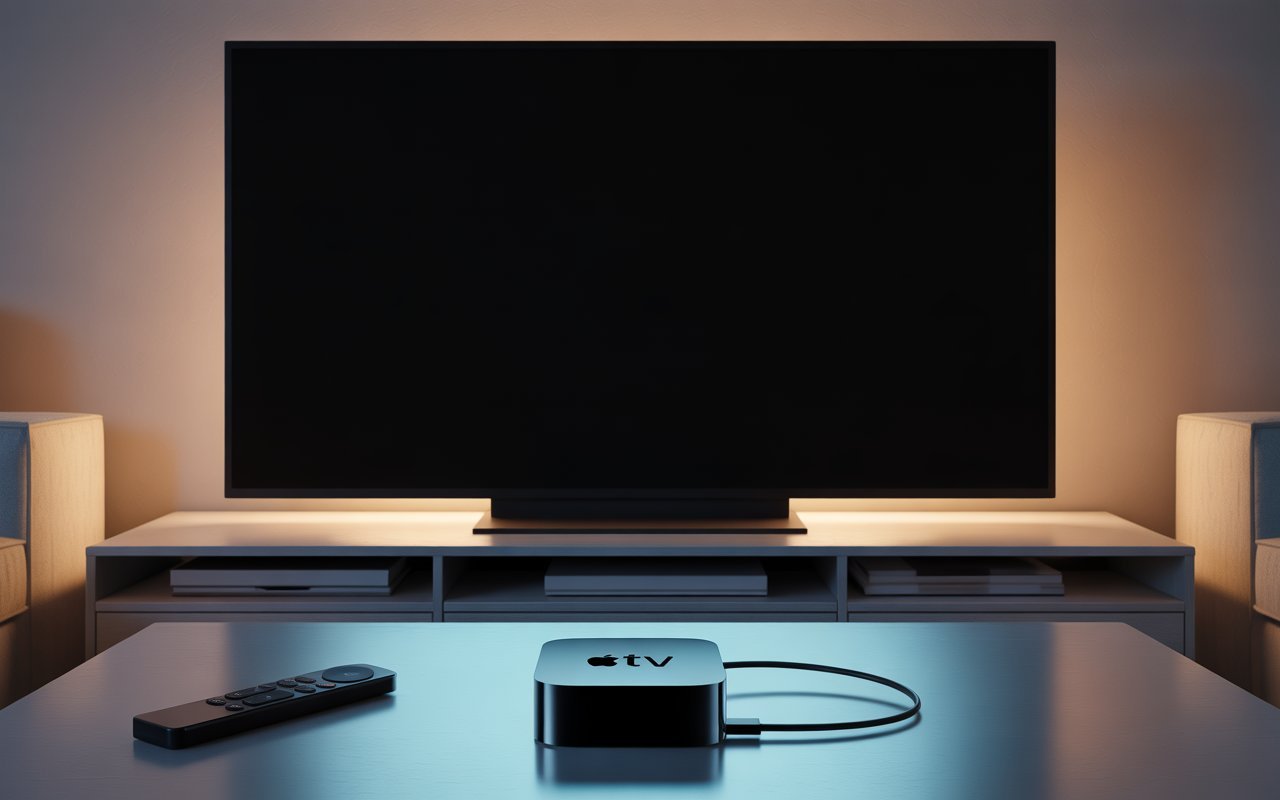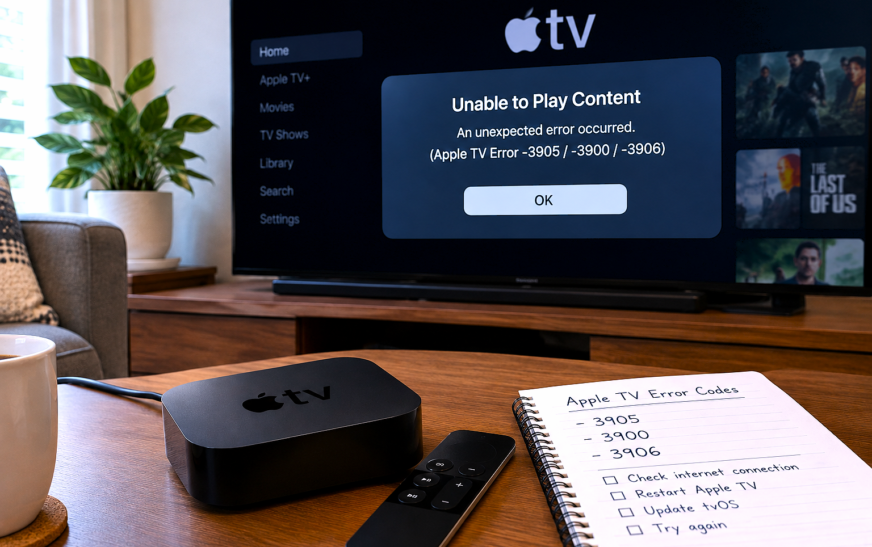
Apple TV Error -3905, -3900, and -3906 are all WiFi and network connection errors that appear when the Apple TV cannot establish a secure connection to Apple’s servers — for activation, the App Store, software updates, or Apple TV+ streaming. The fastest fix is a two-step restart: hold the Back and TV/Home buttons on the Siri Remote for 5 seconds to restart the Apple TV, then unplug your router for 30 seconds and reconnect. If the error returns after restarting both devices, changing the DNS setting on the Apple TV to 8.8.8.8 (Google DNS) resolves the majority of remaining cases — go to Settings → Network → WiFi → Configure DNS → Manual → 8.8.8.8.
Apple TV Error -3905 (and its close variants -3900 and -3906) all point to the same underlying problem: the Apple TV attempted to open a secure network connection to Apple’s servers and the connection either failed, timed out, or was refused. You’ll typically see this error during initial setup when the Apple TV tries to activate itself, when signing in to your Apple ID, when the App Store won’t load, or when Apple TV+ content refuses to stream.
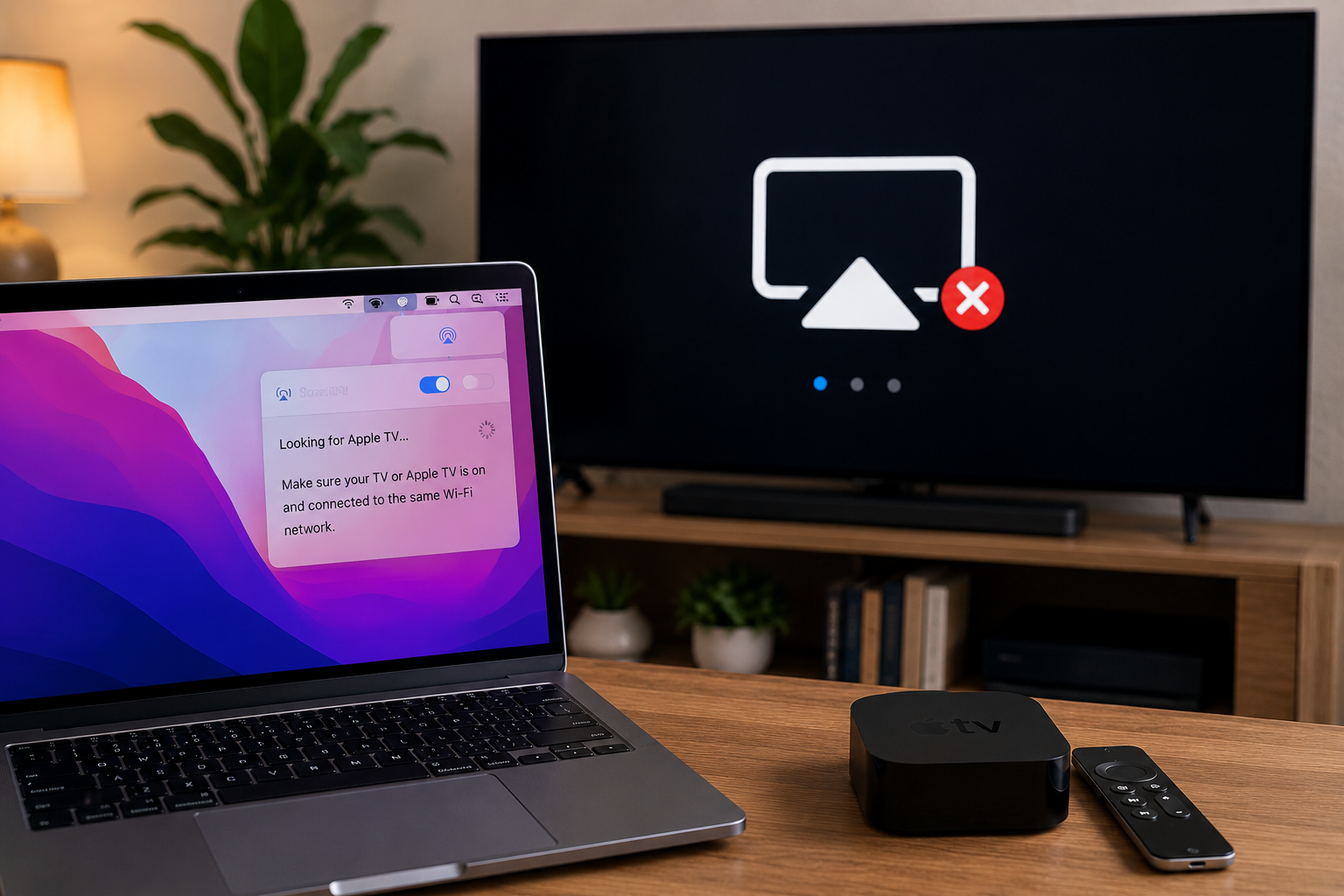
The maddening thing about these errors is that your WiFi may appear fully connected — the Apple TV shows a strong signal, other devices on the same network work fine — but the Apple TV still can’t communicate with Apple’s infrastructure. The disconnect between “WiFi connected” and “network not working” confuses most users into thinking the hardware is faulty when the real cause is almost always a DNS configuration issue, a router security setting incompatible with Apple TV, or a temporary disruption in the Apple TV’s local network session.
These are software and network configuration problems, not hardware failures. Every fix in this guide is reversible and carries no risk to your device or data.
What Each Error Code Means
Understanding -3900, -3905, and -3906 SeparatelyWhile all three errors relate to network connectivity, they fire at different points in the connection process. Knowing which stage failed can help you choose the right fix faster.
General Network Timeout — Server Did Not Respond
The Apple TV sent a request to an Apple server and received no response within the timeout window. The server exists but isn’t answering — caused by network congestion, a router firewall blocking the connection, or a temporary Apple server slowdown. Most responsive to router restarts, DNS changes, and firewall rule checks.
Connection Refused / Authentication Server Unreachable
The Apple TV reached Apple’s network but the connection was refused at the authentication or activation layer. Most commonly appears during initial setup, Apple ID sign-in, and App Store access. DNS misconfiguration is the leading cause — the Apple TV resolves Apple’s server addresses incorrectly and reaches the wrong endpoint. Google DNS or Cloudflare DNS consistently resolves this.
Secure Connection Failed — SSL/TLS Handshake Error
The Apple TV connected to Apple’s server but could not establish the encrypted session required for authentication. The most common triggers are an incorrect date and time on the Apple TV (SSL certificates are time-sensitive), a VPN intercepting HTTPS traffic, or a router’s content filtering interfering with Apple’s certificate validation. Fix 10 (date/time check) and Fix 8 (disable VPN) are the priority for -3906 specifically.
Despite pointing to different failure stages, -3900, -3905, and -3906 are all treated with the same sequence of fixes because they share the same root causes: DNS resolution, router configuration, and network session state. Work through the fixes in order regardless of which specific error code you’re seeing — the same steps that fix -3905 fix -3900 and -3906 in the majority of cases.
When Does This Error Appear? — Match Your Scenario
Identify Your Context to Route to the Right Fix Faster📦 During initial Apple TV setup — can’t activate
Error -3905 during the setup screen (“Could not connect to the iTunes Store”) is the most common variant. The Apple TV is trying to reach Apple’s activation servers via your WiFi and failing. Fix 1 (restart), Fix 3 (reconnect WiFi), and Fix 5 (change DNS) resolve setup activation errors in the majority of cases.
🔒 During Apple ID sign-in or App Store access
Authentication to Apple’s servers is blocked or timing out. Most commonly a DNS issue (-3905) or a secure connection failure (-3906). Fix 5 (change DNS to Google) is the highest-yield fix for this scenario specifically.
📱 Apple TV+ content won’t stream — error appears on playback
The content delivery network Apple uses for streaming requires an authenticated session — if that session can’t be established, playback fails with -3900 or -3905. Fix 1 (restart Apple TV), Fix 2 (restart router), and Fix 4 (check Apple server status) cover playback-specific failures first.
🔄 Software update fails with this error code
Apple TV software updates download from Apple’s update servers over HTTPS. If the secure connection fails, the download won’t start. Fix 5 (DNS), Fix 8 (disable VPN), and Fix 9 (check router firewall) address update-specific connection failures.
📶 Error appears even though WiFi shows “Connected”
The Apple TV has joined the WiFi network but cannot reach Apple’s servers specifically. Other apps or devices on the same network may work fine. This pattern points squarely to DNS (Fix 5), router security settings (Fix 7), or a VPN (Fix 8) as the cause — not the WiFi connection itself.
🟡 Error appeared suddenly after working fine for weeks
A previously working Apple TV that suddenly shows -3905 or -3900 usually has a stale DHCP lease, a router that needs restarting, or an Apple server that had a temporary disruption. Fix 1 and Fix 2 (restart both devices) resolve most sudden-onset errors without any further configuration changes.
Root Causes at a Glance
What’s Actually Causing the Connection to Fail| Root Cause | Error Code | Best Fix |
|---|---|---|
| Stale network session / Apple TV memory state | -3900, -3905 | Fix 1: Restart Apple TV |
| Router DHCP lease expired or corrupted | -3900, -3905 | Fix 2: Restart router |
| Wrong WiFi password or wrong network joined | -3905 | Fix 3: Forget and rejoin WiFi |
| Apple’s servers temporarily unavailable | -3900, -3905 | Fix 4: Check Apple System Status |
| ISP DNS returning wrong Apple server addresses | -3905, -3906 | Fix 5: Change DNS to 8.8.8.8 |
| IP address conflict on local network | -3900, -3905 | Fix 6: Set manual IP address |
| Router security incompatible with Apple TV (WPA3) | -3905 | Fix 7: Change router to WPA2/WPA3 mixed |
| VPN intercepting Apple TV’s HTTPS traffic | -3905, -3906 | Fix 8: Disable VPN / split tunnel |
| Router firewall blocking Apple TV ports | -3900 | Fix 9: Open required ports |
| Incorrect date/time breaking SSL certificates | -3906 | Fix 10: Set date/time to automatic |
| Ethernet preferred over unreliable WiFi | All three | Fix 11: Switch to wired connection |
| Deep firmware or configuration corruption | All three — persists through all fixes | Fix 12: Factory reset Apple TV |
Fix 1: Restart the Apple TV
Start Here — Resolves Most Sudden-Onset Error -3905 CasesThe Apple TV keeps network session state and DNS cache in memory between uses. When this cached state becomes stale — particularly after a brief internet outage, a router restart that the Apple TV didn’t adapt to, or a long sleep period — the Apple TV tries to use outdated connection data and the attempt fails with -3900, -3905, or -3906. A restart flushes all of this and forces a completely fresh network connection attempt.
If a restart resolves the error and streaming or activation works normally, the Apple TV had a stale network session. To reduce how often this recurs: go to Settings → System → Sleep After and set a reasonable sleep timer. Apple TVs that stay in standby for extended periods accumulate stale session data more readily than those that cycle power more regularly.
Fix 2: Restart Your Router and Modem
The Single Most Effective Fix for -3900 Network Timeout ErrorsThe router assigns the Apple TV an IP address via DHCP — a lease that expires after a set period (typically 24 hours to a week depending on router configuration). When this lease expires or becomes corrupted, the Apple TV either has no valid IP address or is using an address that’s been reassigned to another device, creating an IP conflict. Both situations cause Apple TV error -3900 and -3905. Restarting the router forces it to issue fresh DHCP leases to all connected devices.
Restarting only the router while the Apple TV remains on sometimes results in the Apple TV holding onto its old network session data even as the router issues a new IP lease. For the cleanest fresh start, power off the Apple TV (unplug it), restart the router, wait for the router to fully come back online, then power the Apple TV back on. This sequence ensures both sides start a fresh connection simultaneously.
Fix 3: Forget and Rejoin Your WiFi Network
For Setup Failures and “Wrong Network” ScenariosThe Apple TV stores WiFi credentials and connection state for each network it’s joined. If the stored credentials have become corrupted — or if the router’s WiFi password was recently changed — the Apple TV may appear to be connected to the network while actually using stale or incorrect authentication data. Forgetting the network and rejoining forces a completely fresh authentication handshake with the correct current password.
Many routers broadcast both a 2.4 GHz and a 5 GHz WiFi network — sometimes with the same name (SSID), sometimes with different names like “HomeNetwork” and “HomeNetwork_5G”. The 5 GHz band offers significantly faster speeds and lower interference, making it better for Apple TV streaming. If your router broadcasts both bands separately, connect the Apple TV to the 5 GHz network specifically. The 2.4 GHz band can produce intermittent -3900 errors when it’s congested with other devices.
Fix 4: Check Apple Server Status
Rule Out Apple’s Side Before Spending Time on Your NetworkApple TV errors -3900, -3905, and -3906 all involve communication with Apple’s servers. On rare occasions, Apple’s activation servers, Apple ID authentication infrastructure, or App Store backend experience outages or degraded performance — and when that happens, every Apple TV attempting to connect during that window produces these exact errors regardless of how well-configured the local network is. A 20-second check eliminates this possibility before you spend time on your router settings.
- Apple TV
- Apple TV+
- Apple ID
- App Store
- iTunes Store
A quick way to confirm whether the issue is network-wide or Apple TV-specific: open the App Store or Apple TV+ on an iPhone or iPad connected to the same WiFi network and check whether it loads normally. If the App Store works fine on your phone but not on the Apple TV, the issue is Apple TV-specific — your network and Apple’s servers are both working. If Apple services fail on your phone too, the issue is either the network or Apple’s servers.
Fix 5: Change DNS to Google or Cloudflare
The Highest-Yield Fix for Persistent Error -3905DNS — Domain Name System — is the service that translates domain names like apple.com into the IP addresses Apple TV needs to connect to Apple’s servers. Every internet provider runs its own DNS servers, and these occasionally return incorrect or outdated addresses for Apple’s infrastructure — causing the Apple TV to connect to the wrong endpoint, triggering authentication failures that show up as error -3905. Switching to a reliable third-party DNS like Google (8.8.8.8) or Cloudflare (1.1.1.1) bypasses your ISP’s DNS entirely and resolves this class of error immediately.
- Google DNS:
8.8.8.8(primary) — the most commonly recommended for Apple TV errors - Cloudflare DNS:
1.1.1.1(primary) — slightly faster than Google in many regions - OpenDNS:
208.67.222.222— good alternative if Google and Cloudflare don’t help
Many ISP-provided DNS servers use a technique called DNS-based content filtering or transparent DNS proxying — they intercept DNS queries and occasionally return incorrect addresses for Apple’s activation and authentication endpoints. Google’s 8.8.8.8 and Cloudflare’s 1.1.1.1 are unfiltered, global DNS resolvers that return Apple’s actual IP addresses without modification. The Apple TV connects to the correct server, the authentication succeeds, and error -3905 stops appearing.
Fix 6: Assign a Manual IP Address
For IP Conflict Errors and DHCP Failure ScenariosRouters assign IP addresses to connected devices automatically via DHCP (Dynamic Host Configuration Protocol). On busy home networks with many devices, routers occasionally assign the same IP address to two different devices simultaneously — an IP conflict. When the Apple TV shares an IP with another device, its network traffic is disrupted at the routing level, producing connection timeouts that surface as -3900 or -3905. Assigning the Apple TV a fixed, manually chosen IP address outside the router’s DHCP range permanently prevents this class of conflict.
- IP Address: If your router is 192.168.1.1, use 192.168.1.200. If 192.168.0.1, use 192.168.0.200
- Subnet Mask: 255.255.255.0 (use what was shown before, this is standard for home networks)
- Router: enter the Router address exactly as it was shown (your router’s IP address)
- DNS: 8.8.8.8 (set Google DNS at the same time to combine two fixes)
Most modern routers have a DHCP Reservation (also called Static DHCP or IP/MAC Binding) feature in their admin interface — usually at 192.168.1.1 or 192.168.0.1 in a browser. This assigns the Apple TV the same IP address every time it connects, without requiring manual configuration on the Apple TV itself. Log into your router’s admin panel, find the connected Apple TV device in the DHCP client list, and reserve its current IP. This achieves the same result as a manual IP with less configuration on the Apple TV side.
Fix 7: Check Router WiFi Security Settings
WPA3-Only Mode Can Block Apple TV ConnectionsWiFi routers offer different security protocols: WPA, WPA2, WPA3, and mixed-mode combinations. Apple TV HD (4th generation) and some Apple TV 4K models don’t fully support WPA3-only mode — they require WPA2 or a WPA2/WPA3 mixed-mode setting. When a router is configured to WPA3-only, Apple TV can fail to authenticate to the network in a way that produces error -3905 even though other devices that support WPA3 connect fine.
192.168.1.1 or 192.168.0.1 (the most common router admin addresses). Enter your router’s admin username and passwordSome routers have a MAC Address Filtering or Access Control feature that creates a whitelist of devices allowed to connect to the network. If MAC filtering is enabled and the Apple TV’s MAC address hasn’t been added to the whitelist, the Apple TV is blocked at the network level — it appears to connect but receives no internet access, producing error -3900 or -3905. Check your router’s MAC filtering list and add the Apple TV’s MAC address (found at Settings → Network → Wi-Fi on the Apple TV, listed as “Wi-Fi Address”).
Fix 8: Disable VPN on Your Network
VPNs Are a Common Hidden Cause of Error -3906VPNs running on your router or on a network-level device route all connected devices’ traffic through the VPN tunnel — including the Apple TV. Apple’s servers detect many VPN IP address ranges and either refuse connections or serve geographically incorrect content, which breaks authentication. VPNs can also intercept and modify HTTPS traffic in ways that cause the SSL handshake failures associated with error -3906. If you have any VPN active on your network, testing without it is a critical diagnostic step.
Fix 9: Open Required Ports on Your Router Firewall
For -3900 Timeout Errors That Survive DNS and Restart FixesApple TV requires specific network ports to be open for communication with Apple’s servers. A router firewall configured in strict mode — particularly common on business routers or routers with parental control features enabled — can block these ports and prevent the Apple TV from reaching Apple’s infrastructure, producing network timeout errors like -3900. Verifying the required ports are accessible is an important check when other fixes haven’t resolved the error.
| Port | Protocol | Purpose |
|---|---|---|
| 80 | TCP | HTTP — general web traffic and updates |
| 443 | TCP | HTTPS — secure connections to Apple servers, App Store, iTunes |
| 5223 | TCP | Apple Push Notification Service (APNs) — essential for activation |
| 3689 | TCP | DAAP — iTunes/Apple Music library sharing |
| 7000–7001 | TCP | AirPlay video and audio streaming |
| 49152–65535 | UDP | AirPlay data and device discovery |
Fix 10: Verify Date and Time Are Set to Automatic
Critical Fix for Error -3906 SSL Handshake FailuresSSL certificates — the security certificates that Apple’s servers present when establishing encrypted connections — are time-stamped. If the Apple TV’s internal clock shows the wrong date or time, it may decide that a perfectly valid Apple certificate has “expired” because it’s checking the certificate’s validity period against an incorrect date. This breaks the HTTPS handshake and produces error -3906 specifically. Setting the Apple TV to automatic date and time (which syncs from Apple’s time servers) resolves this immediately.
Apple TV does not have an internal battery-backed real-time clock like a Mac or iPhone does. If the Apple TV is disconnected from the internet for a long period — during a move, a storage situation, or an extended WiFi outage — it loses track of the current date and time. When it reconnects, it may briefly show an incorrect date until the NTP sync completes. This window of incorrect time is long enough to produce error -3906 on the first connection attempt after reconnection. Wait 2–3 minutes after reconnecting the Apple TV to a working internet connection before attempting activation or sign-in, to give the NTP sync time to complete.
Fix 11: Connect Apple TV via Ethernet Instead of WiFi
The Most Reliable Long-Term Fix for Network StabilityWiFi is inherently less reliable than a wired connection — interference from neighbouring networks, physical obstructions between the Apple TV and router, and shared bandwidth with other devices all contribute to the intermittent packet loss and latency spikes that can produce -3900 timeout errors. Apple TV 4K (3rd generation and later) and Apple TV HD include an Ethernet port. Connecting via a wired cable removes WiFi variability from the equation entirely and produces the most stable streaming and activation experience possible.
The Apple TV 4K (2nd generation, released 2021) removed the built-in Ethernet port. If you have this model and want a wired connection, you can use a USB-C to Ethernet adapter connected to the Apple TV’s USB-C port. Not all USB-C to Ethernet adapters are compatible — Apple’s own USB-C Digital AV Multiport Adapter works reliably, as do several third-party adapters that support the Apple TV’s USB-C spec. Check the Apple TV 4K 2nd gen’s USB-C adapter compatibility list before purchasing.
Fix 12: Factory Reset the Apple TV
Last Resort — When All Network Fixes Have FailedIf Apple TV error -3905, -3900, or -3906 persists through every fix in this guide — different DNS servers, a manually assigned IP, correct router settings, no VPN, correct date/time, and even an Ethernet connection — the Apple TV’s own configuration files or firmware have developed a corruption that prevents network authentication from working. A factory reset returns the Apple TV to its original out-of-the-box state, clearing all local configuration and resolving any firmware-level network issue.
- Reset: clears all settings and data but keeps the current tvOS version installed — faster than a full restore
- Reset and Update: clears all settings and data, then downloads and installs the latest version of tvOS — use this for the most thorough reset
If error -3905 or -3906 appears during initial setup and the Apple TV never gets past the activation screen, you can restore it via a Mac or PC. Connect the Apple TV to the computer with a USB-C (Apple TV 4K) or Micro-USB (Apple TV HD) cable. Open Finder on Mac or iTunes on Windows, select the Apple TV when it appears, and click Restore Apple TV. This performs a full firmware reinstall directly over the cable, bypassing the need for WiFi entirely for the restore process.
Pro Tips: Preventing Apple TV WiFi Errors Long Term
Give your Apple TV a reserved IP address in the router settings. Most home routers let you assign a specific IP address to a specific device permanently — this is called DHCP Reservation or Static DHCP. Logging into your router admin panel and reserving an IP for the Apple TV’s MAC address takes five minutes and permanently eliminates IP conflict as a source of -3900 and -3905 errors. It also makes the Apple TV easier to find on the network if you ever need to manage it remotely.
Position the Apple TV closer to the router or use an Ethernet cable. Apple TV is a streaming device that benefits significantly from network stability over raw speed. A device 2 metres from the router with a clear line of sight consistently outperforms one 10 metres away through walls and floors, even if the further device shows “strong signal.” If your TV location makes a short WiFi distance impossible, consider a powerline Ethernet adapter or a WiFi extender placed midway between the router and the Apple TV — these bridge the distance without running a long Ethernet cable.
Keep tvOS updated. Apple regularly patches network-related bugs in tvOS updates. Go to Settings → System → Software Updates → Update Software and enable automatic updates. tvOS updates are typically small and install during overnight sleep, so automatic updates keep the system current without any visible interruption. Network error codes that appear after a specific tvOS version are usually resolved in the following point release within a few weeks.
Restart your router monthly. Home routers accumulate DHCP table clutter, connection state tables, and memory leaks over weeks of continuous operation. A monthly restart — scheduled on a quiet night — keeps the router’s performance optimal for all connected devices including the Apple TV. This is the single maintenance habit with the highest return on preventing intermittent -3900 network timeout errors. Our guide on Mac external display not recognised covers related network and connection troubleshooting that applies to your wider Apple ecosystem setup, and the hidden Mac features guide has tips for managing your devices more effectively.
Common Mistakes to Avoid
Factory resetting the Apple TV is the nuclear option — it takes 15–20 minutes and requires setting everything up from scratch. The vast majority of -3905, -3900, and -3906 errors are resolved by restarting the Apple TV and router, then changing DNS to 8.8.8.8. These two steps together fix this error for most users in under 5 minutes. A factory reset should only be attempted after working through the network configuration fixes.
Error -3905, -3900, and -3906 are network errors — they say nothing about the Apple TV’s hardware condition. A device that shows these errors is not faulty and does not need to be replaced. The hardware is functioning correctly; the network configuration is the variable. Users who return or replace an Apple TV because of these error codes typically find the replacement device shows the same error because the network issue (usually DNS or router settings) was never addressed.
If changing DNS from Automatic to 8.8.8.8 (Manual) resolved the error, switching it back to Automatic will return the Apple TV to using your ISP’s DNS — and the error will likely return. Leave the DNS setting on Manual with 8.8.8.8 as a permanent configuration. If you later change internet providers and the new provider’s DNS works correctly, you can switch back to Automatic at that point.
Many routers offer a Guest Network as a separate, isolated WiFi network for visitors. Guest networks deliberately block device-to-device communication and sometimes restrict certain port ranges to prevent guests from accessing local network resources. Connecting an Apple TV to a guest network often produces -3900 and -3905 because the guest network firewall rules block the ports Apple TV needs (particularly port 5223 for Apple Push Notification). Always connect the Apple TV to your main private WiFi network, not a guest network.
FAQ: Apple TV Error -3905 / -3900 / -3906
What causes Apple TV Error -3905?
Apple TV Error -3905 is caused by the Apple TV failing to establish a connection to Apple’s authentication or activation servers. The most common cause is DNS misconfiguration — your internet provider’s DNS servers return incorrect addresses for Apple’s servers, causing the Apple TV to connect to the wrong endpoint and fail authentication. Changing the DNS setting on the Apple TV to Google DNS (8.8.8.8) via Settings → Network → Wi-Fi → Configure DNS → Manual → 8.8.8.8 resolves this in the majority of cases. Other causes include a stale router DHCP lease (fix by restarting the router), a VPN intercepting traffic, or a router firewall blocking port 5223.
How do I fix Apple TV Error -3905 during setup?
When Apple TV Error -3905 appears during initial setup (the activation screen), work through this sequence: first, restart the Apple TV by unplugging it for 30 seconds and reconnecting; restart your router by unplugging it for 60 seconds; then rejoin your WiFi network and immediately set DNS to Manual with 8.8.8.8 before attempting activation. The DNS change is the most effective fix specifically for setup activation errors because the Apple TV’s DNS is initially set to Automatic (using your ISP’s DNS), which is often the source of the problem. If setup still fails, try connecting the Apple TV directly to your router via Ethernet cable and completing setup over a wired connection.
What is the difference between Apple TV Error -3900, -3905, and -3906?
All three are network connection errors but they occur at different points in the connection process. Error -3900 is a general network timeout — Apple TV sent a request and received no response, most often caused by router issues or Apple server congestion. Error -3905 is a connection refused or authentication failure — the Apple TV reached Apple’s network but couldn’t complete the authentication handshake, most commonly caused by DNS misconfiguration. Error -3906 is an SSL/TLS handshake failure — the encrypted connection couldn’t be established, most often caused by an incorrect date/time on the Apple TV or VPN interference with HTTPS traffic. All three errors share the same set of fixes and are resolved with the same troubleshooting sequence.
Why does Apple TV show a WiFi connection but still give Error -3905?
The Apple TV can be fully connected to your WiFi network (successfully joined, valid IP address, strong signal) while still failing to reach Apple’s servers specifically. WiFi connectivity and Apple server connectivity are different layers of the network stack. A device connected to WiFi can still fail to reach specific services if DNS returns wrong addresses (preventing the Apple TV from finding Apple’s servers), a VPN routes traffic incorrectly, a firewall blocks specific ports that Apple requires, or the ISP has a routing issue between your network and Apple’s data centres. This is why “WiFi connected” and “Error -3905” can coexist — the WiFi layer works but the Apple server connection layer fails.
Does changing DNS to 8.8.8.8 affect other devices on my network?
No — changing the DNS setting on the Apple TV only affects the Apple TV’s own DNS resolution. Other devices on the same network continue to use whatever DNS the router assigns them. The DNS setting on the Apple TV (via Settings → Network → Configure DNS → Manual) is a device-specific setting, not a router-level change. Your phones, computers, and other devices are unaffected. If you want to change DNS for all devices on your network simultaneously, you would do that in the router’s admin interface under DNS or WAN settings — but that’s not necessary to fix Apple TV errors and shouldn’t be done unless you intend to change DNS for every device.
Apple TV Error -3905 keeps coming back after fixing — why?
If Apple TV Error -3905 recurs after an initial fix, the most common reasons are: DNS reverted to Automatic (check Settings → Network → Configure DNS and confirm it’s still set to Manual with 8.8.8.8), the router’s DHCP lease expired and reassigned a conflicting IP (assign a manual IP or set up DHCP Reservation in the router), or a VPN was re-enabled on the network. Recurring -3900 timeout errors specifically often point to an IP conflict situation — assigning the Apple TV a manual IP address in Fix 6 provides a permanent resolution rather than a temporary one.
Apple TV Error -3905 / -3900 / -3906 — 12 Proven Fixes Checklist
- 1Restart Apple TV — hold Back + Home buttons for 5 seconds; or Settings → System → Restart; unplug for 30 seconds for deeper reset
- 2Restart router and modem — unplug both for 60 seconds; reconnect modem first; wait for WiFi light to stabilise
- 3Forget and rejoin WiFi — Settings → Network → Wi-Fi → Forget This Network; rejoin with current password; connect to 5 GHz band
- 4Check Apple System Status — apple.com/support/systemstatus; verify Apple TV, Apple ID, App Store all show green
- 5Change DNS to Google (8.8.8.8) — Settings → Network → Wi-Fi → Configure DNS → Manual → 8.8.8.8; highest-yield fix for -3905
- 6Assign manual IP address — Settings → Network → Configure IP → Manual; use 192.168.x.200 with router address and 8.8.8.8 DNS
- 7Check router WiFi security — change WPA3-only to WPA2/WPA3 mixed mode; check MAC address filtering list
- 8Disable VPN — disable router-level VPN; configure split tunneling to exclude Apple TV from VPN tunnel
- 9Open required router ports — confirm ports 80, 443, 5223 (TCP) are not blocked; disable parental content filtering for testing
- 10Fix date and time — Settings → General → Date and Time → Set Automatically On; toggle off/on to force NTP sync
- 11Connect via Ethernet — plug into Apple TV’s Ethernet port; Apple TV 4K 2nd gen needs USB-C to Ethernet adapter
- 12Factory reset Apple TV — Settings → System → Reset → Reset and Update; use iTunes/Finder restore if setup screen is unreachable
One Last Thing
Apple TV error -3905, -3900, and -3906 are network configuration problems — not hardware failures, not account issues, and not signs that the Apple TV needs replacing. In the vast majority of cases, two steps resolve the error: restart both the Apple TV and the router, then change DNS to 8.8.8.8. These two fixes together address the most common root causes and take under five minutes to complete.
If those two steps don’t clear it, the culprit is almost always one of three things: a VPN intercepting traffic, a router security setting incompatible with Apple TV’s WPA2 requirements, or an incorrect date/time causing SSL certificate validation to fail. All of these have straightforward fixes detailed above — no specialist knowledge or hardware changes required.
Wrapping Up
Network errors on Apple TV look opaque on screen — a negative error code and a “Something went wrong” message that gives you no direction on where to start. The structure of this guide routes you to the most likely fix based on your specific scenario, so you’re not working through a generic checklist from the top. DNS change and router restart cover nine out of ten cases. Everything else in the guide handles the remaining scenarios that survive those two steps.
ⓘ Disclaimer: This article is for informational purposes only. CrazyErrors is not affiliated with Apple Inc. or any router manufacturer. Apple TV error codes, tvOS settings navigation, and router admin interface locations vary by model and firmware version — steps above reflect Apple TV 4K (3rd generation) running tvOS in 2026 and are representative of the Apple TV range. DNS server addresses are provided for informational purposes — switching DNS does not affect subscription services or account data. For official Apple TV support, visit support.apple.com/apple-tv.