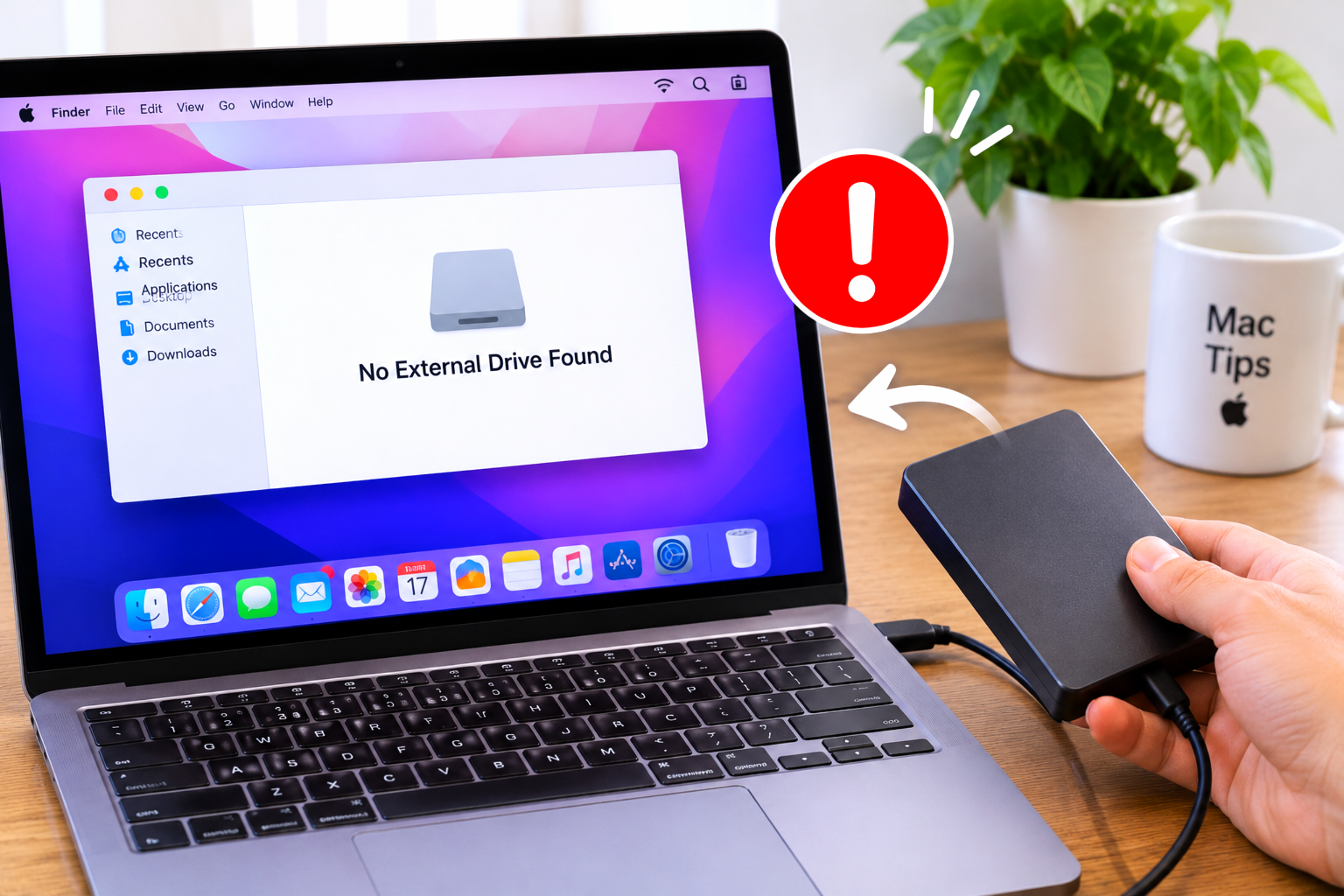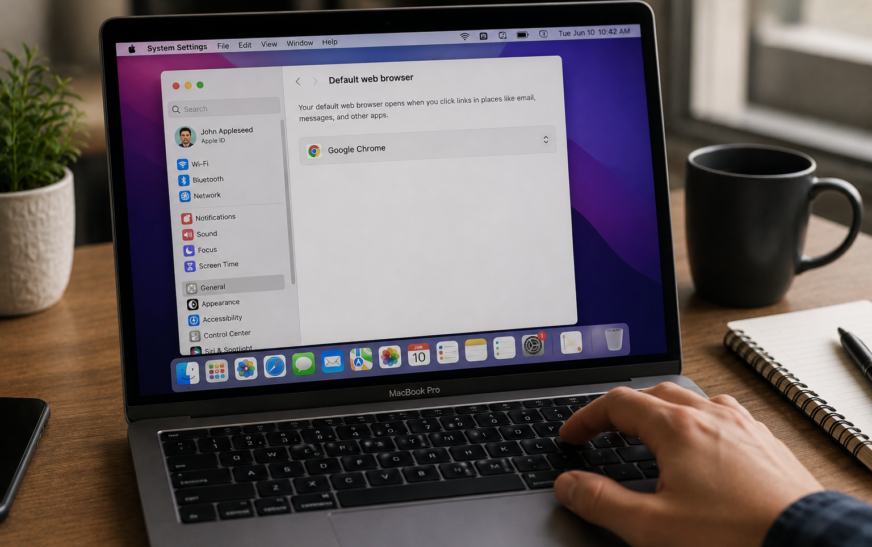
Mac default browser not changing is most often caused by changing the setting in the wrong place, or a macOS glitch that requires a restart to apply the change. The correct method is to go to System Settings → Desktop & Dock → Default web browser (not inside Safari settings) and select your preferred browser from the dropdown. If the dropdown reverts back to Safari after you select something else, quit System Settings, restart your Mac, and try again — this clears the macOS preference registration cache. If your chosen browser doesn’t appear in the dropdown at all, it needs to be opened at least once after installation before macOS registers it as an available default.
When your Mac default browser is not changing, it’s one of the more quietly infuriating macOS problems — you follow what seem like the correct steps, select Chrome or Firefox or Arc, click away, and the next time you open a link from Mail or Messages, Safari opens anyway. Sometimes the dropdown in System Settings reverts to Safari the moment you close it. Other times it appears to accept the change but does nothing with it in practice.
The causes are specific and fixable. macOS sometimes caches the previous default browser registration and needs a nudge to accept the new one. The new browser may not be registered with macOS as a default-capable application yet. A work or school device management profile may be enforcing Safari. Or individual apps are overriding the system default for their own link handling. This guide covers every scenario and gets you to a working default browser change in minutes.
Which Situation Matches Yours?
Identify Your Exact Symptom First🔄 The dropdown accepts the new browser but immediately reverts to Safari
You select Chrome or Firefox in System Settings, but the moment you click away or close the window, it snaps back to Safari. This is a macOS preference caching issue. Fix 2 and Fix 3 resolve this directly.
🔍 Your browser isn’t appearing in the Default Web Browser dropdown at all
The browser you want to set as default isn’t even listed as an option. It hasn’t registered itself with macOS’s URL handler system yet. Fix 1 and Fix 4 cover this.
📧 Default browser changed in settings, but links from Mail still open in Safari
System Settings shows your new browser as default but Mail, Messages, or Calendar still route links to Safari. These apps sometimes have their own link-handling preferences. Fix 6 addresses per-app overrides.
🚫 The setting changes but resets back to Safari after every restart
The preference doesn’t persist across restarts, which strongly suggests a corrupted preference file or an MDM (device management) profile actively enforcing Safari. Fix 5 and Fix 8 cover these scenarios.
💻 Safari keeps prompting “Would you like to make Safari your default?” repeatedly
Safari is asking because it detects that another browser is currently set as default. Dismissing the prompt should keep your chosen browser. If the prompt keeps reappearing, Fix 7 addresses Safari’s default browser prompting behaviour.
🏢 This is a work or school Mac and nothing changes the default
If your Mac is managed by an employer or educational institution, a Mobile Device Management (MDM) profile may be enforcing Safari as the only permitted default browser. Fix 8 explains how to identify and handle this.
There are two places on a Mac where it seems like you’d change the default browser — but only one actually controls what opens when you click a link. System Settings → Desktop & Dock → Default web browser is the correct location. Changing the default browser inside Safari’s own settings (Safari → Settings → General → Default web browser) also works but only controls what Safari itself considers the default — not what macOS uses for external links. If you’ve been changing it only inside Safari, that’s why links still open in Safari.
How macOS Registers a Default Browser
Understanding Why This BreaksWhen you click a link in Mail, Messages, Slack, or any other non-browser app, macOS checks a system-level preference called the URL scheme handler — a registered mapping between the http:// and https:// URL protocols and a specific application. The app registered to handle http:// links is the default browser.
For a browser to appear in the Default Web Browser dropdown, it must first declare itself as a capable URL scheme handler in its app bundle — a declaration that macOS reads when the app is opened for the first time after installation. A browser that was installed but never opened hasn’t made this declaration yet, so it simply doesn’t appear as an option.
| Root Cause | What You See | Fix |
|---|---|---|
| Browser never launched after install | Browser missing from dropdown | Fix 1 — Open the browser first |
| Changed inside Safari, not System Settings | Links still open in Safari | Fix 2 — Correct location |
| macOS preference cache stale | Dropdown reverts to Safari | Fix 3 — Restart Mac |
| Corrupted browser preference file | Change doesn’t persist | Fix 5 — Delete plist file |
| Per-app link override | Some apps ignore system default | Fix 6 — Per-app settings |
| Safari repeatedly reclaims default | Safari keeps prompting to be default | Fix 7 — Disable Safari prompt |
| MDM profile enforcing Safari | Setting reverts after every restart | Fix 8 — Check MDM profile |
| Browser app corrupted or incomplete | Browser listed but won’t register | Fix 9 — Reinstall browser |
Fix 1: Open the New Browser Once Before Setting as Default
Start Here if the Browser Doesn’t Appear in the DropdownA freshly installed browser that has never been opened hasn’t had the chance to register its URL scheme handler with macOS — the registration that puts it in the Default Web Browser list. This is the most overlooked reason a newly installed Chrome, Firefox, Arc, Brave, or Edge doesn’t appear as an option in System Settings.
Most major browsers offer a one-click “Set as Default Browser” button somewhere in their settings or first-run experience. In Chrome: Settings → Default browser → Make default. In Firefox: Settings → General → Make Default. In Arc: Arc menu → Set Arc as Default Browser. Using the browser’s own button is often more reliable than System Settings because the browser re-registers its URL handler directly before making the macOS call — which prevents the stale cache issue.
Fix 2: Change the Default in the Correct Location
The Most Common Mistake — Wrong Settings LocationmacOS Tahoe moved the Default web browser setting to a less obvious location compared to earlier versions. Many users look for it inside Safari’s own settings or in the wrong section of System Settings — changing it there has no effect on links opened from Mail, Messages, or other apps.
http:// or https:// link in an email, message, or document — it should now open in the browser you selectedOpening Safari → Settings → General and changing “Default web browser” there controls Safari’s own browser-launch preference — not macOS’s system-wide URL handler. For system-wide default browser behaviour (links from Mail, Messages, Slack, VS Code, etc.), the setting must be changed in System Settings → Desktop & Dock → Default web browser. Both can be in conflict — Safari settings can show Chrome while System Settings still shows Safari, which causes confusing inconsistent behaviour.
Fix 3: Restart Your Mac After Changing the Default
For Dropdowns That Revert Immediately to SafarimacOS caches the URL scheme handler registration in a database called Launch Services. When this cache holds a stale reference to Safari as the default handler, the new browser selection in System Settings appears to save but the underlying registration isn’t updated — so the next time any app opens a URL, it consults the stale cache and opens Safari anyway. A restart forces macOS to rebuild this cache from the current settings.
When macOS restarts, it rebuilds the Launch Services database from scratch using the current contents of the preference files — which now correctly reflect your new browser choice. The stale in-memory cache that was causing the revert is wiped during the shutdown sequence. After a clean restart, the new browser registration is loaded fresh and the System Settings dropdown holds its selection.
Fix 4: Rebuild the macOS Launch Services Database
For Persistent Revert Even After RestartIf the dropdown still reverts to Safari after a restart, the Launch Services database itself has become corrupted — not just stale. Forcing macOS to completely rebuild it via Terminal re-registers every installed application including your browser, creating a clean slate for the default browser registration.
/System/Library/Frameworks/CoreServices.framework/Frameworks/LaunchServices.framework/Support/lsregister -kill -r -domain local -domain system -domain userThe Launch Services database rebuild fixes more than just the default browser issue — it also resolves problems where apps don’t appear in Open With menus, file types don’t have the correct default opener, or app icons show incorrectly. If you’ve been experiencing any of these alongside the default browser problem, this command addresses all of them at once.
Fix 5: Delete the Default Browser Preference File
When the Change Saves but Doesn’t Persist Between SessionsmacOS stores the default browser preference in a property list file. When this file becomes corrupted — often after a macOS update or an abrupt shutdown — it can read the new preference but fail to write it in a way that survives the next restart. Deleting the file forces macOS to create a fresh one from scratch.
rm ~/Library/Preferences/com.apple.LaunchServices/com.apple.launchservices.secure.plistrm -rf ~/Library/Caches/com.apple.LaunchServicesAfter deleting and recreating the Launch Services preference, macOS treats certain app associations as new — you may see prompts from Mail, Messages, or other apps asking which browser to use for links, or browsers asking to be set as default. These are expected and normal — respond to each prompt to rebuild your app association preferences freshly.
Fix 6: Fix Per-App Link Handling — Mail, Messages, Slack
When System Default Changed but Specific Apps Still Open SafariThe system-wide default browser controls most link-opening scenarios, but some apps maintain their own link-handling preferences that override the system default. Mail, Messages, and many third-party communication apps like Slack and Outlook can be configured to open links in a specific browser regardless of what macOS is set to use. If links from only certain apps still open in Safari after you’ve correctly changed the system default, per-app overrides are the cause.
Apple Mail:
Slack:
Microsoft Outlook / Teams:
Any app with persistent “always open in Safari” behaviour:
.html or web link file, choose Get Info, and expand “Open with” — if Safari is shown, click the dropdown and change to your preferred browser, then click “Change All” to apply globallySome apps create a persistent link between the .webloc (web location) file type and Safari. These are separate from the http:// URL handler and override the default browser for that specific file type. If clicking a .webloc file always opens Safari, right-click one of them, choose Open With → Other, select your browser, and check “Always Open With” before clicking Open — this updates the file type association for all .webloc files.
Fix 7: Stop Safari From Repeatedly Claiming Default
When Safari Keeps Asking to Be the Default BrowserOnce you’ve set another browser as default, Safari may continue prompting you to switch back — showing a “Would you like to set Safari as your default web browser?” notification each time it opens. Beyond being annoying, dismissing this prompt incorrectly (clicking “Use Safari” instead of “Keep Current Browser”) can reset the default back to Safari without any other obvious change.
When Safari’s prompt appears, clicking “Use Safari” immediately changes the system default browser back to Safari — even if you didn’t intend to. If you notice your default has switched back to Safari without you deliberately changing it, this is almost certainly the cause. After clicking “Keep Current Browser” consistently a few times, Safari reduces the frequency of the prompt significantly.
Fix 8: Check for MDM / Device Management Profile
For Work or School Macs That Revert After Every RestartIf your Mac is managed by an employer, school, or institution, a Mobile Device Management (MDM) profile may be configured to enforce Safari as the only permitted default browser. These profiles can silently reapply their settings at regular intervals or on every startup — which is why the default browser setting changes successfully but then resets itself back to Safari. This is a policy decision by your IT department, not a macOS bug.
On a Mac owned by your employer or institution, removing an MDM profile without authorisation may violate your acceptable use policy, trigger a remote device lock, or result in the loss of corporate email and data access. Contact IT for any changes to profile restrictions — do not attempt to remove managed profiles yourself on a work-owned device.
Fix 9: Reinstall the Browser Completely
When the Browser Appears in the Dropdown but Won’t RegisterOccasionally a browser installation is incomplete or partially corrupted — the app opens and appears to work, but the URL handler registration file inside the app bundle is damaged, so macOS can’t read it correctly when building the default browser dropdown. A clean reinstall replaces all app bundle files including the URL scheme handler declaration.
- Chrome: google.com/chrome
- Firefox: mozilla.org/firefox
- Arc: arc.net
- Brave: brave.com
- Edge: microsoft.com/edge
- Opera: opera.com
Browser downloads from unofficial sources or search engine ads sometimes deliver modified versions that don’t include a proper macOS URL scheme handler — which explains why they never appear correctly in the default browser dropdown despite installation. Always download browsers from the publisher’s official website or the Mac App Store. The official download links listed above are the safest sources.
Fix 10: Set the Default Browser via Terminal
Direct Registration Method When System Settings Doesn’t StickTerminal provides a direct way to write the default browser registration to macOS without going through the System Settings UI — bypassing any UI-level caching issues that might cause the dropdown to revert. The defaultbrowser command-line tool (installable via Homebrew) handles this cleanly, or you can use the built-in open command to trigger a browser’s own default-setting mechanism.
Method 1 — Using the browser’s own registration:
open -a "Google Chrome" --args --make-default-browseropen -a Firefox https://support.mozilla.org/en-US/kb/make-firefox-your-default-browserMethod 2 — Using Homebrew’s defaultbrowser tool:
/bin/bash -c "$(curl -fsSL https://raw.githubusercontent.com/Homebrew/install/HEAD/install.sh)"brew install defaultbrowserdefaultbrowserchrome with the identifier shown in the list):
defaultbrowser chromePro Tips: Default Browser Management on Mac
Use “Set as Default” from inside the browser — it’s more reliable than System Settings. When you set the default browser using the browser’s own “Set as Default Browser” button (found in its settings), the browser first re-registers its URL handler, then immediately triggers the macOS system call to assign itself as default. This two-step approach is more reliable than the System Settings dropdown, which only does the second step. Always use the in-browser button for the initial setup.
Confirm the change actually worked before closing the settings. After changing the default browser in System Settings, don’t just close the window and assume it worked. Open Mail, hold Command and click any link in an email — confirm the correct browser opens. If it still opens Safari, the change hasn’t registered yet and one of the fix steps above is needed before it will take effect.
Different browsers for different contexts are possible. macOS only allows one system-wide default browser, but several browsers and third-party tools allow you to create routing rules — for example, opening links from work apps in Chrome (which has your work accounts) and links from personal apps in Firefox. Apps like Openin or Browserosaurus sit between macOS and the browser and let you choose which browser handles each link type, by domain, or by source app. These are worth exploring if you regularly switch between browsers for different contexts.
Keep your browser updated to maintain its default registration. When a browser updates to a major version, it re-registers its URL scheme handler with the new version’s app bundle. Occasionally this re-registration process has a minor issue that causes the browser to fall back in the default priority order. Keeping browsers up to date ensures each update re-registers cleanly. You can discover more Mac ecosystem tips in our hidden Mac features guide that covers built-in tools many users never discover.
After a macOS update, always verify your default browser. macOS updates occasionally reset the default browser preference — particularly major updates like macOS Tahoe. After any significant macOS update, open a link from Mail as a quick test before assuming your default browser setting is intact. A single 5-second check prevents the confusion of discovering the reset days later. For a full checklist of settings worth reviewing after macOS updates, our guide on secret Mac features and settings is a useful reference.
Common Mistakes to Avoid
Safari → Settings → General → Default web browser controls what Safari considers the default — not what macOS uses for links. Changing it inside Safari updates Safari’s own internal reference but doesn’t update the system URL handler. Always use System Settings → Desktop & Dock → Default web browser for changes that affect link handling across all apps.
Dragging a browser from a DMG to Applications doesn’t register it with macOS. The registration happens during the browser’s first launch — specifically when the app bundle’s Info.plist file is read and its URL scheme handler entries are written to the Launch Services database. If you try to set a newly installed browser as default before opening it, it won’t appear in the dropdown.
Safari’s “Would you like to make Safari your default browser?” dialog has two buttons — “Use Safari” and “Keep Current Browser.” They sit close together and the wrong one is easy to click quickly. A single accidental click on “Use Safari” immediately reassigns the system default. If your default browser keeps mysteriously switching back to Safari without you intending it, accidental prompt clicks are the most likely cause.
Some apps cache their link-opening reference at launch time. If an app was already open when you changed the default browser, that running instance may continue routing links to Safari until it’s quit and reopened. After changing the default browser, quit and relaunch any apps that you want to immediately respect the new setting — particularly Mail, Messages, and Slack.
FAQ: Mac Default Browser Not Changing
Why is my Mac default browser not changing from Safari?
Mac default browser not changing from Safari is most often caused by one of three things: the change is being made in the wrong place (inside Safari’s settings rather than System Settings → Desktop & Dock → Default web browser), the browser hasn’t been opened since installation and hasn’t registered with macOS yet, or the Launch Services database cache needs to be rebuilt. The fastest fix is to open your preferred browser first, then go to System Settings → Desktop & Dock → Default web browser, select it, close System Settings, and restart your Mac. The restart forces the Launch Services database to apply the change.
Where is the default browser setting in macOS Tahoe?
In macOS Tahoe, the default browser setting is in System Settings → Desktop & Dock — scroll down in that section until you see “Default web browser” with a dropdown menu. It is not at the top level of System Settings and is not inside any browser-specific settings menu. The location changed in macOS Ventura from its previous position in System Preferences → General, which is why many users can’t find it.
Why doesn’t Chrome / Firefox appear in the Default Web Browser dropdown?
A browser that doesn’t appear in the default browser dropdown hasn’t been opened since it was installed. macOS only adds an app to the dropdown after the app has been launched at least once and its URL scheme handler has been registered. Open the browser from your Applications folder, let it fully load, and then return to System Settings → Desktop & Dock — the browser should now appear in the dropdown list.
Why does my default browser keep switching back to Safari after restart?
A default browser that resets to Safari after every restart is almost always caused by either a corrupted Launch Services preference file or an MDM (device management) profile that enforces Safari. Check System Settings → Privacy & Security → Profiles — if profiles are listed, your Mac is managed and an IT policy is resetting the default. If no profiles are present, delete the Launch Services preference file via Terminal (rm ~/Library/Preferences/com.apple.LaunchServices/com.apple.launchservices.secure.plist), restart, and set the default browser again.
I changed the default browser but Mail still opens links in Safari — why?
Mail may have been open when you changed the default browser setting — running apps sometimes cache the previous default and don’t pick up the change until they’re relaunched. Quit Mail completely and reopen it, then click a link to test. If Mail still opens Safari after relaunching, check Mail → Settings → General for any browser-specific setting, and confirm the System Settings change actually saved correctly by checking Desktop & Dock → Default web browser again.
Can I set different default browsers for different types of links on Mac?
macOS itself only supports one system-wide default browser for http:// and https:// links. However, third-party apps like Openin and Browserosaurus install themselves as the “default browser” and then route links to different browsers based on rules you configure — by domain, by source app, by URL pattern, or through a picker that appears each time you click a link. These tools are useful for users who actively switch between browsers for work and personal use.
Mac Default Browser Not Changing — Complete Fix Checklist
- 1Open the browser first after installing — it must launch once to register with macOS before appearing in the dropdown
- 2Change in the correct location — System Settings → Desktop & Dock → Default web browser (not inside Safari)
- 3Restart Mac after changing — forces Launch Services cache rebuild so the change sticks
- 4Rebuild Launch Services database — Terminal lsregister command for persistent revert issues
- 5Delete the Launch Services preference file — remove com.apple.launchservices.secure.plist via Terminal
- 6Fix per-app link handling — check Slack, Mail, Outlook preferences for individual browser overrides
- 7Dismiss Safari’s default browser prompt correctly — always click “Keep Current Browser,” never “Use Safari”
- 8Check for MDM profile — System Settings → Privacy & Security → Profiles; contact IT if managed
- 9Reinstall the browser — clean reinstall from official source fixes corrupted URL handler registration
- 10Set via Terminal — use
open -a "Google Chrome" --args --make-default-browseror Homebrew’s defaultbrowser tool
One Last Thing
Mac default browser not changing from Safari is one of those problems where the fix is almost always simpler than it feels — the most common cause is either the wrong settings location or a stale cache that a restart clears. Working through the first three fixes in this checklist resolves the issue for the vast majority of users in under five minutes. The Launch Services rebuild and preference file deletion cover the remaining persistent cases.
Once your preferred browser is correctly set as default and you’ve confirmed it by clicking a link from Mail, the setting should persist reliably through normal use. The only scenarios where it continues to change on its own are MDM enforcement (requires your IT department) and accidental clicks on Safari’s default browser prompt — both of which are straightforward to address once identified.
Wrapping Up
The default browser on Mac is a surprisingly fragile preference given how fundamental it is to daily workflow. Apple’s choice to move the setting to a less obvious location in macOS Ventura and Tahoe hasn’t helped — but once you know where it is and how the Launch Services registration works, changing and maintaining your preferred default browser is straightforward. Set it correctly once, confirm it with a test link, and it should stay exactly where you put it.
ⓘ Disclaimer: This article is for informational purposes only. CrazyErrors is not affiliated with Apple Inc., Google, Mozilla, or any browser manufacturer. Terminal commands in this guide modify macOS preference caches and are designed to be safe and reversible — all affected data is recreated automatically by macOS on the next restart. Do not remove MDM profiles on employer-owned devices without authorisation. For official Apple guidance on setting a default browser, visit support.apple.com/en-us/HT201732.