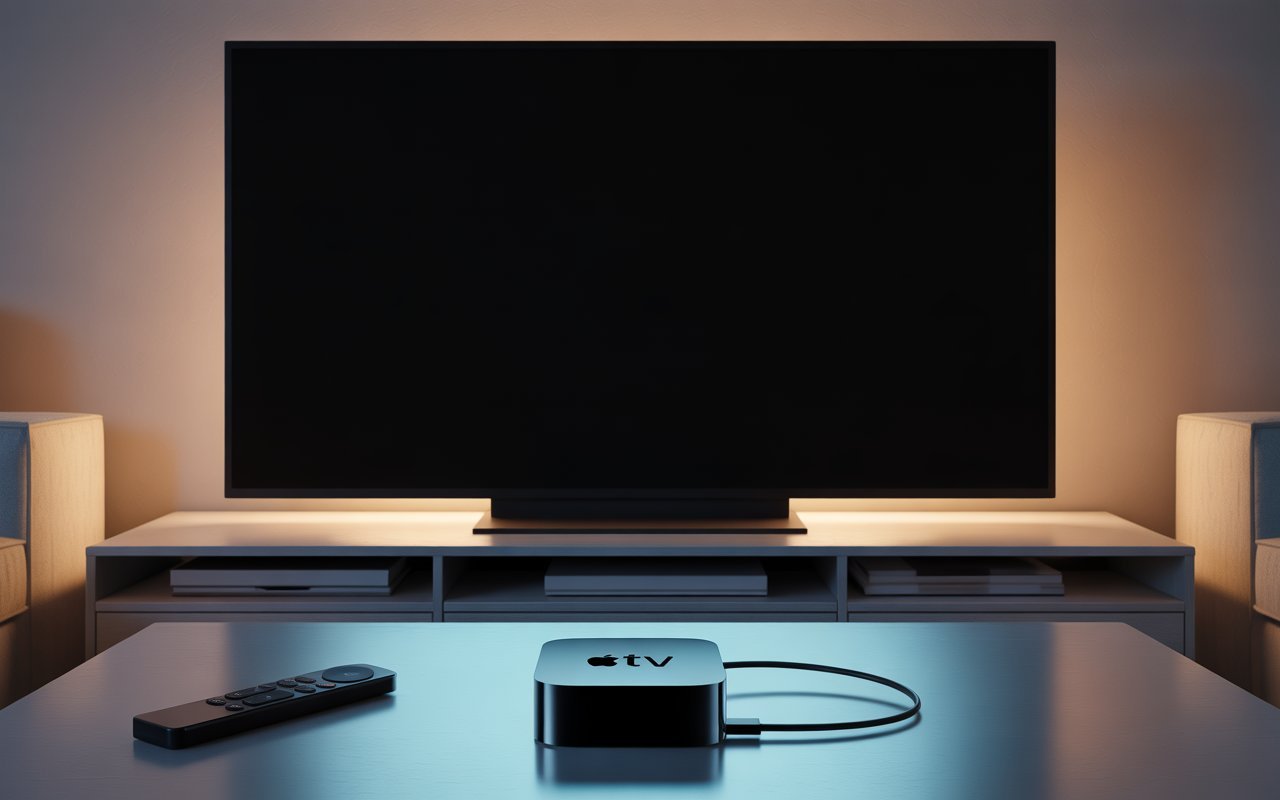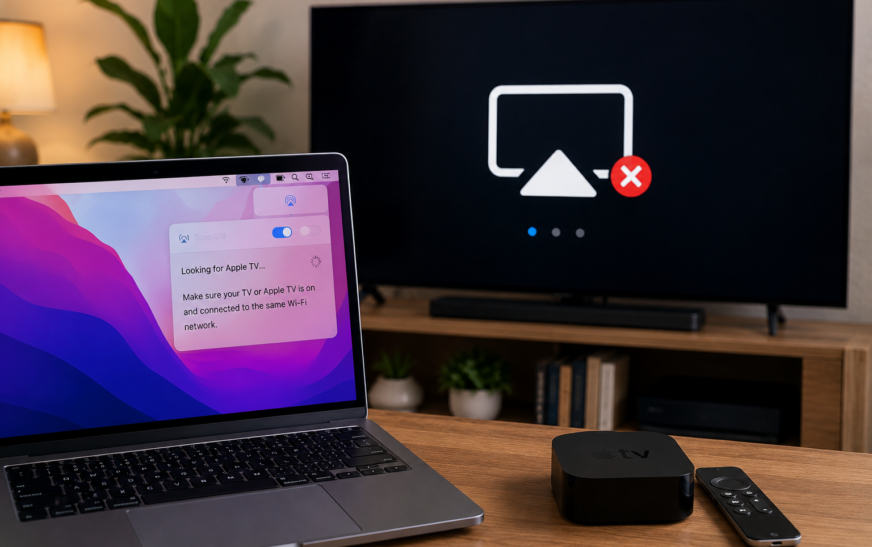
AirPlay not working from Mac to TV or Apple TV is almost always caused by one of three things: both devices are not on the exact same WiFi network, AirPlay receiver mode isn’t enabled on your Apple TV or smart TV, or your Mac’s firewall is silently blocking AirPlay traffic. Start by confirming both devices are on the same network, then on Apple TV go to Settings → AirPlay and HomeKit → AirPlay: On. On your Mac, open System Settings → General → AirPlay & Handoff and confirm AirPlay Receiver is enabled. If those are both on and AirPlay still doesn’t appear, Fix 4 (firewall) resolves the majority of remaining cases.
AirPlay not working from Mac to TV is one of the most searched Apple troubleshooting topics, and for good reason — it should be one of the simplest things your Apple devices can do together, yet a single misconfigured setting somewhere in the chain makes it look like the feature simply doesn’t exist. You click the AirPlay icon in your Mac’s menu bar, and either nothing shows up in the list, your Apple TV or TV appears but immediately fails to connect, or the stream starts but drops every few minutes.
The root cause almost always lives in one of four places: the network (both devices must be on the same WiFi), the receiving device (AirPlay must be enabled on Apple TV or the smart TV), the Mac’s security settings (the firewall can silently block AirPlay’s discovery protocol), or a software version mismatch between Mac and Apple TV. This guide walks through every fix for both Apple TV and third-party AirPlay 2 compatible TVs, in the order most likely to resolve your specific situation.
What Exactly Is Happening?
Find Your Symptom First📺 AirPlay icon missing from Mac menu bar or no devices appear
The AirPlay icon is absent entirely, or clicking it shows an empty list. Both devices being on different networks and macOS AirPlay settings being off are the two most likely causes. Fix 1, Fix 2, and Fix 3 address this.
📶 Apple TV or TV appears in the list but connection fails immediately
You can see the device, tap it to connect, and it either hangs or immediately says “Unable to connect.” Usually a firewall block, an AirPlay passcode prompt you missed, or a network layer issue. Fix 4, Fix 5, and Fix 6 cover this.
⚡ AirPlay connects but stream keeps dropping or stuttering
Connection establishes but the video or audio drops repeatedly. This is almost always a WiFi quality or congestion issue. Fix 8 and Fix 9 are most relevant.
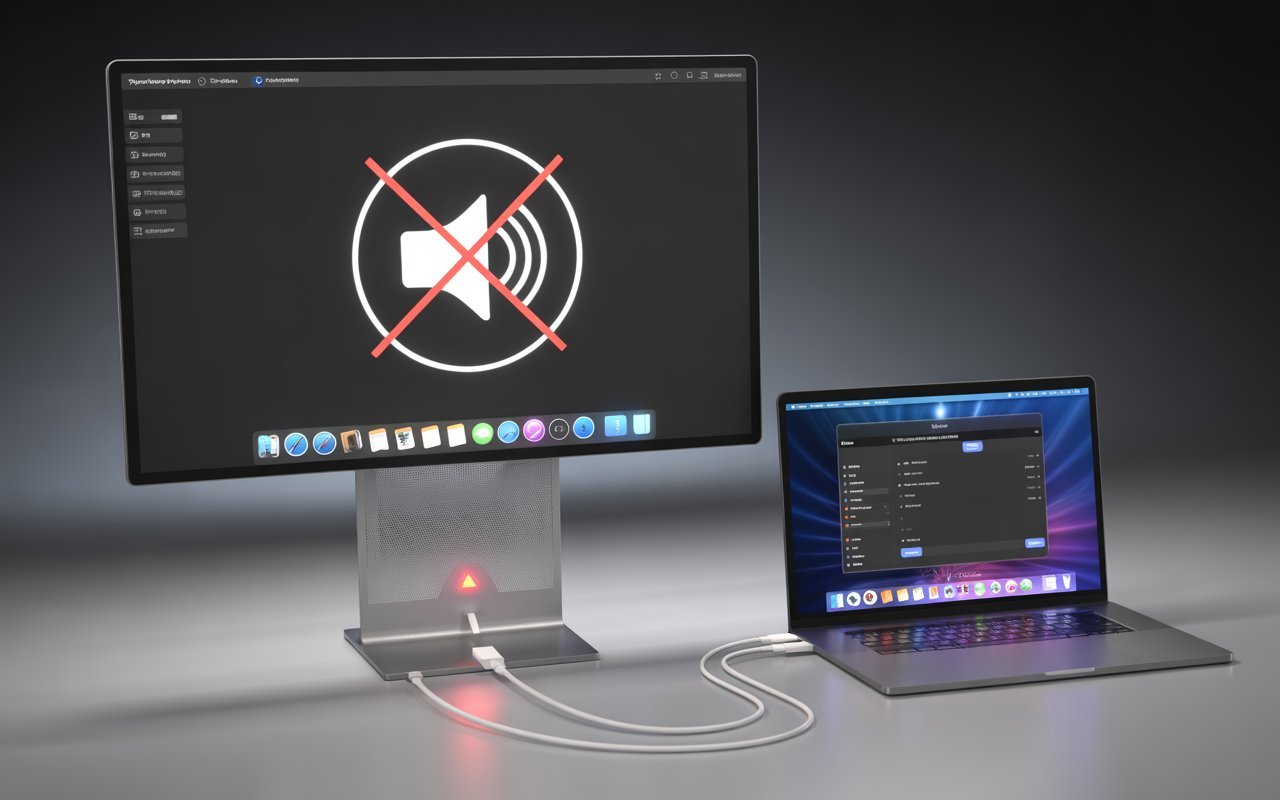
🔈 Video plays on TV but no audio, or audio plays but no video
Partial AirPlay — one media type works but not the other. Often a HDCP content protection issue or an audio output routing conflict on the Mac. Fix 7 and Fix 10 apply.
💻 Works on iPhone but not on Mac specifically
If AirPlay from iPhone reaches the same Apple TV fine but Mac can’t, the issue is Mac-specific — firewall settings, macOS AirPlay permissions, or a conflict with third-party software. Fix 4, Fix 11, and Fix 12 cover this.
📺 Works with Apple TV but not with a Samsung, LG, or Sony smart TV
Third-party AirPlay 2 TVs have manufacturer-specific quirks. Fix 13 covers smart TV-specific steps including input selection, firmware updates, and manufacturer AirPlay settings.
Before spending time on Mac-specific fixes, test AirPlay from your iPhone to the same TV or Apple TV. If iPhone AirPlay works but Mac doesn’t, the problem is definitively Mac-side — skip straight to Fix 4, Fix 11, and Fix 12. If iPhone AirPlay also fails, the issue is on the TV or Apple TV side — Fix 1, Fix 2, Fix 3, and Fix 6 are where to focus.
How AirPlay Works — What Can Go Wrong
Understanding the ProblemAirPlay uses your local WiFi network to stream audio and video between Apple devices. Unlike Bluetooth (which is point-to-point), AirPlay routes media through your router — which means both the Mac and the receiving device must be on the same network, the router must allow local device discovery traffic, and neither device’s firewall can block the AirPlay ports.
AirPlay relies on a protocol called Bonjour — Apple’s zero-configuration network discovery service — to let devices find each other. When Bonjour is blocked (by a firewall, a VPN, or a router setting), devices become invisible to each other even when both are online and on the same network. This is why AirPlay can appear completely broken when the only issue is a single firewall rule.
| AirPlay Requirement | What Breaks When It’s Missing |
|---|---|
| Both devices on same WiFi network | No devices appear in AirPlay list at all |
| AirPlay enabled on the receiving device | Device not visible in Mac’s AirPlay menu |
| Mac firewall allows Bonjour traffic | Devices on list but connection always fails |
| Compatible AirPlay version on both sides | Greyed-out device or immediate disconnect |
| No VPN routing traffic off local network | All AirPlay discovery silently blocked |
| HDCP-compliant TV/display (for video) | Audio works but no video, or black screen |
Fix 1: Confirm Both Devices Are on the Same WiFi Network
Start Here — Most Common Root CauseAirPlay not working is caused more often by a network mismatch than anything else. Modern routers frequently broadcast multiple networks — a 2.4 GHz network and a 5 GHz network, sometimes with different names — and it’s easy for a Mac to be on one band while the Apple TV or smart TV is on the other. Even though both appear “connected to WiFi,” AirPlay device discovery won’t work across different network bands when they’re treated as separate networks by the router.
If your router has a Guest network, devices on the Guest network are isolated from devices on the main network — this is a deliberate security feature. AirPlay between a Mac on your main network and an Apple TV on the Guest network (or vice versa) will never work. Both devices must be on the same main network, not a guest or IoT-segmented network.
Fix 2: Enable AirPlay on Your Apple TV
Essential — AirPlay Must Be Explicitly Turned OnAirPlay on Apple TV can be turned off by a user, disabled by a parental control or restrictions profile, or occasionally reset by a tvOS update. When it’s off, the Apple TV won’t appear in any Mac’s AirPlay device list — as if it doesn’t exist on the network.
- Everyone — any nearby device can AirPlay (least secure)
- Anyone on the Same Network — only devices on your WiFi can AirPlay (recommended)
- Only People Sharing This Home — restricted to iCloud Family Sharing members
- Require Passcode — connection requires entering a code shown on the TV
In AirPlay and HomeKit settings on Apple TV, there’s also an “Allowed Devices” section that may list previously connected Macs and iPhones. If your Mac appears here with access set to “Never,” change it to “Always” or “Ask” — a Mac blocked in this list won’t be able to AirPlay even when network and AirPlay settings are correct.
Fix 3: Check AirPlay Settings on Your Mac
Often Reset After macOS Tahoe UpdatemacOS has its own AirPlay settings that control both AirPlay Receiver (other devices streaming to your Mac) and AirPlay output (your Mac streaming to other devices). After a macOS Tahoe update, certain AirPlay-related settings can be reset, including the one that controls whether AirPlay devices are actively discovered on the network.
Fix 4: Check Mac Firewall Settings — The Silent AirPlay Killer
Fixes “Device Visible but Won’t Connect”This is the most overlooked cause of AirPlay not working from Mac — and the one that frustrates people the most, because the Apple TV appears in the AirPlay list but every connection attempt silently fails. The Mac’s built-in firewall can block the Bonjour (mDNS) packets that AirPlay uses to establish connections, without giving any error message that explains why.
Temporarily turn the Mac’s Firewall completely off (System Settings → Network → Firewall → toggle off) and immediately try AirPlay. If it works with the firewall off, the firewall is definitively the cause. You can then turn the firewall back on and configure it to allow AirPlay traffic specifically, rather than leaving it permanently disabled.
Fix 5: Handle the AirPlay Passcode Prompt
Quick Fix — Easy to MissIf your Apple TV has “Require Passcode” enabled for AirPlay access, it will display a 4-digit code on the TV screen when a Mac tries to connect. The Mac shows a prompt asking for this code — but the prompt can appear behind other windows and is easy to miss. If you dismiss it or it times out, the connection fails silently.
The AirPlay passcode displayed on the Apple TV screen is only valid for about 60 seconds. If you don’t enter it in time, the connection attempt expires and you need to initiate AirPlay again from the Mac. Act quickly — click the AirPlay device, watch the TV for the code, and enter it immediately.
Fix 6: Restart Both Devices and Your Router
Clears Stale Network StatesAirPlay discovery relies on real-time multicast network packets that expire and refresh periodically. When a Mac, Apple TV, or router has been running for a long time without restarting, stale ARP tables and mDNS caches can cause devices to see outdated network information — making AirPlay fail even when every setting is correctly configured.
Restart in this order for best results: router first, then Apple TV, then Mac. This ensures each device connects to a freshly initialised router rather than inheriting a stale connection from a router that’s still in the process of restarting. Give the router at least 60 seconds to fully come back before turning the other devices on.
Fix 7: Update Apple TV tvOS and Mac macOS
Version Mismatches Cause Silent AirPlay FailuresAirPlay 2 features and protocol improvements ship with both tvOS and macOS updates. When a Mac is running a significantly newer macOS than the Apple TV’s tvOS — or vice versa — certain AirPlay features may negotiate incorrectly, producing silent connection failures or degraded performance. Keeping both updated to their latest versions ensures both ends of the AirPlay connection speak the same protocol version.
Apple TV doesn’t update automatically by default unless you enable it. In Settings → System → Software Updates, enable “Automatically Update” so future tvOS releases don’t silently fall behind your Mac’s macOS version. AirPlay protocol changes in macOS updates are often paired with matching updates in tvOS — having automatic updates on both sides keeps them in sync.
Fix 8: Fix AirPlay Stuttering and Drops — WiFi Quality
For Connections That Work but Keep DroppingAirPlay not working reliably — connecting then dropping, stuttering video, or audio cutting out — is almost always a WiFi issue rather than an AirPlay configuration problem. AirPlay streams continuous high-bandwidth data, and anything that interrupts the WiFi connection for more than a fraction of a second causes a visible drop in the stream.
Connecting Apple TV via Ethernet cable to your router is the single most effective change you can make for AirPlay reliability. It removes all wireless instability from the receiving end — the Mac still uses WiFi, but the TV-side connection becomes completely stable. Apple TV 4K has an Ethernet port on the back, and using it typically makes AirPlay stuttering disappear entirely.
Fix 9: Flush DNS and Renew DHCP on Your Mac
Clears Stale Network AddressesAirPlay uses your local network’s mDNS (multicast DNS) to discover and reach other devices by name rather than IP address. When DNS and DHCP caches on your Mac become stale — particularly after a router restart, a network configuration change, or a macOS update — AirPlay discovery can fail even when the actual network path is fine.
sudo dscacheutil -flushcache; sudo killall -HUP mDNSResponderFix 10: Fix “No Audio” or “No Video” During AirPlay
For Partial AirPlay — One Media Type MissingAirPlay streaming where video shows without sound, or audio plays but the screen stays black, has specific causes for each symptom — and they’re different enough to warrant separate fixes.
No Audio During AirPlay
No Video / Black Screen During AirPlay
Fix 11: Disable VPN on Your Mac
VPNs Silently Break AirPlay DiscoveryA VPN active on your Mac routes all network traffic — including AirPlay’s local network discovery packets — through a remote server. This effectively removes your Mac from the local network for AirPlay’s purposes, making all nearby AirPlay devices invisible regardless of how close they are or how correctly everything is configured.
If you’re working from home with a corporate VPN that routes all traffic through your employer’s network, AirPlay will likely not work while connected. This is a network policy decision by your employer — not a bug — and split tunneling may not be permitted on managed VPN configurations. Disconnect the corporate VPN when you want to use AirPlay, then reconnect for work.
Fix 12: Delete and Recreate the AirPlay Connection
Resets Cached Connection DatamacOS caches information about previously connected AirPlay devices. When this cached data becomes stale — particularly after a macOS or tvOS update changes how the devices identify themselves — the Mac may remember an outdated device identity that causes connection handshakes to fail even when both devices are correctly configured.
~/Library/Preferencesairplay or airportd in the name — move any found to your Desktop as a backupFix 13: Fix AirPlay on Third-Party Smart TVs (Samsung, LG, Sony, Vizio)
Manufacturer-Specific SettingsThird-party smart TVs that support AirPlay 2 — Samsung, LG, Sony, Vizio, TCL, Hisense — implement AirPlay differently than Apple TV does, and each has specific settings that need to be enabled for AirPlay to work from a Mac. These TVs also require firmware updates more urgently than Apple TV does, as manufacturers frequently fix AirPlay compatibility bugs in updates.
Samsung TVs:
LG TVs:
Sony TVs:
All smart TVs — Essential steps:
Third-party AirPlay 2 implementations in smart TVs are licensed from Apple but not built to the same standards as Apple TV. Many users find that the same content that AirPlays perfectly to an Apple TV shows inconsistent behaviour on a smart TV — especially for streaming video with DRM. If you regularly use AirPlay for mirroring or streaming from Mac, an Apple TV connected to the same television delivers a noticeably more reliable experience.
Pro Tips: Getting the Best AirPlay Experience From Mac
Use a 5 GHz dedicated WiFi band for AirPlay devices. If your router supports it, connect both your Mac and Apple TV to your 5 GHz network rather than 2.4 GHz. The 5 GHz band has higher throughput and less congestion from neighbouring devices — important because AirPlay competes for bandwidth with every other device on the same channel.
Wire Apple TV to your router via Ethernet. AirPlay streaming is one-directional from Mac to TV — your Mac sends all the data, and the Apple TV just receives it. Giving the receiving end a wired connection eliminates the most common source of stuttering and drops without requiring any changes on the Mac side.
Use Screen Mirroring for general use, AirPlay Audio for music. If you only need to play audio through your TV speakers, use the Sound menu in the Mac’s menu bar to route audio output to the Apple TV without mirroring the entire screen. This uses less bandwidth than full screen mirroring and is noticeably more stable for background music playback over long periods.
After any macOS update, check AirPlay settings first. macOS Tahoe and future updates occasionally reset the AirPlay Receiver setting in System Settings → General → AirDrop & Handoff. Spending 30 seconds confirming this is on after any update prevents mysterious AirPlay disappearances. To discover more hidden Mac networking and ecosystem tricks, check our guide on secret Mac features most users never discover.
Keep your Mac’s storage healthy for smooth AirPlay encoding. AirPlay from Mac requires real-time video encoding — when the Mac’s storage is almost full, background disk operations compete with the encoding process and cause stuttering. Our guide on freeing up MacBook storage without deleting files covers the fastest ways to keep enough breathing room for smooth streaming.
Common Mistakes to Avoid
AirPlay not working from Mac to a device that’s supposed to support it is almost always a settings or network issue — not a hardware incompatibility. The same Mac and Apple TV that appear unable to connect over AirPlay are very often working perfectly once the firewall or same-network issue is resolved. Work through the fixes before concluding anything needs to be replaced.
An active VPN on the Mac makes every AirPlay fix ineffective because the VPN is routing discovery traffic off the local network entirely. If you have a VPN and haven’t tested with it disconnected, do that first — it’s a 10-second test that immediately confirms or rules out the most invisible cause of AirPlay failures.
HDMI switches between Apple TV and a TV are a frequent silent cause of black-screen video during AirPlay. The switch passes audio fine (audio doesn’t require HDCP) but fails the HDCP 2.2 handshake required for video — making it appear that AirPlay audio works but video doesn’t. If you’re using an HDMI switch, test with Apple TV plugged directly into the TV to isolate this.
If Apple TV is in deep sleep when you try to AirPlay from Mac, it may not wake quickly enough to respond to the connection request — causing a timeout error that looks like a network failure. On Apple TV: Settings → Remotes and Devices → Sleep After — consider setting a longer sleep timeout if you frequently initiate AirPlay to a sleeping Apple TV.
FAQ: AirPlay Not Working From Mac to TV
Why is AirPlay not working from my Mac to Apple TV?
AirPlay not working from Mac to Apple TV is most commonly caused by one of four things: the Mac and Apple TV are on different WiFi networks (or different bands of the same router), AirPlay is disabled on the Apple TV (Settings → AirPlay and HomeKit → AirPlay: On), the Mac’s firewall is blocking Bonjour discovery traffic, or an active VPN on the Mac is routing local network traffic through a remote server. Start by confirming both devices are on the exact same network name, then check firewall settings in System Settings → Network → Firewall and disable “Block all incoming connections.”
Why doesn’t my Apple TV appear in the Mac AirPlay menu?
When the Apple TV doesn’t appear in the AirPlay device list on Mac, the most common reasons are: AirPlay is turned off on the Apple TV, both devices are not on the same WiFi network, the Mac’s firewall is blocking Bonjour multicast traffic, or an active VPN is preventing local network discovery. The fastest fix is to temporarily disable the Mac’s firewall completely, then try AirPlay — if the Apple TV appears, the firewall configuration is the cause.
Does AirPlay from Mac require Bluetooth?
AirPlay itself uses WiFi for the actual media stream, not Bluetooth. However, the initial device discovery process on macOS uses a combination of WiFi-based mDNS and occasionally Bluetooth Low Energy to announce nearby Apple devices. Having Bluetooth enabled on your Mac can help AirPlay discovery work more reliably, particularly for Apple TV devices that are nearby. It is not strictly required, but turning it on when troubleshooting AirPlay discovery is worth testing.
Why does AirPlay from Mac keep dropping or stuttering?
AirPlay that connects but drops repeatedly is almost always a WiFi quality issue rather than an AirPlay configuration problem. Move the Mac closer to the router, switch to the 5 GHz band, and if possible connect the Apple TV to the router via Ethernet. Wiring the Apple TV is the single most impactful change — it removes all wireless instability from the receiving end. Also check whether a VPN or heavy download on another device is consuming bandwidth during AirPlay.
AirPlay video shows on TV but there’s no sound — how do I fix it?
When AirPlay streams video but audio stays on the Mac speakers, the Mac’s sound output hasn’t switched to the AirPlay target. Click the Sound icon in the Mac menu bar and check the Output Device — select your Apple TV or TV name from the list to redirect audio. You can also go to System Settings → Sound → Output and select the AirPlay device explicitly. Also check that the Mac isn’t muted, as AirPlay mirrors the Mac’s volume level.
Can I AirPlay from Mac to a TV without an Apple TV?
Yes — many modern smart TVs support AirPlay 2 directly without needing an Apple TV. Samsung (2018 and later), LG (2019 and later), Sony (2019 and later), Vizio, TCL, and Hisense all have AirPlay 2 built in on select models. To use AirPlay with a compatible smart TV, enable AirPlay in the TV’s settings (usually under General or Network), connect both the TV and Mac to the same WiFi network, and the TV will appear in your Mac’s AirPlay device list. Note that smart TV AirPlay implementations are generally less reliable than Apple TV.
AirPlay Not Working From Mac — Complete Fix Checklist
- 1Confirm both devices on same WiFi network — including same band (2.4 vs 5 GHz)
- 2Enable AirPlay on Apple TV — Settings → AirPlay and HomeKit → AirPlay: On
- 3Check Mac AirPlay settings — System Settings → General → AirDrop & Handoff
- 4Fix Mac firewall — disable “Block all incoming connections” and stealth mode
- 5Enter AirPlay passcode — watch TV screen for code when connecting
- 6Restart Mac, Apple TV, and router — clears stale network states
- 7Update tvOS and macOS — version mismatches cause silent AirPlay failures
- 8Fix WiFi quality — use 5 GHz, move closer to router, wire Apple TV via Ethernet
- 9Flush DNS and renew DHCP — clears stale network address caches
- 10Fix audio/video routing — check Mac sound output, verify HDCP compliance
- 11Disconnect VPN — VPNs route local traffic off-network, breaking AirPlay discovery
- 12Delete and recreate AirPlay connection — clears stale device credentials
- 13Smart TV specific steps — enable AirPlay in TV settings, update TV firmware
One Last Thing
AirPlay not working from Mac is almost never a permanent or hardware problem — it’s a settings and network issue with a finite list of causes, every one of which has a straightforward fix. The firewall check and the same-network confirmation together resolve the issue for the large majority of users. If those two don’t do it, the VPN and the Apple TV software update cover most of what remains.
The CrazyErrors team is happy to help if you’re stuck on a specific error — share which devices you’re using, which fixes you’ve already tried, and whether AirPlay from iPhone works to the same TV. Those three details narrow down the remaining cause quickly.
Wrapping Up
AirPlay from Mac to TV or Apple TV is one of the Apple ecosystem’s most satisfying features when it works — the ability to throw your screen, a video, or your entire music library to the living room TV from the Mac is genuinely useful. Getting there reliably takes only a few minutes of setup: same WiFi network, AirPlay enabled on the receiving device, firewall configured correctly, and both devices running current software.
Run through the checklist from the top, confirm each condition is met rather than just assuming it, and AirPlay will work as seamlessly as it’s designed to.
ⓘ Disclaimer: This article is for informational purposes only. CrazyErrors is not affiliated with Apple Inc. AirPlay availability and features vary by device model, operating system version, and network configuration. Third-party smart TV AirPlay support depends on the TV manufacturer’s implementation. For official Apple AirPlay support, visit support.apple.com/airplay.