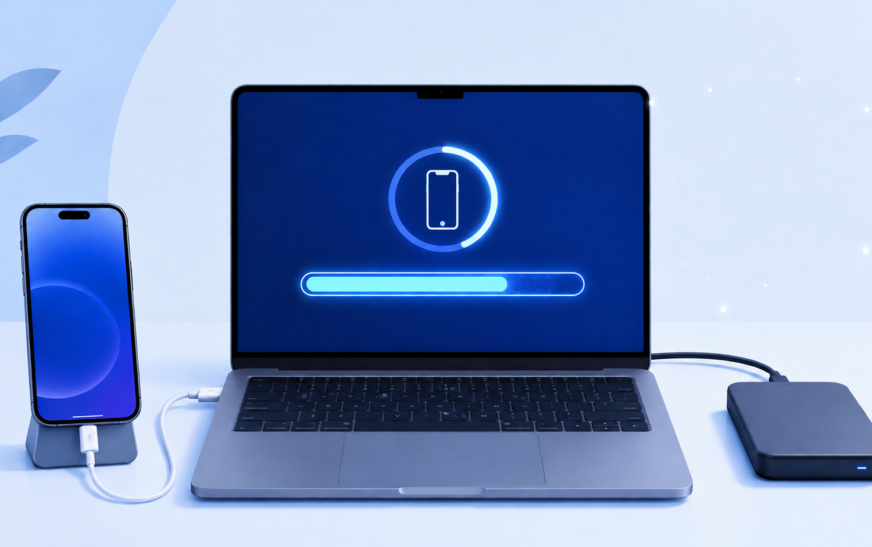
How to Backup iPhone Without iCloud — 9 Free & Paid Methods

✅ Quick Answer The best way to back up an iPhone without iCloud is to use Finder on Mac (or iTunes on Windows) — connect your iPhone via USB, open Finder, select your iPhone, and click “Back Up Now.” This creates a complete local backup of your entire iPhone including
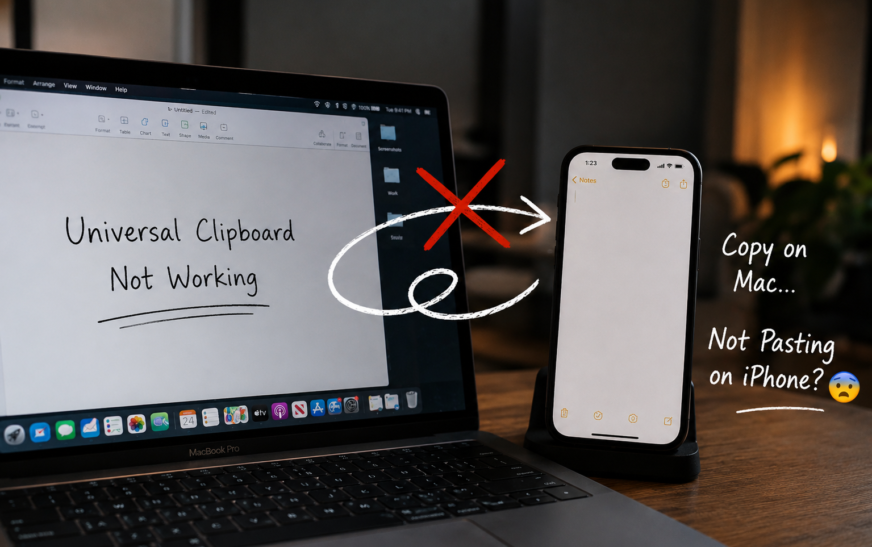
Fixed Universal Clipboard Not Working – Copy/Paste Between Devices
✅ Quick Answer Universal Clipboard stops working when any one of its four required conditions is missing: both devices must be signed into the same Apple ID, both must have Wi-Fi on, both must have Bluetooth on, and Handoff must be enabled in settings on both devices. The fastest fix
Apple Pencil Not Working or Won’t Pair? Complete Fix Guide (All Models)
✅ Quick Answer Apple Pencil not working or pairing is almost always caused by a dead or low battery, a broken Bluetooth pairing, or an iPadOS update resetting the connection. For Apple Pencil 2nd gen and Pencil Pro: detach from the iPad’s magnetic side, wait 5 seconds, and reattach firmly.
MacBook Thunderbolt Display Audio Not Working After Tahoe Update
✅ Quick Answer Thunderbolt display audio stopping after macOS Tahoe is almost always caused by one of three things: macOS switched the audio output back to MacBook speakers and didn’t reroute it to the display, the Core Audio daemon lost track of the display’s audio device during the update, or
Apple TV Black Screen HDMI Not Working? Fix No Signal Fast
✅ Quick Answer Apple TV showing a black screen or “No Signal” on your TV is almost always caused by one of three things: the TV is on the wrong HDMI input, an HDCP handshake failure between the Apple TV and the TV, or a resolution mismatch where Apple TV
MacBook Audio Crackling After macOS Tahoe? Here’s How to Fix It
✅ Quick Answer Audio crackling and popping after macOS Tahoe is almost always caused by the Core Audio daemon crashing or getting into a bad state during the update, a sample rate mismatch between your Mac and audio output device, or Bluetooth audio codec instability introduced in Tahoe’s updated wireless
MacBook External Display Not Recognized After Restart (M4 Mac Mini Issue)
MacBook External Display Not Recognized After Restart (M4 Mac Mini Issue) Quick Answer Featured Answer — M4 Mac Mini External Display Fix When an external display is not recognized after restarting your M4 Mac Mini or M-series MacBook, the fastest fix is a Display SMC reset combined with reseating the
MacBook WiFi Slow When USB-C Devices Plugged In — How to Fix (M3/M4 Issue)
✅ Quick Answer MacBook WiFi slowing down when USB-C or Thunderbolt devices are plugged in is a real, documented hardware interference issue — particularly on M3 and M4 MacBooks. USB 3.0 and Thunderbolt cables emit electromagnetic interference that overlaps directly with the 2.4 GHz WiFi band. The fastest fix is
iPhone Battery Draining Fast After iOS 26? Real Fixes That Actually Work
✅ Quick Answer iPhone Battery draining fast after iOS 26 is normal for the first 24–72 hours — the system runs intensive background tasks (re-indexing, re-optimising) right after a major update that temporarily increase battery usage. If the drain continues beyond 3 days, the most effective fixes are: turning off
Face ID Not Working After iOS 26 Update — Complete Fix Guide
✅ Quick Answer Face ID stopping after an iOS 26 update is a known post-update issue. The fastest fix is to go to Settings → Face ID & Passcode → Reset Face ID, then set it up again from scratch. If that doesn’t work, a restart, toggling Face ID off
About Me
Hello ! I am KD Sharma
founder, writer, and video creator at Crazy Errors. I help Mac, iPhone, and Windows users fix tech problems with simple, step-by-step guides.